How to Login to a Company Computer for the First Time - Active Directory
Follow these steps to log in to your computer for the first time after joining the company:
Step 1: Get Your Login Details
- Username: Provided by IT (e.g.,
jdoe). This is what you use to log in to your computer. - Temporary Password: A one-time password provided by IT for your first login.
- Email Address: Separate from your username, used for communication (e.g.,
yourname@companydomain.com).
Step 2: Turn On the Computer
- Power on your computer and wait for the login screen to appear.
- Make sure the device is connected to the company network:
- At the office: The computer will usually connect automatically.
- Working remotely: Connect to Wi-Fi or an Ethernet cable.
Step 3: Log In
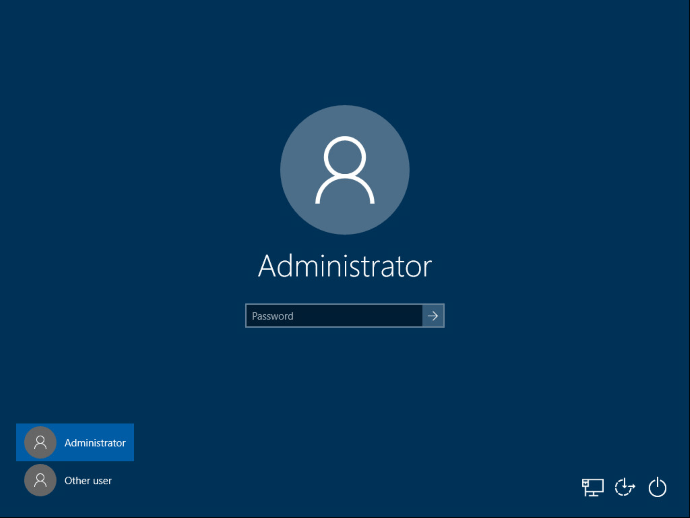
- Click Other User:

- Enter your Username:
- Use the username provided (e.g.,
jdoe). Do not include “@companydomain.com”.
- Use the username provided (e.g.,
- Enter your Password:
- Use the temporary password provided by IT.
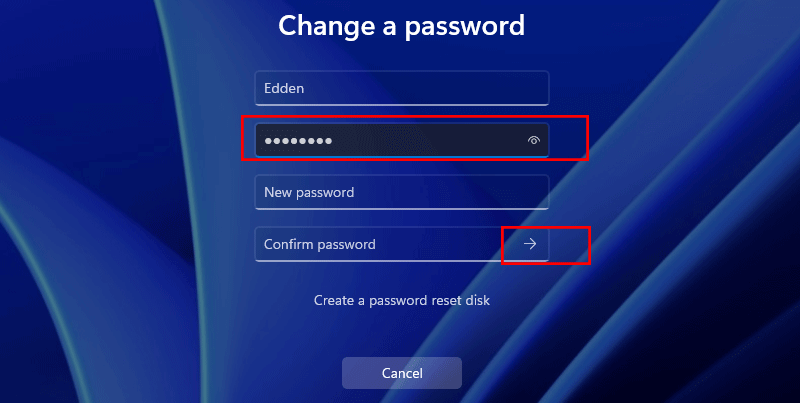
- Change Your Password:
- You will be prompted to create a new password. Choose one that meets company security standards:
- Use a mix of uppercase, lowercase, numbers, and symbols.
- Example:
SecurePass2024!.
- You will be prompted to create a new password. Choose one that meets company security standards:
Step 4: Confirm Access
- After logging in:
- Ensure you can access your desktop.
- Open tools like email, shared folders, or other company applications to confirm everything works.
Step 5: Get Help if Needed
- If you experience issues:
- Double-check your username and password.
- Ensure your computer is connected to the network.
- Contact IT for assistance.