# Export drivers from Windows

<span class="EOP SCXO166771168 BCX8"> </span>

[![image.png](https://wiki.towne.org/uploads/images/gallery/2023-11/scaled-1680-/hBvimage.png)](https://wiki.towne.org/uploads/images/gallery/2023-11/hBvimage.png)

## <span class="TextRun SCXO166771168 BCX8" data-contrast="auto" lang="EN-US" xml:lang="EN-US"><span class="NormalTextRun SCXO166771168 BCX8"><span class="TextRun SCXO166771168 BCX8" data-contrast="none" lang="EN-US" xml:lang="EN-US">PowerShell – Export drivers from Windows</span><span class="EOP SCXO166771168 BCX8"> </span></span></span>

<span class="TextRun SCXO166771168 BCX8" data-contrast="auto" lang="EN-US" xml:lang="EN-US"><span class="NormalTextRun SCXO166771168 BCX8">You can easily export drivers from Windows OS using PowerShell. Using the Export-</span><span class="SpellingError SCXO166771168 BCX8">WindowsDriver</span><span class="NormalTextRun SCXO166771168 BCX8"> cmdlet, you can export all third-party drivers from a Windows image to a destination folder.</span></span><span class="EOP SCXO166771168 BCX8"> </span>

<span class="TextRun SCXO166771168 BCX8" data-contrast="auto" lang="EN-US" xml:lang="EN-US"><span class="NormalTextRun SCXO166771168 BCX8">The advantage of exporting the drivers is you can restore them when you require. Once you perform Windows 10 clean install, with this backup you can quickly install all the necessary drivers. In addition, if you deploy OS using MDT, you can always import the drivers and use it to deploy using </span></span>[<span class="TextRun SCXO166771168 BCX8" data-contrast="auto" lang="EN-US" xml:lang="EN-US"><span class="NormalTextRun SCXO166771168 BCX8">Configuration Manager</span></span>](https://www.prajwal.org/configuration-manager-1910-generally-available/)<span class="TextRun SCXO166771168 BCX8" data-contrast="auto" lang="EN-US" xml:lang="EN-US"><span class="NormalTextRun SCXO166771168 BCX8">.</span></span><span class="EOP SCXO166771168 BCX8"> </span>

<span class="TextRun SCXO166771168 BCX8" data-contrast="auto" lang="EN-US" xml:lang="EN-US"><span class="NormalTextRun SCXO166771168 BCX8">The `Export-`</span>`<span class="SpellingError SCXO166771168 BCX8">WindowsDriver</span>`<span class="NormalTextRun SCXO166771168 BCX8"> cmdlet exports all third-party drivers from your computer to a destination folder. You can either export drivers from the running operating system or export drivers from an offline image.</span></span><span class="EOP SCXO166771168 BCX8"> </span>

### <span class="TextRun SCXO166771168 BCX8" data-contrast="none" lang="EN-US" xml:lang="EN-US"><span class="NormalTextRun SCXO166771168 BCX8">Export-</span><span class="SpellingError SCXO166771168 BCX8">WindowsDriver</span><span class="NormalTextRun SCXO166771168 BCX8"> Parameters</span></span><span class="EOP SCXO166771168 BCX8"> </span>

<span class="TextRun SCXO166771168 BCX8" data-contrast="auto" lang="EN-US" xml:lang="EN-US"><span class="NormalTextRun SCXO166771168 BCX8">There are </span></span>[<span class="TextRun SCXO166771168 BCX8" data-contrast="auto" lang="EN-US" xml:lang="EN-US"><span class="NormalTextRun SCXO166771168 BCX8">several parameters</span></span>](https://docs.microsoft.com/en-us/powershell/module/dism/export-windowsdriver?view=win10-ps)<span class="TextRun SCXO166771168 BCX8" data-contrast="auto" lang="EN-US" xml:lang="EN-US"><span class="NormalTextRun SCXO166771168 BCX8"> which you can use while running Export-</span><span class="SpellingError SCXO166771168 BCX8">WindowsDriver</span><span class="NormalTextRun SCXO166771168 BCX8"> cmdlet. Some of the parameters include:</span></span><span class="EOP SCXO166771168 BCX8"> </span>

<div class="OutlineElement Ltr SCXO166771168 BCX8" id="bkmrk--destination%C2%A0%E2%80%93-speci">- **<span class="TextRun SCXO166771168 BCX8" data-contrast="auto" lang="EN-US" xml:lang="EN-US"><span class="NormalTextRun SCXO166771168 BCX8">-Destination</span></span>**<span class="TextRun SCXO166771168 BCX8" data-contrast="auto" lang="EN-US" xml:lang="EN-US"><span class="NormalTextRun SCXO166771168 BCX8"> – Specify a folder or directory where you want to export third-party drivers.</span></span><span class="EOP SCXO166771168 BCX8"> </span>
- **<span class="TextRun SCXO166771168 BCX8" data-contrast="auto" lang="EN-US" xml:lang="EN-US"><span class="NormalTextRun SCXO166771168 BCX8">-</span><span class="SpellingError SCXO166771168 BCX8">Loglevel</span></span>**<span class="TextRun SCXO166771168 BCX8" data-contrast="auto" lang="EN-US" xml:lang="EN-US"><span class="NormalTextRun SCXO166771168 BCX8"> – Specifies the maximum output level shown in the logs.</span></span><span class="EOP SCXO166771168 BCX8"> </span>
- **<span class="TextRun SCXO166771168 BCX8" data-contrast="auto" lang="EN-US" xml:lang="EN-US"><span class="NormalTextRun SCXO166771168 BCX8">-</span><span class="SpellingError SCXO166771168 BCX8">LogPath</span></span>**<span class="TextRun SCXO166771168 BCX8" data-contrast="auto" lang="EN-US" xml:lang="EN-US"><span class="NormalTextRun SCXO166771168 BCX8"> – You can log the export process by adding the log file name and path.</span></span><span class="EOP SCXO166771168 BCX8"> </span>
- **<span class="TextRun SCXO166771168 BCX8" data-contrast="auto" lang="EN-US" xml:lang="EN-US"><span class="NormalTextRun SCXO166771168 BCX8">-Path</span></span>**<span class="TextRun SCXO166771168 BCX8" data-contrast="auto" lang="EN-US" xml:lang="EN-US"><span class="NormalTextRun SCXO166771168 BCX8"> – Specifies the full path to the root directory of the offline Windows image that you will service.</span></span><span class="EOP SCXO166771168 BCX8"> </span>
- **<span class="TextRun SCXO166771168 BCX8" data-contrast="auto" lang="EN-US" xml:lang="EN-US"><span class="NormalTextRun SCXO166771168 BCX8">-</span><span class="SpellingError SCXO166771168 BCX8">WindowsDirectory</span></span>**<span class="TextRun SCXO166771168 BCX8" data-contrast="auto" lang="EN-US" xml:lang="EN-US"><span class="NormalTextRun SCXO166771168 BCX8"> – Enter the relative path to the Windows directory relative to the image path.</span></span><span class="EOP SCXO166771168 BCX8"> </span>
- **<span class="TextRun SCXO166771168 BCX8" data-contrast="auto" lang="EN-US" xml:lang="EN-US"><span class="NormalTextRun SCXO166771168 BCX8">-</span><span class="SpellingError SCXO166771168 BCX8">SystemDrive</span></span>**<span class="TextRun SCXO166771168 BCX8" data-contrast="auto" lang="EN-US" xml:lang="EN-US"><span class="NormalTextRun SCXO166771168 BCX8"> – Specifies the path to the location of the </span><span class="SpellingError SCXO166771168 BCX8">BootMgr</span><span class="NormalTextRun SCXO166771168 BCX8"> files.</span></span><span class="EOP SCXO166771168 BCX8"> </span>
- **<span class="TextRun SCXO166771168 BCX8" data-contrast="auto" lang="EN-US" xml:lang="EN-US"><span class="NormalTextRun SCXO166771168 BCX8">-</span><span class="SpellingError SCXO166771168 BCX8">ScratchDirectory</span></span>**<span class="TextRun SCXO166771168 BCX8" data-contrast="auto" lang="EN-US" xml:lang="EN-US"><span class="NormalTextRun SCXO166771168 BCX8"> – Specifies a temporary directory that will be used when extracting files for use during servicing.</span></span><span class="EOP SCXO166771168 BCX8"> </span>

</div>## <span class="TextRun SCXO166771168 BCX8" data-contrast="none" lang="EN-US" xml:lang="EN-US"><span class="NormalTextRun SCXO166771168 BCX8">PowerShell – How to Export drivers from Windows</span></span><span class="EOP SCXO166771168 BCX8"> </span>

<span class="TextRun SCXO166771168 BCX8" data-contrast="auto" lang="EN-US" xml:lang="EN-US"><span class="NormalTextRun SCXO166771168 BCX8">To export drivers using PowerShell from Windows 10</span></span><span class="EOP SCXO166771168 BCX8"> </span>

<div class="OutlineElement Ltr SCXO166771168 BCX8" id="bkmrk-on-your-windows-10%2C-">- <span class="TextRun SCXO166771168 BCX8" data-contrast="auto" lang="EN-US" xml:lang="EN-US"><span class="NormalTextRun SCXO166771168 BCX8">On your Windows 10, right click </span></span><span class="TextRun SCXO166771168 BCX8" data-contrast="auto" lang="EN-US" xml:lang="EN-US"><span class="NormalTextRun SCXO166771168 BCX8">Start</span></span><span class="TextRun SCXO166771168 BCX8" data-contrast="auto" lang="EN-US" xml:lang="EN-US"><span class="NormalTextRun SCXO166771168 BCX8"> and click </span></span><span class="TextRun SCXO166771168 BCX8" data-contrast="auto" lang="EN-US" xml:lang="EN-US"><span class="NormalTextRun SCXO166771168 BCX8">Windows PowerShell (admin)</span></span><span class="TextRun SCXO166771168 BCX8" data-contrast="auto" lang="EN-US" xml:lang="EN-US"><span class="NormalTextRun SCXO166771168 BCX8">.</span></span><span class="EOP SCXO166771168 BCX8"> </span>
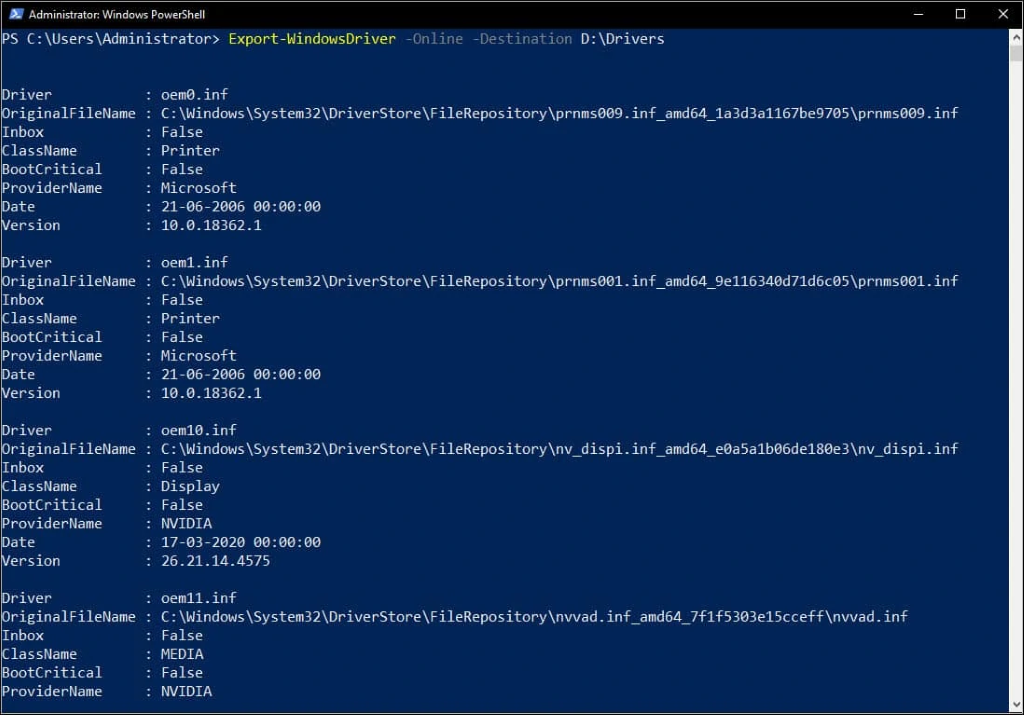
- <span class="TextRun SCXO166771168 BCX8" data-contrast="auto" lang="EN-US" xml:lang="EN-US"><span class="NormalTextRun SCXO166771168 BCX8">Enter the command </span></span>`<span class="TextRun SCXO166771168 BCX8" data-contrast="auto" lang="EN-US" xml:lang="EN-US"><span class="NormalTextRun SCXO166771168 BCX8">Export-</span><span class="SpellingError SCXO166771168 BCX8">WindowsDriver</span><span class="NormalTextRun SCXO166771168 BCX8"> -Online -Destination D:\Drivers</span></span>`<span class="TextRun SCXO166771168 BCX8" data-contrast="auto" lang="EN-US" xml:lang="EN-US"><span class="NormalTextRun SCXO166771168 BCX8">. The D:\\Drivers is the folder where all of your computer’s third-party drivers will be exported.</span></span><span class="EOP SCXO166771168 BCX8"> </span>

</div><span class="TextRun SCXO166771168 BCX8" data-contrast="auto" lang="EN-US" xml:lang="EN-US"><span class="NormalTextRun SCXO166771168 BCX8">PowerShell – Export drivers from Windows </span></span><span class="EOP SCXO166771168 BCX8"> </span>
<div class="OutlineElement Ltr SCXO166771168 BCX8" id="bkmrk--1"><div class="WACImageContainer Selected SCXO166771168 BCX8" role="presentation"><span aria-hidden="true" class="WACAltTextDescribedBy SCXO166771168 BCX8" id="bkmrk--2"></span>![Administrator: Windows PowerSheIl 
PS C: Export-WindowsDrivet' 
-Online 
-Destination D: \Drivers 
river 
rigina1Fi1eName 
In box 
lassName 
BootCritica1 
ProviderName 
ate 
ersion 
rxver 
rigina1Fi1eName 
In box 
lassName 
BootCritica1 
ProviderName 
ate 
erslon 
river 
rigina1Fi1eName 
In box 
lassName 
BootCritica1 
ProviderName 
ate 
ersion 
river 
rigina1Fi1eName 
In box 
lassName 
Bootcritical 
ProviderName 
oema. inf 
: C: Ia3d3a1167be9705\prnms009 -inf 
False 
Printer 
False 
. Microsoft 
21-06-2006 
. 10.0.18362.1 
. oeml. inf 
C: 9e116340d71d6c05\prnms001.inf 
False 
Printer 
False 
Microsoft 
21-06-2006 
10.0.18362.1 
oem10. inf 
False 
. Display 
False 
NVIDIA 
17-03-2020 
. 26.21.14.4575 
. oem11. inf 
C: . . inf 
False 
. MEDIA 
False 
NVIDIA ](https://wiki.towne.org/uploads/images/gallery/2023-11/embedded-image-3hrofnnw.png)</div></div><span class="EOP SCXO166771168 BCX8"> </span>

<span class="TextRun SCXO166771168 BCX8" data-contrast="auto" lang="EN-US" xml:lang="EN-US"><span class="NormalTextRun SCXO166771168 BCX8">Now go to the destination folder and you will see the folders containing the drivers.</span></span><span class="EOP SCXO166771168 BCX8"> </span>

<span class="TextRun SCXO166771168 BCX8" data-contrast="auto" lang="EN-US" xml:lang="EN-US"><span class="NormalTextRun SCXO166771168 BCX8">So next time when you install Windows 10, you don’t need to go to vendors website and search for drivers. With this backup you can quickly install all the necessary drivers.</span></span><span class="EOP SCXO166771168 BCX8"> </span>

<span class="TextRun SCXO166771168 BCX8" data-contrast="auto" lang="EN-US" xml:lang="EN-US"><span class="NormalTextRun SCXO166771168 BCX8">And finally let me clarify the use of the below two commands.</span></span><span class="EOP SCXO166771168 BCX8"> </span>

<div class="OutlineElement Ltr SCXO166771168 BCX8" id="bkmrk-export-windowsdriver-1">- <span class="TextRun SCXO166771168 BCX8" data-contrast="auto" lang="EN-US" xml:lang="EN-US"><span class="NormalTextRun SCXO166771168 BCX8">Export-</span><span class="SpellingError SCXO166771168 BCX8">WindowsDriver</span><span class="NormalTextRun SCXO166771168 BCX8"> –Online -Destination D:\\Drivers</span></span><span class="TextRun SCXO166771168 BCX8" data-contrast="auto" lang="EN-US" xml:lang="EN-US"><span class="NormalTextRun SCXO166771168 BCX8"> – Use this command to export the computer’s third-party drivers to destination folder.</span></span><span class="EOP SCXO166771168 BCX8"> </span>
- <span class="TextRun SCXO166771168 BCX8" data-contrast="auto" lang="EN-US" xml:lang="EN-US"><span class="NormalTextRun SCXO166771168 BCX8">Export-</span><span class="SpellingError SCXO166771168 BCX8">WindowsDriver</span><span class="NormalTextRun SCXO166771168 BCX8"> -Path C:\\Windows\_Image -Destination D:\\Drivers</span></span><span class="TextRun SCXO166771168 BCX8" data-contrast="auto" lang="EN-US" xml:lang="EN-US"><span class="NormalTextRun SCXO166771168 BCX8"> – Use this command when you want to export drivers from the offline Windows image mounted to destination folder.</span></span><span class="EOP SCXO166771168 BCX8"> </span>

</div><span class="EOP SCXO166771168 BCX8"></span>