# Tutorials

This section of our documentation contains step-by-step tutorials to help outline what Ubuntu Server is capable of while helping you achieve specific aims.

# Basic installation

This chapter provides an overview of how to install Ubuntu Server Edition. You can also refer to this guide on [how to operate the installer](https://ubuntu.com/server/docs/install/general) for more information on using the installer, and to this [screen-by-screen reference guide](https://ubuntu.com/server/docs/install/step-by-step) for more information about each of the installer screens.

## Preparing to install

This section explains various aspects to consider before starting the installation.

## System requirements

Ubuntu Server Edition provides a common, minimalist base for a variety of server applications, such as file/print services, web hosting, email hosting, etc. This version supports four 64-bit architectures:

- amd64 (Intel/AMD 64-bit)
- arm64 (64-bit ARM)
- ppc64el (POWER8 and POWER9)
- s390x (IBM Z and LinuxONE)

The recommended system requirements are:

- CPU: 1 gigahertz or better
- RAM: 1 gigabyte or more
- Disk: a minimum of 2.5 gigabytes

## Perform a system back up

Before installing Ubuntu Server Edition you should make sure all data on the system is backed up.

If this is not the first time an operating system has been installed on your computer, it is likely you will need to re-partition your disk to make room for Ubuntu.

Any time you partition your disk, you should be prepared to lose everything on the disk should you make a mistake or something goes wrong during partitioning. The programs used in installation are quite reliable, most have seen years of use, but they also perform destructive actions.

## Download the server ISO

You can obtain the amd64 server download from [https://releases.ubuntu.com/](https://releases.ubuntu.com/). Select the version you wish to install and select the “server install image” download. Note that the server download includes the installer.

There are platform specific how-to guides for installations on:

- [s390x LPAR](https://ubuntu.com/server/docs/install/s390x-lpar)
- [z/VM](https://ubuntu.com/server/docs/install/s390x-zvm)
- [ppc64el](https://ubuntu.com/server/docs/install/ppc64el)

## Create a bootable USB

There are many ways to boot the installer but the simplest and most common way is to [create a bootable USB stick](https://ubuntu.com/tutorials/tutorial-create-a-usb-stick-on-ubuntu) to boot the system to be installed with ([tutorials for other operating systems](https://ubuntu.com/search?q=%22create+a+bootable+USB+stick%22) are also available).

## Boot the installer

Plug the USB stick into the system to be installed and start it.

Most computers will automatically boot from USB or DVD, though in some cases this is disabled to improve boot times. If you don’t see the boot message and the “Welcome” screen which should appear after it, you will need to set your computer to boot from the install media.

There should be an on-screen message when the computer starts telling you what key to press for settings or a boot menu. Depending on the manufacturer, this could be <kbd>Escape</kbd>, <kbd>F2</kbd>, <kbd>F10</kbd> or <kbd>F12</kbd>. Simply restart your computer and hold down this key until the boot menu appears, then select the drive with the Ubuntu install media.

If you are still having problems, check out the [Ubuntu Community documentation on booting from  
CD/DVD](https://help.ubuntu.com/community/BootFromCD).

After a few moments, the installer will start in its language selection screen.
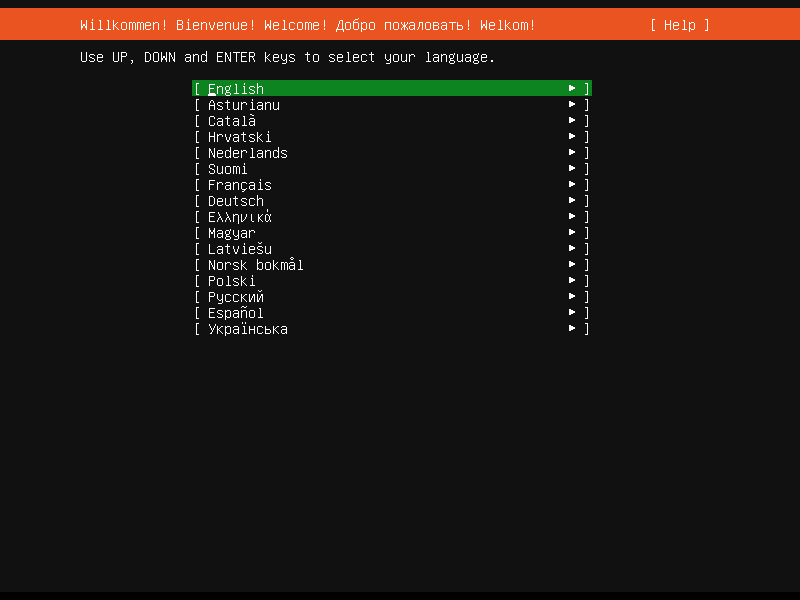
![Welcome screen of the Server installer showing the language selection options](https://ubuntucommunity.s3.dualstack.us-east-2.amazonaws.com/original/2X/9/92bda8a0ed1ed1ac3137015191ee81e69c38ff3d.png)

## Using the installer

The installer is designed to be easy to use and have sensible defaults so for a first install you can mostly just accept the defaults for the most straightforward install:

- Choose your language
- Update the installer (if offered)
- Select your keyboard layout
- Do not configure networking (the installer attempts to configure wired network interfaces via DHCP, but you can continue without networking if this fails)
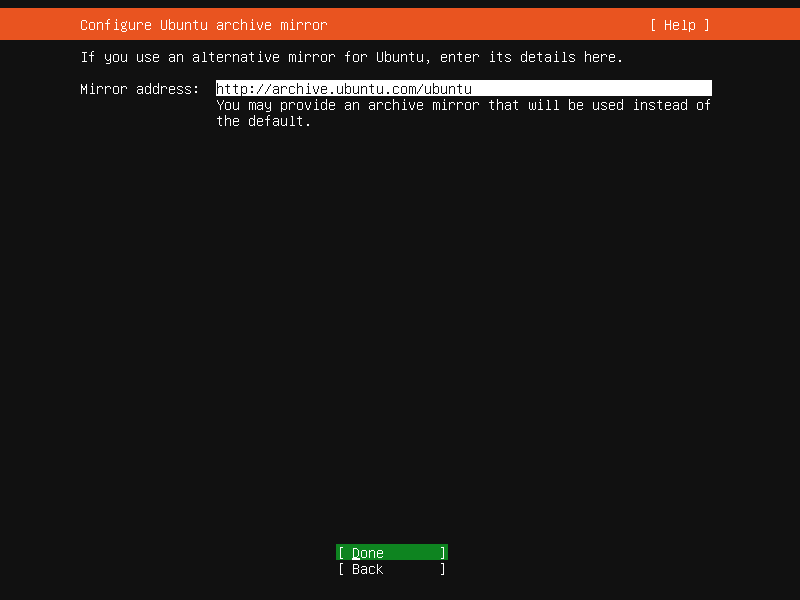
- Do not configure a proxy or custom mirror unless you have to in your network
- For storage, leave “use an entire disk” checked, and choose a disk to install to, then select “Done” on the configuration screen and confirm the install
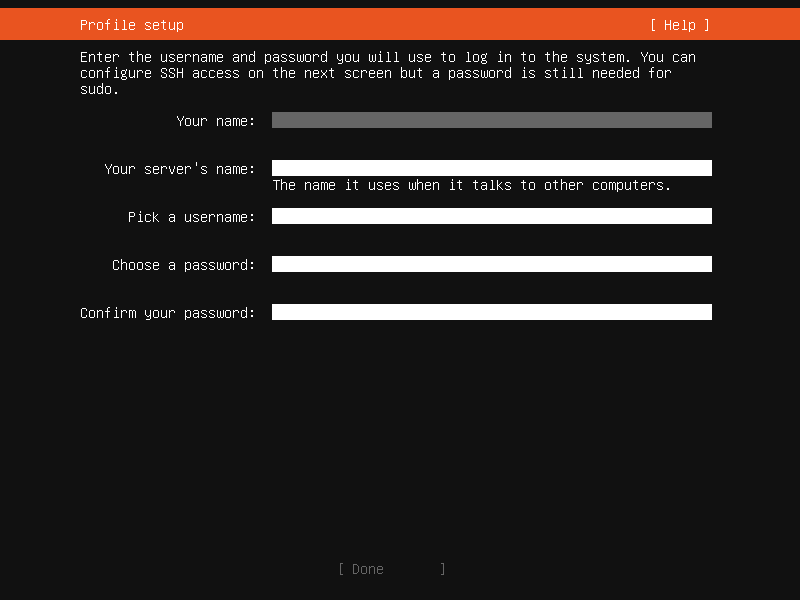
- Enter a username, hostname and password
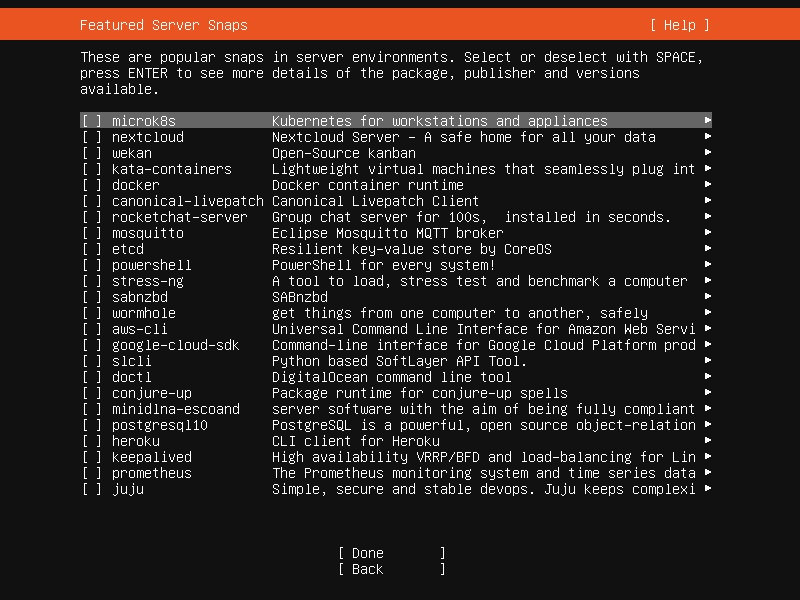
- On the SSH and snap screens, select “Done”
- You will now see log messages as the install is completed
- Select restart when this is complete, and log in using the username and password provided

# How to operate the Server installer

# How to operate the Server installer

This document explains how to use the installer in general terms. For a step-by-step guide through the screens of the installer, you can use our [screen-by-screen reference guide](https://ubuntu.com/server/docs/install/step-by-step).

## Get the installer

Installer images are made (approximately) daily and are available from [https://cdimage.ubuntu.com/ubuntu-server/daily-live/current/](https://cdimage.ubuntu.com/ubuntu-server/daily-live/current/). These are not tested as extensively as the images from release day, but they contain the latest packages and installer, so fewer updates will be required during or after installation.

You can download the server installer for amd64 from [https://ubuntu.com/download/server](https://ubuntu.com/download/server) and other architectures from [http://cdimage.ubuntu.com/releases/20.04/release/](http://cdimage.ubuntu.com/releases/20.04/release/).

## Installer UI navigation

In general, the installer can be used with the <kbd>up</kbd> and <kbd>down</kbd> arrows and <kbd>space</kbd> or <kbd>Enter</kbd> keys and a little typing.

<kbd>Tab</kbd> and <kbd>Shift + Tab</kbd> move the focus down and up respectively. <kbd>Home</kbd> / <kbd>End</kbd> / <kbd>Page Up</kbd> / <kbd>Page Down</kbd> can be used to navigate through long lists more quickly in the usual way.

## Running the installer over serial

By default, the installer runs on the first virtual terminal, `tty1`. This is what is displayed on any connected monitor by default. However, servers do not always have a monitor. Some out-of-band management systems provide a remote virtual terminal, but some times it is necessary to run the installer on the serial port. To do this, the kernel command line needs to [have an appropriate console](https://www.kernel.org/doc/html/latest/admin-guide/serial-console.html) specified on it – a common value is `console=ttyS0` but this is not something that can be generically documented.

When running on serial, the installer starts in a basic mode that does using only the ASCII character set and black and white colours. If you are connecting from a terminal emulator such as gnome-terminal that supports Unicode and rich colours you can switch to “rich mode” which uses Unicode, colours and supports many languages.

<a name="connect-via-ssh"></a>

## Connecting to the installer over SSH

If the only available terminal is very basic, an alternative is to connect via SSH. If the network is up by the time the installer starts, instructions are offered on the initial screen in basic mode. Otherwise, instructions are available from the help menu once networking is configured.

In addition, connecting via SSH is assumed to be capable of displaying all Unicode characters, enabling more translations to be used than can be displayed on a virtual terminal.

## Help menu

The help menu is always in the top right of the screen. It contains help – both general and for the currently displayed screen – and some general actions.

## Switching to a shell prompt

You can switch to a shell at any time by selecting “Enter shell” from the help menu, or pressing <kbd>Control + Z</kbd> or <kbd>F2</kbd>.

If you are accessing the installer via `tty1`, you can also access a shell by switching to a different virtual terminal (<kbd>Control + Alt</kbd> + arrow, or <kbd>Control + Alt</kbd> + number keys, move between virtual terminals).

## Global keys

There are some global keys you can press at any time:

<div class="md-table" id="bkmrk-key-action-esc-go-ba"><table><thead><tr><th>KEY</th><th>ACTION</th></tr></thead><tbody><tr><td><kbd>ESC</kbd></td><td>Go back</td></tr><tr><td><kbd>F1</kbd></td><td>Open help menu</td></tr><tr><td><kbd>Control + Z</kbd>, <kbd>F2</kbd></td><td>Switch to shell</td></tr><tr><td><kbd>Control + L</kbd>, <kbd>F3</kbd></td><td>Redraw screen</td></tr><tr><td><kbd>Control + T</kbd>, <kbd>F4</kbd></td><td>Toggle rich mode (colour, Unicode) on and off</td></tr></tbody></table>

</div>

# Screen-by-screen installer guide

The installer is designed to be easy to use without the need to refer to documentation. However, this reference guide provides more information for each of the screens of the installer.

## Language selection

![welcome_c](https://ubuntucommunity.s3.dualstack.us-east-2.amazonaws.com/original/2X/9/92bda8a0ed1ed1ac3137015191ee81e69c38ff3d.png)

This screen selects the language for the installer and the default language for the installed system.

More languages can be displayed if you [connect via SSH](https://ubuntu.com/server/docs/install/general#connect-via-ssh).

## Refresh

![refresh](https://ubuntucommunity.s3.dualstack.us-east-2.amazonaws.com/original/2X/9/924950b31519ac77263f87943c75db0dd70e6ba5.png)

This screen is shown if there is an update for the installer available. This allows you to get any improvements and bug fixes made since release.

If you choose to update, the new version will be downloaded and the installer will restart at the same point of the installation.

## Keyboard

![keyboard](https://ubuntucommunity.s3.dualstack.us-east-2.amazonaws.com/original/2X/d/d18d2a56923b5ced7b2484bd94e9e04ba0c6b0ae.png)

Choose the layout and variant of keyboard attached to the system, if any. When running in a virtual terminal, it is possible to guess the layout and variant by answering questions about the keyboard.

## Zdev (s390x only)

```
====================================================================
  Zdev setup                                                      
====================================================================
  ID                          ONLINE  NAMES                                  ^
                                                                                         │
  generic-ccw                                                                │
  0.0.0009                                    >                              │
  0.0.000c                                    >                              │
  0.0.000d                                    >                              │
  0.0.000e                                    >                              │
                                                                             │
  dasd-eckd                                                                  │
  0.0.0190                                    >                              │
  0.0.0191                                    >                              │
  0.0.019d                                    >                              │
  0.0.019e                                    >┌────────────┐                 
  0.0.0200                                    >│< (close)   │                 
  0.0.0300                                    >│  Enable    │                 
  0.0.0400                                    >│  Disable   │                 
  0.0.0592                                    >└────────────┘                v
                                                                              
                                 [ Continue   ]                               
                                 [ Back       ]                               

```

This screen is only shown on s390x and allows z-specific configuration of devices.

The list of devices can be long. <kbd>Home</kbd> / <kbd>End</kbd> / <kbd>Page Up</kbd> / <kbd>Page Down</kbd> can be used to navigate through the list more quickly.

## Network

<div class="lightbox-wrapper" id="bkmrk--3">[![network](https://ubuntucommunity.s3.dualstack.us-east-2.amazonaws.com/original/2X/2/28369a33c14efbbd4769a17e7235666b4c908d1a.png)](https://ubuntucommunity.s3.dualstack.us-east-2.amazonaws.com/original/2X/2/28369a33c14efbbd4769a17e7235666b4c908d1a.png "network")</div>This screen allows the configuration of the network. Ubuntu Server uses NetPlan to configure networking and the UI of the installer can configure a subset of NetPlan’s capabilities. In particular it can configure DHCP or static addressing, VLANs and bonds.

If networking is present (defined as “at least one interface has a default route”) then the installer will install updates from the archive at the end of installation.

## Proxy

<div class="lightbox-wrapper" id="bkmrk--4">[![proxy](https://ubuntucommunity.s3.dualstack.us-east-2.amazonaws.com/original/2X/6/6c7f84e37cda91e797f62b61148e10d1aa93c056.png)](https://ubuntucommunity.s3.dualstack.us-east-2.amazonaws.com/original/2X/6/6c7f84e37cda91e797f62b61148e10d1aa93c056.png "proxy")</div>The proxy configured on this screen is used for accessing the package repository and the snap store both in the installer environment and in the installed system.

## Mirror

<div class="lightbox-wrapper" id="bkmrk--5">[![mirror](https://ubuntucommunity.s3.dualstack.us-east-2.amazonaws.com/original/2X/3/30b527e810914da07ab11c3448750868809f88ac.png)](https://ubuntucommunity.s3.dualstack.us-east-2.amazonaws.com/original/2X/3/30b527e810914da07ab11c3448750868809f88ac.png "mirror")</div>The installer will attempt to use `geoip` to look up an appropriate default package mirror for your location. If you want or need to use a different mirror, enter its URL here.

## Storage

<div class="lightbox-wrapper" id="bkmrk--6">[![storage_config](https://ubuntucommunity.s3.dualstack.us-east-2.amazonaws.com/original/2X/7/7484e986d5be44cf83952ede99e2bb8aaf9ed9c7.png)](https://ubuntucommunity.s3.dualstack.us-east-2.amazonaws.com/original/2X/7/7484e986d5be44cf83952ede99e2bb8aaf9ed9c7.png "storage_config")</div>Storage configuration is a complicated topic and [has its own page for documentation](https://ubuntu.com/server/docs/install/storage).

<div class="lightbox-wrapper" id="bkmrk--7">[![storage_confirm](https://ubuntucommunity.s3.dualstack.us-east-2.amazonaws.com/original/2X/c/cc7abf276409bdb9cb0d653f700785c421afe332.png)](https://ubuntucommunity.s3.dualstack.us-east-2.amazonaws.com/original/2X/c/cc7abf276409bdb9cb0d653f700785c421afe332.png "storage_confirm")</div>Once the storage configuration is confirmed, the install begins in the background.

## Identity

<div class="lightbox-wrapper" id="bkmrk--8">[![identity](https://ubuntucommunity.s3.dualstack.us-east-2.amazonaws.com/original/2X/9/9e79b5ead9b27622c6eccb3e075bbafc8d6644dd.png)](https://ubuntucommunity.s3.dualstack.us-east-2.amazonaws.com/original/2X/9/9e79b5ead9b27622c6eccb3e075bbafc8d6644dd.png "identity")</div>The default user will be an administrator, able to use `sudo` (this is why a password is needed, even if SSH public key access is enabled on the next screen).

## SSH

<div class="lightbox-wrapper" id="bkmrk--9">[![ssh](https://ubuntucommunity.s3.dualstack.us-east-2.amazonaws.com/original/2X/f/fb7af722915a3fd55954df01e8ea418846055123.png)](https://ubuntucommunity.s3.dualstack.us-east-2.amazonaws.com/original/2X/f/fb7af722915a3fd55954df01e8ea418846055123.png "ssh")</div>A default Ubuntu install has no open ports. It is very common to administer servers via SSH so the installer allows it to be installed with the click of a button.

You can import keys for the default user from GitHub or Launchpad.

If you import a key, then password authentication is disabled by default but it can be re-enabled again if you wish.

## Snaps

<div class="lightbox-wrapper" id="bkmrk--10">[![snaps](https://ubuntucommunity.s3.dualstack.us-east-2.amazonaws.com/original/2X/3/3bd814edad81fbdfd8a13d3c8b5e79eb2a55293c.png)](https://ubuntucommunity.s3.dualstack.us-east-2.amazonaws.com/original/2X/3/3bd814edad81fbdfd8a13d3c8b5e79eb2a55293c.png "snaps")</div>If a network connection is enabled, a selection of snaps that are useful in a server environment are presented and can be selected for installation.

## Installation logs

<div class="lightbox-wrapper" id="bkmrk--11">[![install_progress](https://ubuntucommunity.s3.dualstack.us-east-2.amazonaws.com/original/2X/2/2e65fa0e78235d4a3b9f0dc071577d5f5e4d938d.png)](https://ubuntucommunity.s3.dualstack.us-east-2.amazonaws.com/original/2X/2/2e65fa0e78235d4a3b9f0dc071577d5f5e4d938d.png "install_progress")</div>The final screen of the installer shows the progress of the installer and allows viewing of the full log file. Once the install has completed and security updates installed, the installer waits for confirmation before restarting.

<div class="lightbox-wrapper" id="bkmrk--12">[![install_done](https://ubuntucommunity.s3.dualstack.us-east-2.amazonaws.com/original/2X/2/2e77da21332fcf631c1995271b58518a87b2dbd1.png)](https://ubuntucommunity.s3.dualstack.us-east-2.amazonaws.com/original/2X/2/2e77da21332fcf631c1995271b58518a87b2dbd1.png "install_done")</div>

# Configuring storage in the Server installer

## Guided options
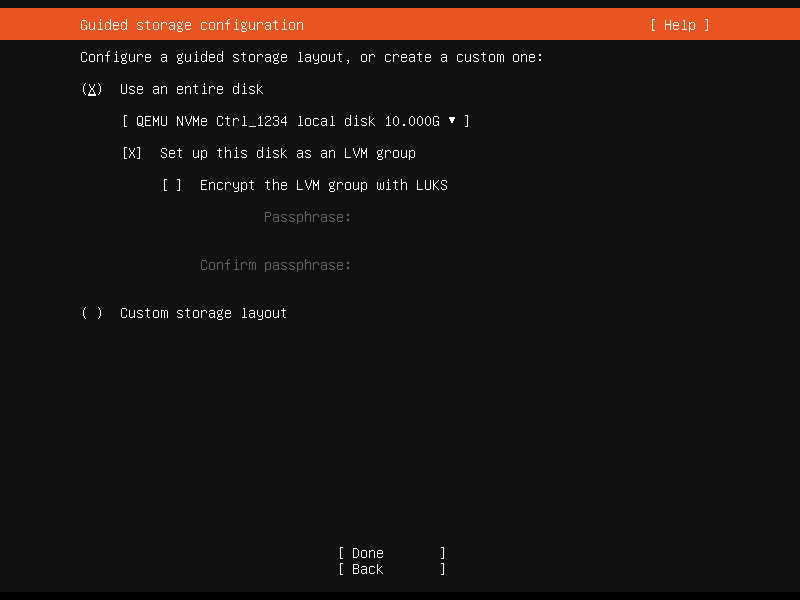
![storage_guided](https://ubuntucommunity.s3.dualstack.us-east-2.amazonaws.com/original/2X/7/744833c87593ff7edc192e2929e465f915f7c07b.png)

Selecting “Use an entire disk” on the Guided storage configuration screen will install Ubuntu onto the selected disk, replacing any partitions or data already there.

You can choose whether or not to set up LVM, and if you do, whether or not to encrypt the volume with LUKS. If you encrypt the volume, you need to choose a passphrase that will need to be entered each time the system boots.

If you select “Custom storage layout”, no configuration will be applied to the disks.

In either case, the installer moves onto the main storage customisation screen.

## The main storage screen

![storage_manual](https://ubuntucommunity.s3.dualstack.us-east-2.amazonaws.com/original/2X/7/76b44c11caa4a196d067f86cf7b71a656cafbb83.png)

This screen presents a summary of the current storage configuration. Each device or partition of a device corresponds to a different row (which can be selected), and pressing <kbd>Enter</kbd> or <kbd>space</kbd> while a device is selected opens a menu of actions that apply to that device.

## Partitions

![add_partition_menu](https://ubuntucommunity.s3.dualstack.us-east-2.amazonaws.com/original/2X/5/5ea88227b380081d4897e896ab1f60273db126b2.png)

To add a partition to a device, select “Add GPT Partition” for that device.

![add_dialog](https://ubuntucommunity.s3.dualstack.us-east-2.amazonaws.com/original/2X/2/2a625d95e41dc4e4b46a628bee78206bc2d2a9b4.png)

You can leave “Size” blank to use all the remaining space on the device.

## RAID
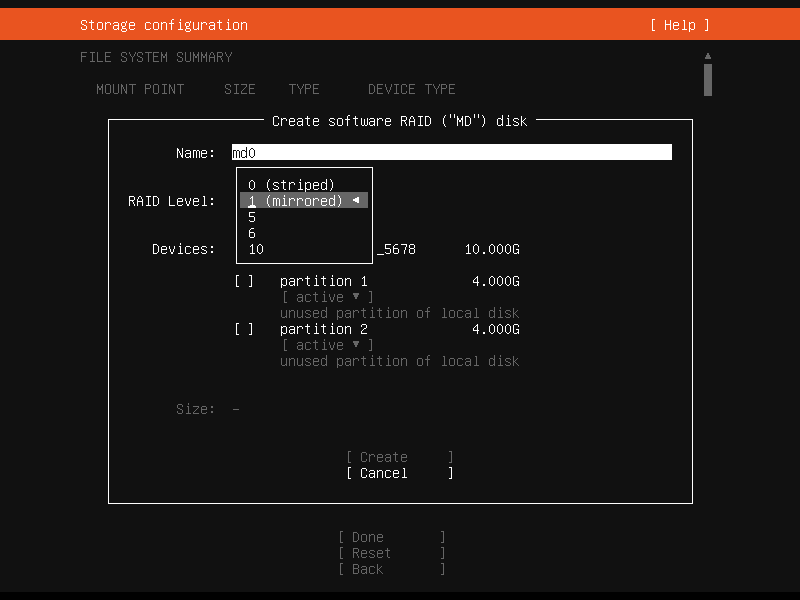
![add_raid](https://ubuntucommunity.s3.dualstack.us-east-2.amazonaws.com/original/2X/a/acc5cb0c5921c43bf6178cc83e46b85fe3328f65.png)

[Linux software RAID](https://raid.wiki.kernel.org/index.php/Linux_Raid) (RAID stands for “Redundant Array of Inexpensive Disks”) can be used to combine several disks into a single device that is (usually) tolerant to any one disk failure.

A software RAID device can be created out of entire disks or unformatted partitions. Select the “Create software RAID (“MD”)” button to open the creation dialog.

The server installer supports creating devices with RAID level 0, 1, 5, 6 or 10. It does not allow customising other options such as metadata format or RAID10 layout at this time. See the [Linux RAID documentation](https://raid.wiki.kernel.org/index.php/Linux_Raid) for more details.

A software RAID device can be formatted and mounted directly, can be partitioned into several partitions, or even be used as part of another RAID device or LVM volume group.

## Logical Volume Manager (LVM)
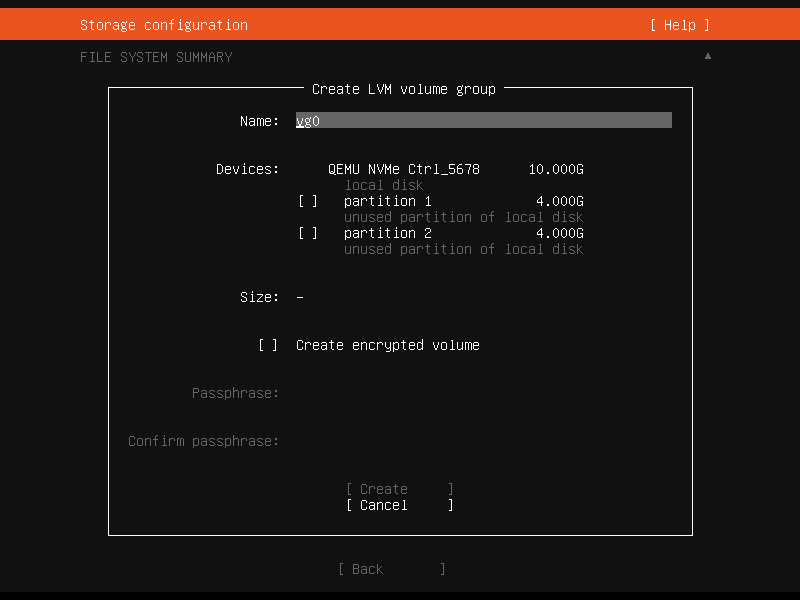
![add_lvm](https://ubuntucommunity.s3.dualstack.us-east-2.amazonaws.com/original/2X/b/b532023338fe853154a6f95248dc0799569c1e0c.png)

The LVM is a system of managing logical volumes, or filesystems, that is much more advanced and flexible than the traditional method of partitioning a disk into one or more segments and formatting that partition with a filesystem. It can be used to combine several disks into one larger pool of storage but it offers advantages even in a single disk system, such as snapshots and easy resizing of logical volumes.

As with RAID, a LVM volume group can be created out of entire disks or unformatted partitions. Select the “Create LVM volume group” button to open the creation dialog.

Once a volume group has been created, it can be divided into named logical volumes which can then be formatted and mounted. It generally makes sense to leave some space in the volume group for storage of snapshots and creation of more logical volumes as needed.

The server installer does not supported configuring any of the many, many options that LVM supports when creating volume groups and logical volumes.

## Selecting boot devices

![add_boot_device](https://ubuntucommunity.s3.dualstack.us-east-2.amazonaws.com/original/2X/5/59512a3cd3efc07127163cd101b3bff36034f82a.png)

On all architectures other than s390x, the bootloader needs to be installed to a disk in such a way that the system firmware can find it on boot. By default, the first device to have a partition created on it is selected as a boot device but this can be changed later.

On amd64 and arm64 systems, multiple disks can be selected as boot devices, which means a system can be configured so that it will continue to boot after a failure of any one drive (assuming the root filesystem is placed on a RAID). The bootloader will be installed to each of these drives, and the operating system configured to install new versions of GRUB to each drive as it is updated.

amd64 systems use GRUB as the bootloader. amd64 systems can boot in either UEFI or legacy (sometimes called “BIOS”) mode (many systems can be configured to boot in either mode) and the bootloader is located completely differently in the two modes.

In legacy mode, the bootloader is read from the first “sector” of a hard drive (exactly which hard drive is up to the system firmware, which can usually be configured in a vendor-specific way). The installer will write GRUB to the start of all disks selected as a boot devices. As GRUB does not entirely fit in one sector, a small unformatted partition is needed at the start of the disk, which will automatically be created when a disk is selected as a boot device (a disk with an existing GPT partition table can only be used as a boot device if it has this partition).

In UEFI mode, the bootloader loaded from a “EFI System Partition” (ESP), which is a partition with a particular type GUID. The installer automatically creates a 512MiB ESP on a disk when it is selected as a boot device and will install GRUB there (a disk with an existing partition table can only be used as a boot device if it has an ESP – bootloaders for multiple operating systems can be installed into a single ESP). UEFI defines a standard way to configure the way in which the operating system is chosen on boot, and the installer uses this to configure the system to boot the just-installed operating system. One of the ESPs must be mounted at `/boot/efi`.

Supported arm64 servers boot using UEFI, and are configured the same way as an UEFI-booting amd64 system.

ppc64el systems also load their bootloader (Petitboot, a small linux kernel) from a “PReP” partition with a special flag, so in most ways they are similar to a UEFI system. The installer only supports one PReP partition at this time.

## Limitations and workarounds

Currently, the installer cannot *edit* partition tables. You can use existing partitions or reformat a drive entirely but you cannot, for example, remove a large partition and replace it with two smaller ones.

The installer allows the creation of LVM volume groups and logical volumes and MD raid devices, but does not allow tweaking of the parameters – for example, all logical volumes are linear and all MD raid devices use the default metadata format (1.2).

These limits can both be worked around in the same way: drop to a shell and use the usual shell commands to edit the partition table or create the LV or RAID with desired parameters, and then select these partitions or devices as mount points in the installer. Any changes you make while the installer is running but before altering the storage configuration will reflected in the installer.

The installer cannot yet configure iSCSI mounts, ZFS at all, or btrfs subvolumes.

# 📚 How to Mount NFS Storage on Linux (with Proper Permissions)

## Purpose

Mount a remote NFS share on a Linux server for use by **Docker containers**, ensuring stable operation, correct permissions, and automatic remounting.

---

## 1. Install NFS Client on the Server

```bash
sudo apt update
sudo apt install nfs-common -y
```

---

## 2. Create a Local Mount Directory

Create a local directory where the NFS share will be mounted:

```bash
sudo mkdir -p /srv/nfs-mount
sudo chown $(whoami):$(whoami) /srv/nfs-mount
```

> *(You can replace `/srv/nfs-mount` with your preferred path.)*

---

## 3. Mount the NFS Share (Manual Test)

Example:

```bash
sudo mount -t nfs4 192.168.100.11:/mnt/hdd-storage/my-nfs-share /srv/nfs-mount
```

- `nfs4`: Use NFS version 4 for better performance and locking.
- `proto=tcp`: Reliable transport protocol.
- `hard`: Wait for server recovery instead of failing immediately.
- `timeo=600`: Timeout setting for NFS operations.
- `retrans=2`: Retry failed operations twice.
- `sec=sys`: Default authentication method.
- `_netdev`: Ensure mount occurs only after network is ready.

---

## 4. Verify That the Mount Worked

```bash
mount | grep nfs
```

You should see output like:

```text
192.168.100.11:/mnt/hdd-storage/my-nfs-share on /srv/nfs-mount type nfs4 (...)
```

---

## 5. Make the Mount Persistent (Auto-Mount on Boot)

Edit your `/etc/fstab` file:

```bash
sudo nano /etc/fstab
```

Add the following line at the bottom:

```text
192.168.100.11:/mnt/hdd-storage/my-nfs-share /srv/nfs-mount nfs4 rw,relatime,hard,proto=tcp,timeo=600,retrans=2,sec=sys,_netdev 0 0
```

Save and exit (`Ctrl+O`, `Enter`, `Ctrl+X`).

---

## 6. Test the fstab Entry Without Rebooting

```bash
sudo mount -a
```

**No errors = success! ✅**

---

## 7. Using the NFS Mount with Docker

When running your containers, bind-mount the NFS storage into the container:

```bash
docker run -d \
  --name my-container \
  -v /srv/nfs-mount:/app/data \
  my-docker-image
```

This will allow your Docker containers to directly access the NFS storage.

---

# ✅ Summary

- **Use NFSv4** (`nfs4`) whenever possible.
- **Always** include `_netdev` in your `/etc/fstab` entries.
- **Use `hard` mounts** to protect container file operations during NFS issues.
- **Bind-mount** NFS paths carefully into containers.
- **Avoid** using NFS for database storage unless network latency is extremely low.

---

## 🛠️ Useful Commands

- Check NFS mounts: `mount | grep nfs`
- Manual remount all: `sudo mount -a`
- Test connectivity: `ping nfs-server-ip`

---

# 🦠 Additional Notes

- If the NFS server reboots, containers **may pause** temporarily.
- If using `docker-compose.yml`, you can map volumes to `/srv/nfs-mount`.
- For production, consider creating a **systemd mount unit** for better recovery behavior.

# How to delete a folder with contents on ubuntu  cli

To delete a folder and its contents in Ubuntu 23.04 using the command line interface (CLI), you can use the `rm` command with the `-r` (recursive) option. Be very careful when using the `rm` command, as it will permanently delete files and folders.

Here's the basic syntax:

<div class="bg-black rounded-md" id="bkmrk-rm--r-%2Fpath%2Fto%2Fyour%2F"><div class="flex items-center relative text-gray-200 bg-gray-800 dark:bg-token-surface-primary px-4 py-2 text-xs font-sans justify-between rounded-t-md">  
</div><div class="p-4 overflow-y-auto">`<span class="hljs-built_in">rm</span> -r /path/to/your/folder`</div></div>Replace "/path/to/your/folder" with the actual path to the folder you want to delete.

For example, if you want to delete a folder named "myfolder" located in your home directory, you can use the following command:

<div class="bg-black rounded-md" id="bkmrk-rm--r-%7E%2Fmyfolder"><div class="flex items-center relative text-gray-200 bg-gray-800 dark:bg-token-surface-primary px-4 py-2 text-xs font-sans justify-between rounded-t-md">  
</div><div class="p-4 overflow-y-auto">`<span class="hljs-built_in">rm</span> -r ~/myfolder`</div></div>Again, be cautious when using the `rm -r` command, as it will not prompt you for confirmation, and the deletion is irreversible. Double-check the path to the folder before running the command to avoid accidental data loss.

If you want to confirm each file deletion, you can use the `-i` option:

<div class="bg-black rounded-md" id="bkmrk-rm--ri-%2Fpath%2Fto%2Fyour"><div class="flex items-center relative text-gray-200 bg-gray-800 dark:bg-token-surface-primary px-4 py-2 text-xs font-sans justify-between rounded-t-md">  
</div><div class="p-4 overflow-y-auto">`<span class="hljs-built_in">rm</span> -ri /path/to/your/folder`</div></div>This will prompt you for confirmation before deleting each file and subdirectory.

Always exercise caution when using the `rm` command, especially with the `-r` option, to avoid unintentional data loss.

# 🛠 Expanding Root Filesystem on Ubuntu with LVM (Virtual Machine)

### 📋 Use Case

When a virtual machine runs out of space on the root (`/`) partition, and the underlying disk has already been expanded via the hypervisor or cloud platform.

This guide applies to systems using:

- Ubuntu Server (e.g., 22.04 LTS)
- LVM-managed disks
- A single-root disk layout (e.g., `/dev/mapper/ubuntu--vg-ubuntu--lv`)

---

### 🧾 Prerequisites

- A snapshot or backup of the VM (highly recommended)
- Root/sudo access
- Disk already expanded in the hypervisor (e.g., from 72GB to 250GB)

---

### 🪜 Step-by-Step Instructions

#### 1. **Check Current Disk Usage**

<div class="contain-inline-size rounded-md border-[0.5px] border-token-border-medium relative bg-token-sidebar-surface-primary" id="bkmrk-bash-copyedit-df--h-"><div class="flex items-center text-token-text-secondary px-4 py-2 text-xs font-sans justify-between h-9 bg-token-sidebar-surface-primary dark:bg-token-main-surface-secondary select-none rounded-t-[5px]">bash</div><div class="sticky top-9"><div class="absolute right-0 bottom-0 flex h-9 items-center pe-2"><div class="bg-token-sidebar-surface-primary text-token-text-secondary dark:bg-token-main-surface-secondary flex items-center rounded-sm px-2 font-sans text-xs"><span class="" data-state="closed"><button aria-label="Copy" class="flex gap-1 items-center select-none px-4 py-1"><svg class="icon-xs" fill="none" height="24" viewbox="0 0 24 24" width="24" xmlns="http://www.w3.org/2000/svg"><path clip-rule="evenodd" d="M7 5C7 3.34315 8.34315 2 10 2H19C20.6569 2 22 3.34315 22 5V14C22 15.6569 20.6569 17 19 17H17V19C17 20.6569 15.6569 22 14 22H5C3.34315 22 2 20.6569 2 19V10C2 8.34315 3.34315 7 5 7H7V5ZM9 7H14C15.6569 7 17 8.34315 17 10V15H19C19.5523 15 20 14.5523 20 14V5C20 4.44772 19.5523 4 19 4H10C9.44772 4 9 4.44772 9 5V7ZM5 9C4.44772 9 4 9.44772 4 10V19C4 19.5523 4.44772 20 5 20H14C14.5523 20 15 19.5523 15 19V10C15 9.44772 14.5523 9 14 9H5Z" fill="currentColor" fill-rule="evenodd"></path></svg>Copy</button></span><span class="" data-state="closed"><button class="flex items-center gap-1 px-4 py-1 select-none"><svg class="icon-xs" fill="none" height="24" viewbox="0 0 24 24" width="24" xmlns="http://www.w3.org/2000/svg"><path d="M2.5 5.5C4.3 5.2 5.2 4 5.5 2.5C5.8 4 6.7 5.2 8.5 5.5C6.7 5.8 5.8 7 5.5 8.5C5.2 7 4.3 5.8 2.5 5.5Z" fill="currentColor" stroke="currentColor" stroke-linecap="round" stroke-linejoin="round"></path><path d="M5.66282 16.5231L5.18413 19.3952C5.12203 19.7678 5.09098 19.9541 5.14876 20.0888C5.19933 20.2067 5.29328 20.3007 5.41118 20.3512C5.54589 20.409 5.73218 20.378 6.10476 20.3159L8.97693 19.8372C9.72813 19.712 10.1037 19.6494 10.4542 19.521C10.7652 19.407 11.0608 19.2549 11.3343 19.068C11.6425 18.8575 11.9118 18.5882 12.4503 18.0497L20 10.5C21.3807 9.11929 21.3807 6.88071 20 5.5C18.6193 4.11929 16.3807 4.11929 15 5.5L7.45026 13.0497C6.91175 13.5882 6.6425 13.8575 6.43197 14.1657C6.24513 14.4392 6.09299 14.7348 5.97903 15.0458C5.85062 15.3963 5.78802 15.7719 5.66282 16.5231Z" stroke="currentColor" stroke-linecap="round" stroke-linejoin="round" stroke-width="2"></path><path d="M14.5 7L18.5 11" stroke="currentColor" stroke-linecap="round" stroke-linejoin="round" stroke-width="2"></path></svg>Edit</button></span></div></div></div><div class="overflow-y-auto p-4" dir="ltr">`<span class="hljs-built_in">df</span> -h /`</div></div>#### 2. **List Disks and Partitions**

<div class="contain-inline-size rounded-md border-[0.5px] border-token-border-medium relative bg-token-sidebar-surface-primary" id="bkmrk-bash-copyedit-lsblk"><div class="flex items-center text-token-text-secondary px-4 py-2 text-xs font-sans justify-between h-9 bg-token-sidebar-surface-primary dark:bg-token-main-surface-secondary select-none rounded-t-[5px]">bash</div><div class="sticky top-9"><div class="absolute right-0 bottom-0 flex h-9 items-center pe-2"><div class="bg-token-sidebar-surface-primary text-token-text-secondary dark:bg-token-main-surface-secondary flex items-center rounded-sm px-2 font-sans text-xs"><span class="" data-state="closed"><button aria-label="Copy" class="flex gap-1 items-center select-none px-4 py-1"><svg class="icon-xs" fill="none" height="24" viewbox="0 0 24 24" width="24" xmlns="http://www.w3.org/2000/svg"><path clip-rule="evenodd" d="M7 5C7 3.34315 8.34315 2 10 2H19C20.6569 2 22 3.34315 22 5V14C22 15.6569 20.6569 17 19 17H17V19C17 20.6569 15.6569 22 14 22H5C3.34315 22 2 20.6569 2 19V10C2 8.34315 3.34315 7 5 7H7V5ZM9 7H14C15.6569 7 17 8.34315 17 10V15H19C19.5523 15 20 14.5523 20 14V5C20 4.44772 19.5523 4 19 4H10C9.44772 4 9 4.44772 9 5V7ZM5 9C4.44772 9 4 9.44772 4 10V19C4 19.5523 4.44772 20 5 20H14C14.5523 20 15 19.5523 15 19V10C15 9.44772 14.5523 9 14 9H5Z" fill="currentColor" fill-rule="evenodd"></path></svg>Copy</button></span><span class="" data-state="closed"><button class="flex items-center gap-1 px-4 py-1 select-none"><svg class="icon-xs" fill="none" height="24" viewbox="0 0 24 24" width="24" xmlns="http://www.w3.org/2000/svg"><path d="M2.5 5.5C4.3 5.2 5.2 4 5.5 2.5C5.8 4 6.7 5.2 8.5 5.5C6.7 5.8 5.8 7 5.5 8.5C5.2 7 4.3 5.8 2.5 5.5Z" fill="currentColor" stroke="currentColor" stroke-linecap="round" stroke-linejoin="round"></path><path d="M5.66282 16.5231L5.18413 19.3952C5.12203 19.7678 5.09098 19.9541 5.14876 20.0888C5.19933 20.2067 5.29328 20.3007 5.41118 20.3512C5.54589 20.409 5.73218 20.378 6.10476 20.3159L8.97693 19.8372C9.72813 19.712 10.1037 19.6494 10.4542 19.521C10.7652 19.407 11.0608 19.2549 11.3343 19.068C11.6425 18.8575 11.9118 18.5882 12.4503 18.0497L20 10.5C21.3807 9.11929 21.3807 6.88071 20 5.5C18.6193 4.11929 16.3807 4.11929 15 5.5L7.45026 13.0497C6.91175 13.5882 6.6425 13.8575 6.43197 14.1657C6.24513 14.4392 6.09299 14.7348 5.97903 15.0458C5.85062 15.3963 5.78802 15.7719 5.66282 16.5231Z" stroke="currentColor" stroke-linecap="round" stroke-linejoin="round" stroke-width="2"></path><path d="M14.5 7L18.5 11" stroke="currentColor" stroke-linecap="round" stroke-linejoin="round" stroke-width="2"></path></svg>Edit</button></span></div></div></div><div class="overflow-y-auto p-4" dir="ltr">`lsblk`</div></div>Look for:

- The disk (e.g., `xvda`)
- The root LVM volume (e.g., `/dev/mapper/ubuntu--vg-ubuntu--lv`)
- Confirm that a partition (e.g., `xvda3`) is larger than the mounted root volume

#### 3. **Extend the Logical Volume**

<div class="contain-inline-size rounded-md border-[0.5px] border-token-border-medium relative bg-token-sidebar-surface-primary" id="bkmrk-bash-copyedit-sudo-l"><div class="flex items-center text-token-text-secondary px-4 py-2 text-xs font-sans justify-between h-9 bg-token-sidebar-surface-primary dark:bg-token-main-surface-secondary select-none rounded-t-[5px]">bash</div><div class="sticky top-9"><div class="absolute right-0 bottom-0 flex h-9 items-center pe-2"><div class="bg-token-sidebar-surface-primary text-token-text-secondary dark:bg-token-main-surface-secondary flex items-center rounded-sm px-2 font-sans text-xs"><span class="" data-state="closed"><button aria-label="Copy" class="flex gap-1 items-center select-none px-4 py-1"><svg class="icon-xs" fill="none" height="24" viewbox="0 0 24 24" width="24" xmlns="http://www.w3.org/2000/svg"><path clip-rule="evenodd" d="M7 5C7 3.34315 8.34315 2 10 2H19C20.6569 2 22 3.34315 22 5V14C22 15.6569 20.6569 17 19 17H17V19C17 20.6569 15.6569 22 14 22H5C3.34315 22 2 20.6569 2 19V10C2 8.34315 3.34315 7 5 7H7V5ZM9 7H14C15.6569 7 17 8.34315 17 10V15H19C19.5523 15 20 14.5523 20 14V5C20 4.44772 19.5523 4 19 4H10C9.44772 4 9 4.44772 9 5V7ZM5 9C4.44772 9 4 9.44772 4 10V19C4 19.5523 4.44772 20 5 20H14C14.5523 20 15 19.5523 15 19V10C15 9.44772 14.5523 9 14 9H5Z" fill="currentColor" fill-rule="evenodd"></path></svg>Copy</button></span><span class="" data-state="closed"><button class="flex items-center gap-1 px-4 py-1 select-none"><svg class="icon-xs" fill="none" height="24" viewbox="0 0 24 24" width="24" xmlns="http://www.w3.org/2000/svg"><path d="M2.5 5.5C4.3 5.2 5.2 4 5.5 2.5C5.8 4 6.7 5.2 8.5 5.5C6.7 5.8 5.8 7 5.5 8.5C5.2 7 4.3 5.8 2.5 5.5Z" fill="currentColor" stroke="currentColor" stroke-linecap="round" stroke-linejoin="round"></path><path d="M5.66282 16.5231L5.18413 19.3952C5.12203 19.7678 5.09098 19.9541 5.14876 20.0888C5.19933 20.2067 5.29328 20.3007 5.41118 20.3512C5.54589 20.409 5.73218 20.378 6.10476 20.3159L8.97693 19.8372C9.72813 19.712 10.1037 19.6494 10.4542 19.521C10.7652 19.407 11.0608 19.2549 11.3343 19.068C11.6425 18.8575 11.9118 18.5882 12.4503 18.0497L20 10.5C21.3807 9.11929 21.3807 6.88071 20 5.5C18.6193 4.11929 16.3807 4.11929 15 5.5L7.45026 13.0497C6.91175 13.5882 6.6425 13.8575 6.43197 14.1657C6.24513 14.4392 6.09299 14.7348 5.97903 15.0458C5.85062 15.3963 5.78802 15.7719 5.66282 16.5231Z" stroke="currentColor" stroke-linecap="round" stroke-linejoin="round" stroke-width="2"></path><path d="M14.5 7L18.5 11" stroke="currentColor" stroke-linecap="round" stroke-linejoin="round" stroke-width="2"></path></svg>Edit</button></span></div></div></div><div class="overflow-y-auto p-4" dir="ltr">`sudo lvextend -l +100%FREE /dev/ubuntu-vg/ubuntu-lv`</div></div>#### 4. **Resize the Filesystem**

Assuming you're using `ext4`:

<div class="contain-inline-size rounded-md border-[0.5px] border-token-border-medium relative bg-token-sidebar-surface-primary" id="bkmrk-bash-copyedit-sudo-r"><div class="flex items-center text-token-text-secondary px-4 py-2 text-xs font-sans justify-between h-9 bg-token-sidebar-surface-primary dark:bg-token-main-surface-secondary select-none rounded-t-[5px]">bash</div><div class="sticky top-9"><div class="absolute right-0 bottom-0 flex h-9 items-center pe-2"><div class="bg-token-sidebar-surface-primary text-token-text-secondary dark:bg-token-main-surface-secondary flex items-center rounded-sm px-2 font-sans text-xs"><span class="" data-state="closed"><button aria-label="Copy" class="flex gap-1 items-center select-none px-4 py-1"><svg class="icon-xs" fill="none" height="24" viewbox="0 0 24 24" width="24" xmlns="http://www.w3.org/2000/svg"><path clip-rule="evenodd" d="M7 5C7 3.34315 8.34315 2 10 2H19C20.6569 2 22 3.34315 22 5V14C22 15.6569 20.6569 17 19 17H17V19C17 20.6569 15.6569 22 14 22H5C3.34315 22 2 20.6569 2 19V10C2 8.34315 3.34315 7 5 7H7V5ZM9 7H14C15.6569 7 17 8.34315 17 10V15H19C19.5523 15 20 14.5523 20 14V5C20 4.44772 19.5523 4 19 4H10C9.44772 4 9 4.44772 9 5V7ZM5 9C4.44772 9 4 9.44772 4 10V19C4 19.5523 4.44772 20 5 20H14C14.5523 20 15 19.5523 15 19V10C15 9.44772 14.5523 9 14 9H5Z" fill="currentColor" fill-rule="evenodd"></path></svg>Copy</button></span><span class="" data-state="closed"><button class="flex items-center gap-1 px-4 py-1 select-none"><svg class="icon-xs" fill="none" height="24" viewbox="0 0 24 24" width="24" xmlns="http://www.w3.org/2000/svg"><path d="M2.5 5.5C4.3 5.2 5.2 4 5.5 2.5C5.8 4 6.7 5.2 8.5 5.5C6.7 5.8 5.8 7 5.5 8.5C5.2 7 4.3 5.8 2.5 5.5Z" fill="currentColor" stroke="currentColor" stroke-linecap="round" stroke-linejoin="round"></path><path d="M5.66282 16.5231L5.18413 19.3952C5.12203 19.7678 5.09098 19.9541 5.14876 20.0888C5.19933 20.2067 5.29328 20.3007 5.41118 20.3512C5.54589 20.409 5.73218 20.378 6.10476 20.3159L8.97693 19.8372C9.72813 19.712 10.1037 19.6494 10.4542 19.521C10.7652 19.407 11.0608 19.2549 11.3343 19.068C11.6425 18.8575 11.9118 18.5882 12.4503 18.0497L20 10.5C21.3807 9.11929 21.3807 6.88071 20 5.5C18.6193 4.11929 16.3807 4.11929 15 5.5L7.45026 13.0497C6.91175 13.5882 6.6425 13.8575 6.43197 14.1657C6.24513 14.4392 6.09299 14.7348 5.97903 15.0458C5.85062 15.3963 5.78802 15.7719 5.66282 16.5231Z" stroke="currentColor" stroke-linecap="round" stroke-linejoin="round" stroke-width="2"></path><path d="M14.5 7L18.5 11" stroke="currentColor" stroke-linecap="round" stroke-linejoin="round" stroke-width="2"></path></svg>Edit</button></span></div></div></div><div class="overflow-y-auto p-4" dir="ltr">`sudo resize2fs /dev/ubuntu-vg/ubuntu-lv`</div></div>> 💡 To confirm the filesystem type:

<div class="contain-inline-size rounded-md border-[0.5px] border-token-border-medium relative bg-token-sidebar-surface-primary" id="bkmrk-bash-copyedit-df--t-"><div class="flex items-center text-token-text-secondary px-4 py-2 text-xs font-sans justify-between h-9 bg-token-sidebar-surface-primary dark:bg-token-main-surface-secondary select-none rounded-t-[5px]">bash</div><div class="sticky top-9"><div class="absolute right-0 bottom-0 flex h-9 items-center pe-2"><div class="bg-token-sidebar-surface-primary text-token-text-secondary dark:bg-token-main-surface-secondary flex items-center rounded-sm px-2 font-sans text-xs"><span class="" data-state="closed"><button aria-label="Copy" class="flex gap-1 items-center select-none px-4 py-1"><svg class="icon-xs" fill="none" height="24" viewbox="0 0 24 24" width="24" xmlns="http://www.w3.org/2000/svg"><path clip-rule="evenodd" d="M7 5C7 3.34315 8.34315 2 10 2H19C20.6569 2 22 3.34315 22 5V14C22 15.6569 20.6569 17 19 17H17V19C17 20.6569 15.6569 22 14 22H5C3.34315 22 2 20.6569 2 19V10C2 8.34315 3.34315 7 5 7H7V5ZM9 7H14C15.6569 7 17 8.34315 17 10V15H19C19.5523 15 20 14.5523 20 14V5C20 4.44772 19.5523 4 19 4H10C9.44772 4 9 4.44772 9 5V7ZM5 9C4.44772 9 4 9.44772 4 10V19C4 19.5523 4.44772 20 5 20H14C14.5523 20 15 19.5523 15 19V10C15 9.44772 14.5523 9 14 9H5Z" fill="currentColor" fill-rule="evenodd"></path></svg>Copy</button></span><span class="" data-state="closed"><button class="flex items-center gap-1 px-4 py-1 select-none"><svg class="icon-xs" fill="none" height="24" viewbox="0 0 24 24" width="24" xmlns="http://www.w3.org/2000/svg"><path d="M2.5 5.5C4.3 5.2 5.2 4 5.5 2.5C5.8 4 6.7 5.2 8.5 5.5C6.7 5.8 5.8 7 5.5 8.5C5.2 7 4.3 5.8 2.5 5.5Z" fill="currentColor" stroke="currentColor" stroke-linecap="round" stroke-linejoin="round"></path><path d="M5.66282 16.5231L5.18413 19.3952C5.12203 19.7678 5.09098 19.9541 5.14876 20.0888C5.19933 20.2067 5.29328 20.3007 5.41118 20.3512C5.54589 20.409 5.73218 20.378 6.10476 20.3159L8.97693 19.8372C9.72813 19.712 10.1037 19.6494 10.4542 19.521C10.7652 19.407 11.0608 19.2549 11.3343 19.068C11.6425 18.8575 11.9118 18.5882 12.4503 18.0497L20 10.5C21.3807 9.11929 21.3807 6.88071 20 5.5C18.6193 4.11929 16.3807 4.11929 15 5.5L7.45026 13.0497C6.91175 13.5882 6.6425 13.8575 6.43197 14.1657C6.24513 14.4392 6.09299 14.7348 5.97903 15.0458C5.85062 15.3963 5.78802 15.7719 5.66282 16.5231Z" stroke="currentColor" stroke-linecap="round" stroke-linejoin="round" stroke-width="2"></path><path d="M14.5 7L18.5 11" stroke="currentColor" stroke-linecap="round" stroke-linejoin="round" stroke-width="2"></path></svg>Edit</button></span></div></div></div><div class="overflow-y-auto p-4" dir="ltr">`<span class="hljs-built_in">df</span> -T /`</div></div>#### 5. **Verify Expansion**

<div class="contain-inline-size rounded-md border-[0.5px] border-token-border-medium relative bg-token-sidebar-surface-primary" id="bkmrk-bash-copyedit-df--h--1"><div class="flex items-center text-token-text-secondary px-4 py-2 text-xs font-sans justify-between h-9 bg-token-sidebar-surface-primary dark:bg-token-main-surface-secondary select-none rounded-t-[5px]">bash</div><div class="sticky top-9"><div class="absolute right-0 bottom-0 flex h-9 items-center pe-2"><div class="bg-token-sidebar-surface-primary text-token-text-secondary dark:bg-token-main-surface-secondary flex items-center rounded-sm px-2 font-sans text-xs"><span class="" data-state="closed"><button aria-label="Copy" class="flex gap-1 items-center select-none px-4 py-1"><svg class="icon-xs" fill="none" height="24" viewbox="0 0 24 24" width="24" xmlns="http://www.w3.org/2000/svg"><path clip-rule="evenodd" d="M7 5C7 3.34315 8.34315 2 10 2H19C20.6569 2 22 3.34315 22 5V14C22 15.6569 20.6569 17 19 17H17V19C17 20.6569 15.6569 22 14 22H5C3.34315 22 2 20.6569 2 19V10C2 8.34315 3.34315 7 5 7H7V5ZM9 7H14C15.6569 7 17 8.34315 17 10V15H19C19.5523 15 20 14.5523 20 14V5C20 4.44772 19.5523 4 19 4H10C9.44772 4 9 4.44772 9 5V7ZM5 9C4.44772 9 4 9.44772 4 10V19C4 19.5523 4.44772 20 5 20H14C14.5523 20 15 19.5523 15 19V10C15 9.44772 14.5523 9 14 9H5Z" fill="currentColor" fill-rule="evenodd"></path></svg>Copy</button></span><span class="" data-state="closed"><button class="flex items-center gap-1 px-4 py-1 select-none"><svg class="icon-xs" fill="none" height="24" viewbox="0 0 24 24" width="24" xmlns="http://www.w3.org/2000/svg"><path d="M2.5 5.5C4.3 5.2 5.2 4 5.5 2.5C5.8 4 6.7 5.2 8.5 5.5C6.7 5.8 5.8 7 5.5 8.5C5.2 7 4.3 5.8 2.5 5.5Z" fill="currentColor" stroke="currentColor" stroke-linecap="round" stroke-linejoin="round"></path><path d="M5.66282 16.5231L5.18413 19.3952C5.12203 19.7678 5.09098 19.9541 5.14876 20.0888C5.19933 20.2067 5.29328 20.3007 5.41118 20.3512C5.54589 20.409 5.73218 20.378 6.10476 20.3159L8.97693 19.8372C9.72813 19.712 10.1037 19.6494 10.4542 19.521C10.7652 19.407 11.0608 19.2549 11.3343 19.068C11.6425 18.8575 11.9118 18.5882 12.4503 18.0497L20 10.5C21.3807 9.11929 21.3807 6.88071 20 5.5C18.6193 4.11929 16.3807 4.11929 15 5.5L7.45026 13.0497C6.91175 13.5882 6.6425 13.8575 6.43197 14.1657C6.24513 14.4392 6.09299 14.7348 5.97903 15.0458C5.85062 15.3963 5.78802 15.7719 5.66282 16.5231Z" stroke="currentColor" stroke-linecap="round" stroke-linejoin="round" stroke-width="2"></path><path d="M14.5 7L18.5 11" stroke="currentColor" stroke-linecap="round" stroke-linejoin="round" stroke-width="2"></path></svg>Edit</button></span></div></div></div><div class="overflow-y-auto p-4" dir="ltr">`<span class="hljs-built_in">df</span> -h /`</div></div>You should now see the full size available (e.g., ~146GB instead of 72GB).

---

### 🧼 Optional: Clean Up Old Snapshots &amp; Logs

Free up even more space:

<div class="contain-inline-size rounded-md border-[0.5px] border-token-border-medium relative bg-token-sidebar-surface-primary" id="bkmrk-bash-copyedit-sudo-j"><div class="flex items-center text-token-text-secondary px-4 py-2 text-xs font-sans justify-between h-9 bg-token-sidebar-surface-primary dark:bg-token-main-surface-secondary select-none rounded-t-[5px]">bash</div><div class="sticky top-9"><div class="absolute right-0 bottom-0 flex h-9 items-center pe-2"><div class="bg-token-sidebar-surface-primary text-token-text-secondary dark:bg-token-main-surface-secondary flex items-center rounded-sm px-2 font-sans text-xs"><span class="" data-state="closed"><button aria-label="Copy" class="flex gap-1 items-center select-none px-4 py-1"><svg class="icon-xs" fill="none" height="24" viewbox="0 0 24 24" width="24" xmlns="http://www.w3.org/2000/svg"><path clip-rule="evenodd" d="M7 5C7 3.34315 8.34315 2 10 2H19C20.6569 2 22 3.34315 22 5V14C22 15.6569 20.6569 17 19 17H17V19C17 20.6569 15.6569 22 14 22H5C3.34315 22 2 20.6569 2 19V10C2 8.34315 3.34315 7 5 7H7V5ZM9 7H14C15.6569 7 17 8.34315 17 10V15H19C19.5523 15 20 14.5523 20 14V5C20 4.44772 19.5523 4 19 4H10C9.44772 4 9 4.44772 9 5V7ZM5 9C4.44772 9 4 9.44772 4 10V19C4 19.5523 4.44772 20 5 20H14C14.5523 20 15 19.5523 15 19V10C15 9.44772 14.5523 9 14 9H5Z" fill="currentColor" fill-rule="evenodd"></path></svg>Copy</button></span><span class="" data-state="closed"><button class="flex items-center gap-1 px-4 py-1 select-none"><svg class="icon-xs" fill="none" height="24" viewbox="0 0 24 24" width="24" xmlns="http://www.w3.org/2000/svg"><path d="M2.5 5.5C4.3 5.2 5.2 4 5.5 2.5C5.8 4 6.7 5.2 8.5 5.5C6.7 5.8 5.8 7 5.5 8.5C5.2 7 4.3 5.8 2.5 5.5Z" fill="currentColor" stroke="currentColor" stroke-linecap="round" stroke-linejoin="round"></path><path d="M5.66282 16.5231L5.18413 19.3952C5.12203 19.7678 5.09098 19.9541 5.14876 20.0888C5.19933 20.2067 5.29328 20.3007 5.41118 20.3512C5.54589 20.409 5.73218 20.378 6.10476 20.3159L8.97693 19.8372C9.72813 19.712 10.1037 19.6494 10.4542 19.521C10.7652 19.407 11.0608 19.2549 11.3343 19.068C11.6425 18.8575 11.9118 18.5882 12.4503 18.0497L20 10.5C21.3807 9.11929 21.3807 6.88071 20 5.5C18.6193 4.11929 16.3807 4.11929 15 5.5L7.45026 13.0497C6.91175 13.5882 6.6425 13.8575 6.43197 14.1657C6.24513 14.4392 6.09299 14.7348 5.97903 15.0458C5.85062 15.3963 5.78802 15.7719 5.66282 16.5231Z" stroke="currentColor" stroke-linecap="round" stroke-linejoin="round" stroke-width="2"></path><path d="M14.5 7L18.5 11" stroke="currentColor" stroke-linecap="round" stroke-linejoin="round" stroke-width="2"></path></svg>Edit</button></span></div></div></div><div class="overflow-y-auto p-4" dir="ltr">`sudo journalctl --vacuum-time=10dsudo apt autoremovesudo apt clean`</div></div>---

### ✅ Outcome

The root filesystem is now successfully extended. The server will run normally with more disk space, avoiding future outages caused by full disks.

# 📘 NFS Permissions Fix -Boot Script

## Purpose

Ensure that a mounted NFS share has correct ownership and permissions for Docker containers every time the server boots.

---

## 1. Create a Permission Fix Script

Create a simple script that will reset ownership and permissions on the NFS mount point after boot.

<div class="contain-inline-size rounded-md border-[0.5px] border-token-border-medium relative bg-token-sidebar-surface-primary" id="bkmrk-bash"><div class="flex items-center text-token-text-secondary px-4 py-2 text-xs font-sans justify-between h-9 bg-token-sidebar-surface-primary dark:bg-token-main-surface-secondary select-none rounded-t-[5px]">bash</div></div>```bash
sudo nano /usr/local/bin/fix-nfs-permissions.sh
```

Paste inside the script:

```bash
#!/bin/bash
# Fix NFS ownership
chown -R youruser:yourgroup /srv/nfs-mount
chmod -R 775 /srv/nfs-mount
```

*(Replace `youruser` and `yourgroup` with your actual username and group.)*

---

## 2. Make the Script Executable

```bash
sudo chmod +x /usr/local/bin/fix-nfs-permissions.sh
```

---

## 3. Create a systemd Service

Create a small service that runs the script automatically at boot:

```bash
sudo nano /etc/systemd/system/fix-nfs-permissions.service
```

Add this content:

```ini
[Unit]
Description=Fix NFS Permissions at Boot
After=network.target nfs-client.target remote-fs.target

[Service]
Type=oneshot
ExecStart=/usr/local/bin/fix-nfs-permissions.sh

[Install]
WantedBy=multi-user.target
```

---

## 4. Enable and Start the Service

```bash
# Reload systemd to recognize the new service
sudo systemctl daemon-reload

# Enable it to start at every boot
sudo systemctl enable fix-nfs-permissions.service

# Run it now without rebooting (optional)
sudo systemctl start fix-nfs-permissions.service
```

---

## 🚀 Summary

- Creates a simple fix script for NFS permissions
- Automates it via systemd on every reboot
- Useful for Docker setups that rely on consistent NFS access

---

## 🛠️ Useful Commands

```bash
# Check service status
sudo systemctl status fix-nfs-permissions.service

# Manually trigger the script
sudo /usr/local/bin/fix-nfs-permissions.sh
```

**Tip:** You can combine this technique with your Docker container volumes to ensure permissions stay stable even after a server or NFS reboot! 🎯

# 🚀 Optimizing Linux Swappiness

#   


By default, Linux has a "swappiness" value of 60. Lowering this to **10** tells the kernel to avoid using the slow disk swap and prioritize the fast physical RAM, which is critical for Wazuh Indexer performance.

<div class="page-content" id="bkmrk-1" style="font-family: -apple-system, BlinkMacSystemFont, 'Segoe UI', Roboto, Helvetica, Arial, sans-serif; line-height: 1.5; color: #24292e;"><div style="margin-top: 24px;"><div style="display: flex; align-items: flex-start; margin-bottom: 24px;"><div style="background-color: #206afb; color: white; border-radius: 50%; width: 32px; height: 32px; display: flex; align-items: center; justify-content: center; font-weight: bold; margin-right: 12px; flex-shrink: 0;">1</div><div style="flex-grow: 1;">  
</div></div></div></div>### Check Current Swappiness

Run this command to see your current value. It will likely return `60`.

```
sudo cat /proc/sys/vm/swappiness
```

<div class="page-content" id="bkmrk-2" style="font-family: -apple-system, BlinkMacSystemFont, 'Segoe UI', Roboto, Helvetica, Arial, sans-serif; line-height: 1.5; color: #24292e;"><div style="margin-top: 24px;"><div style="display: flex; align-items: flex-start; margin-bottom: 24px;"><div style="flex-grow: 1;">  
</div></div><div style="display: flex; align-items: flex-start; margin-bottom: 24px;"><div style="background-color: #206afb; color: white; border-radius: 50%; width: 32px; height: 32px; display: flex; align-items: center; justify-content: center; font-weight: bold; margin-right: 12px; flex-shrink: 0;">2</div><div style="flex-grow: 1;">  
</div></div></div></div>### Apply Immediate Change

Use the `sysctl` command to lower the value to 10 instantly without a reboot.

```
sudo sysctl vm.swappiness=10
```

<div class="page-content" id="bkmrk-3" style="font-family: -apple-system, BlinkMacSystemFont, 'Segoe UI', Roboto, Helvetica, Arial, sans-serif; line-height: 1.5; color: #24292e;"><div style="margin-top: 24px;"><div style="display: flex; align-items: flex-start; margin-bottom: 24px;"><div style="flex-grow: 1;">  
</div></div><div style="display: flex; align-items: flex-start; margin-bottom: 24px;"><div style="background-color: #206afb; color: white; border-radius: 50%; width: 32px; height: 32px; display: flex; align-items: center; justify-content: center; font-weight: bold; margin-right: 12px; flex-shrink: 0;">3</div><div style="flex-grow: 1;">  
</div></div></div></div>### Make Change Permanent

Add the configuration to `/etc/sysctl.conf` so the setting persists after the VM reboots.

```
sudo echo 'vm.swappiness=10' | sudo tee -a /etc/sysctl.conf
```

<div class="page-content" id="bkmrk-" style="font-family: -apple-system, BlinkMacSystemFont, 'Segoe UI', Roboto, Helvetica, Arial, sans-serif; line-height: 1.5; color: #24292e;"><div style="margin-top: 24px;"><div style="display: flex; align-items: flex-start; margin-bottom: 24px;"><div style="flex-grow: 1;">  
</div></div></div><div style="margin-top: 32px; padding: 16px; background-color: #e7f3ff; border: 1px solid #d1d5da; border-left: 6px solid #206afb; border-radius: 6px;">  
</div></div>#### ✅ Verification

You have successfully reduced disk I/O wait times for the Wazuh Indexer. This helps prevent the VM from hanging when memory usage spikes during large data ingestions.