# Single-Sign-On

authentik is an open-source Identity Provider, focused on flexibility and versatility.

# Tutorials

Tutorials in performing certain configurations

# Rancher-SAML-ADFS (Authentik)

## What is Rancher[​](https://goauthentik.io/integrations/services/rancher/#what-is-rancher "Direct link to What is Rancher")

> An enterprise platform for managing Kubernetes Everywhere Rancher is a platform built to address the needs of the DevOps teams deploying applications with Kubernetes, and the IT staff responsible for delivering an enterprise-critical service.
> 
> \-- [https://rancher.com/products/rancher](https://rancher.com/products/rancher)

## Preparation[​](https://goauthentik.io/integrations/services/rancher/#preparation "Direct link to Preparation")

The following placeholders will be used:

- `rancher.company` is the FQDN of the Rancher install.
- `authentik.company` is the FQDN of the authentik install.

Under *Customization* -&gt; *Property Mappings*, *create a* *SAML Property Mapping*. Give it a name like "SAML Rancher User ID". Set the SAML name to `rancherUidUsername` and the expression to the following

```
return f"{user.pk}-{user.username}"

```

<div class="language-python codeBlockContainer_Ckt0 theme-code-block" id="bkmrk-"><div class="codeBlockContent_biex"><div class="buttonGroup__atx"><button aria-label="Copy code to clipboard" class="clean-btn" title="Copy" type="button"><svg class="copyButtonIcon_y97N" viewbox="0 0 24 24"></svg><svg class="copyButtonSuccessIcon_LjdS" viewbox="0 0 24 24"></svg></button>  
</div></div></div>Create an application in authentik. Set the Launch URL to `https://rancher.company`, as Rancher does not currently support IdP-initiated logins.

Create a SAML provider with the following parameters:

- ACS URL: `https://rancher.company/v1-saml/adfs/saml/acs`
- Audience: `https://rancher.company/v1-saml/adfs/saml/metadata`
- Issuer: `authentik`
- Service Provider Binding: `Post`
- Property mappings: Select all default mappings and the mapping you've created above.
- Signing Certificate: Select the authentik self-signed certificate.

You can of course use a custom signing certificate, and adjust durations.

## Rancher[​](https://goauthentik.io/integrations/services/rancher/#rancher "Direct link to Rancher")

In Rancher, navigate to *Global* -&gt; *Security* -&gt; *Authentication*, and select ADFS.

Fill in the fields

- Display Name Field: `http://schemas.xmlsoap.org/ws/2005/05/identity/claims/name`
- User Name Field: `http://schemas.goauthentik.io/2021/02/saml/username`
- UID Field: `rancherUidUsername`
- Groups Field: `http://schemas.xmlsoap.org/claims/Group`

For the private key and certificate, you can either generate a new pair (in authentik, navigate to *Identity &amp; Cryptography* -&gt; *Certificates* and select Generate), or use an existing pair.

Copy the metadata from authentik, and paste it in the metadata field.

Click on save to test the authentication.

![](https://goauthentik.io/assets/images/rancher-f02ae6fd4286551b6a052d80fabbaa61.png)

# Organizr LDAP Setup (Authentik)

<header id="bkmrk-organizr"></header><span class="badge badge--secondary">Support level: Community</span>

## What is organizr[​](https://goauthentik.io/integrations/services/organizr/#what-is-organizr "Direct link to What is organizr")

> Organizr allows you to setup "Tabs" that will be loaded all in one webpage.
> 
> \-- [https://github.com/causefx/Organizr](https://github.com/causefx/Organizr)

This integration leverages authentik's LDAP for the identity provider to achieve an SSO experience. See [ldap provider generic setup](https://goauthentik.io/docs/providers/ldap/generic_setup) for setting up the LDAP provider.

## Preparation[​](https://goauthentik.io/integrations/services/organizr/#preparation "Direct link to Preparation")

The following placeholders will be used:

- `organizr.company` is the FQDN of the Service install.
- `authentik.company` is the FQDN of the authentik install.

Create a new user account *(or reuse an existing)* for organizr to use for LDAP bind under *Directory* -&gt; *Users* -&gt; *Create*, in this example called `ldapservice`.

Note the DN of this user will be `cn=ldapservice,ou=users,dc=ldap,dc=goauthentik,dc=io`

<p class="callout info">*Optionally*, create a new group like `organizr users` to scope access to the organizr application.</p>

## Authentik Configuration[​](https://goauthentik.io/integrations/services/organizr/#authentik-configuration "Direct link to authentik Configuration")

1. Create a new Proxy Provider for `https://organizr.company` ![](https://goauthentik.io/assets/images/organizr1-b1ef217babbce02ddddc22a8c32ebda6.png) *Optionally*, add the regular expression to allow api calls in the advanced protocol settings. ![](https://goauthentik.io/assets/images/organizr2-d280f1ddb23fa548df44ed29c4bc1d39.png)
2. Create a new Application for the `https://organizr.company` Provider. ![](https://goauthentik.io/assets/images/organizr3-9421eebe818e0fd54c3b0f66f8ebaed3.png)  
      
    <p class="callout info">TIP  
    *Optionally*, bind the group to control access to the organizr to the application. </p>
3. <p class="callout info">![](https://goauthentik.io/assets/images/organizr4-3a2635f55a9df6ce3e587af7fd6c218e.png)</p>

![](https://goauthentik.io/assets/images/organizr5-b8a1743daff42f30b84ab3b051e916d9.png) ::: 3. Add the Application to the authentik Embedded Outpost.

## organizr Configuration[​](https://goauthentik.io/integrations/services/organizr/#organizr-configuration "Direct link to organizr Configuration")

<p class="callout warning">CAUTION  
Ensure any local usernames/email addresses in organizr do not conflict with usernames/email addresses in authentik.</p>

1. Enable Auth Proxy in organizr *system settings* -&gt; *main* -&gt; *Auth Proxy*

Auth Proxy Header Name: `X-authentik-username` Auth Proxy Whitelist: *your network subnet in CIDR notation IE* `10.0.0.0/8` Auth Proxy Header Name for Email: `X-authentik-email` Logout URL: `/outpost.goauthentik.io/sign_out` ![](https://goauthentik.io/assets/images/organizr6-a4fb29e0896bfe7f64c88cb1c9546c22.png)

2. Setup Authentication in organizr *system settings* -&gt; *main* -&gt; *Authentication*

Authentication Type: `Organizr DB + Backend` Authentication Backend: `Ldap` Host Address: `<LDAP Outpost IP address:port>` Host Base DN: `dc=ldap,dc=goauthentik,dc=io` Account Prefix: `cn=` Account Suffix: `,ou=users,dc=ldap,dc=goauthentik,dc=io` Bind Username: `cn=ldapservice,ou=users,dc=ldap,dc=goauthentik,dc=io` Bind Password: `<LDAP bind account password>` LDAP Backend Type: `OpenLDAP` ![](https://goauthentik.io/assets/images/organizr7-a95d978bd21069853ff57f4510e5e982.png)

<p class="callout info">INFO  
Access for authentik users is managed locally within organizr under *User Management*. By default, new users are assigned the `User` group.</p>

<p class="callout success"><span style="background-color: rgb(255, 255, 255); color: rgb(68, 68, 68);">`TIP`  
</span>Consider front-ending your application with a [forward auth provider](https://goauthentik.io/docs/providers/proxy/forward_auth) for an SSO experience.</p>

<div class="theme-admonition theme-admonition-tip admonition_xJq3 alert alert--success" id="bkmrk-tip"></div>

# LDAP Provider Generic Setup (Authentik)

<header id="bkmrk-generic-setup"></header>### Create User/Group[​](https://goauthentik.io/docs/providers/ldap/generic_setup#create-usergroup "Direct link to Create User/Group")

1. Create a new user account to bind with under *Directory* -&gt; *Users* -&gt; *Create*, in this example called `ldapservice`.
    
    Note the DN of this user will be `cn=ldapservice,ou=users,dc=ldap,dc=goauthentik,dc=io`
2. Create a new group for LDAP searches. In this example `ldapsearch`. Add the `ldapservice` user to this new group.NFO

<p class="callout info">Note: The `default-authentication-flow` validates MFA by default, and currently everything but SMS-based devices are supported by LDAP. If you plan to use only dedicated service accounts to bind to LDAP, or don't use SMS-based authenticators, then you can use the default flow and skip the extra steps below and continue at [Create LDAP Provider](https://goauthentik.io/docs/providers/ldap/generic_setup#create-ldap-provider)</p>

### LDAP Flow[​](https://goauthentik.io/docs/providers/ldap/generic_setup#ldap-flow "Direct link to LDAP Flow")

#### Create Custom Stages[​](https://goauthentik.io/docs/providers/ldap/generic_setup#create-custom-stages "Direct link to Create Custom Stages")

1. Create a new identification stage. *Flows &amp; Stage* -&gt; *Stages* -&gt; *Create* ![](https://goauthentik.io/assets/images/general_setup1-28b081e6970d26d4c2bf089c6db0c572.png)
2. Name it something meaningful like `ldap-identification-stage`. Select User fields Username and Email (and UPN if it is relevant to your setup). ![](https://goauthentik.io/assets/images/general_setup2-aedc0968da698af2d004996d6bf32172.png)
3. Create a new password stage. *Flows &amp; Stage* -&gt; *Stages* -&gt; *Create* ![](https://goauthentik.io/assets/images/general_setup3-23a6d9635092816513b8bedcf5827ddb.png)
4. Name it something meaningful like `ldap-authentication-password`. Leave the defaults for Backends. ![](https://goauthentik.io/assets/images/general_setup4-9f6514bc905e1c7fa252313c83b443e6.png)
5. Create a new user login stage. *Flows &amp; Stage* -&gt; *Stages* -&gt; *Create* ![](https://goauthentik.io/assets/images/general_setup5-b9e688db2f3f23b57cdd23ab3ce74182.png)
6. Name it something meaningful like `ldap-authentication-login`. ![](https://goauthentik.io/assets/images/general_setup6-a39cb7f17b1e677695ad7ac20659fc36.png)

#### Create Custom Flow[​](https://goauthentik.io/docs/providers/ldap/generic_setup#create-custom-flow "Direct link to Create Custom Flow")

1. Create a new authentication flow under *Flows &amp; Stage* -&gt; *Flows* -&gt; *Create*, and name it something meaningful like `ldap-authentication-flow` ![](https://goauthentik.io/assets/images/general_setup7-5d28d5df6b1b2e69952919bfe30779b5.png)
2. Click the newly created flow and choose *Stage Bindings*. ![](https://goauthentik.io/assets/images/general_setup8-514c7914c49400ee061d0a0df8e2b9f5.png)
3. Click `Bind Stage` choose `ldap-identification-stage` and set the order to `10`. ![](https://goauthentik.io/assets/images/general_setup9-6a04b5c7c774b548fdd3dcdb887a155f.png)
4. Click `Bind Stage` choose `ldap-authentication-login` and set the order to `30`. ![](https://goauthentik.io/assets/images/general_setup11-efd91bc25673f7df384b6d60de33f085.png)
5. Edit the `ldap-identification-stage`. ![](https://goauthentik.io/assets/images/general_setup12-25cc9fcea6654935c3587b21922b77fd.png)
6. Change the Password stage to `ldap-authentication-password`. ![](https://goauthentik.io/assets/images/general_setup13-a5006f341fdab49f32894d50e769a9c7.png)

### Create LDAP Provider[​](https://goauthentik.io/docs/providers/ldap/generic_setup#create-ldap-provider "Direct link to Create LDAP Provider")

1. Create the LDAP Provider under *Applications* -&gt; *Providers* -&gt; *Create*. ![](https://goauthentik.io/assets/images/general_setup14-9c2a270903b5bf88b693884c22d32c96.png)
2. Name is something meaningful like `LDAP`, bind the custom flow created previously (or the default flow, depending on setup) and specify the search group created earlier. ![](https://goauthentik.io/assets/images/general_setup15-3935cd6f3c497e436edacb53bec095e1.png)

### Create LDAP Application[​](https://goauthentik.io/docs/providers/ldap/generic_setup#create-ldap-application "Direct link to Create LDAP Application")

1. Create the LDAP Application under *Applications* -&gt; *Applications* -&gt; *Create* and name it something meaningful like `LDAP`. Choose the provider created in the previous step. ![](https://goauthentik.io/assets/images/general_setup16-1c57654a5ad05b12d3a21fd58e0e8350.png)

### Create LDAP Outpost[​](https://goauthentik.io/docs/providers/ldap/generic_setup#create-ldap-outpost "Direct link to Create LDAP Outpost")

1. Create (or update) the LDAP Outpost under *Applications* -&gt; *Outposts* -&gt; *Create*. Set the Type to `LDAP` and choose the `LDAP` application created in the previous step. ![](https://goauthentik.io/assets/images/general_setup17-1a8524a769f4f4d24e59522be62ea6cb.png)  
    <p class="callout info">INFO  
    The LDAP Outpost selects different providers based on their Base DN. Adding multiple providers with the same Base DN will result in inconsistent access</p>

### ldapsearch Test[​](https://goauthentik.io/docs/providers/ldap/generic_setup#ldapsearch-test "Direct link to ldapsearch Test")

Test connectivity by using ldapsearch.

<p class="callout info">INFO  
ldapsearch can be installed on Linux system with these commands  
</p>

```
sudo apt-get install ldap-utils -y # Debian-based systems
sudo yum install openldap-clients -y # CentOS-based systems

```

```
ldapsearch \
  -x \
  -h <LDAP Outpost IP address> \
  -p 389 \ # Production should use SSL 636
  -D 'cn=ldapservice,ou=users,DC=ldap,DC=goauthentik,DC=io' \
  -w '<ldapuserpassword>' \
  -b 'DC=ldap,DC=goauthentik,DC=io' \
  '(objectClass=user)'
```

<div class="theme-admonition theme-admonition-info admonition_xJq3 alert alert--info" id="bkmrk-"><div class="admonitionContent_BuS1"><div class="codeBlockContainer_Ckt0 theme-code-block"><div class="codeBlockContent_biex"><div class="buttonGroup__atx"><button aria-label="Copy code to clipboard" class="clean-btn" title="Copy" type="button"><svg class="copyButtonIcon_y97N" viewbox="0 0 24 24"></svg><svg class="copyButtonSuccessIcon_LjdS" viewbox="0 0 24 24"></svg></button>  
</div></div></div></div></div><div class="theme-admonition theme-admonition-info admonition_xJq3 alert alert--info" id="bkmrk-nfo"><div class="admonitionContent_BuS1"><div class="codeBlockContainer_Ckt0 theme-code-block"><div class="codeBlockContent_biex"><div class="theme-admonition theme-admonition-info admonition_xJq3 alert alert--info"><div class="admonitionHeading_Gvgb">  
</div><div class="admonitionHeading_Gvgb">INFO This query will log the first successful attempt in an event in the *Events* -&gt; *Logs* area, further successful logins from the same user are not logged as they are cached in the outpost.</div></div></div></div></div></div><div class="admonitionHeading_Gvgb" id="bkmrk--1"></div><div class="admonitionHeading_Gvgb" id="bkmrk--2"></div><div class="admonitionHeading_Gvgb" id="bkmrk--3"></div><div class="admonitionHeading_Gvgb" id="bkmrk-manual-outpost-deplo"><header>
# Manual Outpost deployment in docker-compose

</header></div>To deploy an outpost with docker-compose, use this snippet in your docker-compose file.

You can also run the outpost in a separate docker-compose project, you just have to ensure that the outpost container can reach your application container.

### Proxy outpost[​](https://goauthentik.io/docs/outposts/manual-deploy-docker-compose#proxy-outpost "Direct link to Proxy outpost")

```
version: "3.5"

services:
    authentik_proxy:
        image: ghcr.io/goauthentik/proxy
        # Optionally specify which networks the container should be
        # might be needed to reach the core authentik server
        # networks:
        #   - foo
        ports:
            - 9000:9000
            - 9443:9443
        environment:
            AUTHENTIK_HOST: https://your-authentik.tld
            AUTHENTIK_INSECURE: "false"
            AUTHENTIK_TOKEN: token-generated-by-authentik
            # Starting with 2021.9, you can optionally set this too
            # when authentik_host for internal communication doesn't match the public URL
            # AUTHENTIK_HOST_BROWSER: https://external-domain.tld

```

<div class="admonitionHeading_Gvgb" id="bkmrk--4"><div class="language-yaml codeBlockContainer_Ckt0 theme-code-block"><div class="codeBlockContent_biex"><div class="buttonGroup__atx"><button aria-label="Copy code to clipboard" class="clean-btn" title="Copy" type="button"><svg class="copyButtonIcon_y97N" viewbox="0 0 24 24"></svg><svg class="copyButtonSuccessIcon_LjdS" viewbox="0 0 24 24"></svg></button>  
</div></div></div></div>### LDAP outpost[​](https://goauthentik.io/docs/outposts/manual-deploy-docker-compose#ldap-outpost "Direct link to LDAP outpost")

```
version: "3.5"

services:
    authentik_ldap:
        image: ghcr.io/goauthentik/ldap
        # Optionally specify which networks the container should be
        # might be needed to reach the core authentik server
        # networks:
        #   - foo
        ports:
            - 389:3389
            - 636:6636
        environment:
            AUTHENTIK_HOST: https://your-authentik.tld
            AUTHENTIK_INSECURE: "false"
            AUTHENTIK_TOKEN: token-generated-by-authentik
```

# Steps to configure SAML 2.0 SSO with Microsoft Active Directory Federation Services

<div class="support-faqs__products products" id="bkmrk-products%3A%C2%A0%C2%A0%C2%A0learn"><span class="product__subtitle">PRODUCTS: </span>[Learn](https://www.ispringsolutions.com/support/learn)</div><span class="cursive">Note:</span> ADFS 2.0 on Windows Server 2008 r2 or ADFS 3.0 on Windows Server 2012 / 2012 r2)

SAML 2.0 single sign-on (SSO) supports integration with [Microsoft Active Directory Federation Services](https://docs.microsoft.com/en-us/windows-server/identity/active-directory-federation-services) (ADFS) 3.0.

Requirements

<div class="support-faqs__text support-faqs__text-block" id="bkmrk-a-fully-installed-an">- A fully installed and configured ADFS service.
- A server running Microsoft Server 2008r2 or 2012/2012r2
- An SSL certificate to sign your ADFS login page and the thumbprint of that certificate

</div>In this example we are using <span class="emphasis">ADFS 2.0</span> on <span class="emphasis">Windows Server 2008 R2</span>. On Windows Server 2012 the steps will be the same except for the installation, because you install AD FS role via the server manager, not via the installation package as on Windows 2008 server r2.

## Step 1. AD FS Management

Login in to your AD FS server and launch the ADFS Management Console via the shortcut in Control Panel\\Administrative Tools.

![](https://lh3.googleusercontent.com/txyVmpwGv__tSTGJwXYyz0yC82ytijIjSb4t7TwX5aj2V7PBfMQHxioflnVrcd2zqsxe_DCaLQ3rsJMBsv1erQR9aFIRqDhL8G9x2Q1MFc5Gu3iKLfJ2Q2wBOQ6-0DUE1vbajQKM)

## Step 2. Check AD FS settings

Right-click on <span class="emphasis">Service</span> and sel ect <span class="emphasis">Edit Federation Service Properties...</span>

![](https://lh3.googleusercontent.com/vpNhOmi5zA7XXr4zymN9Z2U4N5FQ5qsIaRdfJlknxBk8uXBO9wYo_mC3WsG9XQTJb6O4Z7eMNRwPlr_51L8tJosX4Mq44ioveAOuQxHW-S03mpi4HyJYuufE9qM6g5SiYPv7omFx)

Confirm that the General settings match your DNS entries and certificate names. Make a note with the Federation Service Identifier, since that is used in the iSpring Learn SAML 2.0 configuration settings.

![](https://lh5.googleusercontent.com/1sY5XuJ0_hrWRWv07Qgv4f6mznJNfcQAYm-QLkN49QtLoExMMAmvhoD3SdVgo9KN9DjG92zjt3vjiWaKVjZxH3pPNHIfLhRBlAQ8HOLMg6l6uG6jN1-dEbjqlaotW1WU_dafDnQP)

## Step 3. Token-Signing certificate

<div class="support-faqs__text support-faqs__text-block" id="bkmrk-browse-to-the-certif">1. Browse to the certificates.
2. Right-click on the certificate and sel ect <span class="emphasis">View Certificate</span>.
3. Go to the <span class="emphasis">Details </span>tab.
4. Find the <span class="emphasis">Thumbprint </span>field and copy the contents of this field to the Windows clipboard.
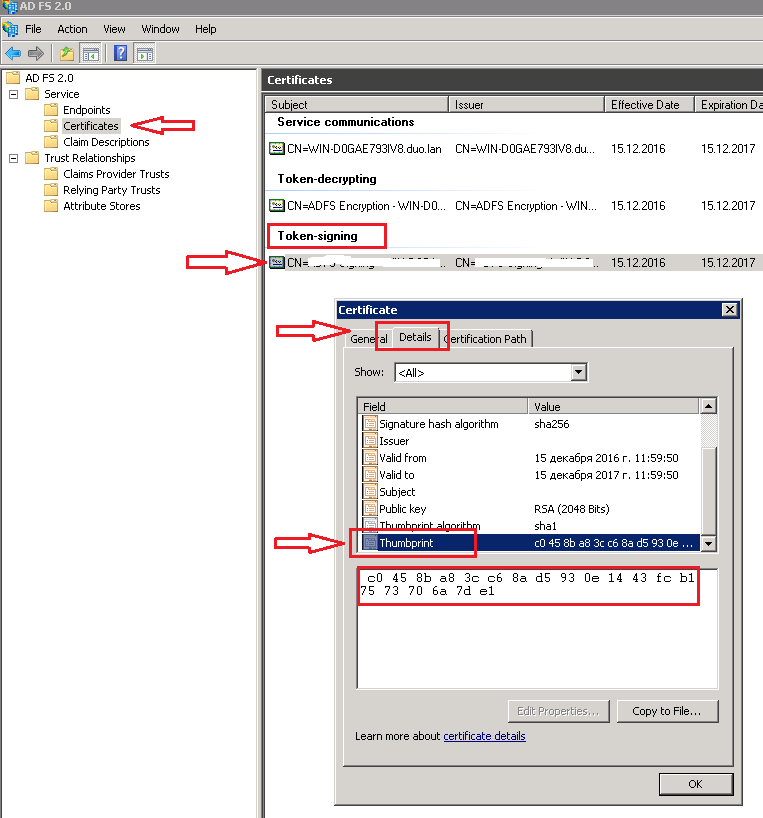
</div>![](https://lh5.googleusercontent.com/RWYwuaq5guXjKsQRWl50CwbHAbzlSJh2QVh-T9xA5xKBVihAiVxMs3YCTJ_xcGv7XzqWnqLGXOkponiAJjjcXb_IIUFKbmBoTbW1X2ZCP2fF3N1P2fWAgSsLlbNar3IsvGYOsqEe)

## Step 4. Learn Settings

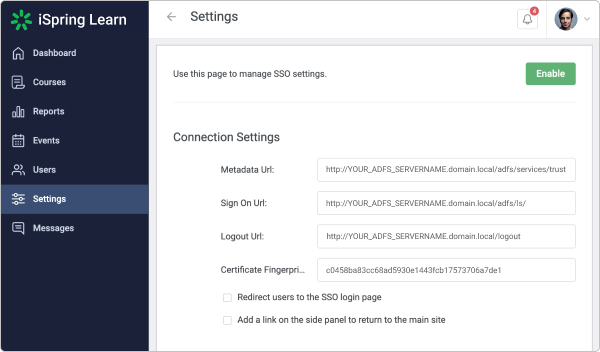
<div class="support-faqs__text support-faqs__text-block" id="bkmrk-log-in-into-your-isp">1. Log in into your iSpring Learn account and go to the SSO settings via this link: [https://YourAccоuntURL.ispringlearn.com/settings/sso](https://xn--youraccunturl-o7k.ispringlearn.com/settings/sso)
2. Ins ert your Thumbprint into the <span class="emphasis">Certificate Fingerprint field</span> and remove all spaces between characters.
3. Enter your data to the <span class="emphasis">Metadata URL</span>, <span class="emphasis">Sign ON URL</span> and <span class="emphasis">Logout URL</span> fields.

</div>![SAML01.png](https://www.ispringsolutions.com/upload/medialibrary/819/Group%2070.png "SAML01.png")

## Step 5. ADFS Relying Party Configuration

Go to the <span class="emphasis">ADFS Management console</span> and select <span class="emphasis">Relying Party Trusts</span>, right-click on it and select Add Relying Party Trust…

![](https://lh3.googleusercontent.com/DWe2TCjpUD-9mwb9YE-Yi_3VQvvLo6w5S4K9Tqo5iu3ytTrfMkakrv2THOkYo9HFrYZJMUyGxQCOOha-7EbJ_m01BApEktCKSvK8qKblvO3YjO_rn0xJkqEARD3Ejm6wUJq5f9wG)

Select <span class="emphasis">Next</span> On the Welcome Screen of the wizard, and on the <span class="emphasis">Select Data Source</span> step, select the last option: <span class="emphasis">Enter data about the relying party manually</span>.

![](https://lh4.googleusercontent.com/FedR8yJMFy79Wm7ZOapfx8-RgWO8Syz-VFPk5VezbDvw_urdX2UCWCFEakA7sMeQsRcVARsoJKANp8gKd0W4xFGCV1spuY-WMwoPl2-cWUVJu4ZK0laxej3G87m7a6ZFJumLTd6B)

On the next screen, enter a <span class="emphasis">Display name</span> that you will recognize in the future.

![](https://lh6.googleusercontent.com/gHTy1NaSaFcC9tAVCwq4nrI2YFD9YJQ8j_BVccexWw2E6wWMG9kkBI4su3Mf_kGmhhPf5lkCm-8p5W6i-L6119hROkAYqN6VzBELMM7SnVLx7f6VL_rf-Ew73Jrxr0ZGvy5V9bXa)

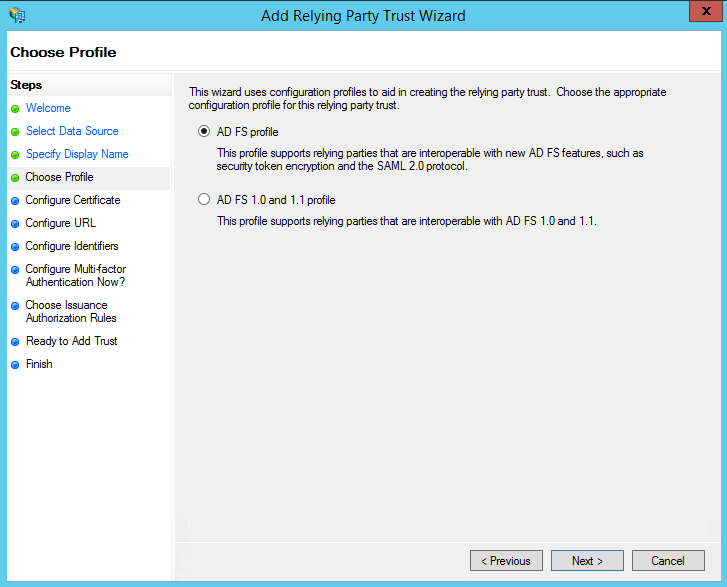
Next, select <span class="emphasis">AD FS profile</span>:

![](https://lh5.googleusercontent.com/phGZye3RG4RuFv7kujBnkKtD75sg-YOU4hPlQHv--3weu7qnzB2QgwYSJ5a0vEWititNIzz_WbNDbojReboku0G12BXh4ZTJjl2w2hq2jNxipm6M6DCDVmI31FRvbEYr4IVMLR1v)

Leave the default values:

![](https://lh3.googleusercontent.com/E2twaBJWzoKspzzxkn-26XSsvalo8wAL3ayJYM3fVtszGyegf2o4-729bwV7jzammYv6Az1Ew2Mj--G3Kw4NZo0OkMXGD_OIpz2SfPgeRvb1axp1g81p48cGyUrMjxYJAye53kJ8)

On the next screen, check the box labeled: <span class="emphasis">Enable support for the SAML 2.0 WebSSO protocol</span>. The service URL will be: [https://YourAccоuntURL.ispringlearn.com/module.php/saml/sp/saml2-acs.php/default-sp](https://xn--youraccunturl-o7k.ispringlearn.com/module.php/saml/sp/saml2-acs.php/default-sp)

![](https://lh6.googleusercontent.com/eJxJWt1KAQ5E7ldDZmtzrdiFB4icMGUHoVL5pDbAwO98o8CgHPIBOF73CHPQ6H1Cm7HuPbN4z-ZLf3Qt_ygNTiEvKumyN2JzJ023bHvXOfQFhapElpWZ0m7-Az1uVxsUtVAr6xNP)

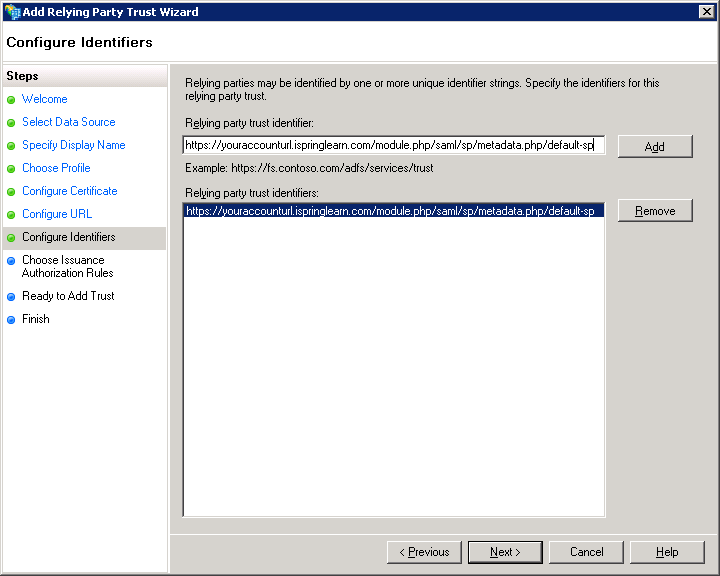
Click <span class="emphasis">Next</span>. Add Relying party trust identifier: [https://YourAccоuntURL.ispringlearn.com/module.php/saml/sp/metadata.php/default-sp](https://xn--youraccunturl-o7k.ispringlearn.com/module.php/saml/sp/metadata.php/default-sp)
![](https://lh5.googleusercontent.com/X1S7UllJ3QhuitOZkPPDzm9GvR_oh0MZafS1VP4cMpGRNfmg8TVDzDePguMRDbQ61VwLaHMK6B2UuYIX_s4xln0Yh756RcU8-x86y9ADBVkNqQdMyuUJPGG2Wo6VvSvgvVLOeGuV)

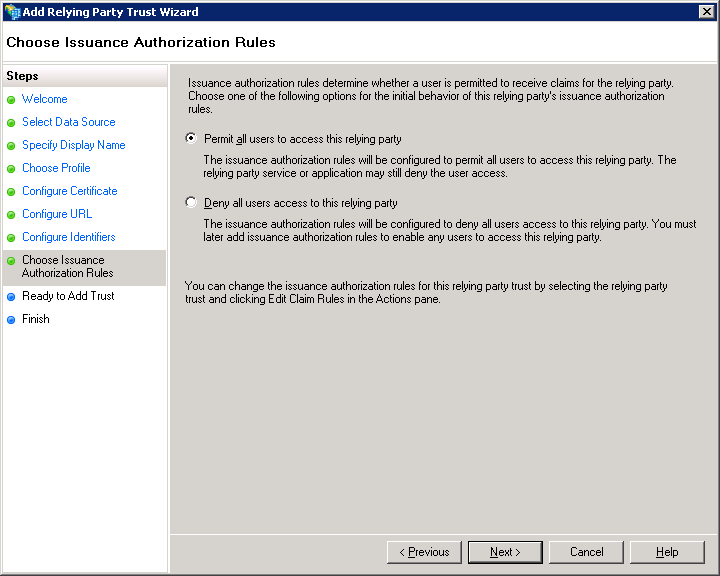
Choose <span class="emphasis">Permit all users to access this relying party</span>.

![](https://lh6.googleusercontent.com/_Dgqb5gnSjLRvtQKuIQ38K9wkVb97WYKFZXIiQb6OFAzlChmaFRNlH5H3J-YNS5h8j8it6BHfHADt88WfhCoUS3Keoz7lF0yxle5Q5eLgrZiW-zIn44xTj8Bq91ZqZCbZRet3fmw)

On the next step, just click <span class="emphasis">Next</span>.

![](https://lh3.googleusercontent.com/AX0Y9Y9a0Al-EQAgUkmNTSC-tTxJXVe0K1G2fBf9_ZofD5PPBD9wltrEo1A6Av-SvpJwQ_bUibkawPZSjL-YMmJcr99dAafyLG5mzpjLHLf8aM8wSx2kIy-fgsjmaa9FXPJo3pji)

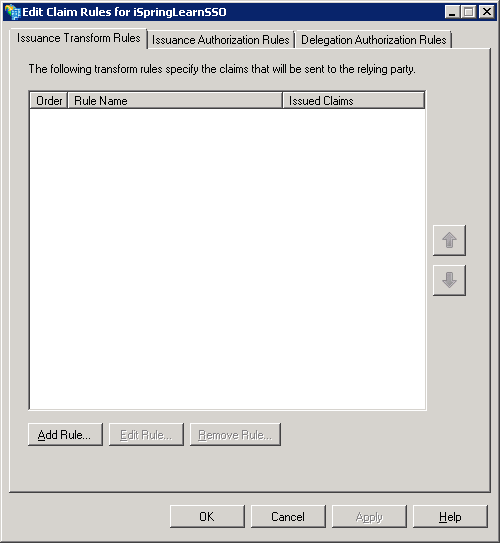
On the final screen, check the box <span class="emphasis">Open the Edit Claim Rules dialog</span> and use the <span class="emphasis">Close </span>button to exit.

![](https://lh3.googleusercontent.com/ZS3_FXPmR5XFVIL4PE_wc5XczVkdUAtV17oG6Ed3qghwAdibKNFwmA8pISzu0ZUDoEvST2PA4NDgK_wLCb_T0fAe9ljGu7371dU6pl98sPStlZ8XXfB7cH1rH_1hY8w__O2lR6s1)

## Step 6. Creating Claims Rules

<div class="support-faqs__text support-faqs__text-block" id="bkmrk-add-the-first-rule-s">1. Add the first rule
    
    ![](https://lh4.googleusercontent.com/ZUjVMXbGp0OoUkrJbpP90Tbgdx0vhmO6okP5lNz5kHXPxFqZ8zXCP22BK-mP0oYJKT3e0q4T1Al7pVMXfVh0yWS4JjLAxPNtZTBPvFl0ehW3i_Rp5s3unX6l1FgmhHdIXBtLRp-t)
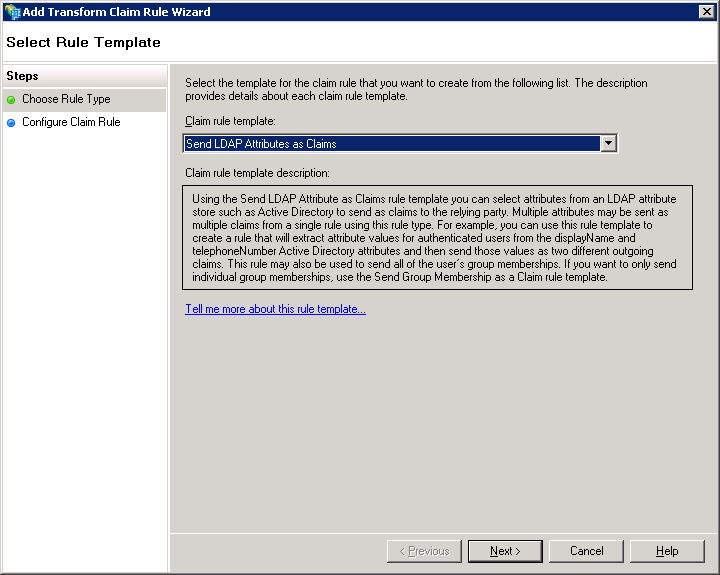
2. Select <span class="emphasis">Send LDAP Attributes as Claims</span>
    
    ![](https://lh4.googleusercontent.com/PfGJ2OSpACIm1nBtinVxH-hRr2IX7JsiG8V0wOASvZzD_5ohgTa5uQk3jFRwr9V8KcsIBSwBpNGBniGTAZppjLKzdoeX9TfiI-1EsSh1Od-J0GQJZ16GS_wdTNtNxmN9guIpXqFX)
3. On the next screen, specify your Claim Rule, for Example <span class="emphasis">E-mail to Learn</span>, using <span class="emphasis">Active Directory </span>as your attribute store, and do the following:
    
    
    - Fr om the <span class="emphasis">LDAP Attribute</span> column, select <span class="emphasis">E-Mail Addresses</span>
    - Fr om the <span class="emphasis">Outgoing Claim Type</span>, enter “<span class="emphasis">email</span>”
        
        ![](https://lh5.googleusercontent.com/cbshGH1pmCu-u_um9H9JSU9MicGTn1jaoESRcZbqGhYy_wDAWT5TLi-7xjBvnhtoZx7NVxYAiKfRP75JDHqsvbz14xdlMOY-lKqJjFPAunIzvprsw_CKyYmx0Xl4r15ybkBcqS8C)
    - Click on <span class="emphasis">Finish</span> or <span class="emphasis">OK</span> to save the new rule
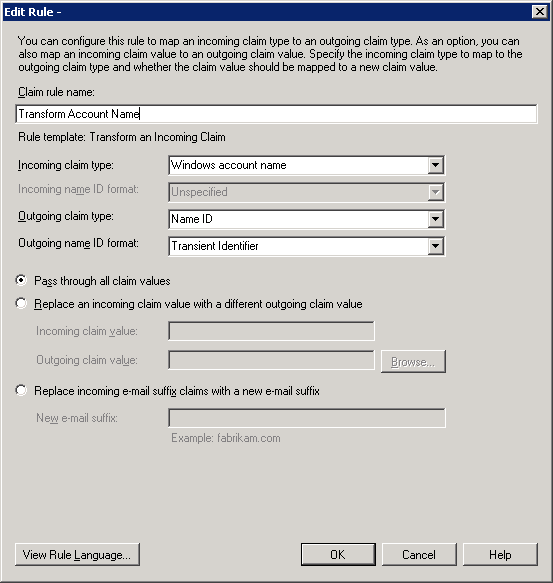
4. After that, add the second rule and select <span class="emphasis">Transform an Incoming Claim</span> as the template
    
    ![](https://lh6.googleusercontent.com/Vldhqs282322jhhTUzugw7MZQzkKPrypE-UkoNmWx-D0X3cnlLQS2M6KVa82ORZ8ZFkPR9MjRRSmOUplUmKUoH7LFghGgLxAdzi0R3dibaaLAqKPHMktsl0mag69UfHzr7UoGN40)
    
    
    - Give your Claim Rule a title, for example, <span class="emphasis">Transform Account Name</span>
    - Select <span class="emphasis">Windows account name</span> as the <span class="emphasis">Incoming Claim Type</span>
    - Under <span class="emphasis">Outgoing Claim Type</span>, select <span class="emphasis">Name ID</span>
    - Under <span class="emphasis">Outgoing Name ID Format</span>, select <span class="emphasis">Transient Identifier</span>
    - Leave the default rule <span class="emphasis">Pass through all claim values</span>  
        ![](https://lh6.googleusercontent.com/J22FEWcG11f_f7Wta7PB0GepLEwafkUvUNuori6HE5SqEZqqiNS0HuTJ56PUaV-WiSsyUVHVAPops4QYROwUdRdl-cRofcp5sJByXNGIzySzB8Gx8ExjE_LGBZ9A-ZGEUr24XeBJ)
5. Finally, click on <span class="emphasis">OK</span> to create the claim rule, and then <span class="emphasis">OK</span> again to finish creating rules.

</div>## Step 7. Adjusting the Trust Settings

Some settings on your Relying Party Trust will need to be adjusted. To access these settings, select <span class="emphasis">Properties </span>from the <span class="emphasis">Actions </span>sidebar on the right while you have the <span class="emphasis">Relying Party Trust</span> selected.

<div class="support-faqs__text support-faqs__text-block" id="bkmrk-under-the%C2%A0advanced%C2%A0t">- Under the <span class="emphasis">Advanced </span>tab, make sure that the selection is <span class="emphasis">SHA-1</span>
    
    ![](https://lh3.googleusercontent.com/gNd4s8hFJrd4hzspladUgmtg60Q9bna6nn0O0q5TpNfkdwMr0dCftiWCFgT1mMPwQOg4BNuWQ8cMWYooUqIzaBwuiHiqLHxfF5ilVPUQVg9GQtekM2Wu5TuSYZMyZ6N-0tAnLp9x)
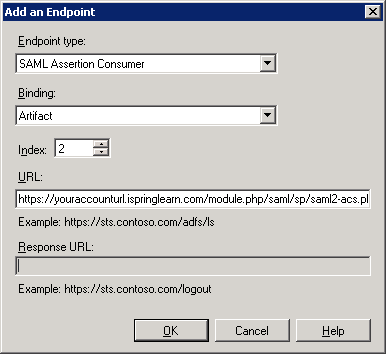
- Under the <span class="emphasis">Endpoints</span> tab, click <span class="emphasis">ADD </span>to add a new endpoint
- For the <span class="emphasis">Endpoint type</span>, select <span class="emphasis">SAML Assertion Consumer</span>
- For the <span class="emphasis">Binding</span>, choose <span class="emphasis">Artifact </span>with <span class="emphasis">Index 2</span>
- The <span class="emphasis">URL field</span> should look like this: [https://YourAccоuntURL.ispringlearn.com/module.php/saml/sp/saml2-acs.php/default-sp](https://xn--youraccunturl-o7k.ispringlearn.com/module.php/saml/sp/saml2-acs.php/default-sp)
- Leave the <span class="emphasis">Response URL</span> blank and click on OK
    
    ![](https://lh4.googleusercontent.com/gsGicTEDLYbI9F0K7iJIIWm_jmnD4rYS8dQeJDEM3ncvix3uMW4v1mWmEb5FKKkC3JKwNAFs9HfLpYDHUo-RzGwnbswTEZGyZ_0Yg_39NaI1cH-aCWozn9grLsyZ4iaX562BQM-X)
- Click <span class="emphasis">ADD </span>one more time
- For the <span class="emphasis">Endpoint type</span>, sele ct <span class="emphasis">SAML Logout</span>
- For the <span class="emphasis">Binding</span>, choose <span class="emphasis">POST</span>
- The <span class="emphasis">URL field</span> should look like this: [https://YОUR\_ADFS\_SERVERNAME.domail.local/adfs/ls/?wa=wsignout1.0](https://xn--yur_adfs_servername-qwp.domail.local/adfs/ls/?wa=wsignout1.0)
- Leave the <span class="emphasis">Response URL</span> blank and click on OK![](https://lh6.googleusercontent.com/gf1gpP3TETi2aIqvn79UxX2UY5Y8lxXS6bneJEpQMkBBKEAOq998XfDnZXm6Kd4FNgCBWknm-wEm1BAe6SHleOJwGXEsWvTEeiTSkePX2FH1yI0YKjcpK365zJ6045pfiXjwtvXk)

</div>## Step 8. Logging

Go to your SSO login page: [https://YourAccоuntURL.ispringlearn.com/sso/login](https://xn--youraccunturl-o7k.ispringlearn.com/sso/login) and enter your credentials.

Related Articles

- [Integrating iSpring Learn with your system: User Management and Single Sign On](https://www.ispringsolutions.com/articles/integration-of-ispring-learn-with-your-system)
- [SAML Technology for SSO](https://www.ispringsolutions.com/articles/saml-technology-for-sso "SAML Technology for SSO")
- [iSpring Learn SSO with Azure AD + SAML](https://www.ispringsolutions.com/articles/ispring-learn-sso-with-azure-ad-saml)

# iSpring Learn SSO with Azure AD + SAML

#   


<div class="support-faqs__products products" id="bkmrk-products%3A%C2%A0%C2%A0%C2%A0learn"><span class="product__subtitle">PRODUCTS: </span>[Learn](https://www.ispringsolutions.com/support/learn)</div>Azure Active Directory (Azure AD) is a part of the Microsoft Azure cloud service that makes it possible to enjoy SSO (Single sign-on) without employing on-prem AD FS (Active Directory Federated Services). It is basically a cloud alternative to Microsoft Active Directory. In this scenario, there is no need to maintain an on-premise infrastructure, the process of setting it up is rather easy, and it works with most cloud-based services.

## Requirements

A Microsoft Azure account with Azure AD Premium activated.

## How to set up Azure AD  


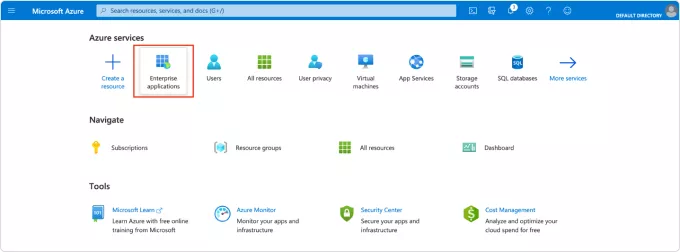
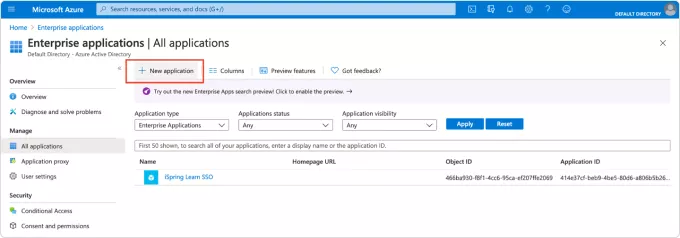
<div class="support-faqs__text support-faqs__text-block" id="bkmrk-go-to-the-microsoft-">1. Go to the Microsoft Azure Home Page. From the Azure services menu, select <span data-old-style="font-weight: 700;">Enterprise</span> <span data-old-style="font-weight: 700;">applications</span>.
    
    ![01.png](https://www.ispringsolutions.com/upload/resize_cache/webp/upload/medialibrary/1ec/1ec2de2e2e4c96d3884515e75994828c.webp "01.png")
2. Select <span data-old-style="font-weight: 700;">New application</span>.  
    ![02.png](https://www.ispringsolutions.com/upload/resize_cache/webp/upload/medialibrary/60c/60cf81a0ca52f822e647171e8dc52eac.webp "02.png")
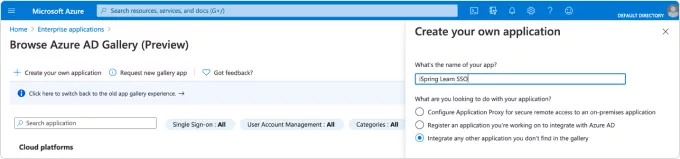
3. Select **Create your own application**.
    
    ![03.png](https://www.ispringsolutions.com/upload/resize_cache/webp/upload/medialibrary/747/7476f7b36e0418c26748ee9c95be29a7.webp "03.png")
    
    In the right-side menu that appears, enter the name for the application, such as iSpring Learn SSO.  
    ![04.png](https://www.ispringsolutions.com/upload/resize_cache/webp/upload/medialibrary/dc6/dc65126931e7b463c333647932b02b3a.webp "04.png")
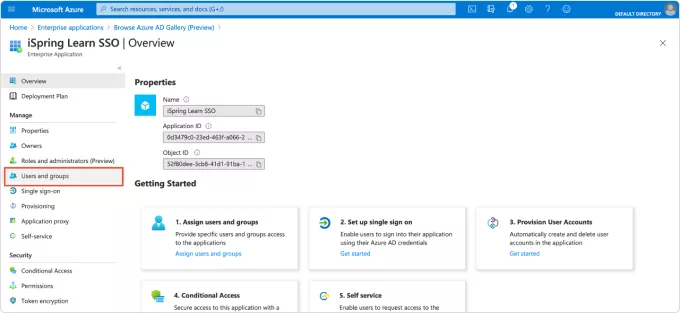
4. Click <span data-old-style="font-weight: 700;">Create</span> and wait until the application is added to your library. You will then be redirected to the Overview page.
    
    In the sidebar menu, select<span data-old-style="font-weight: 700;"> Users and groups</span>. There, you can add all the users who should be able to log into their iSpring Learn account using SSO.  
    ![05.png](https://www.ispringsolutions.com/upload/resize_cache/webp/upload/medialibrary/bbd/bbd3ddb96ab65e8d2bc48c4c1237017e.webp "05.png")
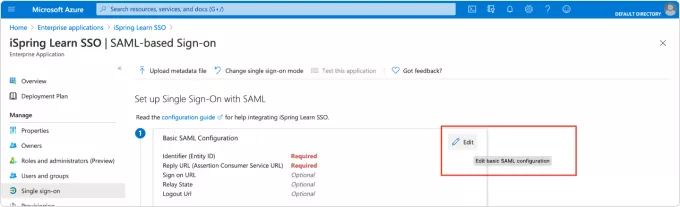
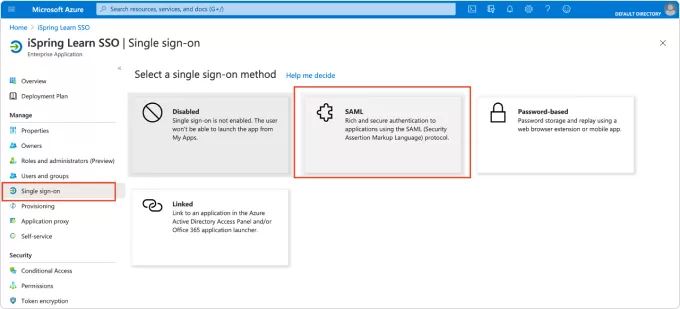
5. In the sidebar menu, select **Single sign-on**. Then, select **SAML for SAML-based SSO**.  
    ![06.png](https://www.ispringsolutions.com/upload/resize_cache/webp/upload/medialibrary/73c/73ca1b8cdb9eae5fb6982e1a50bef6fd.webp "06.png")
    
    Set up Single Sign-On with SAML. Here’s how:  
    First, select <span data-old-style="font-weight: 700;">Edit</span>, to open the right-side menu.  
    ![07.png](https://www.ispringsolutions.com/upload/resize_cache/webp/upload/medialibrary/c2b/c2bb103aa99a1b930d195aeb417fa4a2.webp "07.png")

</div>In the right-side menu, fill out Identifier (Entity ID), Reply URL, and Relay state as shown in the table below, where ‘\_\_\_\_\_’ is the first part of the URL of your iSpring Learn account. Pay attention to the domain for your iSpring Learn account: it is either .com or .eu.

<div class="support-faqs__text support-faqs__text-block" id="bkmrk-identifier%28entity-id"><div class="support-faqs__table-wrapper"><table><tbody><tr><td>Identifier  
(Entity ID)

</td><td>[https://\_\_\_\_\_.ispringlearn.com/module.php/saml/sp/metadata.php/default-sp](https://_____.ispringlearn.com/module.php/saml/sp/metadata.php/default-sp)

</td></tr><tr><td>Reply URL

</td><td>[https://\_\_\_\_\_.ispringlearn.com/module.php/saml/sp/saml2-acs.php/default-sp](https://_____.ispringlearn.com/module.php/saml/sp/saml2-acs.php/default-sp)

</td></tr><tr><td>Relay state

</td><td>[https://\_\_\_\_\_.ispringlearn.com/sso/login](https://_____.ispringlearn.com/sso/login)

</td></tr></tbody></table>

</div></div>![08.png](https://www.ispringsolutions.com/upload/resize_cache/webp/upload/medialibrary/785/785e07606f7c4c19b09f44077d674f4a.webp "08.png")

Save the changes.

<div class="support-faqs__text support-faqs__text-block" id="bkmrk-second%2C-select%C2%A0-edit">1. Second, select

**Edit** 1. to edit User Attributes and Claims.
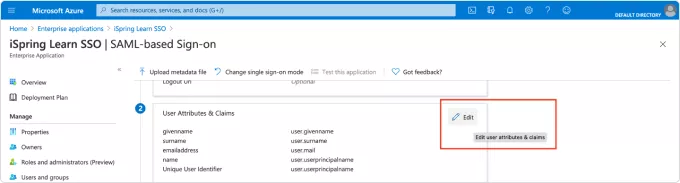
  
  
![09.png](https://www.ispringsolutions.com/upload/resize_cache/webp/upload/medialibrary/ae1/ae1b69ca88d2cd44ac2584d96616dd5a.webp "09.png")</div>The first claim in the list is the Required claim. Its claim name is Unique User Identifier (Name ID) and its Value is user.mail. It is there by default. Leave it as it is.  
The additional claims are those used by iSpring Learn to sync the data about your users and fill out their user profiles in iSpring Learn. The information will be updated in iSpring Learn each time you log in.

<div class="support-faqs__text support-faqs__text-block" id="bkmrk-since-ispring-learn-">1. Since iSpring Learn requires each user to have a login, this is the required claim. We also strongly recommend using email so your users get notifications from the system about new courses assigned, coming deadlines, and scheduled meetings and webinars. The rest of the claims are optional.

  
</div><div class="support-faqs__text support-faqs__text-block" id="bkmrk-delete-the-preset-cl">1. Delete the preset claim names and values and add your own. You can use your own names for the claims while you select values from the available list. To simplify the process, we recommend using the same claim name as the value. The only exception is user.login, where we use user.mail, thus making the login correspond with the email. Use the table below for the correct claim names and their values.

</div><div class="support-faqs__text support-faqs__text-block" id="bkmrk-claim-name-value-use"><div class="support-faqs__table-wrapper"><table><tbody><tr><td>**Claim Name**

</td><td>**Value**

</td></tr><tr><td>user.login

</td><td>user.mail

</td></tr><tr><td>user.mail

</td><td>user.mail

</td></tr><tr><td>user.surname </td><td>user.surname

</td></tr><tr><td>user.givenname

</td><td>user.givenname

</td></tr><tr><td>user.jobtitle

</td><td>user.jobtitle

</td></tr></tbody></table>

</div>1. Only the Name and the Source Attribute fields need to be changed. Leave the rest empty.

  
![11.png](https://www.ispringsolutions.com/upload/resize_cache/webp/upload/medialibrary/4d8/4d874f8ecc06489ab321cc7ca1c2c661.webp "11.png")1. When you are done, you should see the list of all the claims you want your iSpring Learn account to be in sync with.

  
![10.png](https://www.ispringsolutions.com/upload/resize_cache/webp/upload/medialibrary/062/06262edee6bd446935506c6df1b5d17a.webp "10.png")</div>Note that you won’t be able to sync the user’s country and department.

<div class="support-faqs__text support-faqs__text-block" id="bkmrk-return-to-the-previo">1. Return to the previous page to configure the third step: the certificate. Select **Add a certificate** to open the menu on the right side of the screen and select **New Certificate**.  
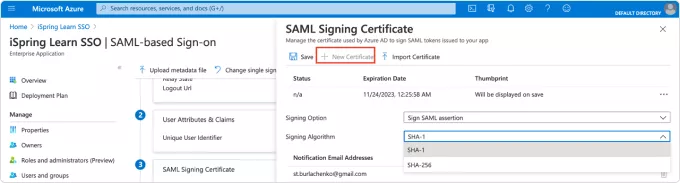
    ![12.png](https://www.ispringsolutions.com/upload/resize_cache/webp/upload/medialibrary/720/720df9aadd9c86c3fc77a9a1560d7bab.webp "12.png")For **Signing Option**, select **Sign SAML assertion**. For **Signing Algorithm**, select **SHA-1**. Select **Save** for the certificate to be generated and the thumbprint to be displayed. You will need the thumbprint when you configure the connection settings in iSpring Learn. Close the menu on the right side of the screen to return to configuring the fourth step: iSpring Learn SSO.
    
    The data from this step should be used in the Connection Settings of your iSpring Learn account. ## How to set up iSpring Learn  


    1. Log into your iSpring Learn account and go to [https://\_\_\_\_\_.ispringlearn.com/settings/sso](https://_____.ispringlearn.com/settings/sso)
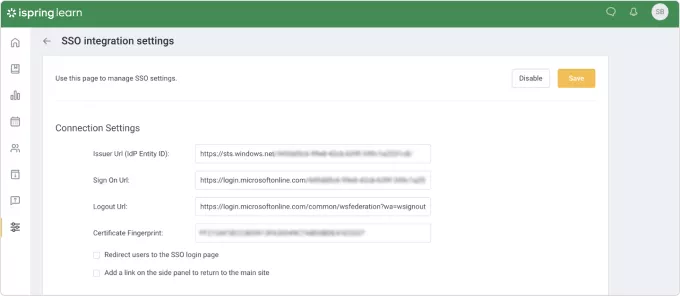
    2. In <span data-old-style="font-weight: 700;">Connection Settings</span>, fill in the fields with the information from Azure.
    
    <div class="support-faqs__table-wrapper"><table><tbody><tr><td>**iSpring Learn name**
    
    </td><td> **Azure name**
    
    </td></tr><tr><td> Issue URL (IdP Entity ID)
    
    </td><td> Azure AD Identifier
    
    </td></tr><tr><td> Sign-on URL
    
    </td><td> Login URL
    
    </td></tr><tr><td> Logout URL
    
    </td><td> Logout URL
    
    </td></tr><tr><td> Certificate Fingerprint
    
    </td><td> Thumbprint
    
    </td></tr></tbody></table>
    
    </div>![13.png](https://www.ispringsolutions.com/upload/resize_cache/webp/upload/medialibrary/a20/a20f32961cdc1747eae00e746a49f729.webp "13.png")
    
    If you have selected the **Redirect users** **to the SSO login page**, the user will be automatically redirected to the Azure login page when they open iSpring Learn. If they are already logged in there, they will see their main page with the courses that have been assigned.
    
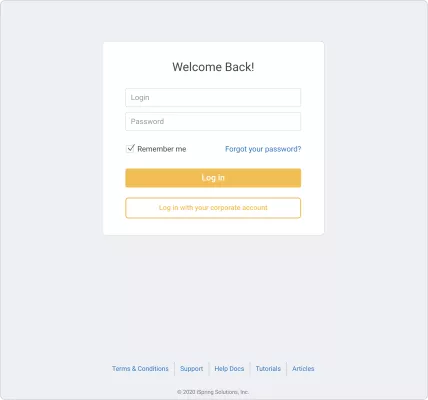
    If this option is not selected, upon opening iSpring Learn, the user will see the default login screen with an additional option to use a corporate account to log into the account.   
    We recommend keeping this option deselected initially for the sake of testing the connection and to avoid being locked out of your iSpring Learn account. If this happens for some reason, you can use [https://\_\_\_\_.ispringlearn.com/login?no\_sso](https://____.ispringlearn.com/login?no_sso) to bypass SSO.   
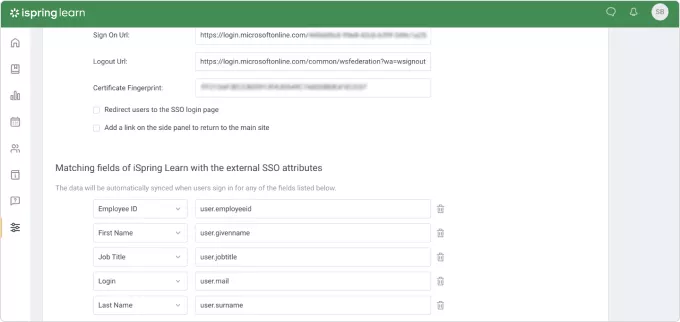
    Proceed to <span data-old-style="font-weight: 700;">Matching fields of iSpring Learn with the external SSO attributes</span> and use the claims you created in the second step of the Azure Set up Single Sign-On with SAML page.
    
    ![14.png](https://www.ispringsolutions.com/upload/resize_cache/webp/upload/medialibrary/147/1475721189c59a24dbfe1a05503d4e42.webp "14.png")
    
    When done, scroll up and click **Save**.  
      
    You can now test the connection.
    
    ![15.png](https://www.ispringsolutions.com/upload/resize_cache/webp/upload/medialibrary/650/650b75877bfd5d5041d01a8383aac9a2.webp "15.png")
    
    If something is not clear or additional questions arise, don’t hesitate to contact us at <support@ispring.com> and we’ll do our best to assist you.

</div>Related Articles

- [SAML Technology for SSO](https://www.ispringsolutions.com/articles/saml-technology-for-sso "SAML Technology for SSO")
- [Integrating iSpring Learn with your system: User Management and Single Sign On](https://www.ispringsolutions.com/articles/integration-of-ispring-learn-with-your-system)
- [How to upload SCORM courses to ...](https://www.ispringsolutions.com/articles/add-scorm-course-into-learnworlds-lms "How to upload SCORM courses to LearnWorlds LMS")

# Setting-up Azure Entra with Classlink

##### <span style="color: #2e5395; letter-spacing: -.1pt;">Notes</span>

This is an all or none type of configuration. Once enabled all users of the domain will be redirected to Launchpad for authentication in all Microsoft applications. Users previously Authenticated to Office 365/Entra<span style="letter-spacing: -.4pt;"> </span>ID<span style="letter-spacing: -.4pt;"> </span>(Azure<span style="letter-spacing: -.4pt;"> </span>AD)<span style="letter-spacing: -.4pt;"> </span>may<span style="letter-spacing: -.4pt;"> </span>need<span style="letter-spacing: -.4pt;"> </span>to<span style="letter-spacing: -.4pt;"> </span>reauthenticate<span style="letter-spacing: -.4pt;"> </span>their<span style="letter-spacing: -.4pt;"> </span>desktop<span style="letter-spacing: -.4pt;"> </span>applications.<span style="letter-spacing: -.4pt;"> </span>Office365<span style="letter-spacing: -.4pt;"> </span>Administrator accounts will not be affected by this workflow.

### <span style="color: #2e5395; letter-spacing: -.1pt;">Prerequisites</span>

- Authenticate<span style="letter-spacing: -.45pt;"> </span>to<span style="letter-spacing: -.35pt;"> </span>LaunchPad<span style="letter-spacing: -.35pt;"> </span>with<span style="letter-spacing: -.35pt;"> </span>AD<span style="letter-spacing: -.35pt;"> </span>(technically<span style="letter-spacing: -.3pt;"> </span>could<span style="letter-spacing: -.35pt;"> </span>be<span style="letter-spacing: -.35pt;"> </span>Google<span style="letter-spacing: -.35pt;"> </span>as<span style="letter-spacing: -.35pt;"> </span>well<span style="letter-spacing: -.35pt;"> </span>but<span style="letter-spacing: -.3pt;"> </span><span style="letter-spacing: -.1pt;">unlikely)</span>
    - - District’s<span style="letter-spacing: -.55pt;"> </span>Azure<span style="letter-spacing: -.4pt;"> </span>user<span style="letter-spacing: -.45pt;"> </span>profile<span style="letter-spacing: -.4pt;"> </span>**must<span style="letter-spacing: -.45pt;"> </span>**contain<span style="letter-spacing: -.4pt;"> </span>an<span style="letter-spacing: -.4pt;"> </span><span style="letter-spacing: -.1pt;">ImmutableI</span><span style="font: 7.0pt 'Times New Roman';"> </span>
        - If<span style="letter-spacing: -.3pt;"> </span>the<span style="letter-spacing: -.3pt;"> </span>district<span style="letter-spacing: -.3pt;"> </span>uses<span style="letter-spacing: -.25pt;"> </span>Azure<span style="letter-spacing: -.3pt;"> </span>AD<span style="letter-spacing: -.3pt;"> </span>Connect,<span style="letter-spacing: -.3pt;"> </span>it’s<span style="letter-spacing: -.25pt;"> </span><span style="letter-spacing: -.1pt;">handled</span>
        - If<span style="letter-spacing: -.6pt;"> </span>the<span style="letter-spacing: -.5pt;"> </span>district<span style="letter-spacing: -.5pt;"> </span>enters<span style="letter-spacing: -.5pt;"> </span>users<span style="letter-spacing: -.5pt;"> </span>manually,<span style="letter-spacing: -.5pt;"> </span>it’s<span style="letter-spacing: -.45pt;"> </span><span style="letter-spacing: -.1pt;">handled</span>
        - If<span style="letter-spacing: -.35pt;"> </span>the<span style="letter-spacing: -.25pt;"> </span>district<span style="letter-spacing: -.25pt;"> </span>uses<span style="letter-spacing: -.25pt;"> </span>OneSync<span style="letter-spacing: -.25pt;"> </span>for<span style="letter-spacing: -.25pt;"> </span>Azure,<span style="letter-spacing: -.25pt;"> </span>it<span style="letter-spacing: -.25pt;"> </span>can<span style="letter-spacing: -.25pt;"> </span>be<span style="letter-spacing: -.25pt;"> </span>handled<span style="letter-spacing: -.25pt;"> </span>in<span style="letter-spacing: -.25pt;"> </span>the<span style="letter-spacing: -.2pt;"> </span><span style="letter-spacing: -.1pt;">configuration</span>
- Add<span style="letter-spacing: -.5pt;"> </span>Verified<span style="letter-spacing: -.4pt;"> </span>Domain<span style="letter-spacing: -.4pt;"> </span>to<span style="letter-spacing: -.35pt;"> </span>Entra<span style="letter-spacing: -.4pt;"> </span>ID<span style="letter-spacing: -.4pt;"> </span>(Azure<span style="letter-spacing: -.35pt;"> </span><span style="letter-spacing: -.25pt;">AD)</span>
    - <span style="font: 7.0pt 'Times New Roman';"> </span>Do<span style="letter-spacing: -.25pt;"> </span>not<span style="letter-spacing: -.2pt;"> </span>make<span style="letter-spacing: -.25pt;"> </span>it<span style="letter-spacing: -.2pt;"> </span><span style="letter-spacing: -.1pt;">primary.</span>
- Install<span style="letter-spacing: -.6pt;"> </span>MSOnline<span style="letter-spacing: -.6pt;"> </span>PowerShell<span style="letter-spacing: -.55pt;"> </span><span style="letter-spacing: -.1pt;">module </span>```
    Install-Module MSOnline
    ```
- Install<span style="letter-spacing: -.45pt;"> </span>Azure<span style="letter-spacing: -.35pt;"> </span>Active<span style="letter-spacing: -.35pt;"> </span>Directory<span style="letter-spacing: -.35pt;"> </span>Connect<span style="letter-spacing: -.35pt;"> </span>and<span style="letter-spacing: -.35pt;"> </span>configure<span style="letter-spacing: -.35pt;"> </span>it<span style="letter-spacing: -.35pt;"> </span>–<span style="letter-spacing: -.35pt;"> </span>Do<span style="letter-spacing: -.35pt;"> </span>not<span style="letter-spacing: -.35pt;"> </span>federate<span style="letter-spacing: -.35pt;"> </span>via<span style="letter-spacing: -.35pt;"> </span>this<span style="letter-spacing: -.3pt;"> </span><span style="letter-spacing: -.1pt;">method.</span>
- <span style="font-family: 'Arial',sans-serif; mso-fareast-font-family: Arial;"><span style="mso-list: Ignore;"><span style="font: 7.0pt 'Times New Roman';"> </span></span></span>Active<span style="letter-spacing: -.45pt;"> </span>Directory<span style="letter-spacing: -.35pt;"> </span>should<span style="letter-spacing: -.3pt;"> </span>be<span style="letter-spacing: -.35pt;"> </span>connected<span style="letter-spacing: -.3pt;"> </span>in<span style="letter-spacing: -.35pt;"> </span>launchpad<span style="letter-spacing: -.35pt;"> </span>under<span style="letter-spacing: -.3pt;"> </span>settings<span style="letter-spacing: -.35pt;"> </span>&gt;<span style="letter-spacing: -.3pt;"> </span>domain<span style="letter-spacing: -.35pt;"> </span>gear<span style="letter-spacing: -.3pt;"> </span><span style="letter-spacing: -.2pt;">icon</span>
- <span style="font-family: 'Arial',sans-serif; mso-fareast-font-family: Arial;"><span style="mso-list: Ignore;"><span style="font: 7.0pt 'Times New Roman';"> </span></span></span>Active<span style="letter-spacing: -.5pt;"> </span>Directory<span style="letter-spacing: -.4pt;"> </span>Groups<span style="letter-spacing: -.4pt;"> </span>should<span style="letter-spacing: -.4pt;"> </span>be<span style="letter-spacing: -.4pt;"> </span>imported<span style="letter-spacing: -.4pt;"> </span>into<span style="letter-spacing: -.35pt;"> </span><span style="letter-spacing: -.1pt;">launchpad</span>

##### <span style="color: #2e5395;">Step<span style="letter-spacing: -.35pt;"> </span><span style="letter-spacing: -.5pt;">1</span></span>

<span style="letter-spacing: -.05pt;"><span style="mso-list: Ignore;">1.<span style="font: 7.0pt 'Times New Roman';"> </span></span></span>In<span style="letter-spacing: -.3pt;"> </span>the<span style="letter-spacing: -.3pt;"> </span>Classlink<span style="letter-spacing: -.3pt;"> </span>tenant<span style="letter-spacing: -.3pt;"> </span>SAML<span style="letter-spacing: -.3pt;"> </span>Console,<span style="letter-spacing: -.3pt;"> </span>Create<span style="letter-spacing: -.3pt;"> </span>a<span style="letter-spacing: -.3pt;"> </span>new<span style="letter-spacing: -.3pt;"> </span>SAML<span style="letter-spacing: -.3pt;"> </span>configuration<span style="letter-spacing: -.3pt;"> </span>by<span style="letter-spacing: -.3pt;"> </span>copying<span style="letter-spacing: -.3pt;"> </span>existing<span style="letter-spacing: -.3pt;"> </span>and selecting “A New SAML App (template)”

<span style="letter-spacing: -.05pt;"><span style="mso-list: Ignore;">2.<span style="font: 7.0pt 'Times New Roman';"> </span></span></span>Configure<span style="letter-spacing: -.5pt;"> </span>the<span style="letter-spacing: -.45pt;"> </span>following<span style="letter-spacing: -.45pt;"> </span><span style="letter-spacing: -.1pt;">options.</span>

- <span style="letter-spacing: -.1pt;">Metadata</span><span style="letter-spacing: .05pt;"> </span><span style="letter-spacing: -.25pt;">URL</span>
    - <span style="font-family: 'Arial',sans-serif; mso-fareast-font-family: Arial; mso-font-width: 99%;"><span style="mso-list: Ignore;"><span style="font: 7.0pt 'Times New Roman';"> </span></span></span>[<u style="text-underline: #0462C1 thick;"><span style="color: #0462c1; letter-spacing: -.1pt;">https://nexus.microsoftonline-p.com/federationmetadata/saml20/federationme</span></u>](https://nexus.microsoftonline-p.com/federationmetadata/saml20/federationmetadata.xml)<span style="color: #0462c1; letter-spacing: -.1pt;"> </span>[<u style="text-underline: #0462C1 thick;"><span style="color: #0462c1; letter-spacing: -.1pt;">tadata.xml</span></u>](https://nexus.microsoftonline-p.com/federationmetadata/saml20/federationmetadata.xml)
- Loginurl<span style="letter-spacing: -.4pt;"> </span>with<span style="letter-spacing: -.3pt;"> </span>custom<span style="letter-spacing: -.3pt;"> </span>login,<span style="letter-spacing: -.3pt;"> </span>e.g.<span style="letter-spacing: -.25pt;"> </span><span style="letter-spacing: -.1pt;">https://launchpad.classlink.com/&lt;customurl&gt;</span>
- <span style="font-family: 'Courier New'; mso-fareast-font-family: 'Courier New';"><span style="mso-list: Ignore;"><span style="font: 7.0pt 'Times New Roman';"> </span></span></span><span style="letter-spacing: -.1pt;">Attribute</span><span style="letter-spacing: -.05pt;"> </span><span style="letter-spacing: -.1pt;">Mapping</span>
- <span style="font-family: 'Arial',sans-serif; mso-fareast-font-family: Arial; mso-font-width: 99%;"><span style="mso-list: Ignore;">▪<span style="font: 7.0pt 'Times New Roman';"> </span></span></span>Select<span style="letter-spacing: -.45pt;"> </span>“Custom<span style="letter-spacing: -.4pt;"> </span><span style="letter-spacing: -.1pt;">Attribute”</span>
    - - Change<span style="letter-spacing: -.35pt;"> </span>name<span style="letter-spacing: -.35pt;"> </span>of<span style="letter-spacing: -.3pt;"> </span>the<span style="letter-spacing: -.35pt;"> </span>custom<span style="letter-spacing: -.3pt;"> </span>attribute<span style="letter-spacing: -.35pt;"> </span>to<span style="letter-spacing: -.3pt;"> </span><span style="letter-spacing: -.1pt;">“IDPEmail”</span>
        - <span style="font-family: 'Arial',sans-serif; mso-fareast-font-family: Arial;"><span style="mso-list: Ignore;"><span style="font: 7.0pt 'Times New Roman';"> </span></span></span>Add<span style="letter-spacing: -.25pt;"> </span>{email}<span style="letter-spacing: -.25pt;"> </span>in<span style="letter-spacing: -.2pt;"> </span>the<span style="letter-spacing: -.25pt;"> </span>data<span style="letter-spacing: -.2pt;"> field</span>
- <span style="letter-spacing: -.1pt;">MetaOverrides</span>
    - <span style="font-family: 'Arial',sans-serif; mso-fareast-font-family: Arial; mso-font-width: 99%;"><span style="mso-list: Ignore;"><span style="font: 7.0pt 'Times New Roman';"> </span></span></span>Logout<span style="letter-spacing: -.25pt;"> </span>Service<span style="letter-spacing: -.25pt;"> </span>URL<span style="letter-spacing: -.25pt;"> </span><span style="letter-spacing: -.1pt;">(POST)</span>
        - - - <span style="font-family: 'Arial',sans-serif; mso-fareast-font-family: Arial;"><span style="mso-list: Ignore;"><span style="font: 7.0pt 'Times New Roman';"> </span></span></span><u style="text-underline: #0462C1 thick;"><span style="color: #0462c1; letter-spacing: -.1pt;">[https://login.microsoftonline.com/common/oauth2/logout](https://login.microsoftonline.com/common/oauth2/logout)</span></u>
    - NamedID<span style="letter-spacing: -.35pt;"> </span><span style="letter-spacing: -.1pt;">Format</span>
        - - - <span style="font-family: 'Arial',sans-serif; mso-fareast-font-family: Arial;"><span style="mso-list: Ignore;"><span style="font: 7.0pt 'Times New Roman';"> </span></span></span><span style="letter-spacing: -.1pt;">Persistent</span>
    - NameID<span style="letter-spacing: -.4pt;"> </span>Custom<span style="letter-spacing: -.4pt;"> </span><span style="letter-spacing: -.2pt;">Value</span>
        - - - <span style="letter-spacing: -.1pt;">{ldapguid:hexbase64}</span>
- <span style="font-family: 'Courier New'; mso-fareast-font-family: 'Courier New';"><span style="mso-list: Ignore;"><span style="font: 7.0pt 'Times New Roman';"> </span></span></span>Save<span style="letter-spacing: -.3pt;"> </span>or<span style="letter-spacing: -.25pt;"> </span><span style="letter-spacing: -.1pt;">Update</span>

##### <span style="color: #2e5395;">Step<span style="letter-spacing: -.35pt;"> </span><span style="letter-spacing: -.5pt;">2</span></span>

- <span style="font-family: 'Arial',sans-serif; mso-fareast-font-family: Arial;"><span style="mso-list: Ignore;"><span style="font: 7.0pt 'Times New Roman';"> </span></span></span>Copy<span style="letter-spacing: -.35pt;"> </span>the<span style="letter-spacing: -.35pt;"> </span>metadata<span style="letter-spacing: -.3pt;"> </span>URL<span style="letter-spacing: -.35pt;"> </span>and<span style="letter-spacing: -.3pt;"> </span>modify<span style="letter-spacing: -.35pt;"> </span>the<span style="letter-spacing: -.3pt;"> </span>PowerShell<span style="letter-spacing: -.35pt;"> </span>Script<span style="letter-spacing: -.3pt;"> </span><span style="letter-spacing: -.1pt;">below</span>
- <span style="font-family: 'Arial',sans-serif; mso-fareast-font-family: Arial;"><span style="mso-list: Ignore;"><span style="font: 7.0pt 'Times New Roman';"> </span></span></span>Use<span style="letter-spacing: -.4pt;"> </span>this<span style="letter-spacing: -.4pt;"> </span>PowerShell<span style="letter-spacing: -.4pt;"> </span>Script,<span style="letter-spacing: -.4pt;"> </span>change<span style="letter-spacing: -.4pt;"> </span>the<span style="letter-spacing: -.4pt;"> </span>file<span style="letter-spacing: -.4pt;"> </span>extension<span style="letter-spacing: -.4pt;"> </span>to<span style="letter-spacing: -.4pt;"> </span>“.ps1”<span style="letter-spacing: -.4pt;"> </span>after<span style="letter-spacing: -.4pt;"> </span>downloading<span style="letter-spacing: -.4pt;"> </span>-<span style="letter-spacing: -.4pt;"> </span>You<span style="letter-spacing: -.4pt;"> </span>may<span style="letter-spacing: -.4pt;"> </span>need to unblock the file and change your execution policy on the server 
    - <span style="font: 7.0pt 'Times New Roman';"> </span>[Google Drive](https://drive.google.com/file/d/1RygKi9I7PmLio6yL1EWihQbn3jerS68X/view?usp=drive_link)

<details id="bkmrk-azure-ad-powershell-"><summary>Azure AD PowerShell Code</summary>

```
<#
.SYNOPSIS
    Federate Microsoft Entra ID (Azure AD/Microsoft Online Services) to ClassLink for IdP Services.

    Change the <GUID> in the $idpMetadataUrl to be the GUID from your SAML console App.
    Change $DomainName to match your domain name that is going to be Federated
    Change the script extension to ".ps1"

    *NOTE: you may need to set the PowerShell Execution Policy to remote signed or bypass temporarily.

#>

Install-Module -Name MSOnline
Import-Module MSOnline

$idpMetadataUrl = "https://idp.classlink.com/sso/metadata/<GUID>"

$DomainName = "<your domain name>"
$metadataxml = [Xml](Invoke-WebRequest -Uri $idpMetadataUrl -ContentType "application/xml").content

$cert = -join $metadataxml.EntityDescriptor.IDPSSODescriptor.KeyDescriptor.KeyInfo.X509Data.X509Certificate.Split()
$issuerUri = $metadataxml.EntityDescriptor.entityID
$logOnUri = $metadataxml.EntityDescriptor.IDPSSODescriptor.SingleSignOnService | ? { $_.Binding.Contains('Redirect') } | % { $_.Location }
$LogOffUri = $metadataxml.EntityDescriptor.IDPSSODescriptor.SingleLogoutService | ? { $_.Binding.Contains('Redirect') } | % { $_.Location }
$brand = "ClassLink Identity"
Connect-MsolService
$DomainAuthParams = @{
    DomainName = $DomainName
    Authentication = "Federated"
    IssuerUri = $issuerUri
    FederationBrandName = $brand
    ActiveLogOnUri = $logOnUri
    PassiveLogOnUri = $logOnUri
    LogOffUri = $LogOffUri
    SigningCertificate = $cert
    PreferredAuthenticationProtocol = "SAMLP"
}

Set-MsolDomainAuthentication @DomainAuthParams
```

</details><p class="callout info"><span style="font-family: 'Courier New'; mso-fareast-font-family: 'Courier New';"><span style="mso-list: Ignore;"><span style="font: 7.0pt 'Times New Roman';"> </span></span></span>If<span style="letter-spacing: -.5pt;"> </span>you<span style="letter-spacing: -.35pt;"> </span>receive<span style="letter-spacing: -.4pt;"> </span>an<span style="letter-spacing: -.35pt;"> </span>error<span style="letter-spacing: -.35pt;"> </span>regarding<span style="letter-spacing: -.4pt;"> </span>scripts<span style="letter-spacing: -.35pt;"> </span>being<span style="letter-spacing: -.35pt;"> </span><span style="letter-spacing: -.1pt;">disabled </span>Open<span style="letter-spacing: -.5pt;"> </span>an<span style="letter-spacing: -.45pt;"> </span>elevated<span style="letter-spacing: -.5pt;"> </span>PowerShell<span style="letter-spacing: -.45pt;"> </span><span style="letter-spacing: -.1pt;">prompt </span><span style="letter-spacing: -.1pt;">Type</span> <span style="letter-spacing: -.1pt;">the</span><span style="letter-spacing: .1pt;"> </span><span style="letter-spacing: -.1pt;">following</span><span style="letter-spacing: -.1pt;">:  
</span><span style="letter-spacing: .1pt;"> </span>`<span style="letter-spacing: -.1pt;">set-executionpolicy</span><span style="letter-spacing: .15pt;"> </span><span style="letter-spacing: -.1pt;">remotesigned </span><span style="letter-spacing: -.1pt;">-force</span>`  
This will allow local PowerShell scripts to run  
</p>

<span style="font-family: 'Arial',sans-serif; mso-fareast-font-family: Arial;"><span style="mso-list: Ignore;">●<span style="font: 7.0pt 'Times New Roman';"> </span></span></span>If you use an account that is being federated (using the custom domain instead of an onmicrosoft.com domain) [<u style="text-underline: #0462C1 thick;"><span style="color: #0462c1;">https://portal.azure.com</span></u>](https://portal.azure.com/)<span style="color: #0462c1;"> </span>should redirect you to https://launchpad.classlink.com/&lt;customurl&gt;<span style="letter-spacing: -.4pt;"> </span>for<span style="letter-spacing: -.4pt;"> </span>login<span style="letter-spacing: -.4pt;"> </span>from<span style="letter-spacing: -.4pt;"> </span>now<span style="letter-spacing: -.4pt;"> </span>on,<span style="letter-spacing: -.4pt;"> </span>along<span style="letter-spacing: -.4pt;"> </span>with<span style="letter-spacing: -.4pt;"> </span>any<span style="letter-spacing: -.4pt;"> </span>other Microsoft Service

##### Step<span style="letter-spacing: -.3pt;"> </span><span style="letter-spacing: -.25pt;">3:</span>

<span style="font-family: 'Arial',sans-serif; mso-fareast-font-family: Arial;"><span style="mso-list: Ignore;">●<span style="font: 7.0pt 'Times New Roman';"> </span></span></span>Make<span style="letter-spacing: -.55pt;"> </span>sure<span style="letter-spacing: -.45pt;"> </span>you<span style="letter-spacing: -.45pt;"> </span>have<span style="letter-spacing: -.45pt;"> </span>break-glass<span style="letter-spacing: -.45pt;"> </span>accounts<span style="letter-spacing: -.45pt;"> </span>within<span style="letter-spacing: -.45pt;"> </span>Microsoft<span style="letter-spacing: -.45pt;"> </span>in<span style="letter-spacing: -.45pt;"> </span>case<span style="letter-spacing: -.45pt;"> </span>something<span style="letter-spacing: -.4pt;"> </span><span style="letter-spacing: -.1pt;">happens.</span>

<span style="font-family: 'Arial',sans-serif; mso-fareast-font-family: Arial;"><span style="mso-list: Ignore;">○<span style="font: 7.0pt 'Times New Roman';"> </span></span></span>[<u style="text-underline: #1154CC thick;"><span style="color: #1154cc; letter-spacing: -.1pt;">https://learn.microsoft.com/en-us/azure/active-directory/roles/security-emergency-acc</span></u>](https://learn.microsoft.com/en-us/azure/active-directory/roles/security-emergency-access)<span style="color: #1154cc; letter-spacing: -.1pt;"> </span>[<u style="text-underline: #1154CC thick;"><span style="color: #1154cc; letter-spacing: -.2pt;">ess</span></u>](https://learn.microsoft.com/en-us/azure/active-directory/roles/security-emergency-access)

### <span style="color: #2e5395;">Revert<span style="letter-spacing: -.55pt;"> </span>to<span style="letter-spacing: -.4pt;"> </span>Entra<span style="letter-spacing: -.4pt;"> </span>ID<span style="letter-spacing: -.45pt;"> </span>(Azure<span style="letter-spacing: -.4pt;"> </span>AD)<span style="letter-spacing: -.4pt;"> </span>Managed<span style="letter-spacing: -.4pt;"> </span><span style="letter-spacing: -.1pt;">Authentication</span></span>

Open<span style="letter-spacing: -.2pt;"> </span><span style="letter-spacing: -.1pt;">PowerShell</span>

1. Run<span style="letter-spacing: -.15pt;"> </span>the<span style="letter-spacing: -.15pt;"> </span><span style="letter-spacing: -.1pt;">command</span>
2. <span style="letter-spacing: -.1pt;">Connect-MsolService</span>

After<span style="letter-spacing: -.5pt;"> </span>authenticating<span style="letter-spacing: -.4pt;"> </span>to<span style="letter-spacing: -.35pt;"> </span>your<span style="letter-spacing: -.4pt;"> </span>Entra<span style="letter-spacing: -.4pt;"> </span>ID<span style="letter-spacing: -.35pt;"> </span>(Azure<span style="letter-spacing: -.4pt;"> </span>AD)<span style="letter-spacing: -.35pt;"> </span><span style="letter-spacing: -.1pt;">Tenant</span>

<span style="letter-spacing: -.05pt;"><span style="mso-list: Ignore;"><span style="font: 7.0pt 'Times New Roman';"> </span></span></span>Run<span style="letter-spacing: -.15pt;"> </span>the<span style="letter-spacing: -.15pt;"> </span><span style="letter-spacing: -.1pt;">command:</span>

```
  Set-MsolDomainAuthentication -authentication managed -domainName
<domainname>
```

<p class="callout info">Replace `<domainname>` with your domain you wish to remove federation</p>

# Classlink LTI v1.3  (OIDC) Details

<span style="font-size: 12.0pt; line-height: 107%; mso-fareast-font-family: 'Times New Roman'; mso-fareast-theme-font: minor-fareast;">Dear Vendor,</span>

<span style="font-size: 12.0pt; line-height: 107%; mso-fareast-font-family: 'Times New Roman'; mso-fareast-theme-font: minor-fareast;">Our school is going to add your app as an LTI v1.3 SSO app through ClassLink. Please provide me with the following information:</span>

<span style="font-size: 12.0pt; line-height: 107%; font-family: Symbol; mso-fareast-font-family: Symbol; mso-bidi-font-family: Symbol; color: black; mso-themecolor: text1;"><span style="mso-list: Ignore;">·<span style="font: 7.0pt 'Times New Roman';"> </span></span></span><span style="font-size: 12.0pt; line-height: 107%; mso-fareast-font-family: 'Times New Roman'; mso-fareast-theme-font: minor-fareast; color: black; mso-themecolor: text1;">ClientID (generated in the Partner Portal)</span>

<span style="font-size: 12.0pt; line-height: 107%; font-family: Symbol; mso-fareast-font-family: Symbol; mso-bidi-font-family: Symbol; color: black; mso-themecolor: text1;"><span style="mso-list: Ignore;">·<span style="font: 7.0pt 'Times New Roman';"> </span></span></span><span style="font-size: 12.0pt; line-height: 107%; mso-fareast-font-family: 'Times New Roman'; mso-fareast-theme-font: minor-fareast; color: black; mso-themecolor: text1;">OIDC Login Initiation URL</span>

<span style="font-size: 12.0pt; line-height: 107%; font-family: Symbol; mso-fareast-font-family: Symbol; mso-bidi-font-family: Symbol; color: black; mso-themecolor: text1;"><span style="mso-list: Ignore;">·<span style="font: 7.0pt 'Times New Roman';"> </span></span></span><span style="font-size: 12.0pt; line-height: 107%; mso-fareast-font-family: 'Times New Roman'; mso-fareast-theme-font: minor-fareast; color: black; mso-themecolor: text1;">Target Link URL</span>

<span style="font-size: 12.0pt; line-height: 107%; font-family: Symbol; mso-fareast-font-family: Symbol; mso-bidi-font-family: Symbol; color: black; mso-themecolor: text1;"><span style="mso-list: Ignore;">·<span style="font: 7.0pt 'Times New Roman';"> </span></span></span><span style="font-size: 12.0pt; line-height: 107%; mso-fareast-font-family: 'Times New Roman'; mso-fareast-theme-font: minor-fareast; color: black; mso-themecolor: text1;">LTI Message Type (default is LtiResourceLinkRequest)</span>

<span style="font-size: 12.0pt; line-height: 107%; font-family: Symbol; mso-fareast-font-family: Symbol; mso-bidi-font-family: Symbol; color: black; mso-themecolor: text1;"><span style="mso-list: Ignore;">·<span style="font: 7.0pt 'Times New Roman';"> </span></span></span><span style="font-size: 12.0pt; line-height: 107%; mso-fareast-font-family: 'Times New Roman'; mso-fareast-theme-font: minor-fareast; color: black; mso-themecolor: text1;">Person SourcedID </span>

<span style="font-size: 12.0pt; line-height: 107%; font-family: Symbol; mso-fareast-font-family: Symbol; mso-bidi-font-family: Symbol; color: black; mso-themecolor: text1;"><span style="mso-list: Ignore;">·<span style="font: 7.0pt 'Times New Roman';"> </span></span></span><span style="font-size: 12.0pt; line-height: 107%; mso-fareast-font-family: 'Times New Roman'; mso-fareast-theme-font: minor-fareast; color: black; mso-themecolor: text1;">Role </span>

<span style="font-size: 12.0pt; line-height: 107%; font-family: Symbol; mso-fareast-font-family: Symbol; mso-bidi-font-family: Symbol; color: black; mso-themecolor: text1;"><span style="mso-list: Ignore;">·<span style="font: 7.0pt 'Times New Roman';"> </span></span></span><span style="font-size: 12.0pt; line-height: 107%; mso-fareast-font-family: 'Times New Roman'; mso-fareast-theme-font: minor-fareast; color: black; mso-themecolor: text1;">With PII </span>

<span style="font-size: 12.0pt; line-height: 107%; font-family: Symbol; mso-fareast-font-family: Symbol; mso-bidi-font-family: Symbol; color: black; mso-themecolor: text1;"><span style="mso-list: Ignore;">·<span style="font: 7.0pt 'Times New Roman';"> </span></span></span><span style="font-size: 12.0pt; line-height: 107%; mso-fareast-font-family: 'Times New Roman'; mso-fareast-theme-font: minor-fareast; color: black; mso-themecolor: text1;">Any Input Fields that I would need</span>

<span style="font-size: 12.0pt; line-height: 107%; mso-fareast-font-family: 'Times New Roman'; mso-fareast-theme-font: minor-fareast;"> </span>

<span style="font-size: 12.0pt; line-height: 107%; mso-fareast-font-family: 'Times New Roman'; mso-fareast-theme-font: minor-fareast;">Here is information about our school system and ClassLink:</span>

<span style="font-size: 12.0pt; line-height: 107%; font-family: Symbol; mso-fareast-font-family: Symbol; mso-bidi-font-family: Symbol; color: black; mso-themecolor: text1;"><span style="mso-list: Ignore;">·<span style="font: 7.0pt 'Times New Roman';"> </span></span></span><span style="font-size: 12.0pt; line-height: 107%; mso-fareast-font-family: 'Times New Roman'; mso-fareast-theme-font: minor-fareast; color: black; mso-themecolor: text1;">The OpenID Connect (OIDC) discovery endpoint is </span>[<span style="font-size: 12.0pt; line-height: 107%; mso-fareast-font-family: 'Times New Roman'; mso-fareast-theme-font: minor-fareast;">https://launchpad.classlink.com/.well-known/openid-configuration</span>](https://launchpad.classlink.com/.well-known/openid-configuration)<span style="font-size: 12.0pt; line-height: 107%; mso-fareast-font-family: 'Times New Roman'; mso-fareast-theme-font: minor-fareast; color: black; mso-themecolor: text1;"><span style="mso-spacerun: yes;"> </span></span>

<span style="font-size: 12.0pt; line-height: 107%; font-family: Symbol; mso-fareast-font-family: Symbol; mso-bidi-font-family: Symbol; color: black; mso-themecolor: text1;"><span style="mso-list: Ignore;">·<span style="font: 7.0pt 'Times New Roman';"> </span></span></span><span style="font-size: 12.0pt; line-height: 107%; mso-fareast-font-family: 'Times New Roman'; mso-fareast-theme-font: minor-fareast; color: black; mso-themecolor: text1;">The OIDC discovery endpoint contains the following:</span>

<span style="font-size: 12.0pt; line-height: 107%; font-family: 'Courier New'; mso-fareast-font-family: 'Courier New'; color: black; mso-themecolor: text1;"><span style="mso-list: Ignore;">o<span style="font: 7.0pt 'Times New Roman';"> </span></span></span><span style="font-size: 12.0pt; line-height: 107%; mso-fareast-font-family: 'Times New Roman'; mso-fareast-theme-font: minor-fareast; color: black; mso-themecolor: text1;">Issuer ID: </span>[<span style="font-size: 12.0pt; line-height: 107%; mso-fareast-font-family: 'Times New Roman'; mso-fareast-theme-font: minor-fareast;">https://launchpad.classlink.com</span>](https://launchpad.classlink.com)

<span style="font-size: 12.0pt; line-height: 107%; font-family: 'Courier New'; mso-fareast-font-family: 'Courier New'; color: black; mso-themecolor: text1;"><span style="mso-list: Ignore;">o<span style="font: 7.0pt 'Times New Roman';"> </span></span></span><span style="font-size: 12.0pt; line-height: 107%; mso-fareast-font-family: 'Times New Roman'; mso-fareast-theme-font: minor-fareast; color: black; mso-themecolor: text1;">OIDC URL: </span>[<span style="font-size: 12.0pt; line-height: 107%; mso-fareast-font-family: 'Times New Roman'; mso-fareast-theme-font: minor-fareast;">https://launchpad.classlink/com/oauth2/v2/auth</span>](https://launchpad.classlink/com/oauth2/v2/auth)

<span style="font-size: 12.0pt; line-height: 107%; font-family: 'Courier New'; mso-fareast-font-family: 'Courier New'; color: black; mso-themecolor: text1;"><span style="mso-list: Ignore;">o<span style="font: 7.0pt 'Times New Roman';"> </span></span></span><span style="font-size: 12.0pt; line-height: 107%; mso-fareast-font-family: 'Times New Roman'; mso-fareast-theme-font: minor-fareast; color: black; mso-themecolor: text1;">JWKS URL: </span>[<span style="font-size: 12.0pt; line-height: 107%; mso-fareast-font-family: 'Times New Roman'; mso-fareast-theme-font: minor-fareast;">https://launchpad.classlink/com/oauth2/v2/jwks</span>](https://launchpad.classlink/com/oauth2/v2/jwks)

<span style="font-size: 12.0pt; line-height: 107%; font-family: Symbol; mso-fareast-font-family: Symbol; mso-bidi-font-family: Symbol; color: black; mso-themecolor: text1;"><span style="mso-list: Ignore;">·<span style="font: 7.0pt 'Times New Roman';"> </span></span></span><span style="font-size: 12.0pt; line-height: 107%; mso-fareast-font-family: 'Times New Roman'; mso-fareast-theme-font: minor-fareast; color: black; mso-themecolor: text1;">Our SchoolDeployment ID (Tenant ID) is </span><span style="font-size: 12.0pt; line-height: 107%; mso-fareast-font-family: 'Times New Roman'; mso-fareast-theme-font: minor-fareast; color: red;">xxxx</span><span style="font-size: 12.0pt; line-height: 107%; mso-fareast-font-family: 'Times New Roman'; mso-fareast-theme-font: minor-fareast; color: black; mso-themecolor: text1;">. (Not all vendors require a Deployment ID, but it's best to include it in case it is needed.)</span>

Thank you so much for your help with this,

Insert Your Name and Contact Information

# Disable MFA in EntraID (Azure AD)

<div id="bkmrk-1.-you-are-using-3rd">1. You are using 3rd party MFA which is ClassLink, is this correct?</div><div id="bkmrk-%C2%A0"> </div><div id="bkmrk-2.-you-want-to-disab">2. You want to disable the Microsoft MFA, or you do not wish your users to be asked for a Microsoft MFA, is this correct?</div><div id="bkmrk-%C2%A0-1"> </div><div id="bkmrk-%C2%A0-2"> </div><div id="bkmrk--if-yes-is-your-answ">-If yes is your answer the above information, disable the following: "Registration Campaign", "System-Preferred Multi-factor Authentication" and your tenants "Security Defaults".</div><div id="bkmrk-%C2%A0-3"> </div><div id="bkmrk-3.-to-disable-the-%22r">3. To disable the "Registration Campaign":  
 • Go to &gt; [https://portal.azure.com](https://portal.azure.com/) &gt;Microsoft Entra ID &gt;Manage &gt;Security &gt;Authentication Methods &gt;Registration Campaign &gt;switch the State from Enabled or Microsoft Managed to Disable.  
 </div><div id="bkmrk-4.-to-disable-the-%22s">4. To disable the "System-Preferred Multi-factor Authentication"  
 • Go to &gt; [https://portal.azure.com](https://portal.azure.com/) &gt;Microsoft Entra ID &gt;Manage &gt;Security &gt;Authentication Methods &gt;Settings &gt;System-Preferred Multi-factor Authentication &gt;switch the State from Enabled or Microsoft Managed to Disable.</div><div id="bkmrk-%C2%A0-4"> </div><div id="bkmrk-5.%C2%A0to-disable-the-%22s">5. To disable the "Security Defaults"</div><div id="bkmrk-%C2%A0-%C2%A0-%E2%80%A2-go-to-%3E%C2%A0https%3A"> • Go to &gt; [https://portal.azure.com](https://portal.azure.com/)​​​​​​<wbr>​ &gt;Microsoft Entra ID &gt;Manage &gt;Properties &gt;Manage Security Defaults &gt;switch from Enable to Disable.</wbr></div>

# Authentik Docs

Docs copied from authentik

# Welcome to authentik

## What is authentik?[​](https://goauthentik.io/docs/#what-is-authentik "Direct link to What is authentik?")

authentik is an open-source Identity Provider, focused on flexibility and versatility. With authentik, site administrators, application developers, and security engineers a dependable and secure solution for authentication in almost any type of environment. There are robust recovery actions available for the users and applications, including user profile and password management. You can quickly edit, deactivate, or even impersonate a user profile, and set a new password for new users or reset an existing password.

You can use authentik in an existing environment to add support for new protocols, so introducing authentik to your current tech stack doesn't present re-architecting challenges. We already support all of the major providers, such as OAuth2, SAML, LDAP, and SCIM, so you can pick the protocol that you need for each application.

The authentik product provides the following consoles:

<div class="theme-doc-markdown markdown" id="bkmrk-admin-interface%3A-a-v">- **Admin interface**: a visual tool for the creation and management of users and groups, tokens and credentials, application integrations, events, and the Flows that define standard and customizable login and authentication processes. Easy-to-read visual dashboards display system status, recent logins and authentication events, and application usage.
- **User interface**: this console view in authentik displays all of the applications and integrations in which you have implemented authentik. Click on the app that you want to access to open it, or drill down to edit its configuration in the admin interface
- **Flows**: [*Flows*](https://goauthentik.io/docs/flow) are the steps by which the various *Stages* of a login and authentication process occurs. A stage represents a single verification or logic step in the sign-on process. authentik allows for the customization and exact definition of these flows.

</div>## Installation[​](https://goauthentik.io/docs/#installation "Direct link to Installation")

Refer to the installation steps in either [Docker-compose](https://goauthentik.io/docs/installation/docker-compose) or [Kubernetes](https://goauthentik.io/docs/installation/kubernetes).

For more information about configuration, Beta versions, and additional installation options, see our main [Installation](https://goauthentik.io/docs/installation) section.

## Screenshots[​](https://goauthentik.io/docs/#screenshots "Direct link to Screenshots")

authentik can use Light or Dark mode for the Admin interface, User interface and the flow interface.

<div class="theme-doc-markdown markdown" id="bkmrk-"><div class="before-after-slider"><div class="before-after-slider__first-photo-container">![](https://goauthentik.io/img/screen_flow_dark.jpg)</div><div class="before-after-slider__second-photo-container">![](https://goauthentik.io/img/screen_flow_light.jpg)</div><div class="before-after-slider__delimiter"><div><div class="before-after-slider__delimiter-icon">  
</div></div></div></div><div class="before-after-slider"><div class="before-after-slider__first-photo-container">![](https://goauthentik.io/img/screen_apps_dark.jpg)</div><div class="before-after-slider__second-photo-container">![](https://goauthentik.io/img/screen_apps_light.jpg)</div><div class="before-after-slider__delimiter"><div><div class="before-after-slider__delimiter-icon">  
</div></div></div></div><div class="before-after-slider"><div class="before-after-slider__first-photo-container">![](https://goauthentik.io/img/screen_admin_dark.jpg)</div><div class="before-after-slider__second-photo-container">![](https://goauthentik.io/img/screen_admin_light.jpg)</div><div class="before-after-slider__delimiter"><div></div></div></div></div><footer class="theme-doc-footer docusaurus-mt-lg" id="bkmrk--1"><div class="theme-doc-footer-edit-meta-row row"><div class="col"></div></div></footer>

# Docker Compose installation

This installation method is for test-setups and small-scale production setups.

## Requirements[​](https://goauthentik.io/docs/installation/docker-compose#requirements "Direct link to Requirements")

- A host with at least 2 CPU cores and 2 GB of RAM
- Docker
- Docker Compose

## Preparation[​](https://goauthentik.io/docs/installation/docker-compose#preparation "Direct link to Preparation")

To download the latest `docker-compose.yml` open your terminal and navigate to the directory of your choice. Run the following command:

```
wget https://goauthentik.io/docker-compose.yml

```

<div class="language-shell codeBlockContainer_Ckt0 theme-code-block" id="bkmrk-"><div class="codeBlockContent_biex"><div class="buttonGroup__atx"><button aria-label="Copy code to clipboard" class="clean-btn" title="Copy" type="button"><svg class="copyButtonIcon_y97N" viewbox="0 0 24 24"></svg><svg class="copyButtonSuccessIcon_LjdS" viewbox="0 0 24 24"></svg></button>  
</div></div></div>If this is a fresh authentik installation, you need to generate a password and a secret key. If you don't already have a password generator installed, you can run this command to install **pwgen**, a popular generator:

```
# You can also use openssl instead: `openssl rand -base64 36`
sudo apt-get install -y pwgen

```

<div class="language-shell codeBlockContainer_Ckt0 theme-code-block" id="bkmrk--1"><div class="codeBlockContent_biex"><div class="buttonGroup__atx"><button aria-label="Copy code to clipboard" class="clean-btn" title="Copy" type="button"><svg class="copyButtonIcon_y97N" viewbox="0 0 24 24"></svg><svg class="copyButtonSuccessIcon_LjdS" viewbox="0 0 24 24"></svg></button>  
</div></div></div>Next, run the following commands to generate a password and secret key and write them to your `.env` file:

```
echo "PG_PASS=$(pwgen -s 40 1)" >> .env
echo "AUTHENTIK_SECRET_KEY=$(pwgen -s 50 1)" >> .env
# Because of a PostgreSQL limitation, only passwords up to 99 chars are supported
# See https://www.postgresql.org/message-id/09512C4F-8CB9-4021-B455-EF4C4F0D55A0@amazon.com

```

<div class="language-shell codeBlockContainer_Ckt0 theme-code-block" id="bkmrk--2"><div class="codeBlockContent_biex"><div class="buttonGroup__atx"><button aria-label="Copy code to clipboard" class="clean-btn" title="Copy" type="button"><svg class="copyButtonIcon_y97N" viewbox="0 0 24 24"></svg><svg class="copyButtonSuccessIcon_LjdS" viewbox="0 0 24 24"></svg></button>  
</div></div></div>To enable error reporting, run the following command:

```
echo "AUTHENTIK_ERROR_REPORTING__ENABLED=true" >> .env

```

<div class="language-shell codeBlockContainer_Ckt0 theme-code-block" id="bkmrk--3"><div class="codeBlockContent_biex"><div class="buttonGroup__atx"><button aria-label="Copy code to clipboard" class="clean-btn" title="Copy" type="button"><svg class="copyButtonIcon_y97N" viewbox="0 0 24 24"></svg><svg class="copyButtonSuccessIcon_LjdS" viewbox="0 0 24 24"></svg></button>  
</div></div></div>## Email configuration (optional but recommended)[​](https://goauthentik.io/docs/installation/docker-compose#email-configuration-optional-but-recommended "Direct link to Email configuration (optional but recommended)")

It is also recommended to configure global email credentials. These are used by authentik to notify you about alerts and configuration issues. They can also be used by [Email stages](https://goauthentik.io/docs/flow/stages/email/) to send verification/recovery emails.

To configure email credentials, append this block to your `.env` file

```
# SMTP Host Emails are sent to
AUTHENTIK_EMAIL__HOST=localhost
AUTHENTIK_EMAIL__PORT=25
# Optionally authenticate (don't add quotation marks to your password)
AUTHENTIK_EMAIL__USERNAME=
AUTHENTIK_EMAIL__PASSWORD=
# Use StartTLS
AUTHENTIK_EMAIL__USE_TLS=false
# Use SSL
AUTHENTIK_EMAIL__USE_SSL=false
AUTHENTIK_EMAIL__TIMEOUT=10
# Email address authentik will send from, should have a correct @domain
AUTHENTIK_EMAIL__FROM=authentik@localhost

```

<div class="language-shell codeBlockContainer_Ckt0 theme-code-block" id="bkmrk--4"><div class="codeBlockContent_biex"><div class="buttonGroup__atx"><button aria-label="Copy code to clipboard" class="clean-btn" title="Copy" type="button"><svg class="copyButtonIcon_y97N" viewbox="0 0 24 24"></svg><svg class="copyButtonSuccessIcon_LjdS" viewbox="0 0 24 24"></svg></button>  
</div></div></div>## Configure for port 80/443[​](https://goauthentik.io/docs/installation/docker-compose#configure-for-port-80443 "Direct link to Configure for port 80/443")

By default, authentik listens internally on port 9000 for HTTP and 9443 for HTTPS. To change the exposed ports to 80 and 443, you can set the following variables in `.env`:

```
COMPOSE_PORT_HTTP=80
COMPOSE_PORT_HTTPS=443

```

<div class="language-shell codeBlockContainer_Ckt0 theme-code-block" id="bkmrk--5"><div class="codeBlockContent_biex"><div class="buttonGroup__atx"><button aria-label="Copy code to clipboard" class="clean-btn" title="Copy" type="button"><svg class="copyButtonIcon_y97N" viewbox="0 0 24 24"></svg><svg class="copyButtonSuccessIcon_LjdS" viewbox="0 0 24 24"></svg></button>  
</div></div></div>See [Configuration](https://goauthentik.io/docs/installation/configuration) to change the internal ports. Be sure to run `docker-compose up -d` to rebuild with the new port numbers.

## Startup[​](https://goauthentik.io/docs/installation/docker-compose#startup "Direct link to Startup")

<p class="callout danger">DANGER  
The server assumes to have local timezone as UTC. All internals are handled in UTC; whenever a time is displayed to the user in UI, the time shown is localized. Do not update or mount `/etc/timezone` or `/etc/localtime` in the authentik containers. This will not give any advantages. It will cause problems with OAuth and SAML authentication, e.g. [see this GitHub issue](https://github.com/goauthentik/authentik/issues/3005).</p>

<div class="theme-admonition theme-admonition-warning alert alert--danger admonition_LlT9" id="bkmrk--6"></div>Afterwards, run these commands to finish:

```
docker-compose pull
docker-compose up -d

```

<div class="language-shell codeBlockContainer_Ckt0 theme-code-block" id="bkmrk--7"><div class="codeBlockContent_biex"><div class="buttonGroup__atx"><button aria-label="Copy code to clipboard" class="clean-btn" title="Copy" type="button"><svg class="copyButtonIcon_y97N" viewbox="0 0 24 24"></svg><svg class="copyButtonSuccessIcon_LjdS" viewbox="0 0 24 24"></svg></button>  
</div></div></div>The `docker-compose.yml` file statically references the latest version available at the time of downloading the compose file. Each time you upgrade to a newer version of authentik, you download a new `docker-compose.yml` file, which points to the latest available version. For more information, refer to the **Upgrading** section in the [Release Notes](https://goauthentik.io/docs/releases).

To start the initial setup, navigate to `http://<your server's IP or hostname>:9000/if/flow/initial-setup/`.

There you are prompted to set a password for the akadmin user (the default user).

An explanation about what each service in the docker compose file does, see [Architecture](https://goauthentik.io/docs/core/architecture).

# Configuration

These are all the configuration options you can set via environment variables.

Append any of the following keys to your `.env` file, and run `docker-compose up -d` to apply them.

<p class="callout info">**Info**  
The double-underscores are intentional, as all these settings are translated to yaml internally, a double-underscore indicates the next level.</p>

All of these variables can be set to values, but you can also use a URI-like format to load values from other places:

- `env://<name>` Loads the value from the environment variable `<name>`. Fallback can be optionally set like `env://<name>?<default>`
- `file://<name>` Loads the value from the file `<name>`. Fallback can be optionally set like `file://<name>?<default>`

## Checking settings[​](https://goauthentik.io/docs/installation/configuration#checking-settings "Direct link to Checking settings")

To check if your config has been applied correctly, you can run the following command to output the full config:

```
docker-compose run --rm worker dump_config
# Or for kubernetes
kubectl exec -it deployment/authentik-worker -c authentik -- ak dump_config

```

<div class="codeBlockContainer_Ckt0 theme-code-block" id="bkmrk-"><div class="codeBlockContent_biex"><div class="buttonGroup__atx"><button aria-label="Copy code to clipboard" class="clean-btn" title="Copy" type="button"><svg class="copyButtonIcon_y97N" viewbox="0 0 24 24"></svg><svg class="copyButtonSuccessIcon_LjdS" viewbox="0 0 24 24"></svg></button>  
</div></div></div>## PostgreSQL Settings[​](https://goauthentik.io/docs/installation/configuration#postgresql-settings "Direct link to PostgreSQL Settings")

- `AUTHENTIK_POSTGRESQL__HOST`: Hostname of your PostgreSQL Server
- `AUTHENTIK_POSTGRESQL__NAME`: Database name
- `AUTHENTIK_POSTGRESQL__USER`: Database user
- `AUTHENTIK_POSTGRESQL__PORT`: Database port, defaults to 5432
- `AUTHENTIK_POSTGRESQL__PASSWORD`: Database password, defaults to the environment variable `POSTGRES_PASSWORD`
- `AUTHENTIK_POSTGRESQL__USE_PGBOUNCER`: Adjust configuration to support connection to PgBouncer
- `AUTHENTIK_POSTGRESQL__SSLMODE`: Strictness of ssl verification. Defaults to `verify-ca`
- `AUTHENTIK_POSTGRESQL__SSLROOTCERT`: CA root for server ssl verification
- `AUTHENTIK_POSTGRESQL__SSLCERT`: Path to x509 client certificate to authenticate to server
- `AUTHENTIK_POSTGRESQL__SSLKEY`: Path to private key of `SSLCERT` certificate

## Redis Settings[​](https://goauthentik.io/docs/installation/configuration#redis-settings "Direct link to Redis Settings")

- `AUTHENTIK_REDIS__HOST`: Hostname of your Redis Server
- `AUTHENTIK_REDIS__PORT`: Redis port, defaults to 6379
- `AUTHENTIK_REDIS__PASSWORD`: Password for your Redis Server
- `AUTHENTIK_REDIS__TLS`: Use TLS to connect to Redis, defaults to false
- `AUTHENTIK_REDIS__TLS_REQS`: Redis TLS requirements, defaults to "none"
- `AUTHENTIK_REDIS__DB`: Database, defaults to 0
- `AUTHENTIK_REDIS__CACHE_TIMEOUT`: Timeout for cached data until it expires in seconds, defaults to 300
- `AUTHENTIK_REDIS__CACHE_TIMEOUT_FLOWS`: Timeout for cached flow plans until they expire in seconds, defaults to 300
- `AUTHENTIK_REDIS__CACHE_TIMEOUT_POLICIES`: Timeout for cached policies until they expire in seconds, defaults to 300
- `AUTHENTIK_REDIS__CACHE_TIMEOUT_REPUTATION`: Timeout for cached reputation until they expire in seconds, defaults to 300

## Listen Setting[​](https://goauthentik.io/docs/installation/configuration#listen-setting "Direct link to Listen Setting")

- `AUTHENTIK_LISTEN__HTTP`: Listening address:port (e.g. `0.0.0.0:9000`) for HTTP (Server and Proxy outpost)
- `AUTHENTIK_LISTEN__HTTPS`: Listening address:port (e.g. `0.0.0.0:9443`) for HTTPS (Server and Proxy outpost)
- `AUTHENTIK_LISTEN__LDAP`: Listening address:port (e.g. `0.0.0.0:3389`) for LDAP (LDAP outpost)
- `AUTHENTIK_LISTEN__LDAPS`: Listening address:port (e.g. `0.0.0.0:6636`) for LDAPS (LDAP outpost)
- `AUTHENTIK_LISTEN__METRICS`: Listening address:port (e.g. `0.0.0.0:9300`) for Prometheus metrics (All)
- `AUTHENTIK_LISTEN__DEBUG`: Listening address:port (e.g. `0.0.0.0:9900`) for Go Debugging metrics (All)
- `AUTHENTIK_LISTEN__TRUSTED_PROXY_CIDRS`: List of CIDRs that proxy headers should be accepted from (Server)
    
    Defaults to `127.0.0.0/8`, `10.0.0.0/8`, `172.16.0.0/12`, `192.168.0.0/16`, `fe80::/10`, `::1/128`.
    
    Requests directly coming from one an address within a CIDR specified here are able to set proxy headers, such as `X-Forwarded-For`. Requests coming from other addresses will not be able to set these headers.

## authentik Settings[​](https://goauthentik.io/docs/installation/configuration#authentik-settings "Direct link to authentik Settings")

### `AUTHENTIK_SECRET_KEY`[​](https://goauthentik.io/docs/installation/configuration#authentik_secret_key "Direct link to authentik_secret_key")

Secret key used for cookie signing and unique user IDs, don't change this after the first install.

### `AUTHENTIK_LOG_LEVEL`[​](https://goauthentik.io/docs/installation/configuration#authentik_log_level "Direct link to authentik_log_level")

Log level for the server and worker containers. Possible values: debug, info, warning, error

Starting with 2021.12.3, you can also set the log level to *trace*. This has no affect on the core authentik server, but shows additional messages for the embedded outpost.

<p class="callout danger">DANGER  
Setting the log level to `trace` will include sensitive details in logs, so it shouldn't be used in most cases.  
  
Logs generated with `trace` should be treated with care as they can give others access to your instance, and can potentially include things like session cookies to authentik **and other pages**.</p>

Defaults to `info`.

### `AUTHENTIK_COOKIE_DOMAIN`[​](https://goauthentik.io/docs/installation/configuration#authentik_cookie_domain "Direct link to authentik_cookie_domain")

Which domain the session cookie should be set to. By default, the cookie is set to the domain authentik is accessed under.

### `AUTHENTIK_GEOIP`[​](https://goauthentik.io/docs/installation/configuration#authentik_geoip "Direct link to authentik_geoip")

Path to the GeoIP database. Defaults to `/geoip/GeoLite2-City.mmdb`. If the file is not found, authentik will skip GeoIP support.

### `AUTHENTIK_DISABLE_UPDATE_CHECK`[​](https://goauthentik.io/docs/installation/configuration#authentik_disable_update_check "Direct link to authentik_disable_update_check")

Disable the inbuilt update-checker. Defaults to `false`.

### `AUTHENTIK_ERROR_REPORTING`[​](https://goauthentik.io/docs/installation/configuration#authentik_error_reporting "Direct link to authentik_error_reporting")

- `AUTHENTIK_ERROR_REPORTING__ENABLED`
    
    Enable error reporting. Defaults to `false`.
    
    Error reports are sent to [https://sentry.io](https://sentry.io/), and are used for debugging and general feedback. Anonymous performance data is also sent.
- `AUTHENTIK_ERROR_REPORTING__SENTRY_DSN`
    
    Sets the DSN for the Sentry API endpoint.
    
    When error reporting is enabled, the default Sentry DSN will allow the authentik developers to receive error reports and anonymous performance data, which is used for general feedback about authentik, and in some cases, may be used for debugging purposes.
    
    Users can create their own hosted Sentry account (or self-host Sentry) and opt to collect this data themselves.
- `AUTHENTIK_ERROR_REPORTING__ENVIRONMENT`
    
    The environment tag associated with all data sent to Sentry. Defaults to `customer`.
    
    When error reporting has been enabled to aid in debugging issues, this should be set to a unique value, such as an e-mail address.
- `AUTHENTIK_ERROR_REPORTING__SEND_PII`
    
    Whether or not to send personal data, like usernames. Defaults to `false`.

### `AUTHENTIK_EMAIL`[​](https://goauthentik.io/docs/installation/configuration#authentik_email "Direct link to authentik_email")

- `AUTHENTIK_EMAIL__HOST`
    
    Default: `localhost`
- `AUTHENTIK_EMAIL__PORT`
    
    Default: `25`
- `AUTHENTIK_EMAIL__USERNAME`
    
    Default: `` (Don't add quotation marks)
- `AUTHENTIK_EMAIL__PASSWORD`
    
    Default: `` (Don't add quotation marks)
- `AUTHENTIK_EMAIL__USE_TLS`
    
    Default: `false`
- `AUTHENTIK_EMAIL__USE_SSL`
    
    Default: `false`
- `AUTHENTIK_EMAIL__TIMEOUT`
    
    Default: `10`
- `AUTHENTIK_EMAIL__FROM`
    
    Default: `authentik@localhost`
    
    Email address authentik will send from, should have a correct @domain
    
    To change the sender's display name, use a format like `Name <account@domain>`.

### `AUTHENTIK_OUTPOSTS`[​](https://goauthentik.io/docs/installation/configuration#authentik_outposts "Direct link to authentik_outposts")

- `AUTHENTIK_OUTPOSTS__CONTAINER_IMAGE_BASE`
    
    Placeholders:
    
    
    - `%(type)s`: Outpost type; proxy, ldap, etc
    - `%(version)s`: Current version; 2021.4.1
    - `%(build_hash)s`: Build hash if you're running a beta version
    
    Placeholder for outpost docker images. Default: `ghcr.io/goauthentik/%(type)s:%(version)s`.
- `AUTHENTIK_OUTPOSTS__DISCOVER`
    
    Configure the automatic discovery of integrations. Defaults to `true`.
    
    By default, the following is discovered:
    
    
    - Kubernetes in-cluster config
    - Kubeconfig
    - Existence of a docker socket

### `AUTHENTIK_AVATARS`[​](https://goauthentik.io/docs/installation/configuration#authentik_avatars "Direct link to authentik_avatars")

Configure how authentik should show avatars for users. Following values can be set:

Default: `gravatar,initials`

- `none`: Disables per-user avatars and just shows a 1x1 pixel transparent picture
- `gravatar`: Uses gravatar with the user's email address
- `initials`: Generated avatars based on the user's name
- Any URL: If you want to use images hosted on another server, you can set any URL.
    
    Additionally, these placeholders can be used:
    
    
    - `%(username)s`: The user's username
    - `%(mail_hash)s`: The email address, md5 hashed
    - `%(upn)s`: The user's UPN, if set (otherwise an empty string)

Starting with authentik 2022.8, you can also use an attribute path like `attributes.something.avatar`, which can be used in combination with the file field to allow users to upload custom avatars for themselves.

Starting with authentik 2023.2, multiple modes can be set, and authentik will fallback to the next mode when no avatar could be found. For example, setting this to `gravatar,initials` will attempt to get an avatar from Gravatar, and if the user has not configured on there, it will fallback to a generated avatar.

`AUTHENTIK_DEFAULT_USER_CHANGE_NAME`[​](https://goauthentik.io/docs/installation/configuration#authentik_default_user_change_name "Direct link to authentik_default_user_change_name")

<p class="callout info">INFO  
Requires authentik 2021.12.5</p>

Enable the ability for users to change their name, defaults to `true`.

### `AUTHENTIK_DEFAULT_USER_CHANGE_EMAIL`[​](https://goauthentik.io/docs/installation/configuration#authentik_default_user_change_email "Direct link to authentik_default_user_change_email")

<p class="callout info">INFO  
Requires authentik 2021.12.1</p>

Enable the ability for users to change their Email address, defaults to `false`.

### `AUTHENTIK_DEFAULT_USER_CHANGE_USERNAME`[​](https://goauthentik.io/docs/installation/configuration#authentik_default_user_change_username "Direct link to authentik_default_user_change_username")

<p class="callout info">Info  
Requires authentik 2021.12.1</p>

Enable the ability for users to change their Usernames, defaults to `false`.

### `AUTHENTIK_GDPR_COMPLIANCE`[​](https://goauthentik.io/docs/installation/configuration#authentik_gdpr_compliance "Direct link to authentik_gdpr_compliance")

<p class="callout info">Info  
Requires authentik 2021.12.1</p>

When enabled, all the events caused by a user will be deleted upon the user's deletion. Defaults to `true`.

### `AUTHENTIK_DEFAULT_TOKEN_LENGTH`[​](https://goauthentik.io/docs/installation/configuration#authentik_default_token_length "Direct link to authentik_default_token_length")

<p class="callout info">Info  
Requires authentik 2022.4.1</p>

Configure the length of generated tokens. Defaults to 60.

### `AUTHENTIK_IMPERSONATION`[​](https://goauthentik.io/docs/installation/configuration#authentik_impersonation "Direct link to authentik_impersonation")

<p class="callout info">Info  
Requires authentik 2022.4.2</p>

Globally enable/disable impersonation. Defaults to `true`.

### `AUTHENTIK_FOOTER_LINKS`[​](https://goauthentik.io/docs/installation/configuration#authentik_footer_links "Direct link to authentik_footer_links")

<p class="callout info">Info  
Requires authentik 2021.12.1</p>

This option configures the footer links on the flow executor pages.

The setting can be used as follows:

```
AUTHENTIK_FOOTER_LINKS='[{"name": "Link Name","href":"https://goauthentik.io"}]'

```

<div class="codeBlockContainer_Ckt0 theme-code-block" id="bkmrk--2"><div class="codeBlockContent_biex"><div class="buttonGroup__atx"><button aria-label="Copy code to clipboard" class="clean-btn" title="Copy" type="button"><svg class="copyButtonIcon_y97N" viewbox="0 0 24 24"></svg><svg class="copyButtonSuccessIcon_LjdS" viewbox="0 0 24 24"></svg></button>  
</div></div></div>### `AUTHENTIK_LDAP__TASK_TIMEOUT_HOURS`[​](https://goauthentik.io/docs/installation/configuration#authentik_ldap__task_timeout_hours "Direct link to authentik_ldap__task_timeout_hours")

<p class="callout info">INFO  
Requires authentik 2023.1</p>

<div class="theme-admonition theme-admonition-info alert alert--info admonition_LlT9" id="bkmrk--3"></div>Timeout in hours for LDAP synchronization tasks.

Defaults to `2`.

### `AUTHENTIK_LDAP__PAGE_SIZE`[​](https://goauthentik.io/docs/installation/configuration#authentik_ldap__page_size "Direct link to authentik_ldap__page_size")

<p class="callout info">INFO  
Requires authentik 2023.6.1</p>

Page size for LDAP synchronization. Controls the number of objects created in a single task.

Defaults to `50`.

### `AUTHENTIK_LDAP__TLS__CIPHERS`[​](https://goauthentik.io/docs/installation/configuration#authentik_ldap__tls__ciphers "Direct link to authentik_ldap__tls__ciphers") 

<p class="callout info">INFO  
Requires authentik 2022.7</p>

Allows configuration of TLS Cliphers for LDAP connections used by LDAP sources. Setting applies to all sources.

Defaults to `null`.

`AUTHENTIK_WEB__WORKERS`[​](https://goauthentik.io/docs/installation/configuration#authentik_web__workers "Direct link to authentik_web__workers")

<p class="callout info">INFO  
Requires authentik 2022.9</p>

Configure how many gunicorn worker processes should be started (see [https://docs.gunicorn.org/en/stable/design.html](https://docs.gunicorn.org/en/stable/design.html)).

If running in Kubernetes, the default value is set to 2 and should in most cases not be changed, as scaling can be done with multiple pods running the web server. Otherwise, authentik will use 1 worker for each 4 CPU cores + 1 as a value below 2 workers is not recommended.

### `AUTHENTIK_WEB__THREADS`[​](https://goauthentik.io/docs/installation/configuration#authentik_web__threads "Direct link to authentik_web__threads")

<p class="callout info">INFO  
Requires authentik 2022.9</p>

<div class="theme-admonition theme-admonition-info alert alert--info admonition_LlT9" id="bkmrk--4"></div>Configure how many gunicorn threads a worker processes should have (see  
 [https://docs.gunicorn.org/en/stable/design.html](https://docs.gunicorn.org/en/stable/design.html)).

Defaults to 4.

## Custom python settings[​](https://goauthentik.io/docs/installation/configuration#custom-python-settings "Direct link to Custom python settings")

To modify additional settings further than the options above allow, you can create a custom python file and mount it to `/data/user_settings.py`. This file will be loaded on startup by both the server and the worker. All default settings are [here](https://github.com/goauthentik/authentik/blob/main/authentik/root/settings.py)

<p class="callout danger">CAUTION  
Using these custom settings is not supported and can prevent your authentik instance from starting. Use with caution.</p>

<div class="theme-admonition theme-admonition-caution alert alert--warning admonition_LlT9" id="bkmrk--5"></div>