Users & Hierarchy
Purpose
As mentioned previously, importing users, grade levels, and/or classes allows for devices to be assigned to their corresponding users and for configurations and profiles to be customized based on the device user. While importing users, grade levels, and/or classes is not required, we've found it facilitates ease of device management for Administrators.
Use the Apple School Manager or Active Directory integrations to import user data into Mosyle. Additional options such as a Spreadsheet import or use of the Mosyle API integration are also available.
Once User data is imported into Mosyle, it can be found under My School > Users. Locations, Grade Levels, Courses, and Shared Device Groups can be found under My School > Hierarchy.
Resources
Recommended resources
- Access to a Mosyle Education account
- User account with Administrator or User privileges in Apple School Manager or Active Directory
Locations, Grade Levels, Courses, and Shared Device Groups
All management profiles are assigned based on the Hierarchy configured in Mosyle, starting with Locations. Using this Hierarchy, you can assign management profiles as broadly as you would like (ex: All current & future devices) or as granularly as you would like (ex: A specific student device from a specific location). Additionally, Mosyle Admin users can be created that only have access to specific locations; and, access to Apple School Manager, Apps and Books, and Active Directory integrations can be configured based on Locations to ensure devices, users, and content remains organized as needed.
Hierarchy
Locations can be created manually, imported using a spreadsheet, imported from Apple School Manager or Active Directory. Once Locations have been created, you will be able to assign access for integrations such as Apps and Books token and Apple School Manager based on the locations. You are also presented with the option to create Location assigned Administrators. Additionally, you'll be able to view any profiles assigned to each location as needed.
Grade Levels can be created manually, imported using a spreadsheet, or imported from Apple School Manager or Active Directory. After creating Grade Levels, you'll be able to view what grades are assigned to various locations within your account, the students assigned, and any grade level based profiles.
Courses and Classes can be created manually, imported using a spreadsheet, or imported from Apple School Manager or Active Directory. Assigning students to classes will allow teachers to take advantage of the Mosyle Class Manager, as well as automatically configure the teacher devices with admin-created classes for the Apple Classroom app.
Profile Assignment
Management profile assignment always begins with the Location, from here you can filter by grade levels, classes, shared carts/groups, and individual users. Assignments in Mosyle can be completed in the following way:
- All current and future devices - this will include all devices enrolled in the account regardless of the assignment and/or Location
- All current and future devices from Specific Locations - this will include all devices enrolled in the account that are assigned to a User or Shared Cart/Group associated with the selected Devices in Limbo can belong to all Locations depending on your configured Preferences.
-
Specific Users or Devices - with this option you'll start by selecting the Locations to filter the assignment. Once the Locations are selected, you can choose from the following assignment options.
- Users: All Current & Future Students/Teachers/Staff/Admin; Specific Class Periods; Specific Grade Levels; Specific Users
- Shared Devices: All Current & Future Shared Devices; Specific Carts/Groups; Specific devices
- Limbo Devices: All Current & Future Limbo Devices; Specific devices
- Dynamic Device Groups
- Security Groups: automatic groups created from Device Scout and Detection & Removal
Academic Year
The Academic Year tool was designed to help Administrators clean and update data imported from Apple School Manager or Active Directory for the new school year. Using the Academic Year tool, student data will be updated to reflect new grade levels and courses/classes while automatically updating all Management profiles assigned and installed.
To access and update data for the new school year, follow the steps below:
- Make sure all data (including courses/classes) is updated in ASM and/or AD
- Go to My School > Hierarchy
- Click Academic Year
- Click Start and choose the integration
- Follow the onscreen prompts
- Once the data is synced, a preview of any/all changes will be displayed
- If all looks ok, click Start Integration
The Academic Year area also provides tools to clean up data in your Mosyle account, including:
- Export current hierarchy
- Delete grade levels without students assigned
- Delete class periods without students assigned
- Delete courses without class periods
- Delete students without grade levels and class periods assigned
- Delete teachers without class periods
User Types & Permissions
There are multiple types of users available in Mosyle Education and can be viewed and accessed under My School > Users:
- Students: this user will not have access to manage any devices and/or users
- Teachers: this user will only have access to manage the student devices within their assigned classes
- Staff: this user will not have access to manage any devices and/or users
- Location Leader: this user will have access to users and devices associated with the individual location(s) they are assigned and will only be able to view profiles that are assigned only to users/devices associated with their location. To allow Location Leaders to view profiles assigned to other devices/users, you can check the box for “Allow Location Leaders to view this profile”. Note: they will only be able to view and not edit the configuration.
- Primary Leader or Leader: this user will have full access within their Mosyle Education instance, to manage all devices enrolled and all users registered within the account
Students and Staff can be imported using one of the methods mentioned earlier and do not have access to the Mosyle MDM web panel. Teachers can also be imported using the methods mentioned, but will have access to only the Class Manager portion of the Mosyle MDM web panel. For security purposes, Location Leaders and Leaders are required to be manually created.
When creating Leaders, you can choose the type of Leader account to be created, either a Location Leader or Leader. Location Leaders will only be able to manage the users and device groups that are assigned to their location and will have limited visibility to the rest of the school or district users and devices.
Under the Advanced Options area, additional settings can be configured for the Leader user accounts:
- Remove all restrictive profiles when the user logs in: This will trigger the removal of restrictive profiles, such as Restrictions or Allowed/Blocked app profiles, on any device the Leader user logs in to the Mosyle Manager application. Doing this will allow the Administrator full access to the device to troubleshoot in any way necessary.
-
Limit User Permissions: Create roles with specified permissions to limit the Leader's access to certain areas of the Mosyle MDM. When selecting permissions for the roles, choose from: View, Create, Update, and Delete permissions.
- View: Leaders with “View” permissions can only see the profile or area within the platform and cannot make any changes, updates, or delete. This includes sending any commands to devices via the Devices Overview area or Device Information.
- Create: Leaders with “Create” permissions can see already created profiles and areas within the platform, as well as create new profiles/users/groups if needed. Users with this permission cannot edit/update or delete any already created profiles/users/groups.
- Update: Leaders with “Update” permissions can see already created profiles and areas within the platform, as well as update existing profiles/users/groups if needed. Users with this permission will be able to send any/all commands via the Devices Overview and Device Info area.
- Delete: Leaders with “Delete” permissions can see already created profiles and areas within the platform, as well as delete any existing profiles/users/groups if needed.
User Roles and Permissions can be updated at any time as needed by clicking a specific Administrator > Advanced Options > Click “Select” under Limit User Permissions > Edit for the role to be edited. Choose and update the permissions and click Save. Save the Administrator. Once saved, the permissions will be updated for any other Administrators/Leaders with that same role.
User Security Settings
Administrator users can login to Mosyle MDM via the Mosyle web panel and teachers can login to the Mosyle Class Manager at https://myschool.mosyle.com. By default, each session is limited to 15 minutes unless selecting the “Keep me logged in” option. If the “Keep me logged in” option is not checked when accessing the account, users will be logged out after 15 minutes. When clicking the “Keep me logged in” option, the session duration will depend on what is configured in the Admin Authentication Policies under My School > Preferences > Other Settings > Admin Authentication Policy.
By default, students and staff are not required to have a password and will be automatically logged in to the Mosyle Manager application when the device is assigned. If the school or district would like to enforce students and staff to have a password when logging into the Mosyle Manager application, use the Single Sign-On configuration for the iOS/iPadOS and/or macOS application under My School > Preferences > Single Sign-On.
Admin Authentication Policy
Access to the Mosyle MDM web panel should be handled with caution, and access should be provided on a need-only basis. In addition to providing access to only those who absolutely need access, Authentication policies can be configured to ensure extra security of the account.
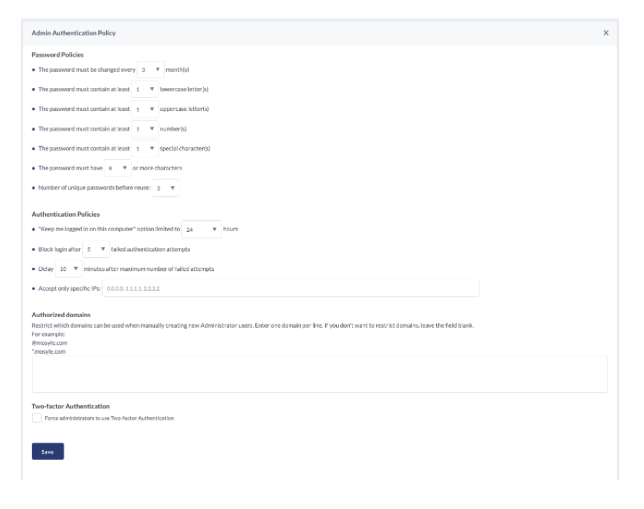
To configure these policies, go to My School > Preferences > Other Settings > Admin Authentication Policy.
Password Policies
The password policies allow you to configure specifications on how the password should be handled when logging into the Mosyle web panel with an Administrator account. Options include how frequently the password should be changed, character requirements, and how many unique passwords must exist before one can be reused.
If Single Sign-On is configured to authenticate with the Identity Provider credentials when logging into the web panel, the Password Policies configured will be ignored as it is expected the Identity Provider configurations to supersede the configurations in Mosyle.
Authentication Policies
The authentication policies allow you to configure specifications regarding account and authentication access. Options include configuring the maximum session time, how many authentication attempts are allowed before login is blocked, time delay before a user can attempt to login again after so many failed attempts, and allow access from only specific IPs.
Within this area restrictions can be applied so that Administrator accounts can only be created for users with emails of a specific domain, and two factor authentication can be enforced for all Administrator accounts.
User Photos
If desired, user photos can be uploaded to the Mosyle MDM or students can be permitted to add their own photos. These photos will show within the Mosyle Manager application and in the Admin web panel.
To upload User Photos or configure it so students can add their own photos, go to My School > Users > Users Photos.