# Mosyle CDN
## Overview
---
Mosyle offers a CDN solution that supports the PKG, DMG, ZIP, and IPA file types of up to 8 GB and is included in the Mosyle OneK12 subscription plan.
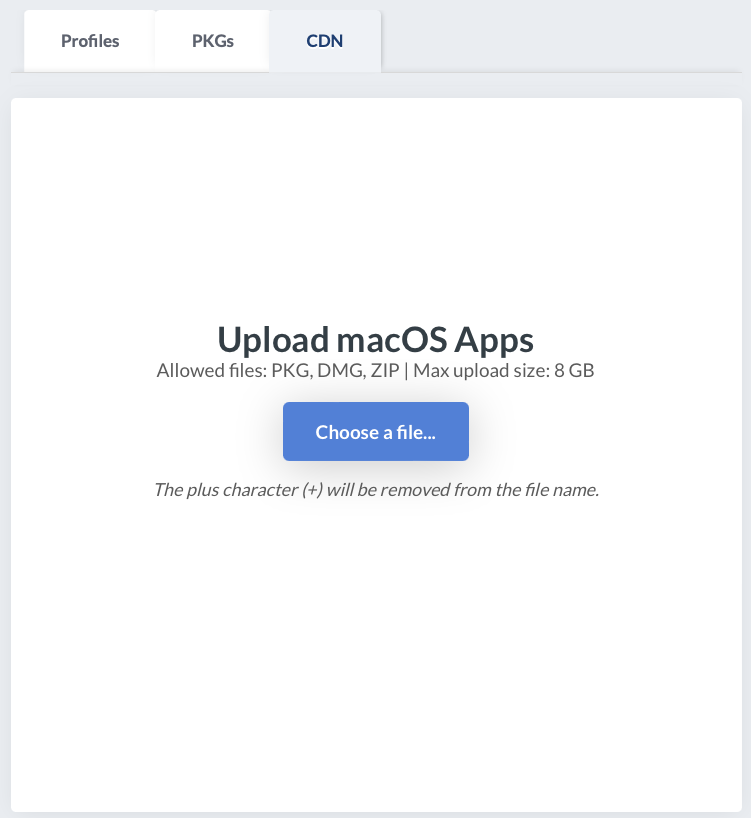
To Upload Packages to Mosyle's CDN
1. Click Management > Install PKG > Click the CDN tab
2. Click “Upload” > Choose a File
3. Select the file > Click Choose for Upload
4. Monitor the progress bar for the upload status
[](https://academy.mosyle.com/assets/images/courses/manager-msp-certification/lesson-9/9.2-mosyle-cdn/92-overview/upload.png)
## Using the CDN Variable
---
When hosting packages on the Mosyle CDN, the URL of each package is replaced with a Variable (ID). In order to continue deploying the packages using Custom Commands or other management profiles, replace any previous URLs with the PKG Variable ID to ensure expected behavior.
**Finding a PKG Variable**
1. Click Management > Install PKG
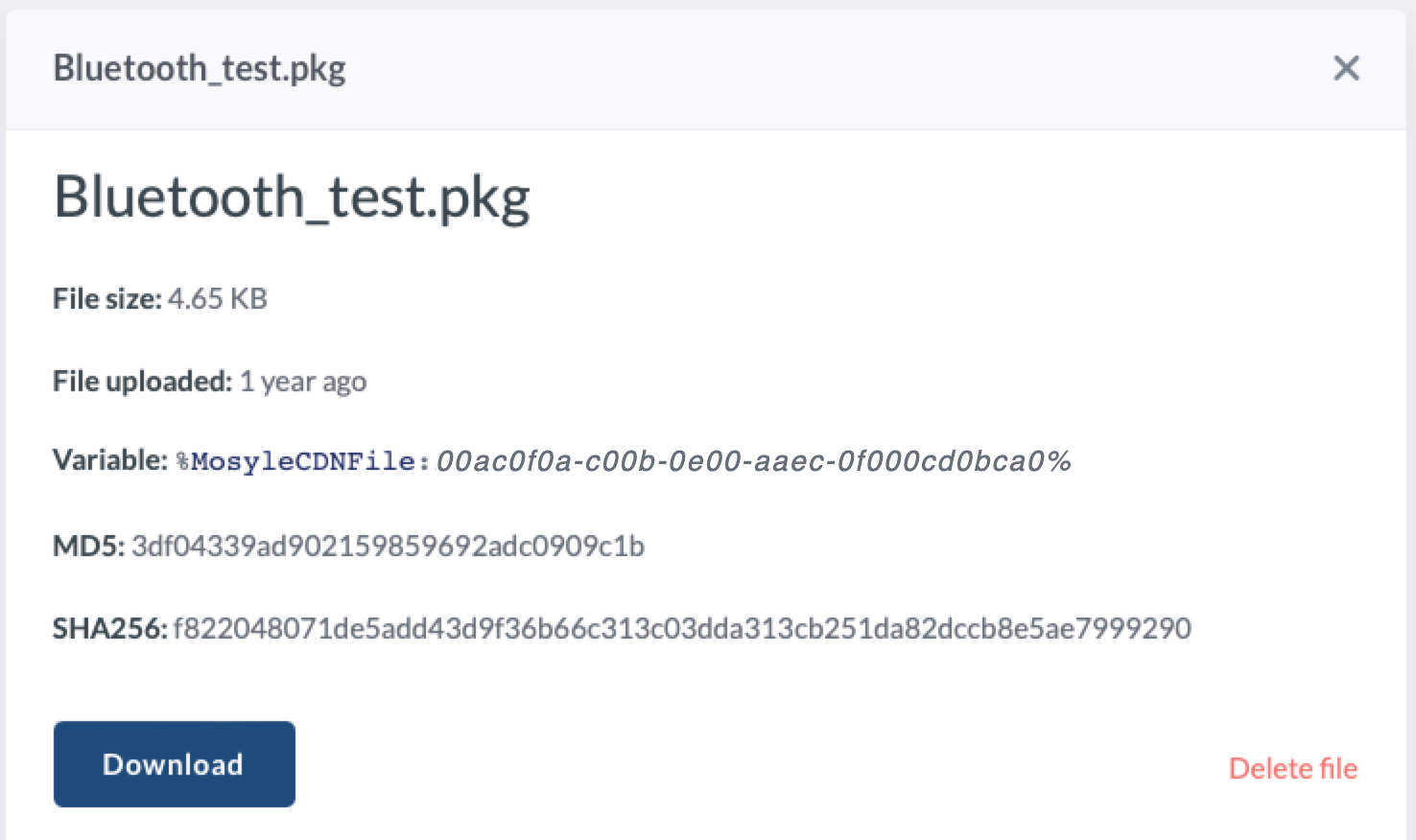
2. Click the CDN tab > Click the PKG name
3. Copy the value in the Variable field (%MosyleCDNFile:00ac0f0a-c00b-0e00-aaec-0f000cd0bca0%)
4. Navigate to a profile that includes the URL and replace the URL with the Variable
[](https://academy.mosyle.com/assets/images/courses/manager-msp-certification/lesson-9/9.2-mosyle-cdn/using-the-cdn-variable/finding.png)
**Adding a PKG Variable to the Custom Commands Profile**
1. Click Management > Custom Commands
2. Click an existing profile's name or create a new profile
3. Select 'Enable Variables for this profile' > Click the link 'Click here to view available variables'
4. Click on View Mosyle CDN Variables > Copy the value in Variable
5. Exit the pop-up
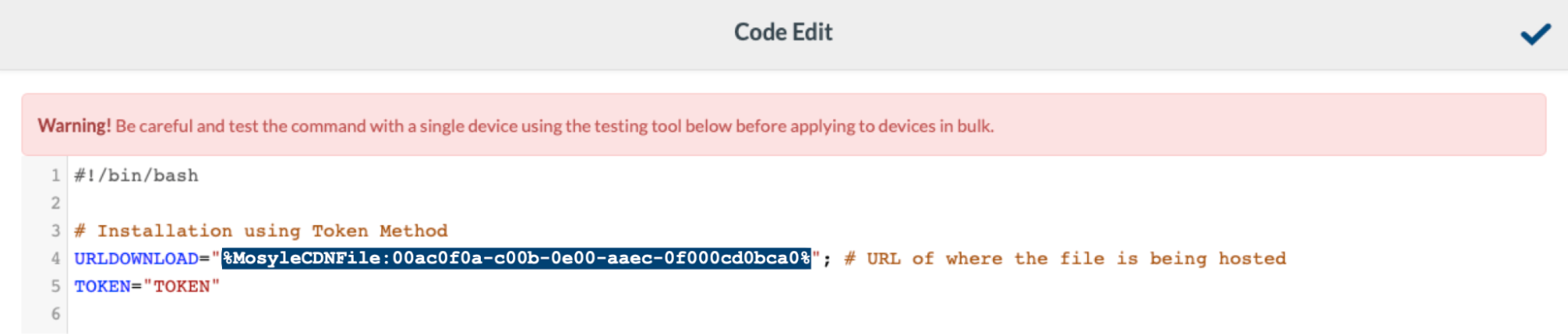
6. Click the text box in Code > Delete the package's URL > Paste the package's Variable
7. Click on the blue checkmark
8. Save
[](https://academy.mosyle.com/assets/images/courses/manager-msp-certification/lesson-9/9.2-mosyle-cdn/using-the-cdn-variable/adding.png)