Mosyle Catalog App Installation
Overview
Mosyle Catalog provides the ability to install, update, and manage third party applications that are not available in the Mac App Store, without having to manually download and host PKG or DMG files. Installing apps using Mosyle Catalog can also automatically install any additional permissions needed for the app, such as Privacy Permissions, System Extensions, or Kernel Extensions.
Whenever available, the Universal version of the application will be installed through the Mosyle Catalog. If a Universal version of the app is not available, the appropriate version of the app will be installed on compatible devices - Apple silicon versions of the app will be installed on Apple silicon devices, and Intel versions of the app will be installed on Intel devices. If only the Intel version of the app is available by the app developer, then the Intel version of the app will be installed on devices. In this scenario, it's recommended that Rosetta 2 is installed on Apple silicon devices.
Apps added to the Mosyle Catalog are based on customer requests. All apps offered in the Mosyle app catalog are owned, distributed, and maintained by each respective software developer. When sending installation commands, Mosyle uses direct download links provided by each respective software developer, thus all packages are offered as-is, without warranty, and the functionality, compatibility, and/or availability of each package cannot be guaranteed by Mosyle. Any licensing or rights to the third party software packages is not offered by Mosyle.
The installation of apps using the Mosyle Catalog requires the Mosyle Manager app to be installed on the Macs. Installation of apps using the Mosyle Catalog is not supported on User Enrolled devices.
Creating Install App profile using Mosyle Catalog
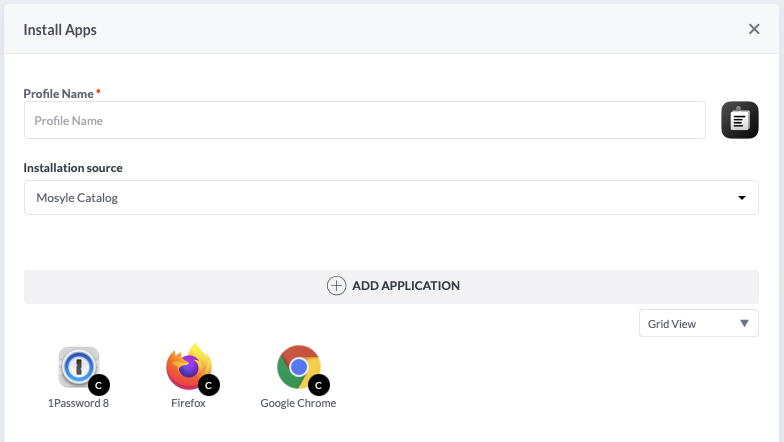
To install macOS apps using the Mosyle Catalog, go to Management > Install App > Add new Profile > Choose the installation source “Mosyle Catalog”.
To view the list of applications available in Mosyle Catalog, click the “+ Add Application” button. Within this area, all applications available to be installed are listed along with any permissions required. To view the permissions required for the app, click the link “View permissions for this app”. If you prefer to manually manage the permissions by creating the required management profiles, uncheck the box for “Automatically grant permissions required”.
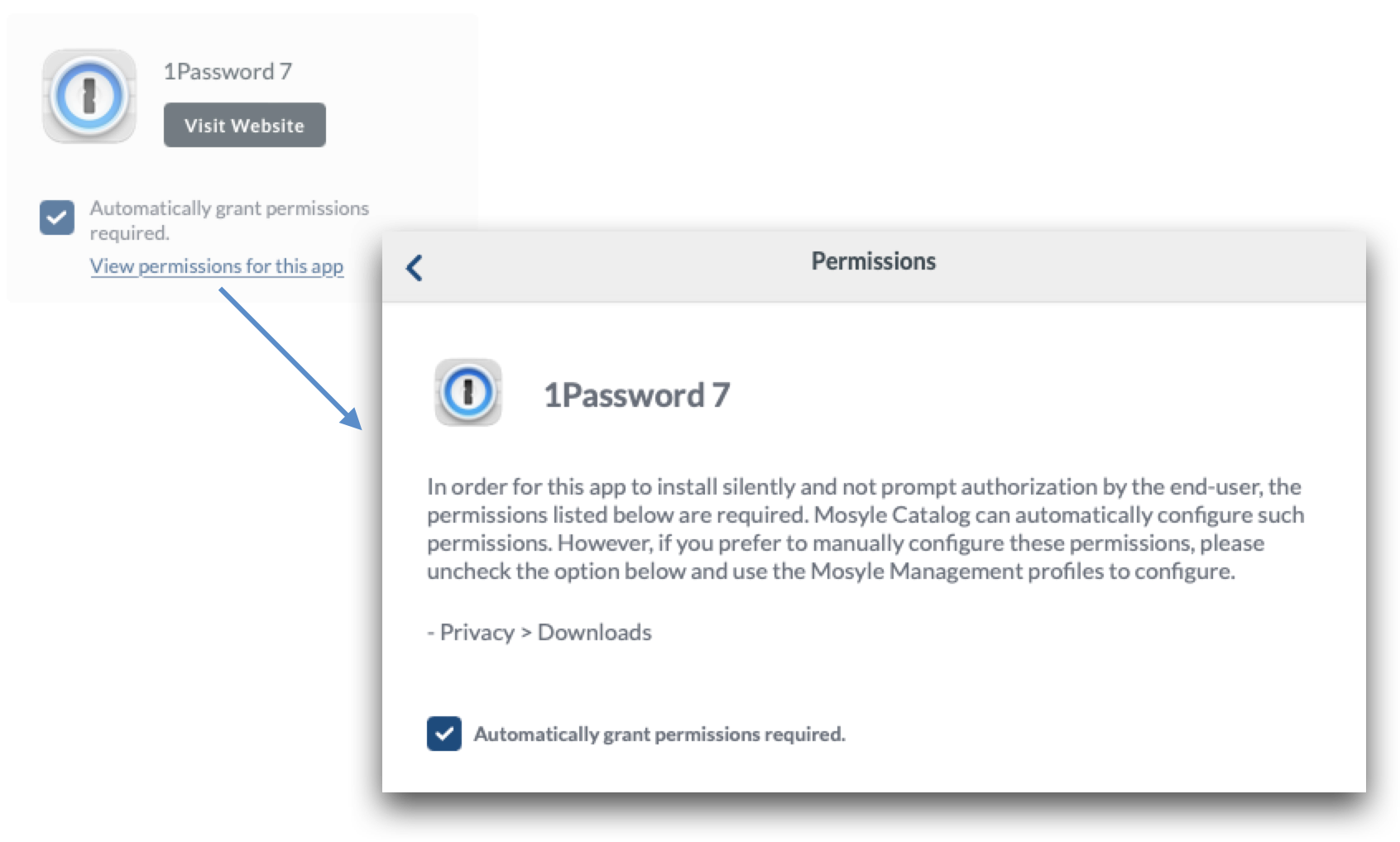
Choose the app or apps to be installed and select the users, grade levels, devices, and/or groups to assign the profile to in the Profile Assignment area.
Installation Options
Similar to installing apps from Apple Apps and Books, additional options can be configured when creating an Install App profile in Mosyle.
Administrators can control whether apps are automatically installed or available in Self-Service. If choosing the option to “Do not install all apps after saving the profile”, it's recommended to use the option to “Show the apps in Self-Service” so that users can manually request the installation of the apps as needed.
If the option is selected to “Install all apps after saving the profile”, apps will be immediately installed after enrollment if the device is assigned to a User, Grade Level, Course/Class Period, Shared Device Group, or Dynamic Device Group that is assigned to the Install App profile. Administrators can also choose whether apps that have been manually removed should be automatically reinstalled under “Show advanced options”.
Updating Apps in Mosyle Catalog
The Install App profile with Mosyle Catalog can be configured to automatically update apps without having to manually update and host the PKG and DMG. Mosyle scans for updated versions of the apps every 24 hours. If an updated version is detected, commands to update the apps can be sent automatically. There are multiple options regarding app updates to choose from:
- Update outdated apps automatically AND alert end users: Using this option you can configure apps to update automatically after a specified delay period. Users will be prompted that an update is available and the specified amount of time to initiate the update via the Self-Service app. At the end of the timeframe, the update will be run automatically by Mosyle ensuring the app is updated.
- Update outdated apps automatically without alerting end users: Using this option, app updates will run automatically by Mosyle as soon as it is detected a new version of the app is available. Note: This can potentially impact users when using certain applications, as the update could run while the app is in use.
- Do not update outdated apps automatically: Using this option, apps will not automatically be updated. In order for the apps to be updated, Administrators will need to save the Install App profile again or push updates via some other method.
Requests to update apps can also be pushed from Device Information, by clicking the paper airplane option to install/update the app, or requested using Self-Service.
Managing the Removal of Mosyle Catalog Apps
Mosyle Catalog apps can be automatically uninstalled when the Install App profile is edited using the Advanced Options in the profile. To configure the profile so that applications are automatically removed when they are no longer assigned to devices in the profile use one of the following options:
- Do not uninstall apps: Using this option, apps will remain installed on the devices even if the device is no longer assigned to the profile, or the app is removed from the profile.
- Uninstall apps after considering all other assigned profiles: Using this option, apps will be uninstalled from devices if the app is removed from the profile or the device is no longer assigned to the profile and the app is not assigned to the device in any other Install App profiles. Because Mosyle scans all other profiles to ensure the app is not assigned to the device in any other way before uninstalling, the commands to remove the app could take up to 2-3 days.
- Uninstall apps immediately after the profile is saved: Apps will immediately be removed from devices after a change is made to the profile to remove a recipient and/or an app and the profile is saved.
Installation Status
Once an Install App profile is created and assigned to users/devices, the View Details area will display the installation status of the app.