Mosyle Auth 2
Overview
Mosyle Auth 2 for macOS allows end users to login to the Mac with their organization credentials. Configure Mosyle Auth 2 so that users login on the Mac with their Google Workspace, Microsoft Azure AD, Active Directory (LDAP or AD FS), or On-Premise Active Directory credentials, and keep the passwords synced between the Mac local user account and SSO.
Users must exist in Mosyle in order to login on the Mac via Mosyle Auth. When using Google or Microsoft Azure AD, the user's email address registered in Mosyle must match the email address registered in the Identity Service. When using Active Directory (LDAP, AD FS, or OnPrem), the user ID registered in Mosyle must match the authentication query used when authenticating with LDAP/ADFS.
If enrolling devices via Automated Device Enrollment, configure the Automated Device Enrollment profile with the following settings: check the box to 'Allow Bootstrap Token (macOS 10.15+)', uncheck the box to 'Prompt user to create an account' so the local user account creation during the Setup Assistant will be skipped, and check the box to 'Create additional local admin during Setup Assistant'.
It's recommended to not configure some Passcode Policies settings through the MDM when using Mosyle Auth 2 as it could cause some unexpected side effects. Anywhere possible, the passcode requirements should be handled through the Identity Service rather than through the MDM policies. The following settings are recommended to be set as 'Do not configure this option' in the Passcode Policy profile:
- Allow simple value, Require alphanumeric value, Force Password Reset (10.13+)
- Minimum passcode length
- Minimum number of complex characters
- Maximum passcode age
- Passcode history
When users login through Mosyle Auth 2, a user account on the Mac will be created. All Mosyle Auth 2 user accounts are created as Mobile accounts to leverage the possibility of User Scope profiles and ensure the secure token is passed to each user if the Bootstrap Token is allowed. To skip all user account creation prompts, such as Data & Privacy, Apple ID, Touch ID, Siri, etc., configure the Login Window profile.
Mosyle Auth 2 supports the use of 2FA, including the 2FA with Security Keys. On macOS 13+, due to USB Restricted Mode, the Security Keys for 2FA will not be allowed unless the restriction to disable USB Restricted Mode is installed, or a user has first logged in to allow access to the Security Key.
To access Mosyle Auth 2, go to Management > Mosyle Auth 2.
Creating a Mosyle Auth 2 Profile
To create a Mosyle Auth 2 profile, go to Management > Mosyle Auth 2 > Add new profile. Profiles can be assigned to individual users or devices, as well as grade levels, classes, device groups, or any other assignment option.
Choose the identity provider and then select the usage model. Every Mosyle Auth 2 profile will include the following configuration options:
-
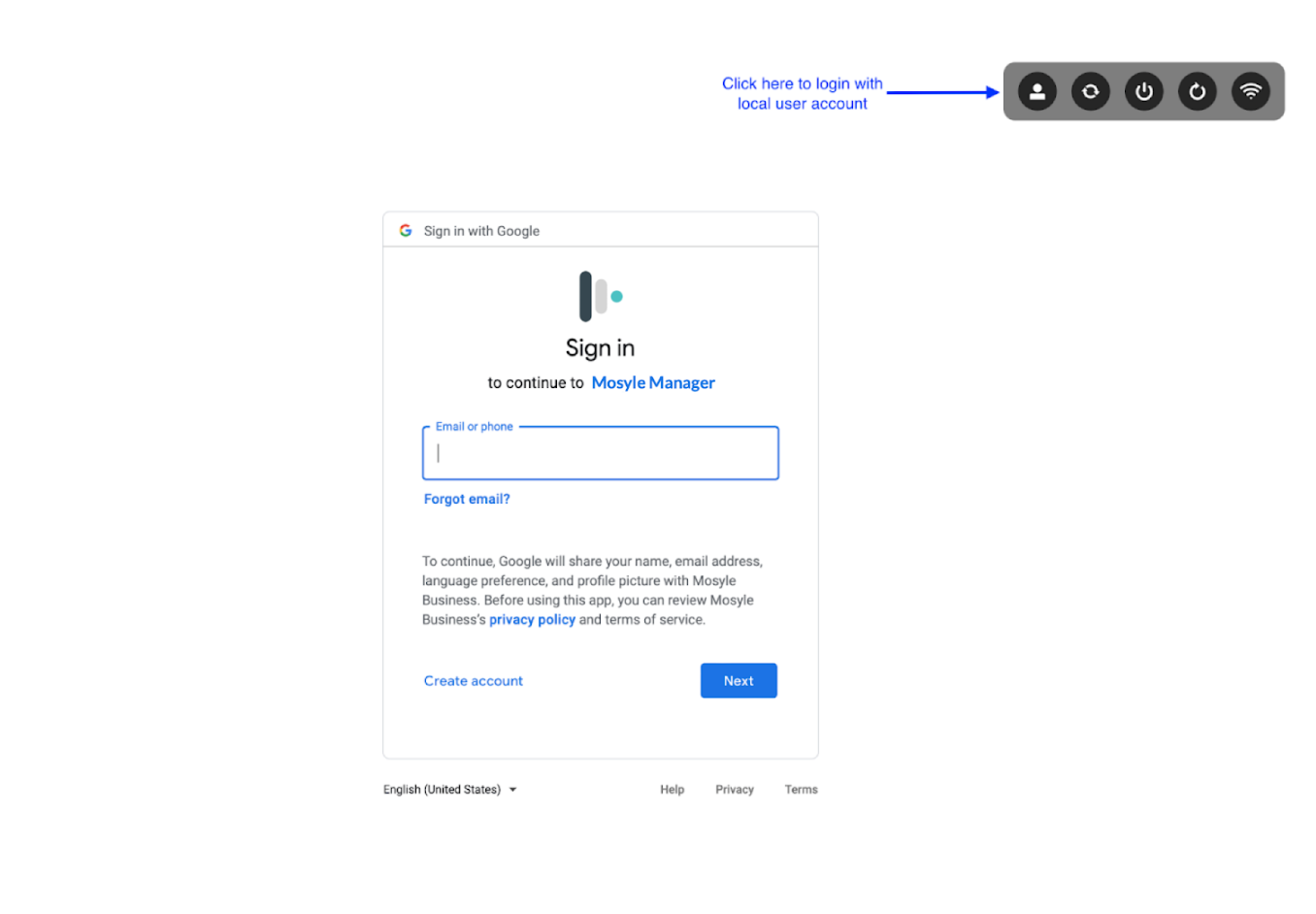
Do not allow Sign In with Local User: Force users to authenticate via Mosyle Auth in order to access the Mac. In order to authenticate via Mosyle Auth, the Mac must have a valid internet connection. If the Mac does not have an internet connection, the user will be unable to login. If this option is unchecked, users will be able to login using the local user login to access the Mac if there is no internet connection. When logging in locally, the user will need to click the icon of a person's silhouette and enter their user account name and password.
- Manage Pre-Existing Users: When selected, existing local user accounts will be converted to MDM managed user accounts, or mobile accounts. This will allow the users to receive User Scope profiles and automatically be granted a secure token upon login if the Bootstrap token is allowed.
-
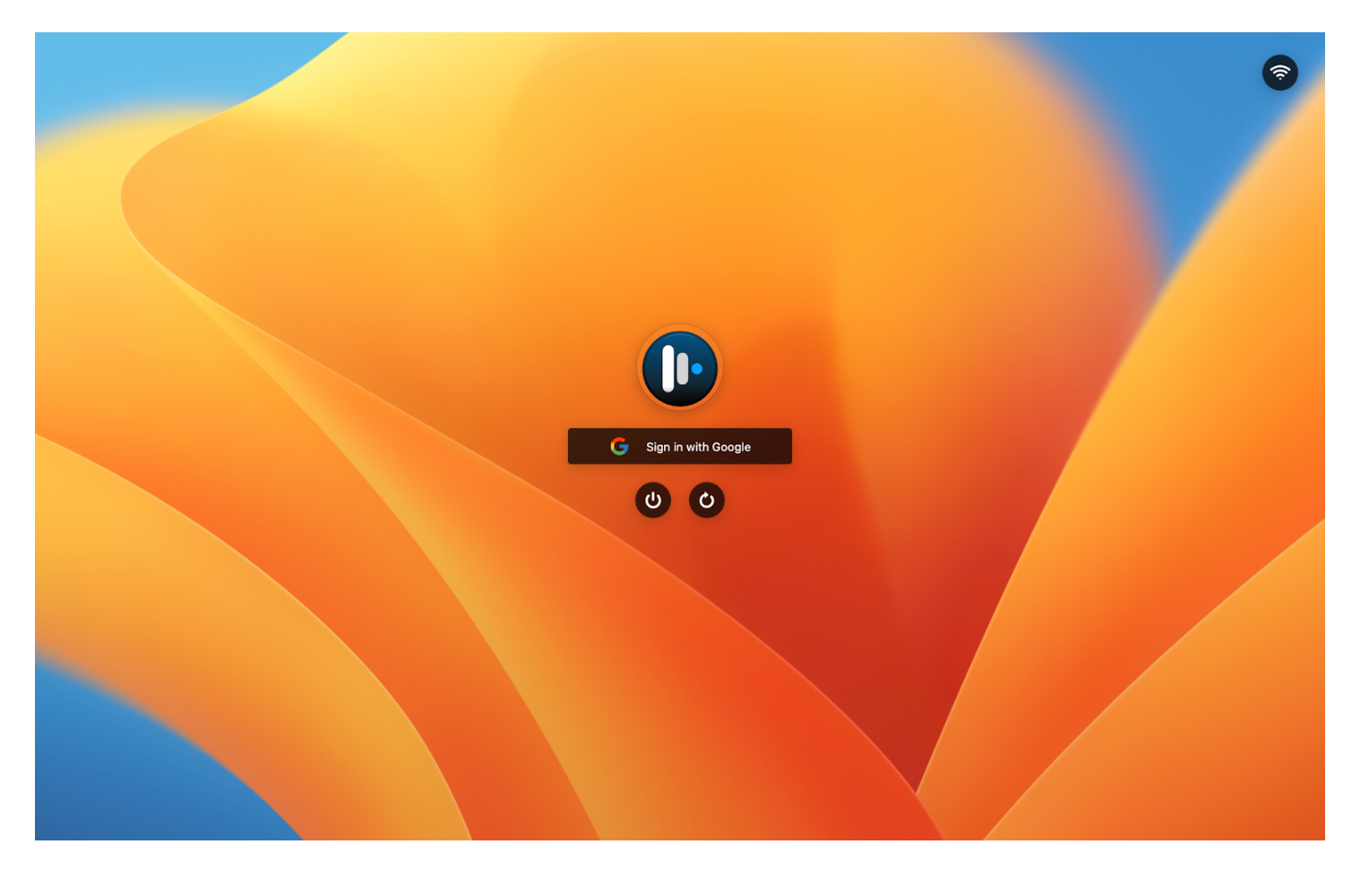
Show macOS Default Background: When selected, the default macOS background will show as the background for Mosyle Auth at the login window. If you prefer to customize the login window, leave the box unchecked and upload your customized image under Organization > Preferences > Other Settings > Login Screen Wallpaper.
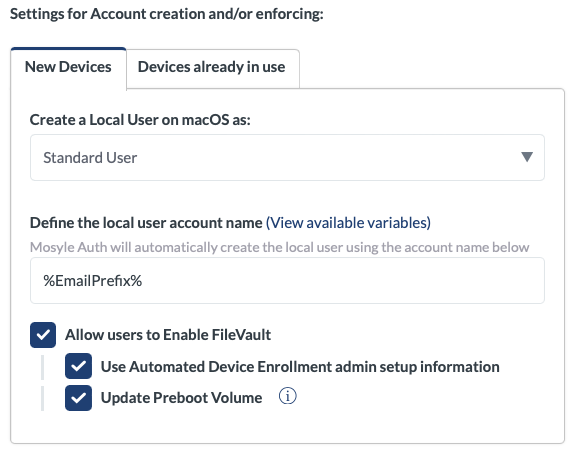
- Allow users to enable FileVault: Check this option to grant a secure token to users created via Mosyle Auth 2 and allow users to reset their password locally on the Mac in the event it is forgotten. Choose from the following additional options:
- Use Automated Device Enrollment admin setup information: This will automatically use the Admin username and password configured in the Automatic Device Enrollment profile to grant the user created through Mosyle Auth 2 a secure token and/or reset the user's password. The DEP Admin must have a secure token in order for the user's password to be successfully reset. If the DEP Admin does not have a secure token, leave this unchecked and enter a SecureToken-enabled Admin account name/password.
- Update Preboot Volume: This option will update the Preboot Volume so that any/all Admin users created through Mosyle Auth 2 will be available to unlock the disk in Recovery Mode. If the Preboot Volume is not updated, only the Admin user who enabled FileVault will be available to unlock the disk when the device is in Recovery Mode. Standard users, by default, will not be able to unlock the disk when in Recovery Mode. If a Standard user enabled FileVault rather than an Admin user, the Mac will prompt to enter the Recovery Key to unlock the disk in Recovery Mode.
Configuring Mosyle Auth 2 for 1:1 devices
If devices are used solely by one, individual user it's recommended to use the 1:1 usage model with Mosyle Auth 2. This configuration ensures only the user assigned to the device will be able to authenticate and login to the Mac.
The device assignment will be completed when the user logs in via Mosyle Auth 2 based on the Device Assignment settings under My School > Users > Device Assignment > User Authentication Assignment. Be sure the option under the heading 'Assignment through Mosyle Auth' is configured with the following selection: Only auto-assign devices not already assigned to a user. Once the device is assigned to the user, no other user will be able to authenticate to login and access the Mac until it is unassigned.
When using Mosyle Auth in a 1:1 usage model, Administrators can define how the account will be created on the Mac. Mosyle will automatically determine if the device is considered a “New device” or a “Device already in use” based on any pre-existing user accounts on the Mac. Once a user authenticates via Mosyle Auth 2 on a brand new device and the user account is created on the Mac, it will then be recognized as a “Device already in use”.
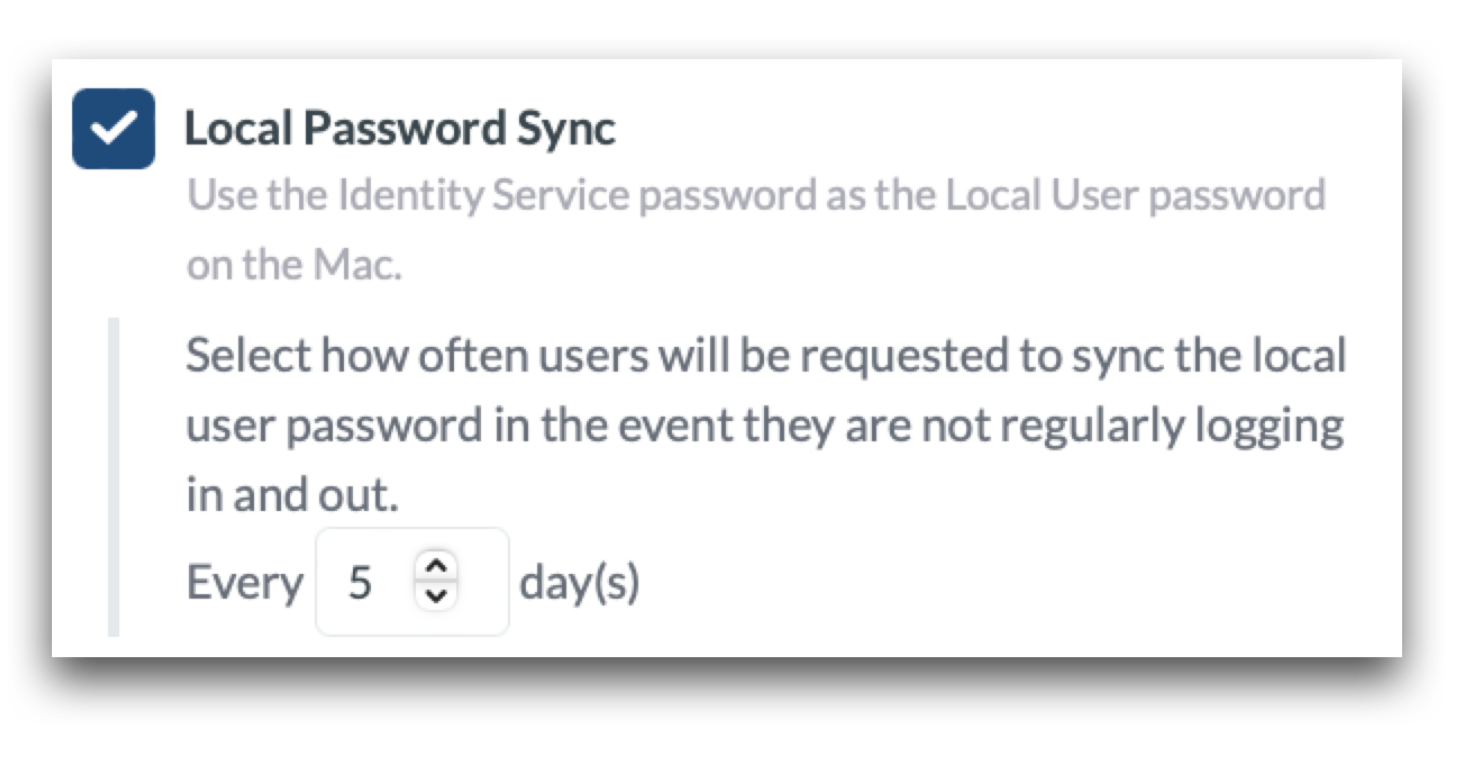
In all scenarios, Administrators have the ability to define the Local Password sync behavior. By default, Mosyle Auth will automatically compare the password used to authenticate during login with the saved password on the Mac. If the two passwords do not match, the user will be prompted to enter the password for the user account on the Mac, which is typically the previous IdP password, in order to update and sync the passwords. In the event users do not logout and login frequently, Administrators can define how often a user will be prompted to sync their password:
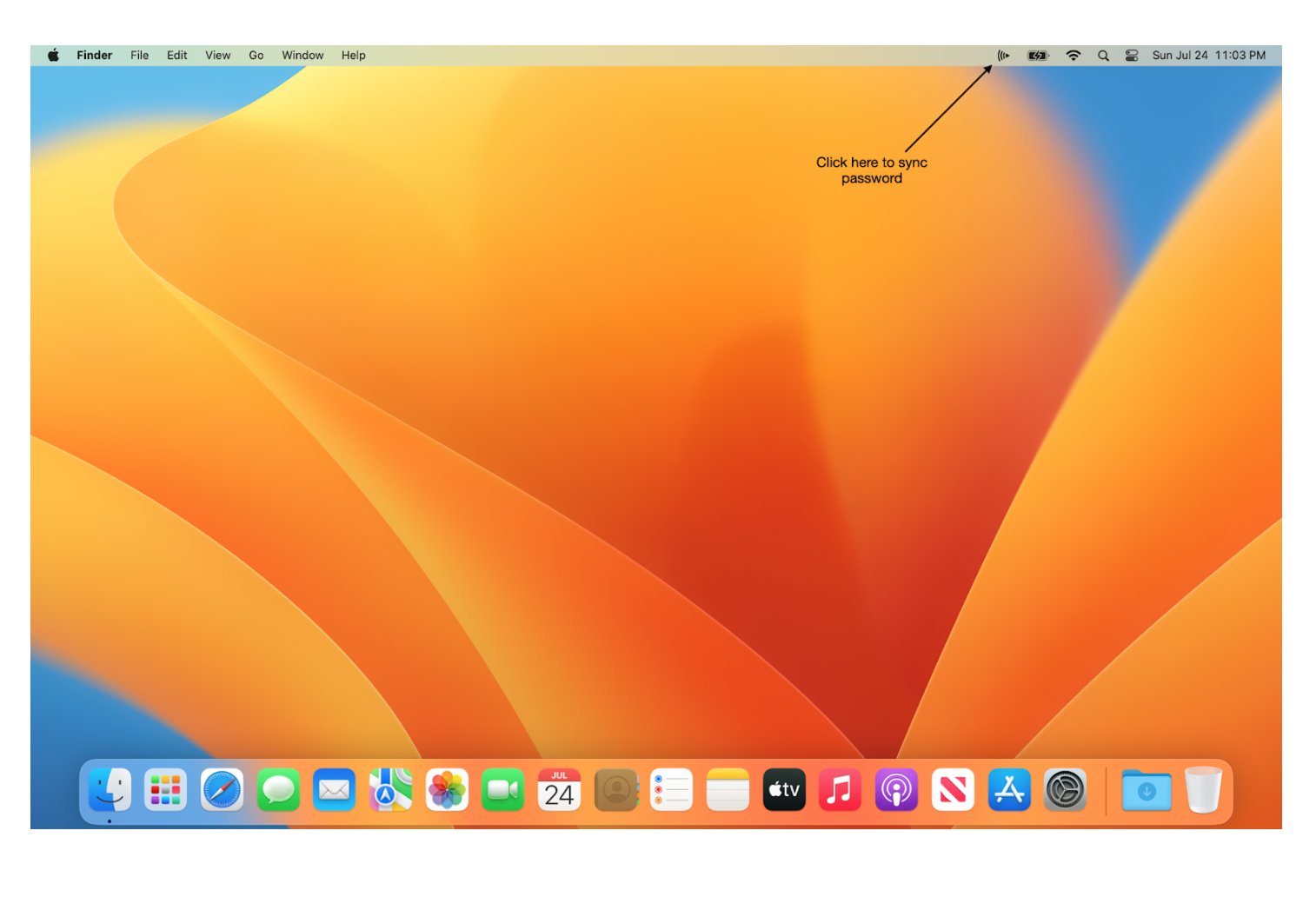
If a user updates or changes their IdP password, it is best practice to sync the password prior to logging out of the Mac. Users can do this by clicking the Mosyle Auth sync icon in the menu bar.
New Devices
The new device workflow is typically an unboxed device that goes through Setup Assistant, and is configured with Mosyle Auth. The device will skip all prompts and land at the Mosyle Auth login window. The user logs in with their organization credentials such as Google, Azure, etc., their account is automatically created on the Mac (formatted as defined by the Mosyle Admin) and the device automatically assigned to the user. Moving forward, only that user is authorized to authenticate and login on that Mac.
In the Mosyle Auth profile, choose how to create the user account on the Mac when the user logs in:
- Standard user
- Admin user
- Check User Group to determine the User Type (On-Premises Active Directory Only)
- Create Local User based on Mosyle User Type (not available for On-Premises Active Directory)
- Use variables to configure the formatting for the local user account name
Devices already in use
For devices already in use, such as devices that are already set up and have been in use, it's understood that user accounts already exist on the device. Therefore, it is undesirable for Mosyle Auth to create a new user account on the Mac. In order to avoid the creation of a new user account on the Mac, configure the “Devices already in use” tab.
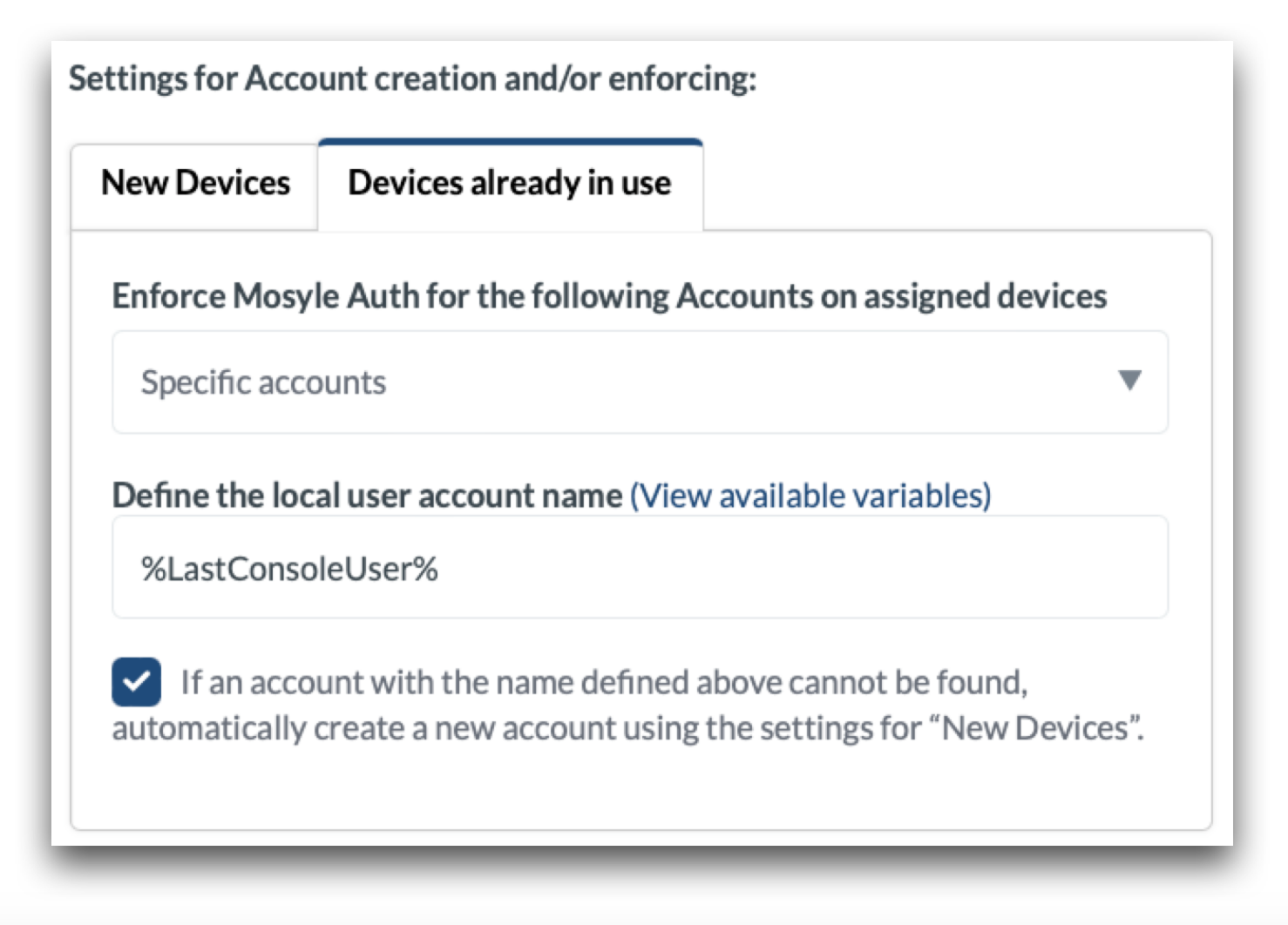
Choose whether or not Mosyle Auth should be enforced for all accounts on the device, or only for specific accounts.
-
All Accounts on the device: To access any/all user accounts on the Mac, the user must authenticate with Mosyle Auth. The expected user credentials to authenticate with Mosyle Auth are the assigned user credentials. Therefore, they will be able to login and access any/all user accounts that exist on the Mac with their organization credentials, with the exception of the DEP admin account. Choose the style of the login window:
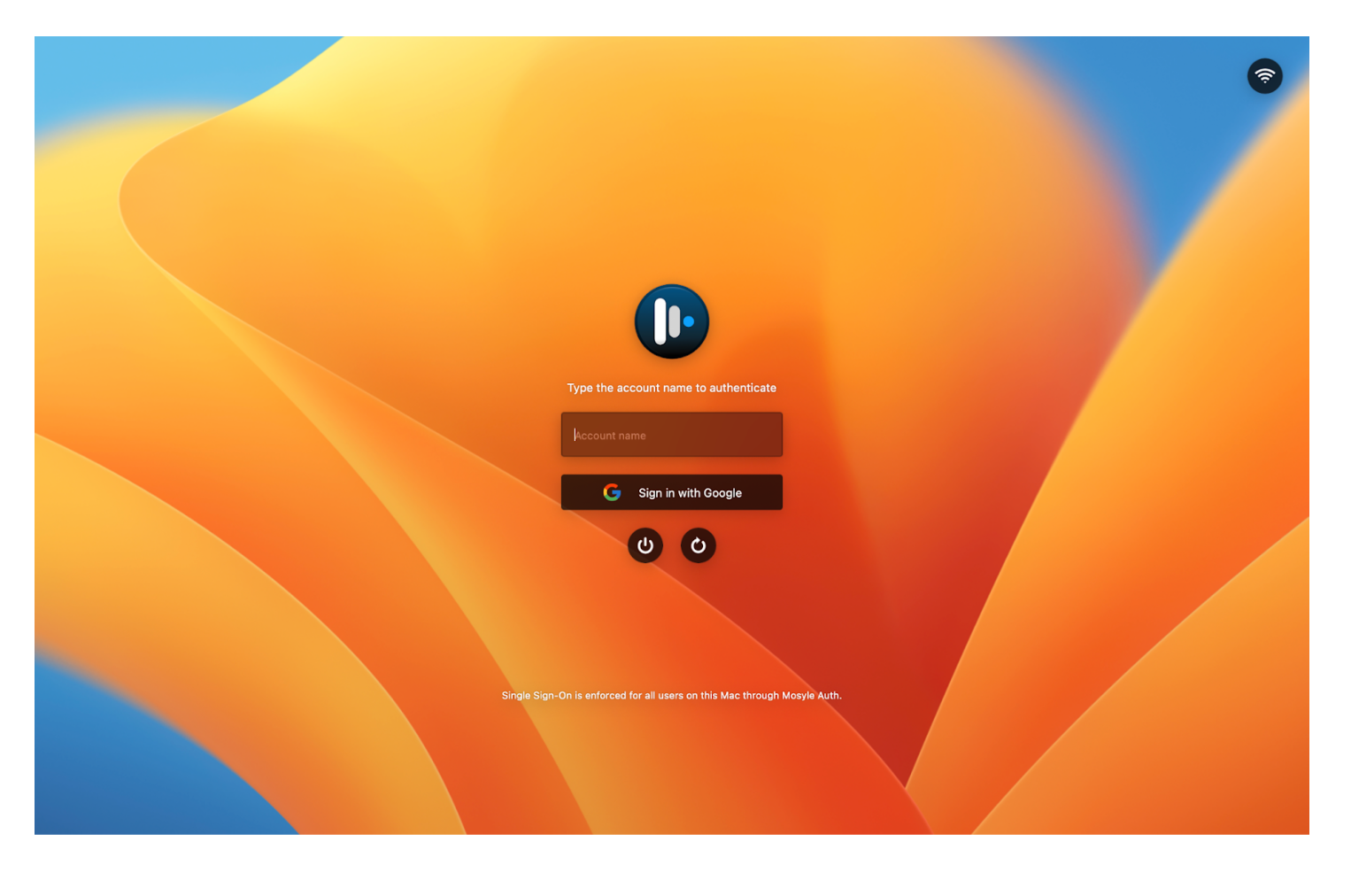
- Force the user to type-in the account name: The Mac login window will present a field in which the user will need to enter an existing user account name that they wish to access prior to authenticating with Mosyle Auth. The user account name entered indicates which user account to login after authenticating with Mosyle Auth.
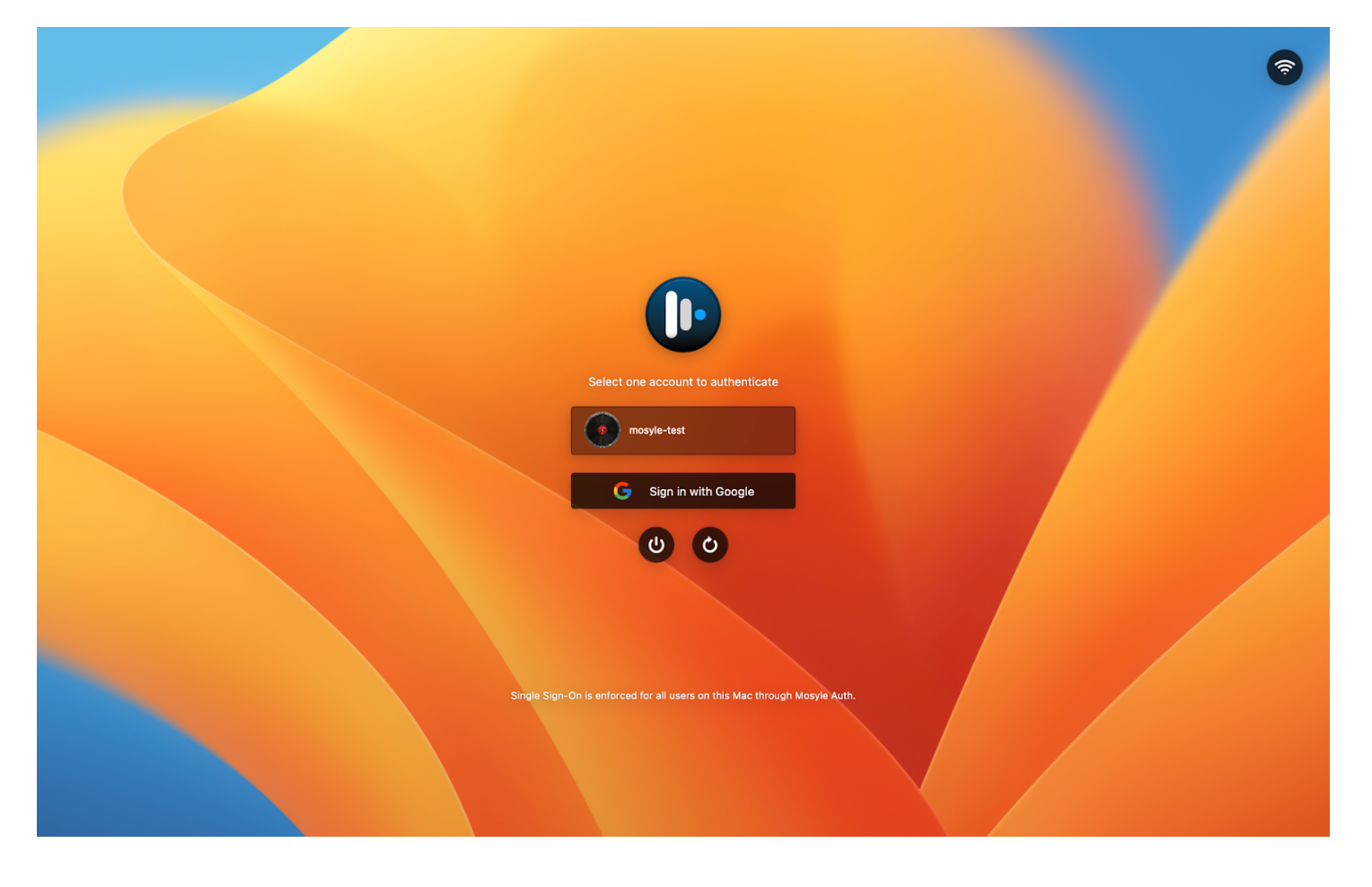
- List all users: The Mac login window will present a list of user account names that exist on the Mac. The user will select a user account and click to authenticate with Mosyle Auth to login to the selected account. Click the option “Do not show hidden users on the list of users” to ensure any hidden user accounts are not listed on the login window.
- Force the user to type-in the account name: The Mac login window will present a field in which the user will need to enter an existing user account name that they wish to access prior to authenticating with Mosyle Auth. The user account name entered indicates which user account to login after authenticating with Mosyle Auth.
-
Specific accounts: Only accounts with the specified, expected formatting can be accessed. In the field labeled Define the local user account name in the Mosyle Auth 2 profile, enter the expected user account name that already exists on the Mac. In doing this, when the user logs in with their organization credentials, Mosyle will check if a user account exists based on the expected formatting.
If the account exists, the user will be logged into the account. If not, a new user account will be created if the option “If an account with the name defined above cannot be found, automatically create a new account using the settings for New Devices” is selected. If the option is not selected and a user account with the specified formatting does not exist, the user will be unable to login.
In an environment where devices are already enrolled in Mosyle and the user's have a user account on the Mac, but its formatting does not match any registered user information in Mosyle, the “Last Console User” variable can be used to define the expected user account name.
Configuring Mosyle Auth 2 for Shared devices
It is typical to assign this type of Mosyle Auth 2 usage to devices enrolled in Shared Device Groups.
Removing Mosyle Auth 2
If you choose to remove Mosyle Auth from your devices, the login window will revert to the native macOS login window and users can login to their local user account on the Mac by entering their user account name and password (most likely the same password as their SSO password). The local user account on the Mac will not be removed if Mosyle Auth is removed. Therefore, all user data will remain and the user can access by logging in locally with their credentials.