Management profiles
Overview
The Management Tab in the Mosyle Web Panel is organized by OS platform and provides Administrators a variety of Management profiles which can be customized to automate the application of policies and restrictions to fit the needs of each school or district. Some profiles have specific requirements such as supervision or a certain OS version. Requirements will be listed within the profile.
Activating and Deactivating Management Profiles
The list of Management profiles can be found in the menu on the left and are organized in alphabetical order, with the exception of Install App and Install Enterprise/PKG. Each account, upon first setup, is equipped with a standard set of commonly used Management profiles. Additional Management profiles are available and can be activated by clicking “+ Activate New Profile Type”. Enter keywords to search for a specific profile, or click the link to read more about the Management profile.
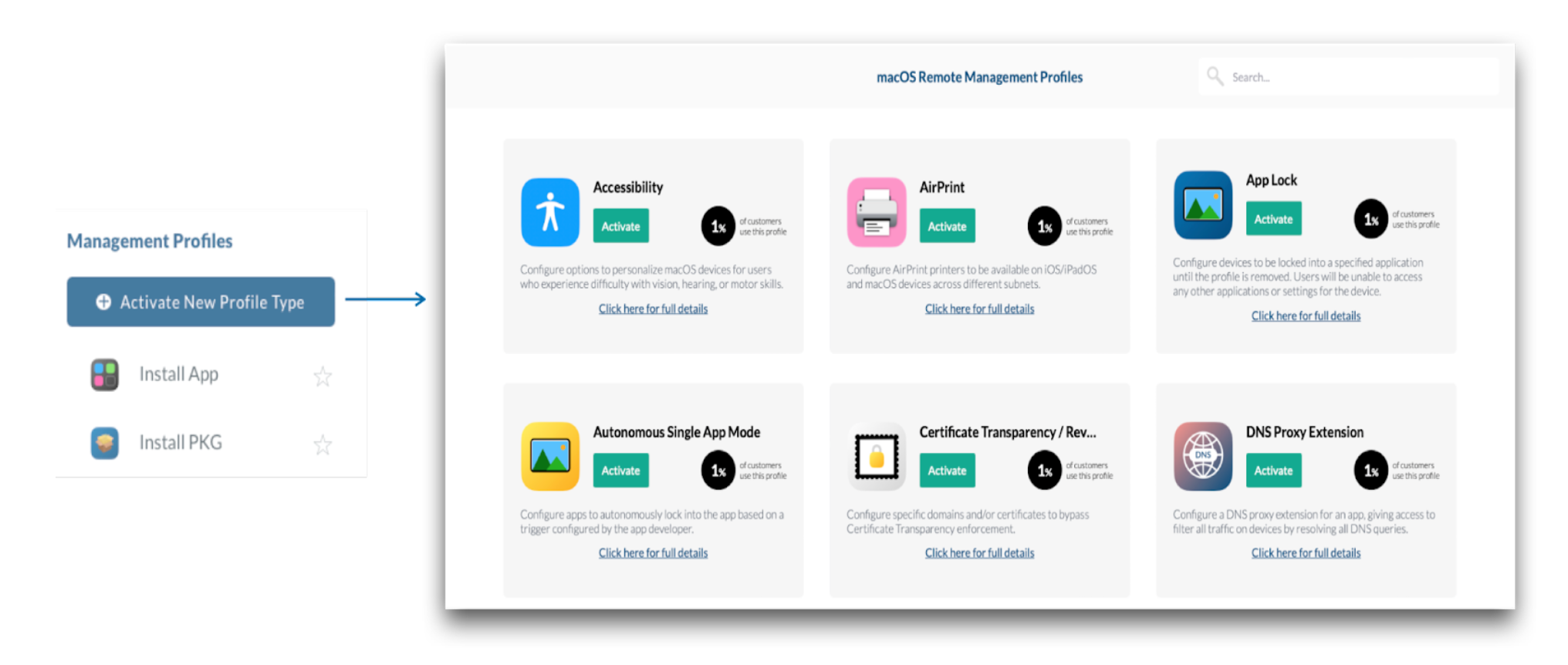
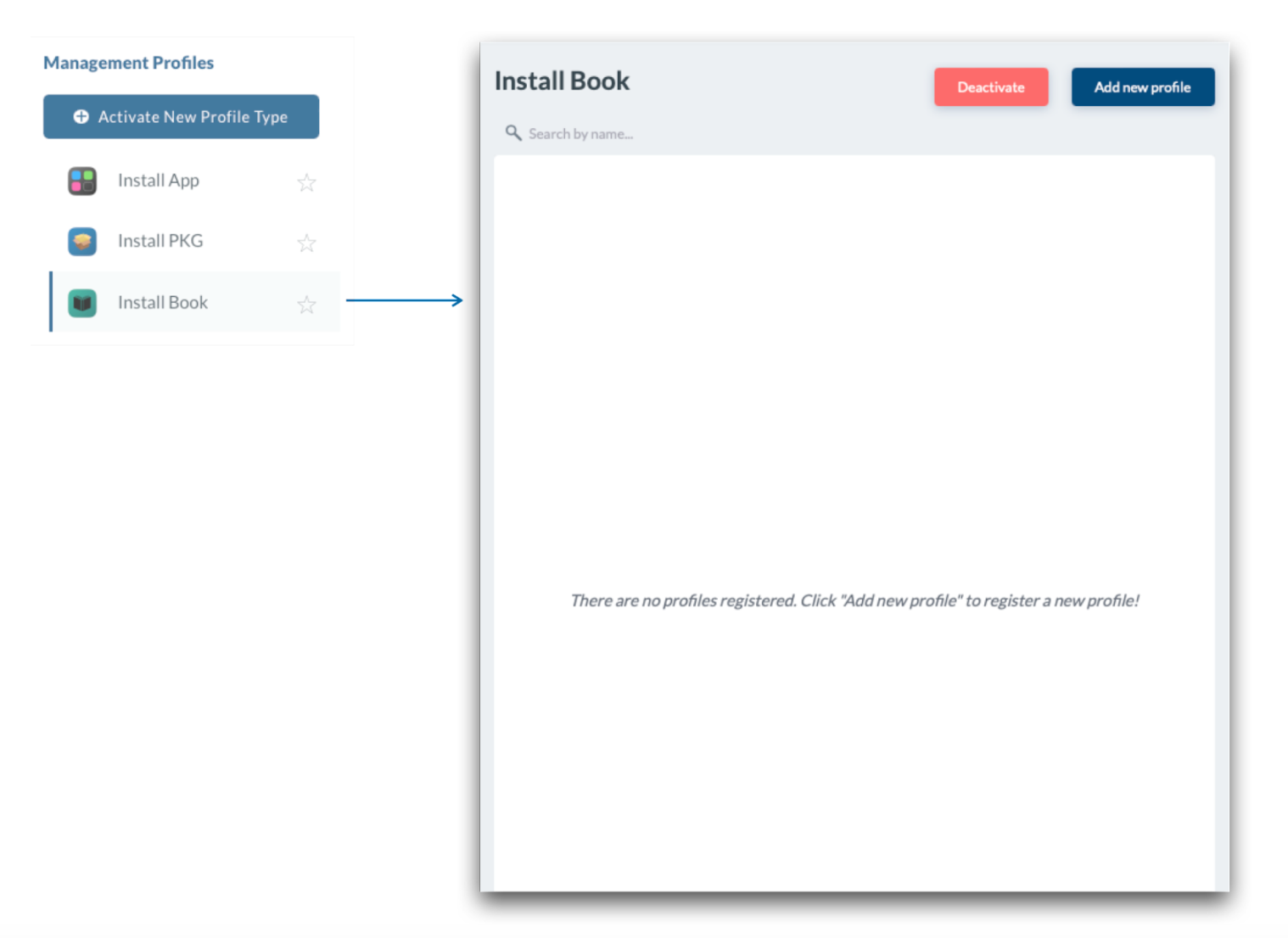
If the school or district does not have a need for a specific Management profile, select the profile from the menu on the left and click “Deactivate”. Only Management profiles that aren't in use and don't have any configuration profiles can be deactivated.
Favorite Management Profiles
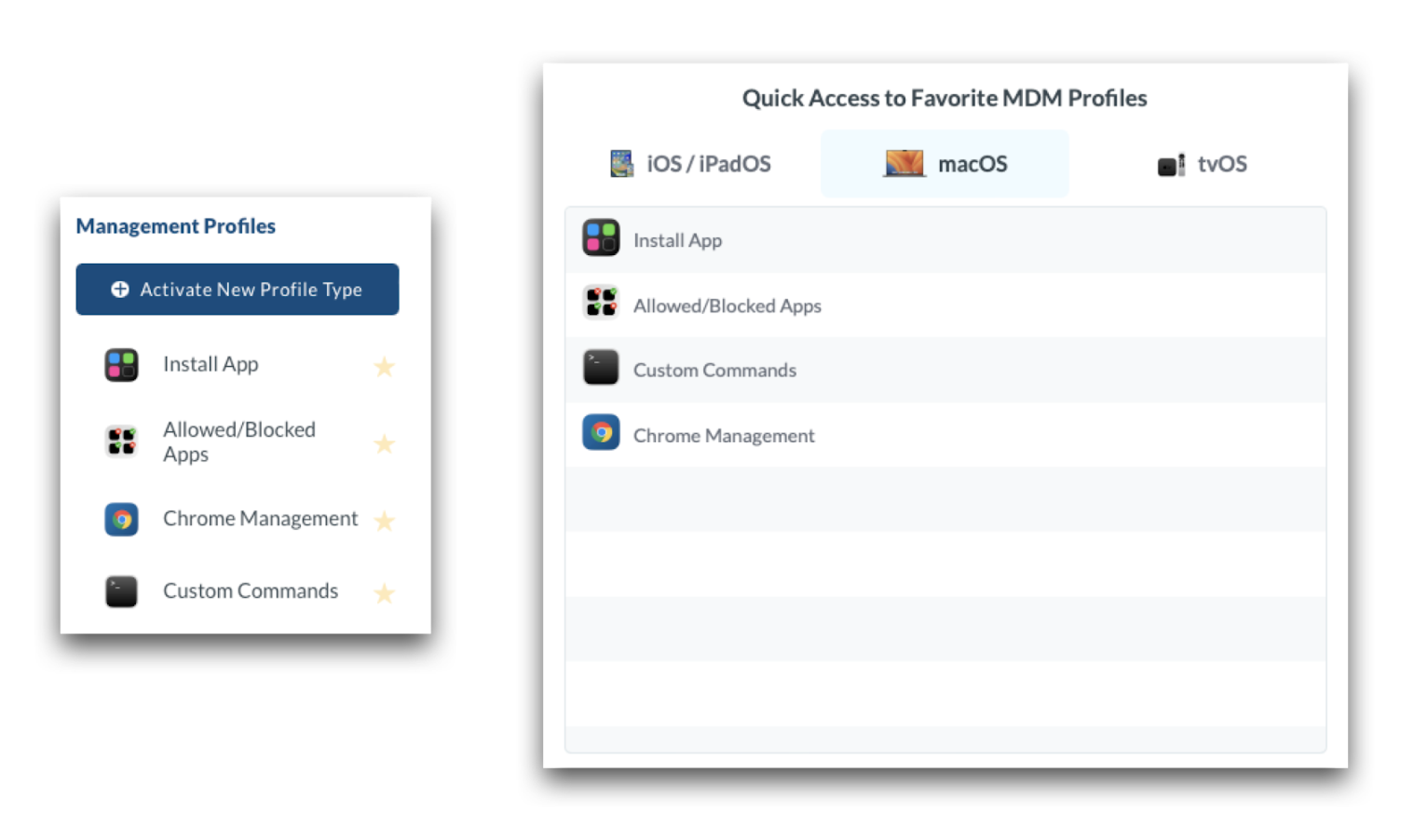
Frequently used Management profiles can be marked as a “Favorite” so that they appear at the top of the list, and on the Dashboard under the Profiles. To add a profile as a favorite, click the ⭐ icon. The favorite profiles are customizable for each Admin user.
Profile Scopes
System Scope
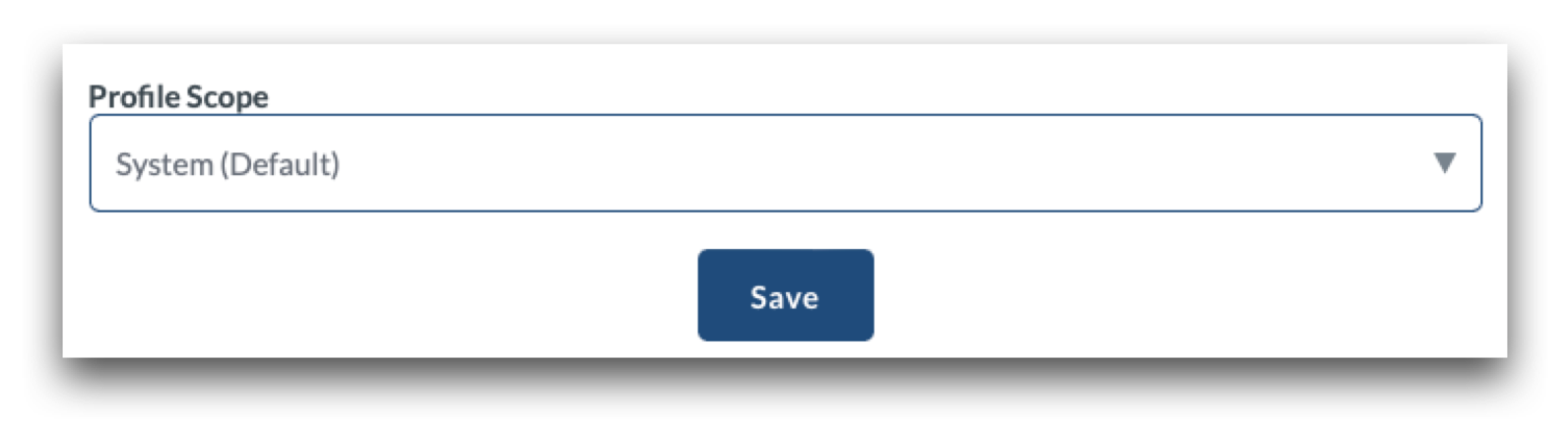
Profiles installed at the system scope apply the configured preferences at the system level, affecting all user accounts on the device and show under System Settings > Privacy & Security > Profiles > Device Profiles. Typically, settings configured via Management profiles are enforced on the device and cannot be manually changed.
User Scope
Profiles installed at the user scope apply the configured preferences only for the specific user accounts who are assigned and eligible for user scope profiles. User accounts are eligible for user scope profiles in the following scenarios:
- The account that was manually created in Setup Assistant during Automated Device Enrollment (macOS);
- The Admin account created via the Automated Device Enrollment profile and the option to 'Set as managed' is selected (macOS);
- The Admin account that enrolled the device from Terminal (macOS);
- The Admin account that enrolled the device from Safari (macOS);
- The account that enrolled the BYOD device (macOS);
- Any mobile or network accounts created when the device is bound to Active or Open Directory (macOS);
- Managed accounts created using Mosyle Auth 2 (macOS);
- Any accounts logging into Shared iPad (iPadOS)
When assigning profiles via the user scope, be sure to assign the profile to users rather than to devices. Profiles installed at the user scope on macOS devices show under System Settings > Privacy & Security > Profiles > User Profiles.
Notes:
- If 'Prompt user for account creation' is skipped in Automated Device Enrollment, a user scope is not created on a macOS device unless the local administrator is configured to 'Set as managed'.
- The user scope is created for only one account on devices running macOS 10.12 or later, unless the device is bound to Active or Open Directory or Mosyle Auth 2 is used.
- If a user scope does not exist and is required in the environment, it's recommended to re-enroll the device.
Scheduling Profiles
Management profiles such as restrictions and allowed/blocked apps, provide options for scheduling their automatic installation and removal. This is useful in a variety of environments, some examples listed below:
- Block specific apps during the school day, but allow access after school.
- Lock devices into a specific kiosk or app for a specific class period, but release the lock for all other classes.
For profiles that support time based scheduling, there is an option to apply the profile “Fulltime (24x7)” or “Schedule choosing a time profile”.
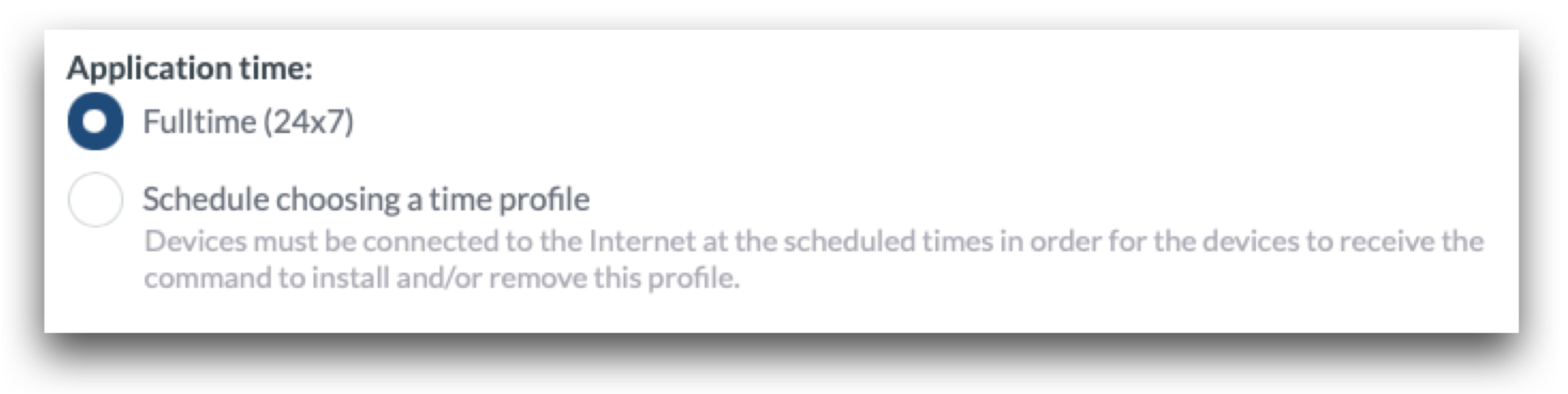
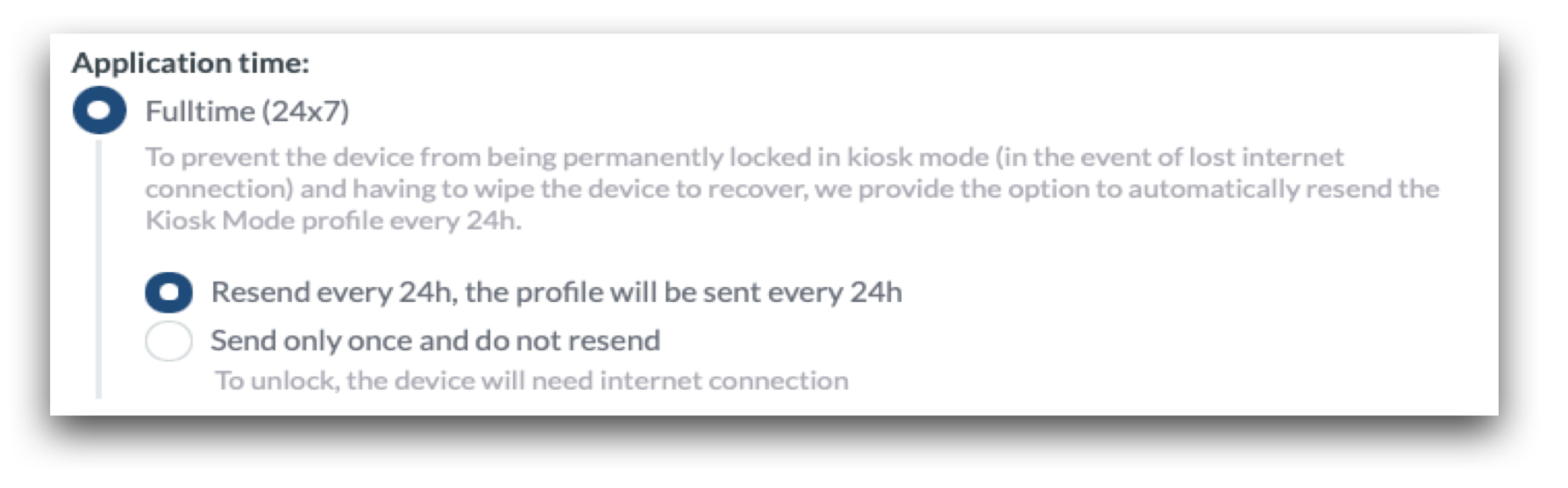
Applying the profile full time will install the profile and enforce the settings until it is unassigned or removed. In the case of an App Lock or Kiosk Mode profile, Administrators have the option to install the profile only once or to resend the profile every 24 hours. When selecting the option to resend every 24 hours, the profile will install and be configured to automatically remove from the device after 24 hours. Mosyle will simultaneously send a command to reinstall the profile. This option for the 24 hour expiration is provided as a potential failsafe for devices in the event they lose network connectivity so that the profile will automatically be removed locally, releasing the device from the App Lock so it can be reconnected.
In a scenario where the profile is not resent every 24 hours, if the device loses network connectivity, the command from Mosyle to remove the App Lock will be unable to go through. If this happens, the device will need to be connected to ethernet, paired with a computer, or erased in order to remove the App Lock and regain access to the device.
When scheduling the profile using a time schedule, click Select to create a new time profile or choose an existing time profile to define when the configuration will be installed and removed.
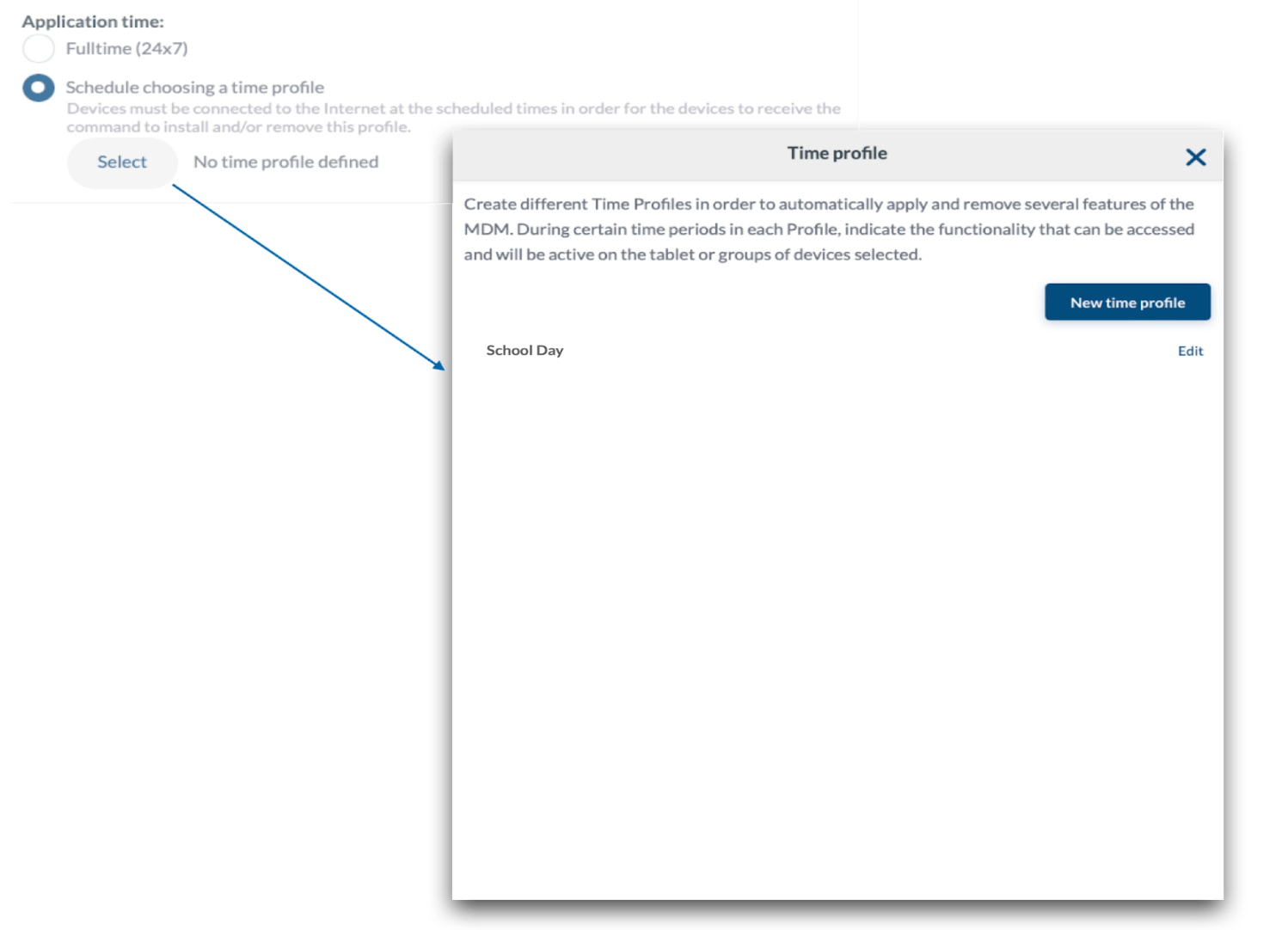
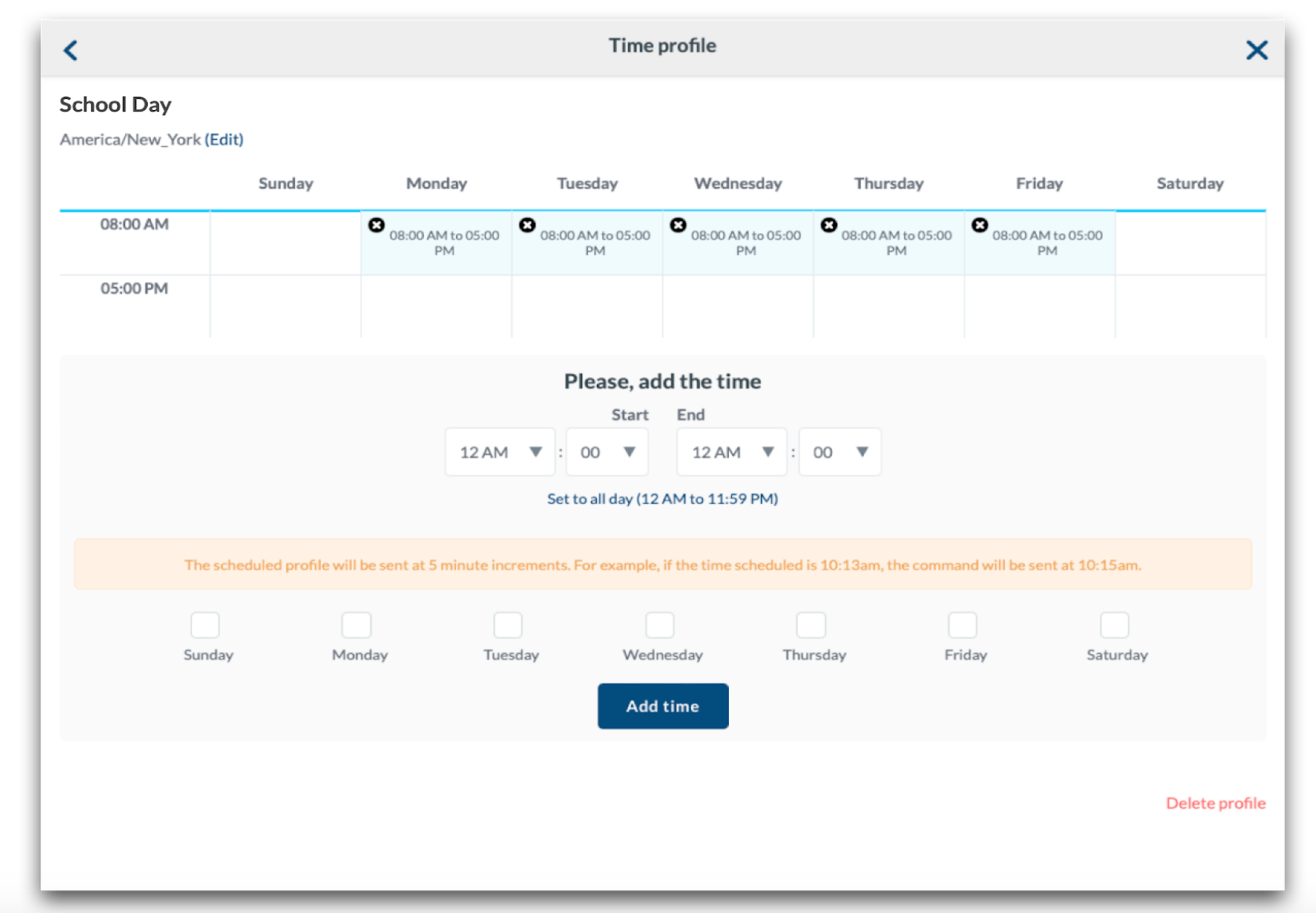
To choose an existing time profile click on the time profile; click “Edit” to edit an existing time profile. To create a new time profile click “New time profile”. Enter a name for the time profile, choose the time zone, and choose whether to restrict access or not, click Save. On the next screen, enter the start time in which the management profile will be sent, and an end time to designate when Mosyle will send a profile removal command. Select the days the schedule will be applied and click Add time. When finished, click the back arrow in the upper left corner and then select the time profile to apply it to the management profile.
Installation Options in Profiles
Some profiles include additional installation options within the profile to control when the profile is pushed to the devices. The options include:
- Do not reinstall the profile during the assignment/login: This will prevent the profile from reinstalling on devices it is already installed when users login to the device, or when the device is assigned to the user.
- Do not remove the profile when the assignment is removed or during logout: This will prevent the profile from being removed if the user or device is removed from the assignment of the profile or after a user has logged out.
- Do not auto-install the profile after saving: This will prevent the profile from automatically installing after the profile is saved or after the profile is assigned. The profile will show "On Hold" in the Device Information screen and under the profile Compliance Status until it is manually installed.
- Show this profile at the Self-Service Page: This will add the profile to Self-Service in the Education app under the “Profiles” tab so users can install on-demand as needed.
Using Variables in Profiles
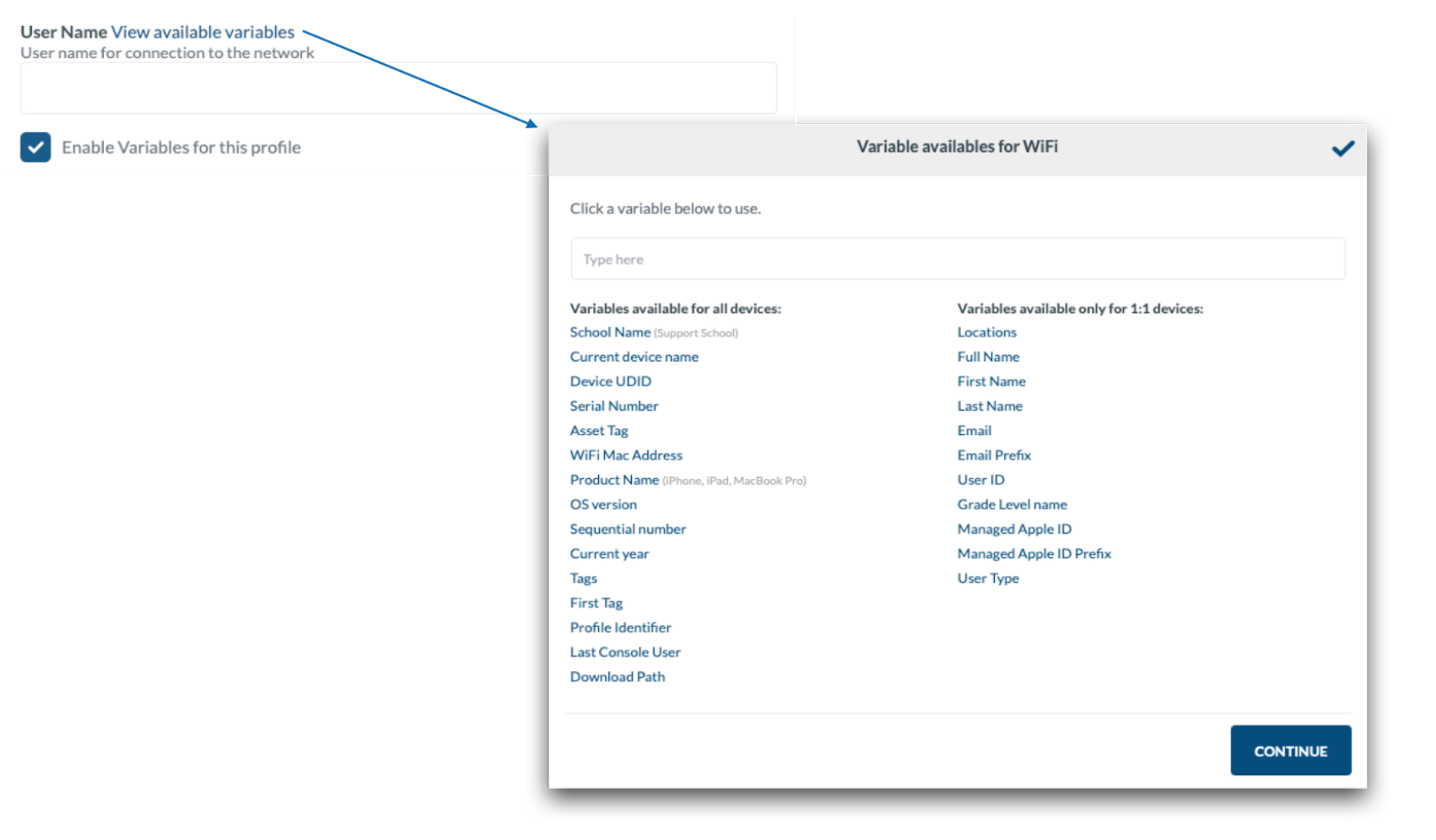
Many profiles support the use of variables to automate the inclusion of user or device information in profile fields, saving administrators time. Variables pass user information based on the data contained within each user's profile under the Organization tab. Check the link within the profiles to view the available variables. Check the box to indicate the profile is using variables to ensure the payload is properly configured.
Compliance Status
After a Management profile is created and saved, the profile Compliance Status will be displayed and accessible under the “View Details” link for the profile. Devices with the profile installed will be listed, along with devices where the profile is pending to install, either because the device is turned off or offline, or devices with the profile removed. At any time a Push can be sent to call devices to the MDM server to retrieve the command to install the profile.
Profiles showing a compliance status as “Not compatible” will occur if the device does not meet compatibility requirements of the profile, or if the profile contains variables and Mosyle is unable to fill the variables. For example, a profile using user variables such as User ID or Email, but the device is not assigned to a specific user. In this scenario, the variables are unable to be filled, therefore the profile will be listed as “Not compatible”.