Install PKG
Overview
Mosyle supports the installation of applications not available in the App Store on macOS devices through the Install PKG profile. The installation of these apps require the PKG, DMG, or ZIP file to be hosted so that they are publicly accessible and directly downloadable without redirection and/or user interaction. They can be self-hosted on a local server (such as SMB), third party CDN, or hosted using Mosyle's CDN.
Despite only specifying “PKG” in the profile name, Mosyle supports the deployment of apps from PKGs, DMGs, and/or ZIP files. The PKG must be a flat PKG. It's recommended each PKG only contain a single application.
Adding PKGs
To install PKGs on macOS devices, go to Management > Install PKG.
Before creating the Install PKG profile, the PKG, DMG, or ZIP file used to install the application must be created, hosted, and publicly accessible, requiring no user interaction to download. Many app developers provide a PKG, DMG, or ZIP file that can be hosted and used to remotely deploy the app to multiple devices. If the file is not provided, you can generate the PKG for the app using the Mosyle Manager app (PKGs tab > Add new package > Generate .PKG with Mosyle Manager).
After generating or obtaining the PKG file, it must be hosted so that devices can access and retrieve the file to complete the installation. Mosyle provides its own private cloud hosting solution that allows you to host packages directly in the MDM. If the account has access to the Mosyle CDN, upload the PKG, DMG, or ZIP file under the CDN tab to host.
Once hosted, click the PKGs tab > Add new package > Already have a .PKG.
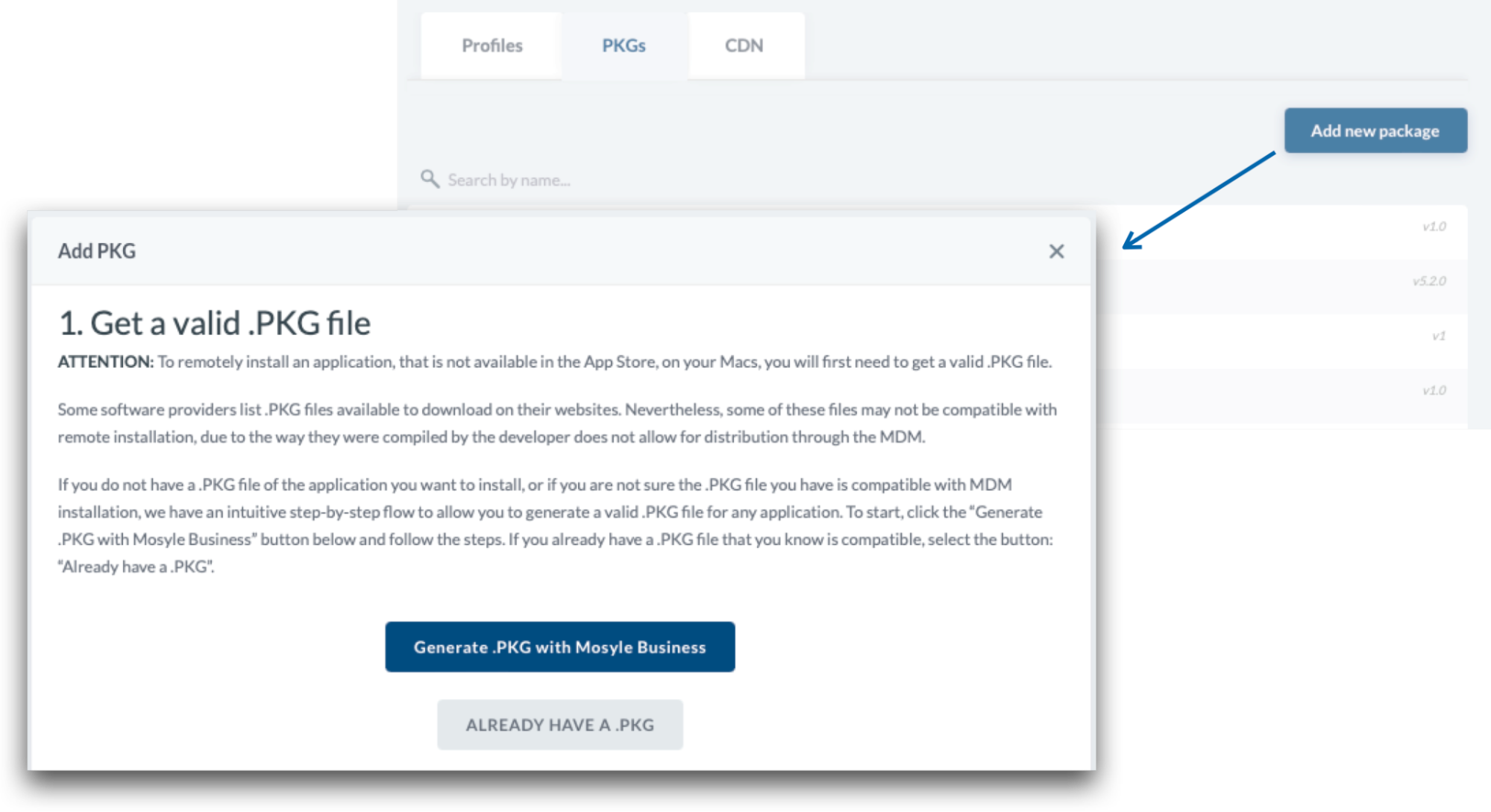
Choose from the following options to configure the app information, which is used to track installation status and if the app is outdated or not:
- Automatically set App info: Mosyle will automatically validate the PKG and retrieve the app bundle ID and version. If hosting internally, do not select this option. After selecting this option, enter the URL for the PKG, upload the PKG to the Mosyle CDN, or select an already uploaded PKG from the CDN. Enter authentication credentials if required.
- Manually set App info: Manually add the app information, such as the bundle ID and version.
When editing or manually entering the app information for the PKG, the following fields are available:
- App Name
- Dropdown menu to select if the file is for an app or an OS update
- URL: Enter the URL of the hosted file, upload the file to the Mosyle CDN, or select an already uploaded file from the CDN
- App Bundle: Enter the bundle identifier for the app. This is used to track the installation status of the app. If the bundle identifier is incorrect, the installation status will be inaccurate.
- App Version: Enter the version of the app that is included in the PKG, DMG or ZIP file. This is used to track whether the app installed on the devices is outdated or not.
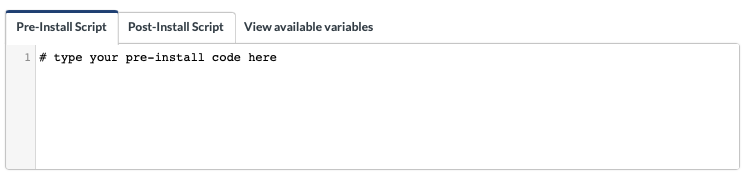
- Pre-Install or Post-Install Scripts: Enter any scripts that need to be run either before or after the app is installed. This is useful for license registration purposes.
- App icon: Upload an app icon to the Mosyle console for easy identification of the app within the console and Self-Service.
- Needs authentication: If the PKG URL requires authentication to be accessed, enter it here.
- Validate file integrity: Check the file integrity after downloading the PKG to ensure the intended file is downloaded.
- This app is signed: Check this box if the PKG will need to be installed on devices enrolled via User Enrollment. Signed applications can be installed using Apple's MDM protocol, rather than the Mosyle agent.
- Priority URLs: Add internal or public URLs to have priority during the download. If the device cannot find the file in the listed priority URLs, it will be downloaded using the initial URL entered for the PKG.
Once all app information has been entered, click Save.
Creating Install PKG profile
After the PKGs are created in Mosyle, click the Profiles tab > Add new profile. Name the profile and select any of the PKGs available in the account to be installed on the devices.
If the app is signed and it is being installed on User Enrolled devices, check the box to “Install with Apple Protocol”. This will use the MDM protocol command to install the PKG rather than using the Mosyle agent. Keep in mind, PKGs installed using MDM protocol must contain a single, signed application installed into /Applications. If the app is being installed on devices enrolled using Automated Device Enrollment or Device Enrollment, it's recommended to leave this option unchecked.
Options are available for auto-installation, delayed installation, and whether the app will be available in Self-Service.
- Install all apps after saving the profile: The apps will be automatically installed when the device is assigned to the profile. This includes immediate installation after enrollment if the device is assigned to a User, Grade Level, Course/Class, Shared Device Group, or Dynamic Device Group that is assigned to the Install App profile. If apps are not automatically installed on devices, the installation will need to be manually requested via Device Info in the Mosyle console, or via Self-Service.
- Show an alert pop-up: Choose to notify users of the installation and allow them to delay the installation as needed. Limit the number of times the installation can be delayed.
- Self-Service apps: Choose whether or not the PKGs will show in the Self-Service application for end users to install as needed.
Managing Updates with Install PKG
To deploy updates to apps installed via Install PKG, a new PKG must be created and hosted with the new app version and added to Mosyle. Be sure to update the version field when adding the updated PKG. Once added, the Install PKG profile will need to be updated to select the new/updated version. The old version can be deleted from Mosyle under Management > Install PKG > PKGs, click on the previous version of the app and then click Delete in the bottom-right corner of the profile (optional).
After the new version is added to the profile, if the profile is configured to update apps automatically, upon saving the profile commands will be generated to install and update the app on the devices.
Note: Mosyle uses version comparison to determine if an app is outdated. Be sure the value of any new app versions are greater than the current version.
Managing the Removal of Apps
Some apps installed using the Install PKG profile on devices running macOS Big Sur or later can be considered "managed" and therefore, can be removed using an MDM command. In order for an enterprise app (PKG) to be considered a managed app on macOS, it has to meet certain criteria:
- It must be signed
- It cannot contain any nested packages
- It must contain only a single app
- It must be installed in the /Applications folder
If the app is managed, it can be removed through Device Info under the Apps tab. If the app is not a managed app, or the device is not running macOS Big Sur or later, you can remove the app from the Mac using the uninstaller provided by the app developer, or a custom command such as: rm -rf /Applications/PATH_TO_APP.app
Custom Configuration of PKGs
Applications that require specific configurations, such as a registration code or license key, can be installed on devices using the Install PKG profile. When creating the PKG in Mosyle, enter the configurations necessary as a pre- or post-install script so that they are applied either before or after the installation of the app. Check the app developer documentation for more information on any configuration specifications.
If preferred, the installation of applications with specific configurations can also be done using the Custom Commands.
Installation Status
Once an Install PKG profile is created and assigned to users/devices, the View Details area will display the installation status of the app. The verification that the app has been installed relies on the bundle ID entered when creating the PKG in Mosyle. If the bundle ID for the app is incorrect, the installation status will remain as “Installing” or “Removed” due to Mosyle being unable to match the bundle ID of the PKG with a bundle ID of an app installed on the device.