Enterprise App Installation
Overview
Mosyle supports the installation of proprietary in-house apps on iOS and iPadOS devices through the Install Enterprise profile. The installation of Enterprise apps requires self-hosting, or hosting via Mosyle's CDN, as well as the management of provisioning profiles and distribution certificates.
Reminder: Custom Apps available to organizations within their Apple School Manager account can be deployed using the Install App profile and choosing the Apple Apps and Books (VPP) token as the installation source.
Recommended resources
- Access to a Mosyle Education account
- A device enrolled into the account
- IPA file URL
Adding Enterprise Apps
To install proprietary in-house apps on iOS and iPadOS devices, go to Management > Install Enterprise.
Before creating the Install Enterprise profile, the .ipa file must be hosted and publicly accessible, requiring no user interaction to download. Once hosted, click the Enterprise Apps tab > Add new Enterprise App and enter the .ipa file URL. After entering the URL, Mosyle will automatically retrieve the app name, bundle identifier, and version information. An app icon can be uploaded to the Mosyle console for easy identification of the app within the console and Self-Service.
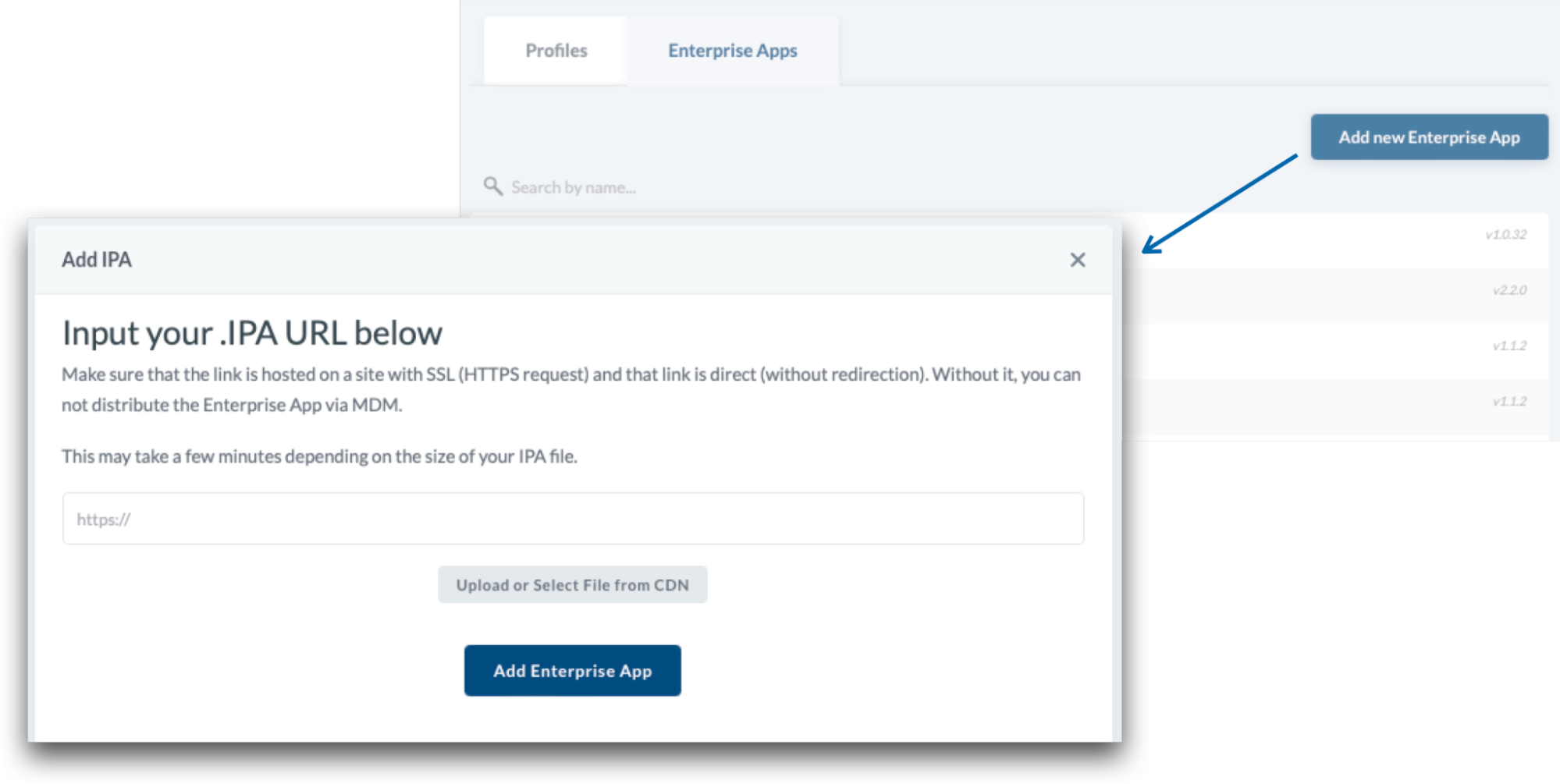
Mosyle provides its own private cloud hosting solution that allows you to host packages directly in the MDM. If the account has access to the Mosyle CDN, simply upload the .ipa file under the Enterprise apps tab to create the app.
Creating Install Enterprise app profile
After Enterprise Apps are created in Mosyle, click the Profiles tab > Add new profile. Name the profile and select any of the Enterprise apps available in the account to be installed on the devices.
Similar to the Install App profile, options are available for auto-installation, whether the app will be available in Self-Service, as well as uninstall, reinstall, and update behavior.
Updating Enterprise Apps
To deploy updates to Enterprise apps, the .ipa file URL for the updated version will need to be added to Mosyle. Once added, the Install Enterprise profile will need to be updated to include the new version. The old version can be deleted from Mosyle under Management > Install Enterprise > Enterprise Apps, click on the previous version of the app and then click Delete in the bottom-right corner of the profile (optional).
After the new version is added to the profile, if the profile is configured to update apps automatically, upon saving the profile commands will be generated to install and update the app on the devices.
Note: Mosyle uses version comparison to determine if an app is outdated. Be sure the value of any new app versions are greater than the current version.
Managing the Removal of Enterprise Apps
Enterprise apps can be automatically uninstalled when the Install Enterprise profile is edited using the Advanced Options in the profile.
Managed Enterprise apps can also be removed from devices via Devices Overview and the App Center.
- Devices Overview: Go to Management > Devices Overview. Select the devices that will have their apps removed and click More in the toolbar. Scroll down the menu to find Remove All Apps. The command offers three options: Remove all apps; Remove all managed and unmanaged apps not assigned to device (Apps not in App Install profiles); and Remove all managed apps not assigned to the device (Apps not in App Install profiles).
- App Center: Go to Management > Applications, click App Center, select the apps and then click Remove Apps.
Installation Status
Once an Install Enterprise profile is created and assigned to users/devices, the View Details area will display the installation status of the app.