Device Enrollment
What is Device Enrollment
Device enrollment is available for devices that are not purchased from Apple or an Authorized Reseller or carrier and therefore are not eligible for Automated Device Enrollment. Device enrollment allows the device to be manually enrolled in the MDM using Apple Configurator 2 or by entering the enrollment URL into Safari.
Enrolling iOS/iPadOS and tvOS devices using device enrollment does not guarantee device supervision unless they are enrolled using Apple Configurator 2 and supervision is applied. Devices enrolled using device enrollment will not have the ability to lock the MDM enrollment profile, allowing end users to remove the profile at any time from the device Settings or System Settings.
During device enrollment, devices will attempt to retrieve/download the enrollment profile and the user will need to manually approve and install the profile installation. In order to successfully retrieve the profile and complete enrollment it’s critical the network allows for proper communication, including access to all Mosyle and Apple domains. Click here for information on which hosts and ports are required for Apple products.
Enrolling devices using Apple Configurator 2
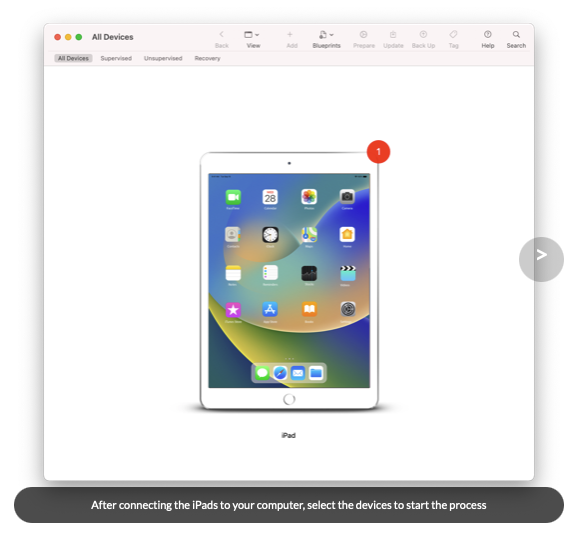
To enroll iOS, iPadOS, or tvOS devices using Apple Configurator 2, the enrollment URL will need to be added to Apple Configurator 2 during the “Prepare” workflow. The enrollment URL can be found in Mosyle under My School > Apple Basic Setup > Enrollment > Apple Configurator 2.
Within the Mosyle interface a step-by-step tutorial is provided to walk through the enrollment using Apple Configurator 2. It's important to enable Supervision to get the most out of the management features and functionality available.
Notes:
-
Apple Configurator 2 can be used to add iOS, iPadOS, and tvOS devices to Apple School Manager, then assigned to the Mosyle MDM server for Automated Device Enrollment. See Apple's documentation for more information.
-
Apple Configurator 2 for iPhone can be used to add Mac computers to Apple School Manager, then assigned to the Mosyle MDM server for Automated Device Enrollment. See Apple's documentation for more information. Apple Configurator 2 for iPhone cannot be used to manually enroll Mac computers into Mosyle MDM.
- Devices manually added to Apple School Manager using Apple Configurator 2 are subject to a 30-day provisional period during which time the user can release the device from Apple School Manager, supervision, and device management.
Device Enrollment using the Safari URL
To enroll iOS, iPadOS, or macOS devices manually, the enrollment URL can be entered into the Safari browser to download the MDM enrollment profile. When enrolling devices using the Safari URL, they can be enrolled as general, unassigned devices, or enrolled and assigned to a specific user. Depending on the enrollment preference, the enrollment URL can be found in Mosyle in a few areas:
- Generic enrollment URL: My School > Apple Basic Setup > Enrollment > Manual enroll via Safari (URL)
- Personalized enrollment URL: My School > Users > Select the specific user > The enrollment URL will be listed in the user profile.
Once the profile is downloaded, users will be prompted to install the enrollment profile under the device Settings or System Settings. To install the enrollment profile on Mac computers, the user must have Admin rights.
Notes:
- For iOS and iPadOS devices, manually enrolling a device will not ensure device supervision. Device supervision will need to be enabled using Automated Device Enrollment or via Apple Configurator 2.
- Mac computers running macOS 11 or later will be considered supervised when manually enrolled.
Additional manual enrollment settings can also be configured under My School > Apple Basic Setup > Enrollment > Manual enroll via Safari (URL). The options available include:
- Do NOT allow enrollment using Safari or the Mosyle Manager app: Selecting this option will block any users from being able to manually enroll in the Mosyle MDM account.
- Always allow enrollment using Safari or the Mosyle Manager app: Selecting this option will allow any user who accesses the enrollment URL and downloads the enrollment profile to enroll in the Mosyle MDM account.
- Require prior authorization to enroll using Safari or the Mosyle Manager app: Selecting this option will only allow authorized users and/or devices to enroll in the Mosyle MDM account. Users are authorized by authentication, and devices able to manually enroll are those that have been pre-authorized using a spreadsheet upload.
Once devices are enrolled in the Mosyle account, they can be found under the Management tab > Devices Overview. Click the device name to bring up the Device Info window.