App Installation w/ Apple Apps and Books
Overview
Remotely installing and updating apps is a critical task when managing devices. For this reason, Mosyle supports the installation of apps using managed distribution to devices and/or users. The Install App profile under the Management tab provides the ability to install, reinstall, update, and configure apps in bulk.
Once Install App profiles are created in the account, Administrators can search and filter the profiles based on the profile name and/or category.
As a reminder, the Mosyle Manager application is available for devices enrolled via Automated Device Enrollment and Device Enrollment and provides Administrators with the ability to allow users to complete the installation of apps, web clips, profiles, and more.
To automatically install the Mosyle Manager app so users can access Self-Service on iOS/iPadOS devices, first obtain licenses for the app in Apple School Manager. Once licenses are available and the Apps and Books token is integrated, go to Management > Install App (iOS/iPadOS) > Click Edit Configuration for the Mosyle Manager App Installation profile. Choose the Apps and Books token to use for licensing and click Save.
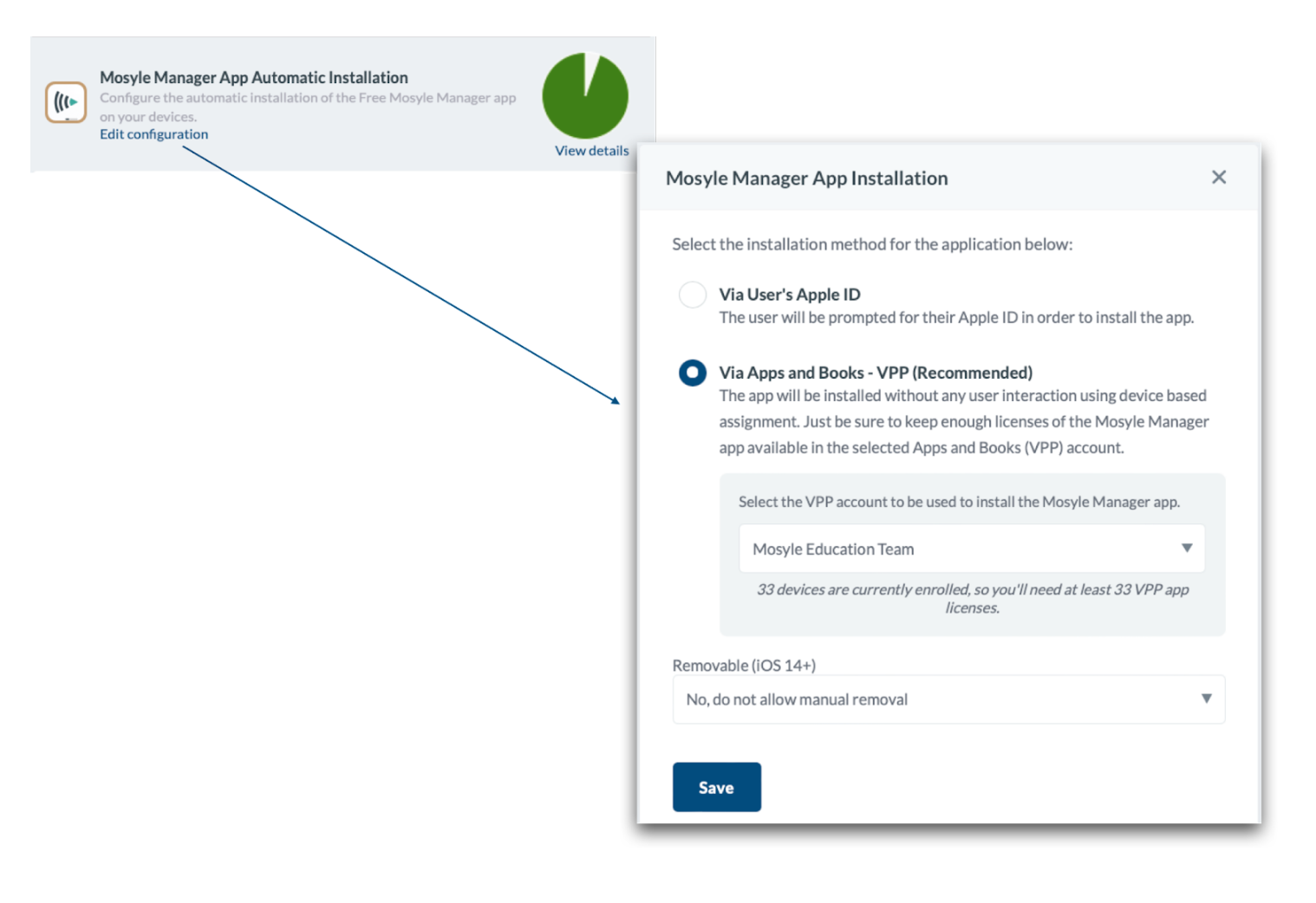
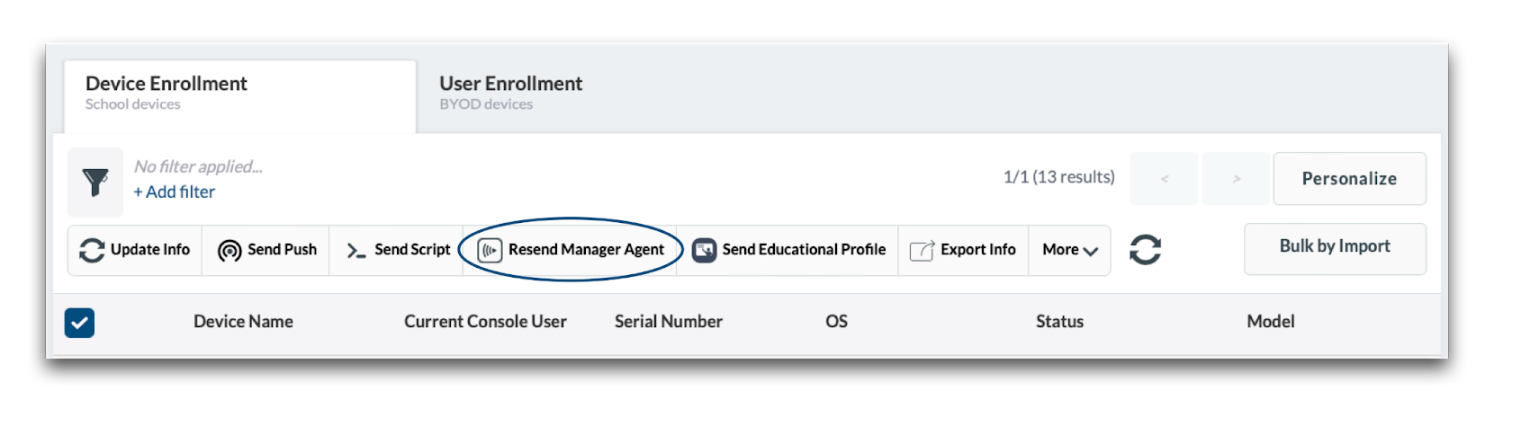
The Manager.app along with the Mosyle agent is automatically installed on macOS devices enrolled using Automated Device Enrollment and Device Enrollment. If needed, it can be reinstalled on devices using the command in Management > Devices Overview > Resend Manager agent.
Installation Source & License Assignment
To install apps, go to Management > Install App.
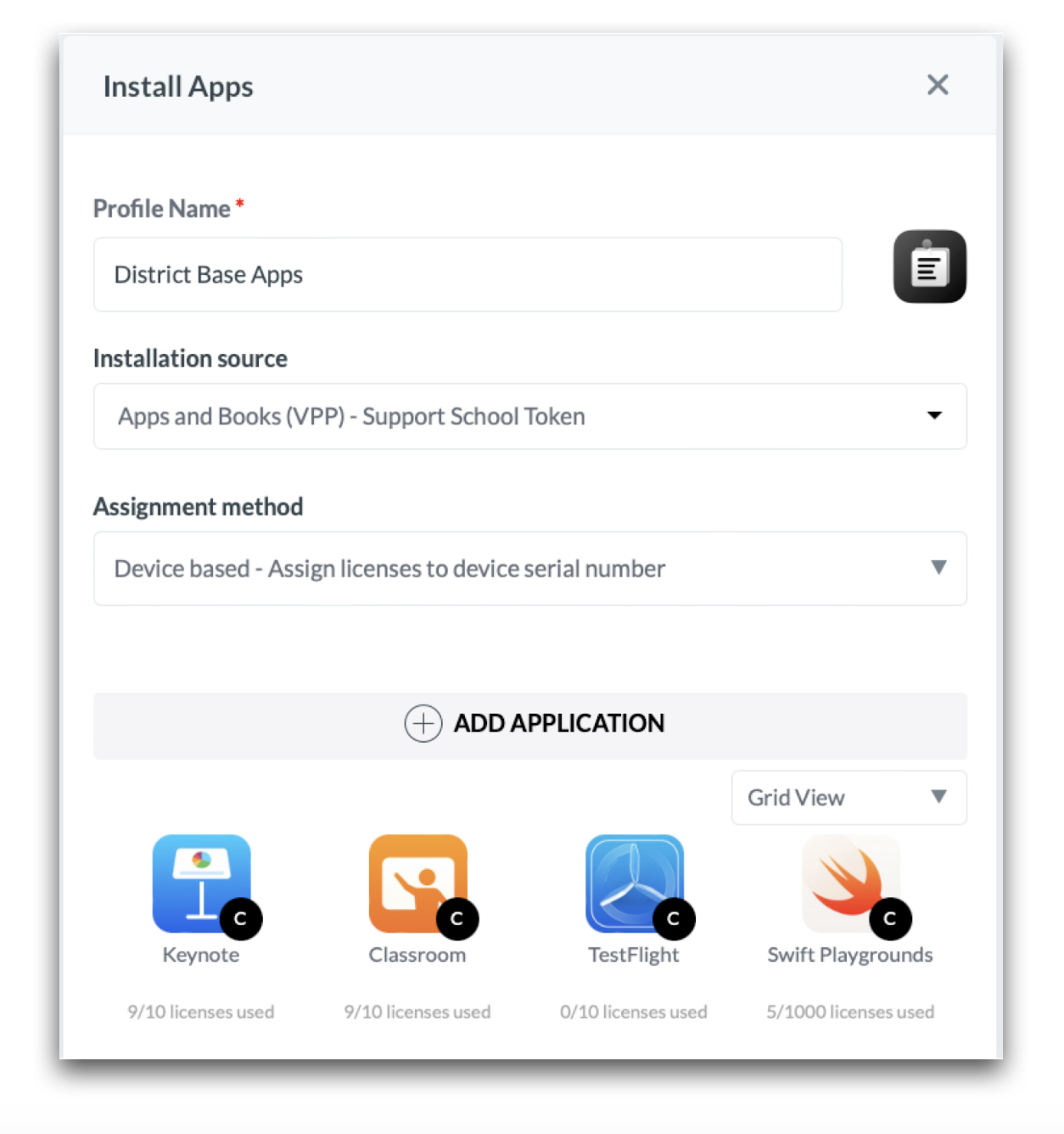
Install App profiles can be created to install a single app or groups of apps, to multiple groupings of users and devices. When creating a new configuration profile, name the profile and select the installation source which indicates the source of the app license. For apps available in the App Store, including free apps, it's recommended to obtain licenses using Apple School Manager so they can be deployed using the Apple Apps and Books (VPP) token as the installation source. Similarly, to deploy Custom Apps available in a school or district's Apple School Manager account, choose Apple Apps and Books (VPP) token as the installation source.
*Choosing the App Store as the installation source for iOS or iPadOS devices will result in users being prompted to enter a personal/consumer Apple ID in order to download/install the assigned applications.
After selecting the installation source as Apple Apps and Books (VPP), choose the method in which the license for the app will be assigned. Choosing a device-based license assignment (recommended) will assign the app license to the device serial number, allowing the installation process to be silent to the end user, requiring no user interaction.
Tip: When enrolling via User Enrollment, user-based license assignment is required. This type of license assignment will assign the app license to the user's Apple ID and requires users to be registered in Mosyle with a valid Managed Apple ID and an invite to be associated with the user (Management > Applications > Apple Apps and Books > Invites). The same Apple ID that is associated with the invite must be logged in on the device.
Next, choose the app or apps to be installed and select the users, devices, and/or device groups to assign the profile to in the Profile Assignment area.
Installation Options
Additional options can be configured when creating an Install App profile in Mosyle. These additional options provide Administrators the ability to control whether apps are automatically installed, available in Self-Service, updated automatically, and/or removed when the assignment is removed.
- Auto-Install apps: Choose whether or not the apps will be automatically installed when the device is assigned to the profile. This includes immediate installation after enrollment if the device is assigned to a specific User, Grade Level, Class Period, Device Group, or Shared Device Group that is assigned to the Install App profile. If apps are not automatically installed on devices, the installation will need to be manually requested via Device Info in the Mosyle console, or via Self-Service. Additionally, apps on iOS/iPadOS devices can be assigned to users for temporary use. After the set number of days, the app can automatically be removed and the license revoked.
- Self-Service Apps: Choose whether or not the apps will be available to end users in the Self-Service app. If available in Self-Service, users can request the installation and updates for the apps at any time using the Mosyle Manager application.
- When editing the profile (iOS/iPadOS only): Choose whether or not apps will automatically be removed if they no longer exist in the profile, or if the device is no longer assigned to the profile. More details below.
- Update Apps: Choose whether or not apps will automatically be updated. More details below.
- Reinstall Apps: Choose whether or not apps will automatically be reinstalled if they have been removed manually or through the Mosyle console.
- Categories: Apps can be organized in Self-Service through the use of Categories. Apps in profiles with the same category will be grouped together in the Self-Service Apps tab.
- Select how to use Apps and Books (VPP) licenses: Choose whether or not to assign an Apps and Books (VPP) license for an app if it has already been installed manually on the device using an Apple ID.
Managing App Updates
The Install App profile can be configured to automatically update apps. Mosyle regularly scans the App Store for updated versions of apps. If an updated version is detected, commands to update the apps can be sent automatically. There are multiple options regarding app updates to choose from:
- Update outdated apps automatically AND alert end users: Using this option you can configure apps to update automatically after a specified delay period. Users will be prompted that an update is available and the specified amount of time to initiate the update through the Self-Service app. At the end of the timeframe, if the app hasn't been updated, the update will run automatically by Mosyle ensuring the app is up to date.
- Update outdated apps automatically without alerting end users: Using this option, app updates will run automatically by Mosyle as soon as a new version of the app is identified and available. Note: This can potentially impact users when using certain applications, as the update could attempt to run while the app is in use.
- Do not update outdated apps automatically: Using this option, apps will not be updated automatically. In order for the apps to be updated, Administrators will need to save the Install App profile again or push updates via some other method.
Requests to update apps can also be pushed from the App Center, Devices Overview/Device Information, or using the Single Shot profile. The Single Shot profile provides the ability to configure a schedule for when the commands for app updates will be sent.
Notes:
- Apps available in the App Store are identified as outdated by comparing the app version installed on the device with the app version available in the App Store, and by the hasupdateavailable key returned with the value 1 by the device.
- Since Custom Apps are not available in the App Store, when an update is available for a Custom App it's recommended to request the sync with Apple School Manager to ensure the correct app version information is available to Mosyle. To do this, go to Management > Apple Apps and Books > Click the Apps and Books token > Click the small information icon to request the sync. ⓘ
- Custom App updates are identified by comparing the app version installed on the device with the app version available in Apple School Manager.
- If an app update is pushed while the app is open, the user will be prompted to allow or deny the app update. This will be displayed in Mosyle as “PROMPTING UPDATE”.
- Apps are unable to be updated while they are actively locked in App Lock.
Managing the Removal of Apps
The Install App profile can be configured to automatically remove applications no longer assigned to iOS/iPadOS devices in the profile. Choose between the following options:
- Do not uninstall apps: Using this option, apps will remain installed on the devices even if the device is no longer assigned to the profile, or the app is removed from the profile. The app licenses will also remain assigned to the devices until manually revoked.
- Uninstall apps after considering all other assigned profiles: Using this option, apps will be uninstalled from devices if the app is removed from the profile or the device is no longer assigned to the profile and the app is not assigned to the device in any other Install App profiles. Because Mosyle scans all other profiles to ensure the app is not assigned to the device in any other way before uninstalling, the commands to remove the app could take up to 2-3 days.
- Uninstall apps immediately after the profile is saved: Apps will immediately be removed from devices after a change is made to the profile to remove a recipient and/or an app and the profile is saved.
Managed apps can also be removed from devices under Devices Overview and in the App Center. If the apps are not yet managed by the MDM, the user will be prompted to enter their Apple ID and password to first confirm management of the app before the app can be removed by the MDM.
- Devices Overview: Go to Management > Devices Overview. Select the devices that will have their apps removed and click More in the toolbar. Scroll down the menu to find Remove All Apps. The command offers three options: Remove all apps; Remove all managed and unmanaged apps not assigned to device (Apps not in App Install profiles); and Remove all managed apps not assigned to the device (Apps not in App Install profiles).
- App Center: Go to Management > Applications, click App Center, select the apps and then click Remove Apps. It's recommended to revoke all app licenses.
Managed App Configuration (iOS/iPadOS)
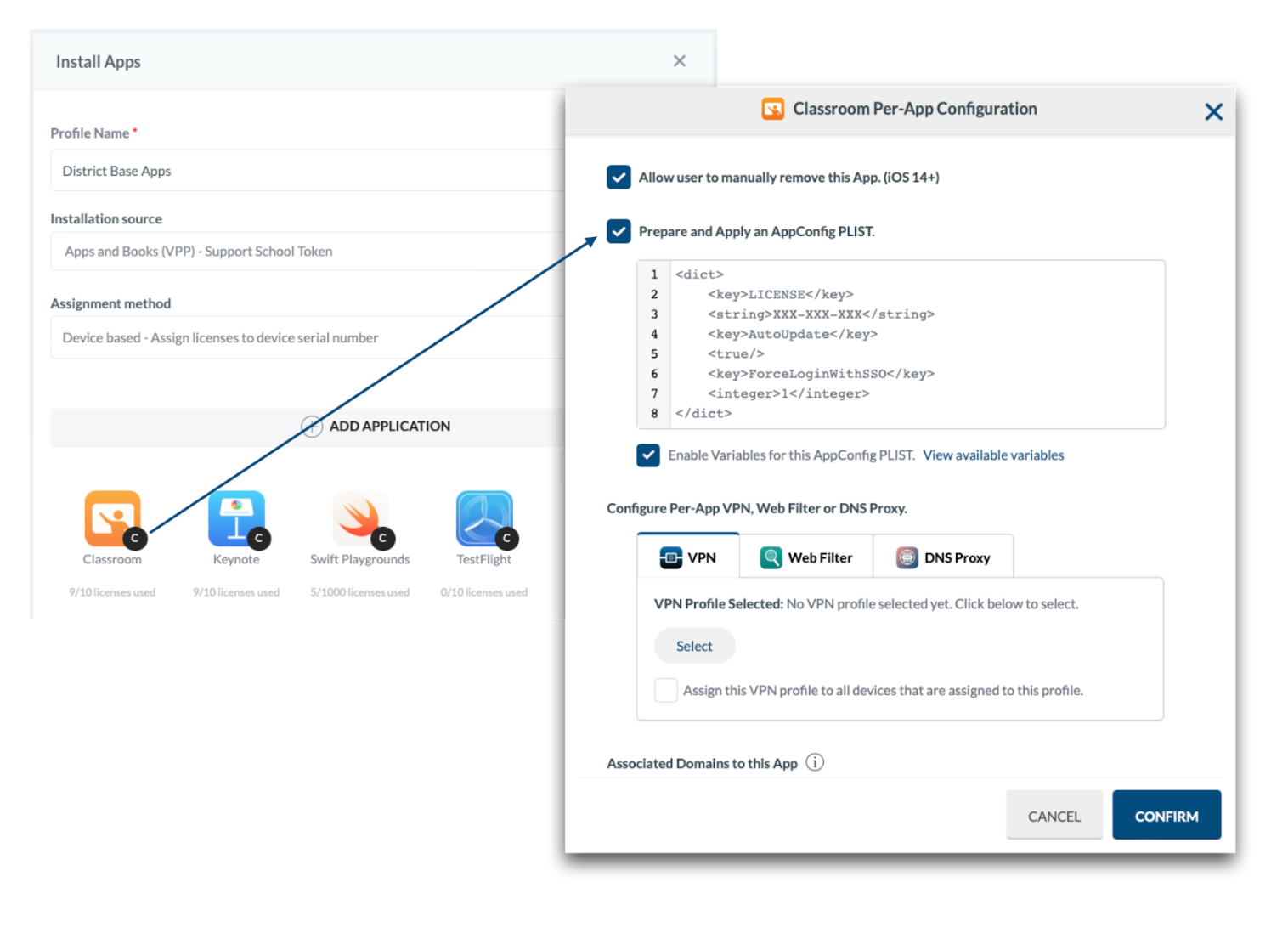
App Configuration is supported by devices running iOS 7 or later and is available in the Install App profile, allowing you to send custom configurations supported by the app developers to applications. Some examples include configuring a specific license or key code for an application. Hover an app in the profile to show the 'C' button in the bottom corner and then click on it to open the App Configuration window. Check the box for “Prepare and Apply an AppConfig PLIST”. If the app's software developer has provided keys and values for the configuration, or an XML file, paste the contents starting with and ending with . When finished, click Confirm.
Installation Flow & Status
Once an Install App profile is created and assigned to users/devices, the View Details area will display the installation status of the apps. There are multiple steps to the installation process for apps, starting with the license assignment. Because of this, it's important to understand the flow in which apps are installed on devices via the MDM.
Before commands to install an application are sent to the device, the MDM first assigns the app license to the device. Once the app license assignment is confirmed to be successful, the MDM generates and sends the command to install the app to the device. The device then validates the app license with Apple servers and proceeds to fetch the app file from the App Store or from a local network caching server. The diagram below gives a broad overview of this flow.
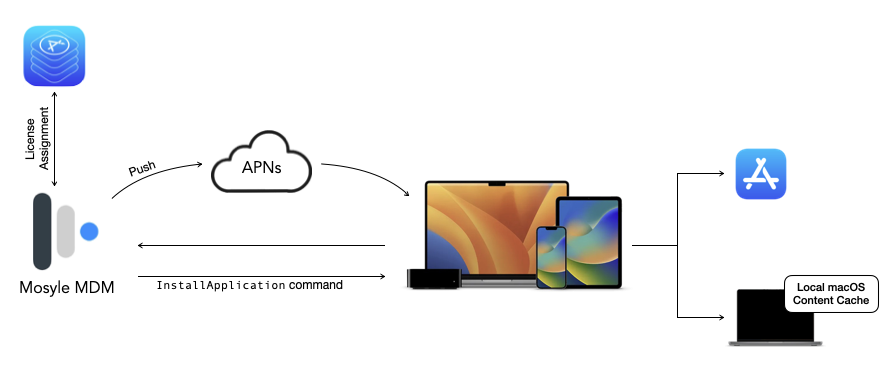
Note: This flow is specific for installing apps using device-based license assignment.
The View Details area of the Install App profile provides insight into the status of the app installation process. The app installation status will display if the command is pending or failed, any errors occurred, the app is downloading/installing, installed, outdated, removed, or available in Self-Service.
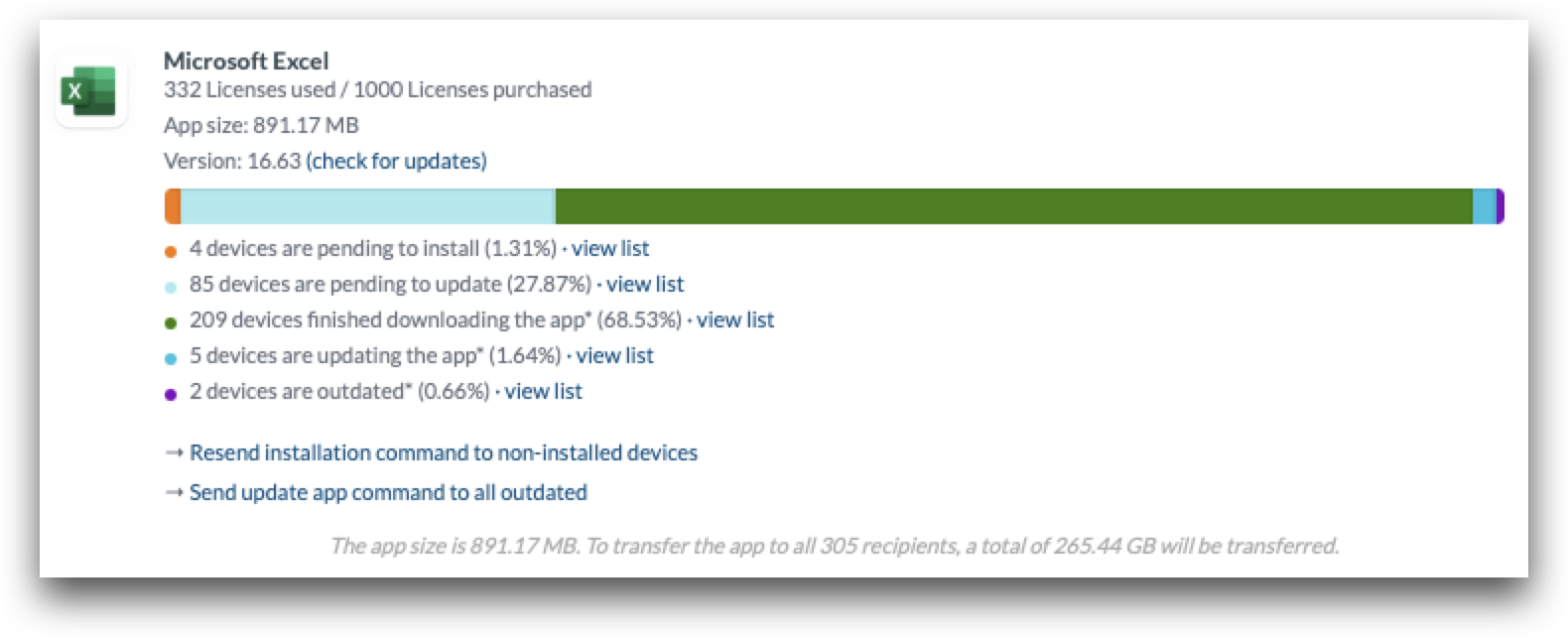
Important Notes:
- Mosyle MDM does not host App Store applications. Devices will need to be able to access Apple content servers to successfully download, install, and update apps.
- Mosyle MDM does not specify app versions when installing apps. The command to install applications simply contains the ID of the app from the App Store. The version installed on the device will be based on which app file the device retrieves from the App Store or local network caching server.
Visit Apple's documentation regarding Content Distribution with MDM for more information.