App Center
Overview
The App Center itemizes all apps installed on managed devices based on platform (iOS / iPadOS, macOS, tvOS). It includes detailed information about an app's name, bundle identifier, category, status, how many devices it's installed on, and if it's managed (iOS / iPadOS).To access the App Center, go to Management > Applications > App Center.
Filter the apps by clicking Add Filter at the top of the screen. Filter the list using the Filter options along the top, or enter search criteria to find a specific device or app. The information provided by the filters is also designed to be sorted with a simple click of a column name or edited with a click of the search.
Commands available along the toolbar of the App Center include:
- Update Info: Pings devices to check in with the MDM. Check a device's last communication in Management > Devices Overview > Click on the device's name > Info
- Export Apps: Emails a report of the apps in CSV or XLSX format
- Remove Apps: Uninstalls managed apps (iOS / iPadOS and macOS 11+). It's recommended to revoke app licenses (VPP).
- Revoke Licenses: Unassign app licenses from selected devices (iOS / iPadOS). Check available licenses in Management > Applications > Apple Apps and Books (VPP) > Update
- Update Apps: Forces apps to auto-update (iOS / iPadOS)
- Manage Apps: Transfers app ownership from user to MDM. The command will prompt users to enter an Apple ID.
- Refresh button: Click the curling arrows to refresh the list
Notes: Manage Apps supports macOS devices running 11 or later. In order for an enterprise app to be manageable on macOS, it has to meet certain criteria: it must not contain any nested packages, it must contain only a single signed app, and it must be installed in /Applications.
Additional Information
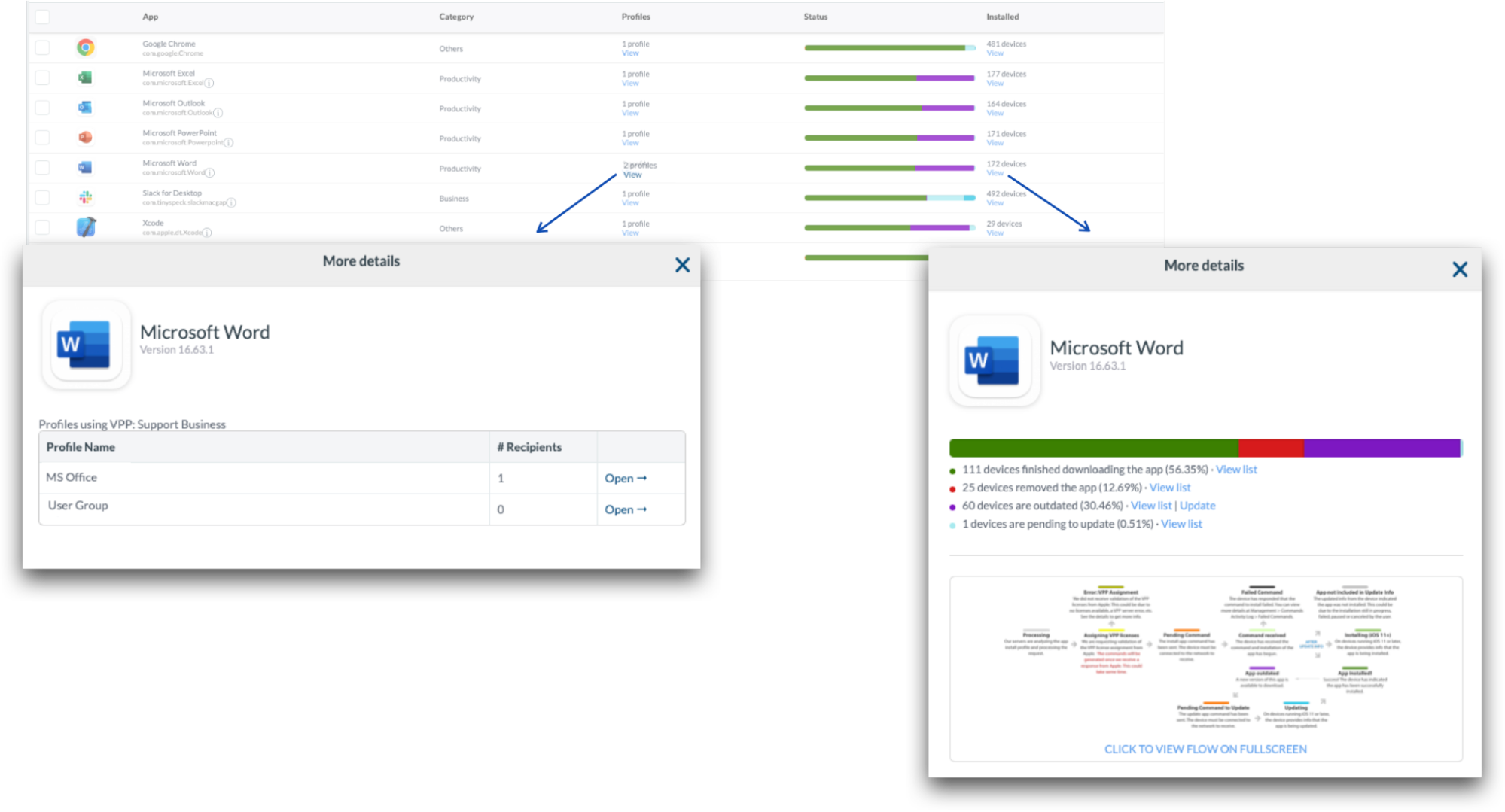
Within the App Center you can see the Install app or Install PKG profiles the app is assigned to as well as the installation status of the app. Use the Filters to search for apps installed or not installed through profiles, installation source, managed status, and more.
Click the “View” link under the Profiles column to view the Install app or Install PKG profile associated with the app.
Click the “View” link under the Installed column to view the installation status of the app or PKG. The installation status should reflect the same information that is presented in the “View Details” area of the Install App profile.