Admin On-Demand
Overview
Admin On-Demand provides a quick, easy way for Mosyle Administrators to convert Admin user accounts on the Mac to Standard users, while also allowing user accounts on the Mac to request temporary user account escalation to complete any tasks that require Admin access.
Admin On-Demand is organized into four menu items: Overview, Devices, Settings, and Logs.
Overview
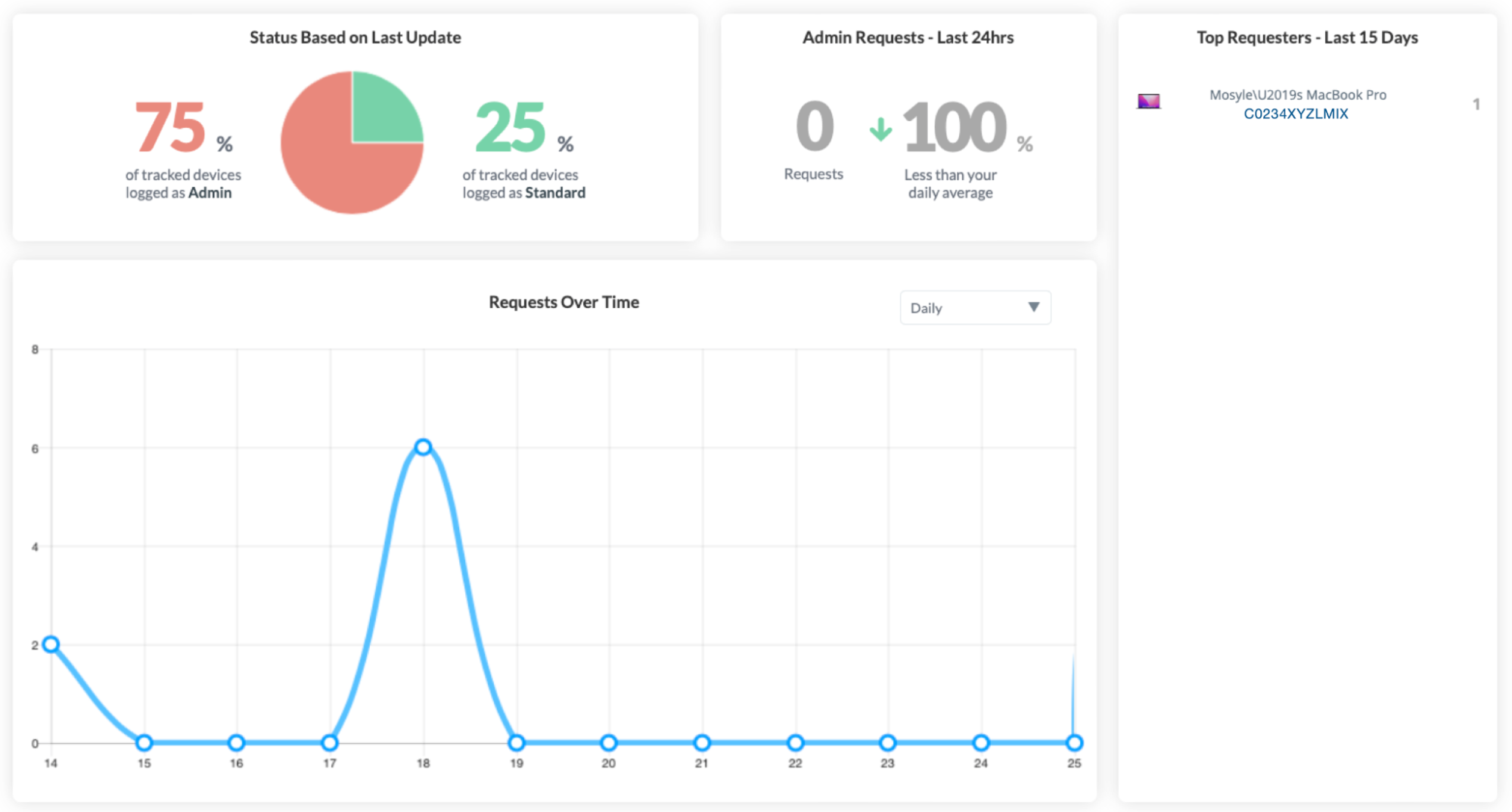
The Overview pane provides a quick summarized view of your user account status on devices. You can view the following in this area:
- User account status based on last update: Includes the percentage of devices with Admin user accounts and percentage of devices with Standard user accounts.
- Number of Requests for temporary Admin escalation
- Top Requesters over the last 15 days: Displays the top users requesting temporary Admin access
- Requests over time: A graph showing the number of requests for temporary Admin access.
Devices
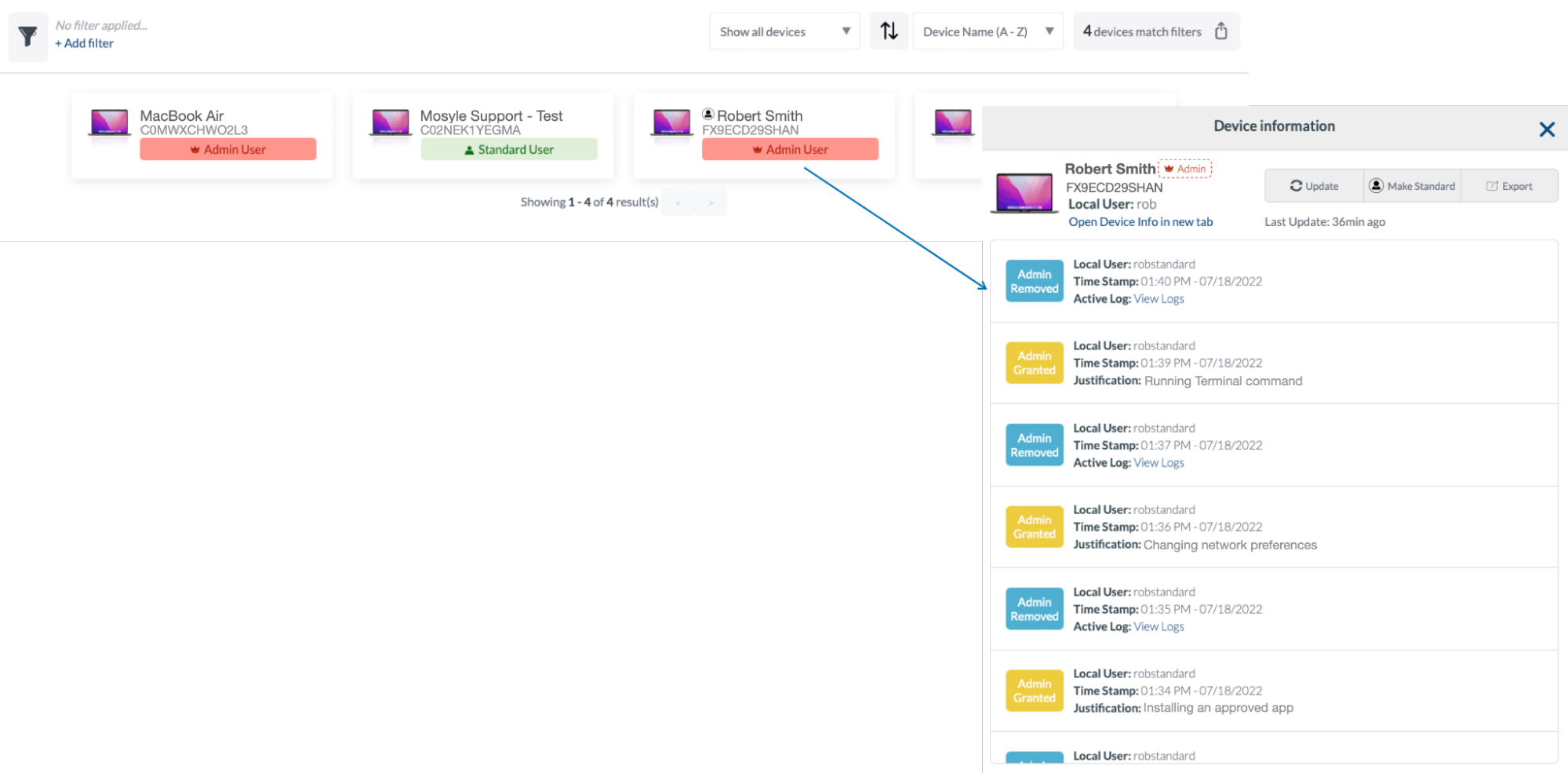
The Devices tab will show all devices assigned to the Admin On-Demand configuration and the current user type logged in on the device - either Admin or Standard.
Use Filters available to filter and sort devices to show only those of interest. If needed, the data can be exported at any time using the button in the upper right “X devices match filters”.
Click a device tile to bring up additional details about the device and user. See any logs or actions taken on the device, export the data, or convert the user to Admin or Standard user.
Settings
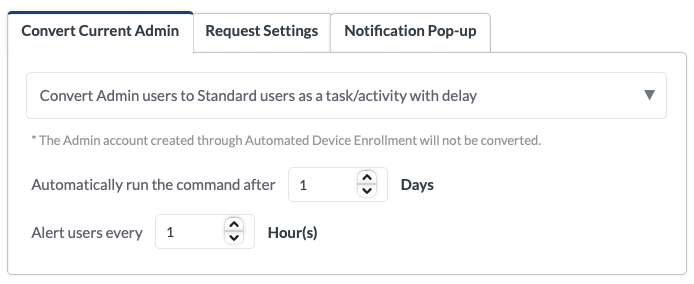
Configure the Admin On-Demand settings, including the conversion behavior, request settings, and/or customize the notification text for end users.
Logs
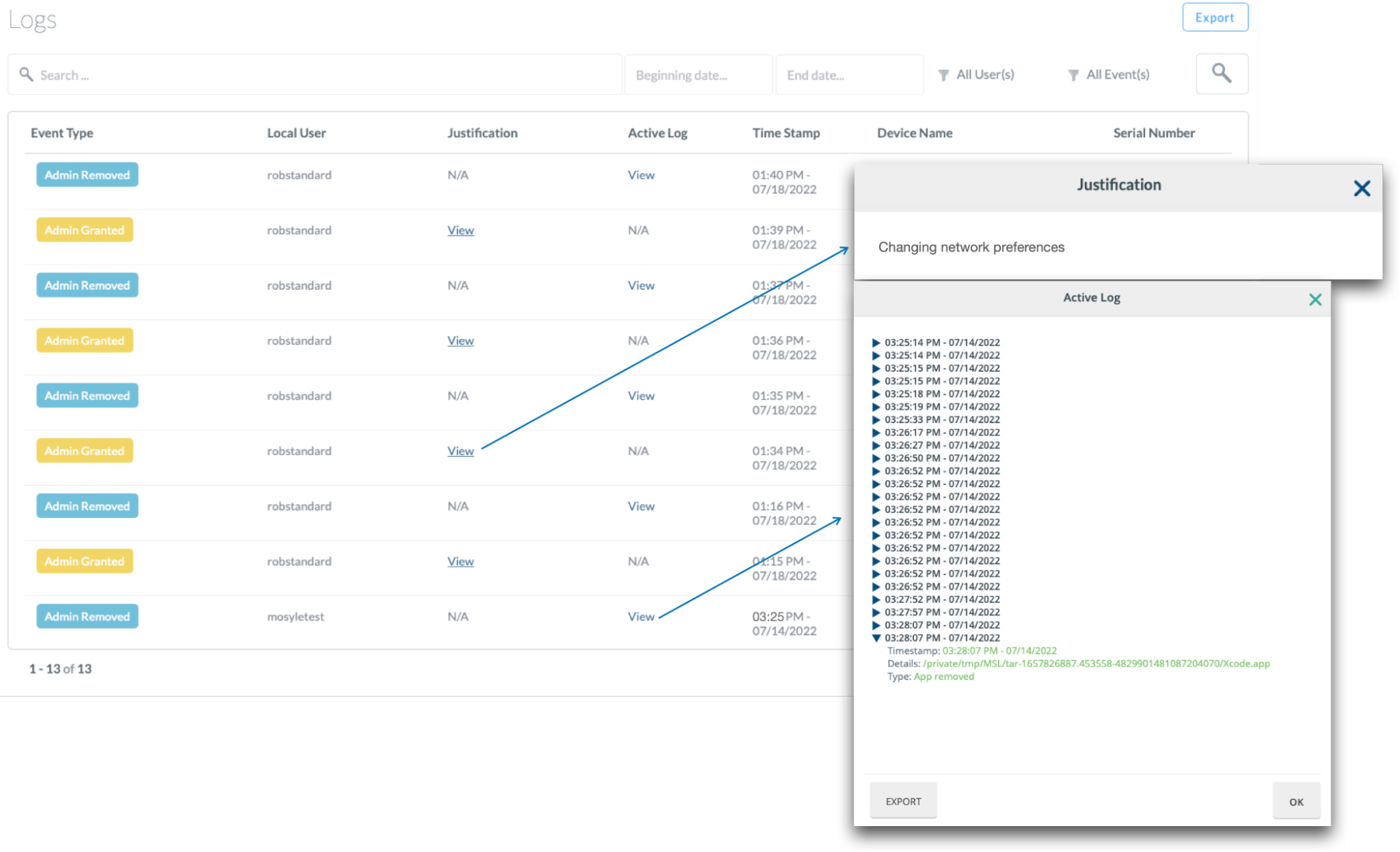
View logs to see detailed info for when a user requested Admin access, when it was granted and removed, the justification for the access, and any corresponding logs. The date & time stamp, device name and serial number are also listed. To export the logs, click “Export” in the upper right corner. To export individual device action logs, click “View” under the Active Log column and click “Export”.
Configuring Admin On-Demand
To configure Admin On-Demand
- Go to Security
- Admin On-Demand
- Click Settings > Add new profile
- Configure the settings in the three available tabs: Convert Current Admin, Request Settings, and Notification Pop-Up
Convert Current Admin
The Convert Current Admin settings will convert the current logged in Admin user to a Standard user. This option will not convert the additional Admin account created during Automated Device Enrollment (DEP Admin), however it will convert any other logged in Admin users if enrolled manually.
Using the dropdown menu, choose from the following:
- Convert Admin users to Standard users as a task/activity with delay: This will prompt the logged in Admin user indicating they have a task assigned to convert their Admin account to a Standard user account. With this, they can choose when to execute the account conversion by clicking the task in the Manager app. As the Admin, you have the option to select how long of a delay the user will have before the command is automatically sent, as well as how often to alert users.
- Convert Admin users to Standard users upon profile save and assignment: This will send a command to automatically convert any logged in Admin user accounts to Standard user accounts when the profile is saved and/or when the profile is assigned to the user/device. The end user will not receive a notification regarding the account conversion.
- Do not convert Admin users to Standard users: This will not convert any current Admin user accounts to Standard user accounts. To convert individual user accounts to Standard user accounts you can do so under the Devices tab.
Request Settings
The Request Settings tab allows configuration of whether or not users will have access to Admin On-Demand in the Manager application to request temporary Admin access. There are two options available:
- Allow users to temporarily escalate their privileges to Admin
- Do not allow users to temporarily escalate their privileges to Admin
When users have the option to temporarily escalate their privileges to Admin, they can request the escalation in the Manager application and because they have access to perform such escalation, it will be granted automatically to the end user. The following options are available to configure for this escalation period:
- Select the duration of Admin privileges for each request: Set how long each user will have Admin access on the device after it is requested. In most cases, 1 minute is ample time to complete any task that needs Admin credentials, however, 3 minutes and 5 minutes are also available.
- Limit the number of requests: Limit the number of times users can request account escalation per day, week, month, or year.
- Require users to provide a justification for the account escalation request
- Quit Terminal app when removing Admin privileges: If the Terminal app is not quit when the user is converted back to a Standard account, the user will continue to have Admin access in Terminal so long as the current session is active.
- Quit System Preferences when removing Admin privileges
- Save relevant action logs during the period in which the user has Admin privileges: Any actions taken by the user, including any Terminal commands, will be logged.
Notification Pop-Up
Customize the pop-up message users will see before their user account is escalated to have Admin privileges.
What to Expect
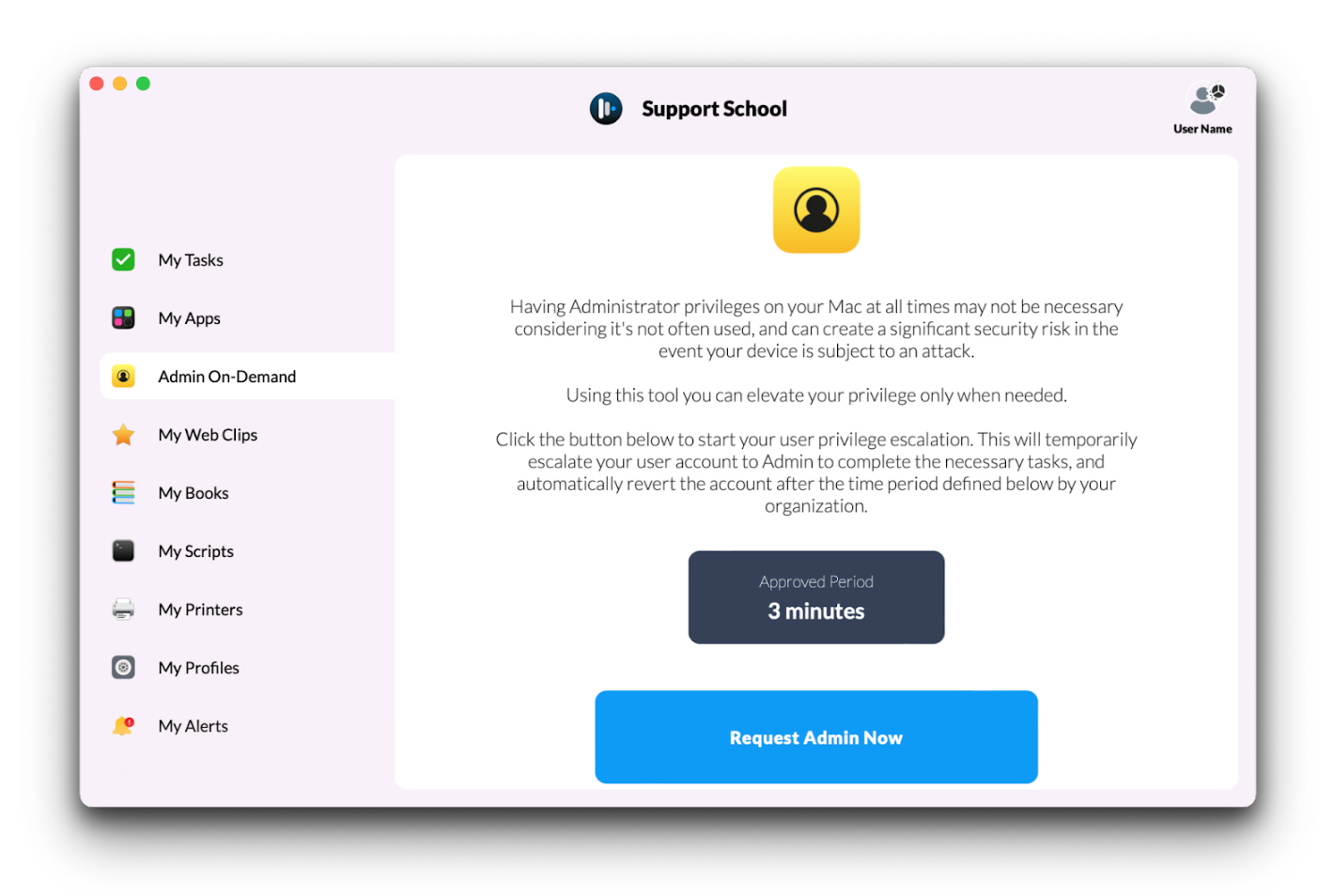
When users have access to Admin On-Demand, they can request the user privilege escalation from the Manager application.
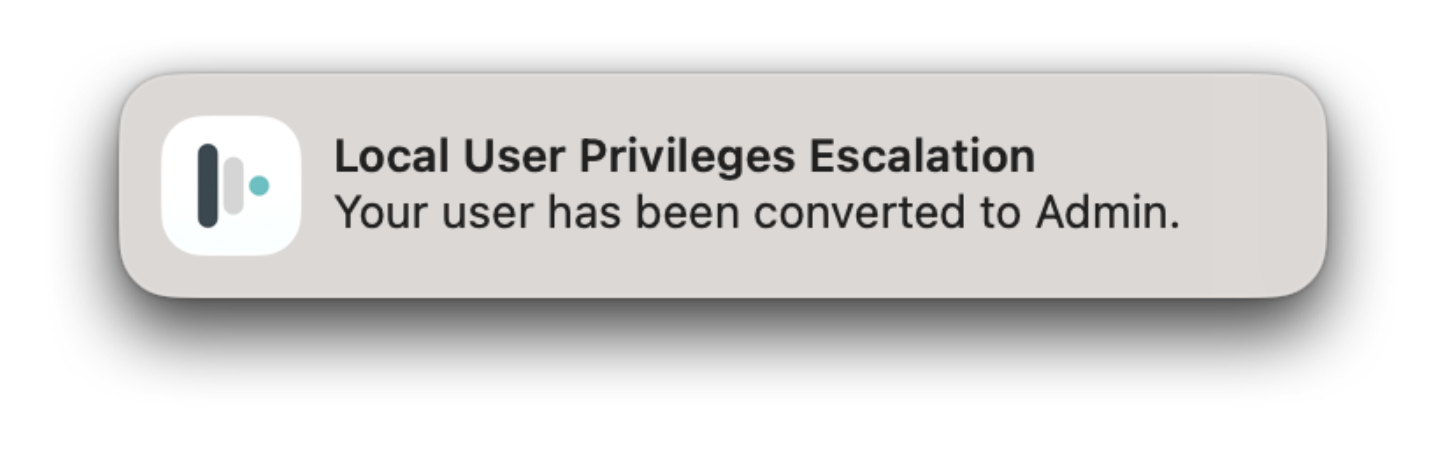
After requesting Admin access, users will receive a notification indicating the account has been converted.
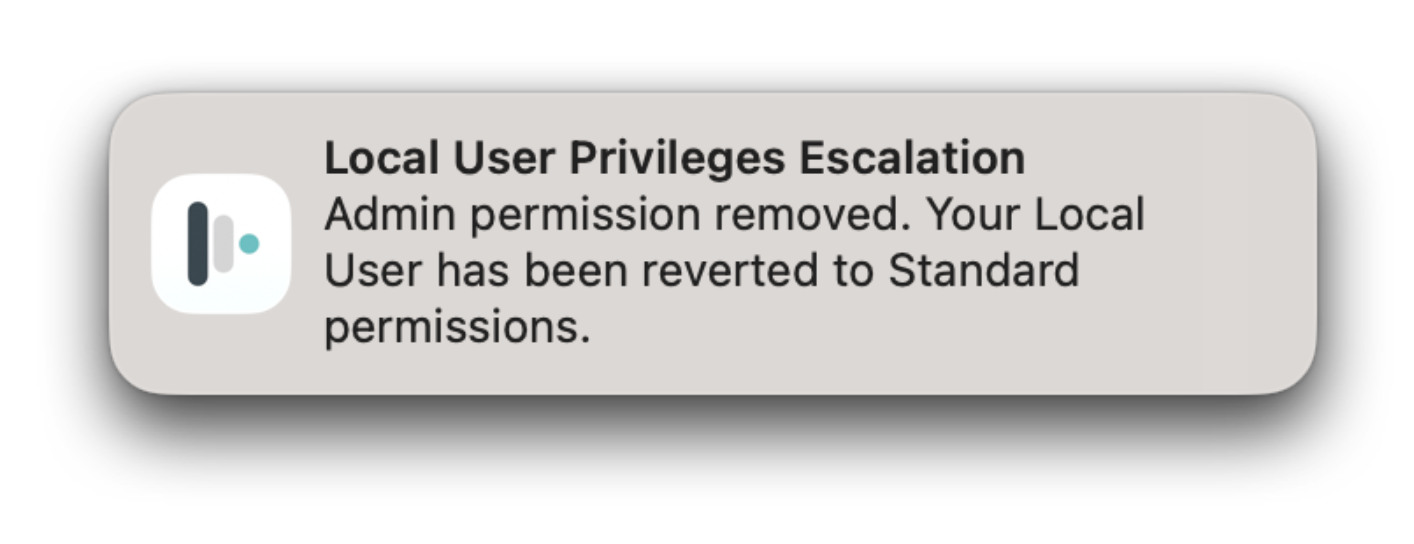
At the end of the approved time period, the end user will receive a notification that their account has been converted back to Standard user access.
Actions taken during the user privilege escalation can be viewed in the Admin On-Demand Logs.