Intro to Mosyle Education
- Navigating the Interface
- Account organization and profile assignments
- Supported features and Apple integrations
- Mosyle Manager app & Self-Service
- Configuring Account Preferences
- Subscription Models
Navigating the Interface
Mosyle Education is organized into 7 tabs which can be accessed using the bottom menu bar within the platform:
- Dashboard
- My School
- Management
- Security
- DNS Filtering
- Class Manager
- Support
NOTE: The Security and DNS Filtering tabs are available only for Mosyle OneK12 subscriptions.
Dashboard
The Dashboard for each account can be customized to show the school or district logo in the upper left corner. Any MDM Alerts for iOS/iPadOS, macOS, or tvOS will be available directly in the dashboard. Clicking on any of the alerts will bring additional details showing which devices are impacted.
The number of licenses available, as well as the number of enrolled devices per OS platform will be displayed in the upper middle, with quick access to your favorite Management profiles directly underneath. Clicking any of the favorited profiles will result in being redirected to the Management profile in order to view any details or make any necessary edits or adjustments.
On the right side of the dashboard, the metrics for the security of your devices will be displayed, such as the Device Scout score of your enrolled devices and any infections found by Detection & Removal. Clicking either of these options will redirect you to the appropriate area within the Security tab.
Directly below the security metrics will be access to any/all support tickets submitted and show the status of the ticket. Click any of the ticket titles to bring up the ticket thread, or click the button to Go to Support to navigate to the Support tab.
In the upper right hand corner, you'll see the name of the user currently logged into the Mosyle web panel as well as the time remaining in the session. Clicking Settings will bring up account settings such as the timezone, date and time formatting, two-factor authentication, and the option to change the password. To logout, click Logout.
My School
The My School tab includes all information relevant to your school or district. Within this tab, you can:
- Create/Renew Push Certificate
- Integrate Apple School Manager
- Configure enrollment settings
- Manage the school Hierarchy (Locations, Grade Levels, Courses & Classes, etc.)
- Manage Shared Device Groups
- Manage Users
- Configure device assignment settings
- Integrate with Active Directory, API, or OAuth
- View Action Logs
- Configure Preferences
- Manage Subscription
Management
The Management tab is where all device information and configuration can be found. Here you can:
- View device inventory and export reports
- Manage Dynamic Device Groups
- View Pending and Failed Commands
- Manage content purchased in Apple School Manager
- Create and deploy Management profiles
The Management tab is separated based on OS so only relevant profiles and commands are available based on which OS is being managed. To navigate between the different OS platforms, click the dropdown menu in the top left.
Security
The Security tab provides access to configure and manage Device Scout, Detection & Removal, and Admin On-Demand.
DNS Filtering
The DNS Filtering tab provides access to configure and manage DNS Filtering configurations.
Class Manager
The Class Manager provides access to Class Management tools for teachers.
Support
The Support tab provides access to all content available in the Help Center as well as direct access to the Mosyle Support Team via tickets.
Account organization and profile assignments
Mosyle is organized so that the management and configurations of devices is as intuitive as possible, allowing you to assign configurations based on the user who is using the device, the grade level or class the assigned user is associated with, or the shared device group or dynamic device group the device belongs to.
By importing user data, all users are organized just as they are in your directory service - including grade levels, courses, and classes. This data can then be used for device assignment, as well as profile and configuration assignment.
In Mosyle, all device management and configurations start with the creation of “management profiles”. When creating the management profile, you can define the necessary configurations and settings and then assign the profile to any users, grade levels, classes, devices, shared device groups, dynamic device groups, etc. as needed. This way devices will automatically receive the configuration when the user is assigned to the device, or the device is assigned to a shared or dynamic device group.
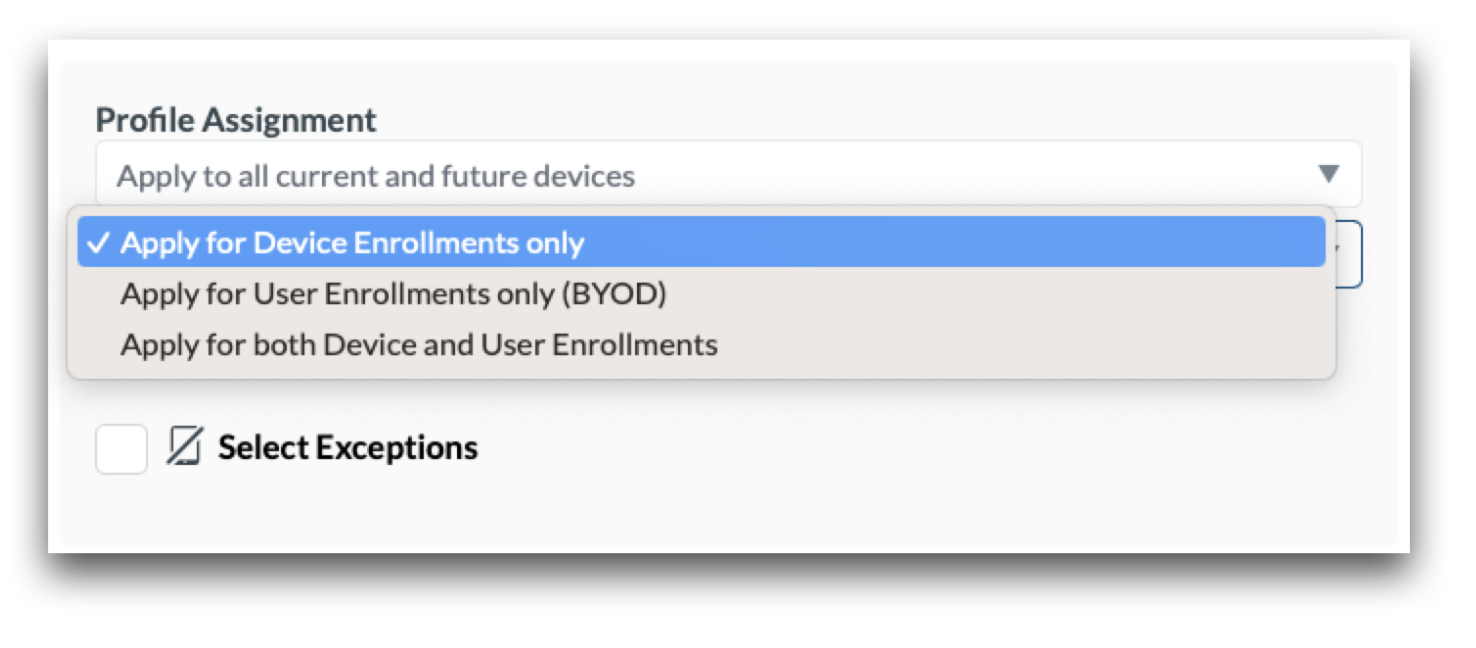
Use the dropdown to navigate between the Device Enrollment and User Enrollment to target devices based on the enrollment method used.
Supported features and Apple integrations
Mosyle fully supports integrating with Apple School Manager for device management and enrollment (MDM server tokens), and Apps and Books management (Apps and Books content tokens). Support for multiple tokens is also available.
On iOS and iPadOS devices, Mosyle utilizes the full Apple MDM Protocol for management functionality. You can choose to deploy the Mosyle Manager application to obtain additional information, such as bluetooth status, WiFi SSID, location information, and allow messages/notifications to be sent. The Mosyle Manager application is not required in order for Mosyle to manage iPhone and iPad devices.
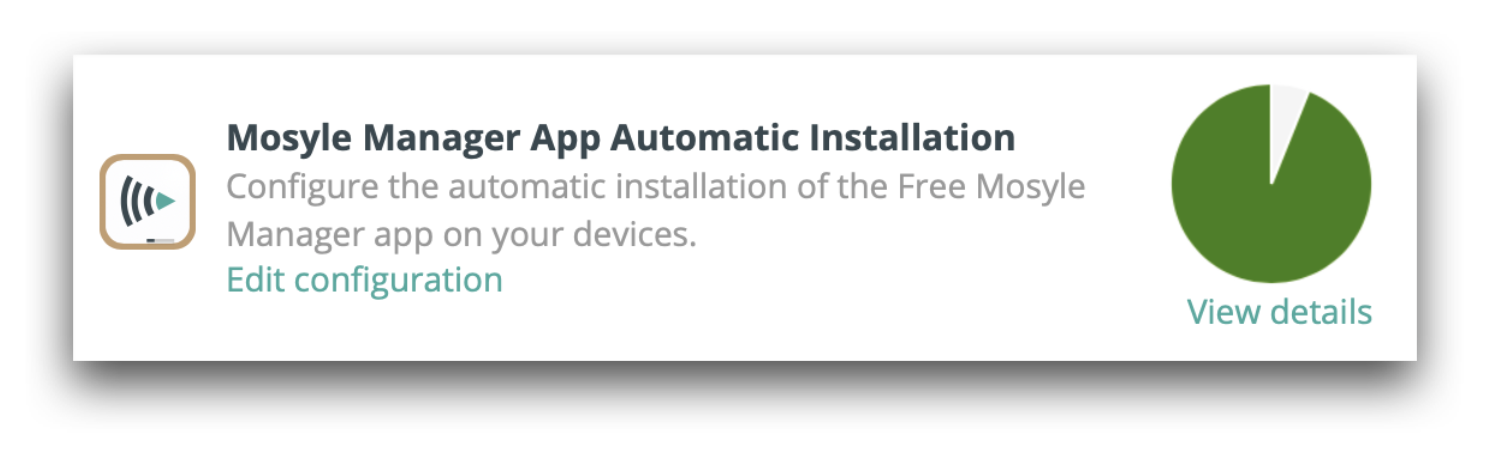
If you decide to deploy the Mosyle Manager application to the iOS/iPadOS devices, you can obtain the free licenses in Apple School Manager and configure the Automatic Installation profile under the Management tab > Install App.
On macOS devices, Mosyle fully supports Apple's MDM Protocol while also utilizing our Mosyle MDM agent to provide additional management functionality that may not be currently available through MDM Protocol. The agent is not required in order for Mosyle to manage Mac computers via MDM Protocol.
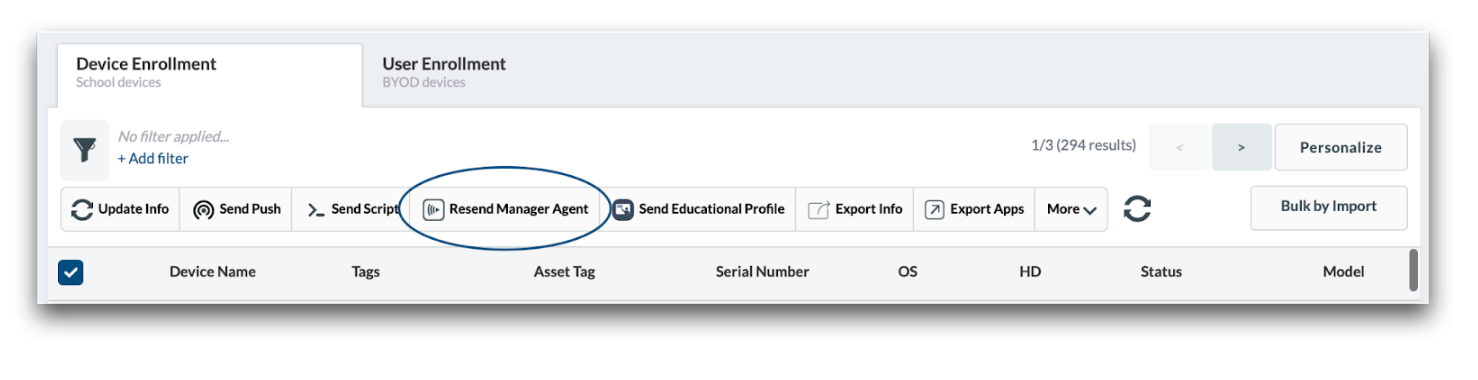
The Mosyle agent is automatically installed alongside the Mosyle Manager application on macOS devices enrolled via Device Enrollment or Automated Device Enrollment. You can request to reinstall the agent on devices at any time by clicking the option to “Resend Manager agent”. The agent is required for the following management options and features:
- Install PKG and DMG
- Mosyle Catalog
- Allowed/Blocked Apps
- Apple Remote Desktop permission configurations
- Custom Commands
- Local User
- Wallpaper
- Device Scout for macOS
Additional features and functionality supported by Mosyle's agent can be added in the future.
NOTE: The Mosyle Education macOS agent is officially tested and supported on the two latest versions of macOS. It can be installed on macOS versions prior to this, however, the functionality of the agent on macOS versions earlier than the previous two is unknown.
Mosyle Manager app & Self-Service
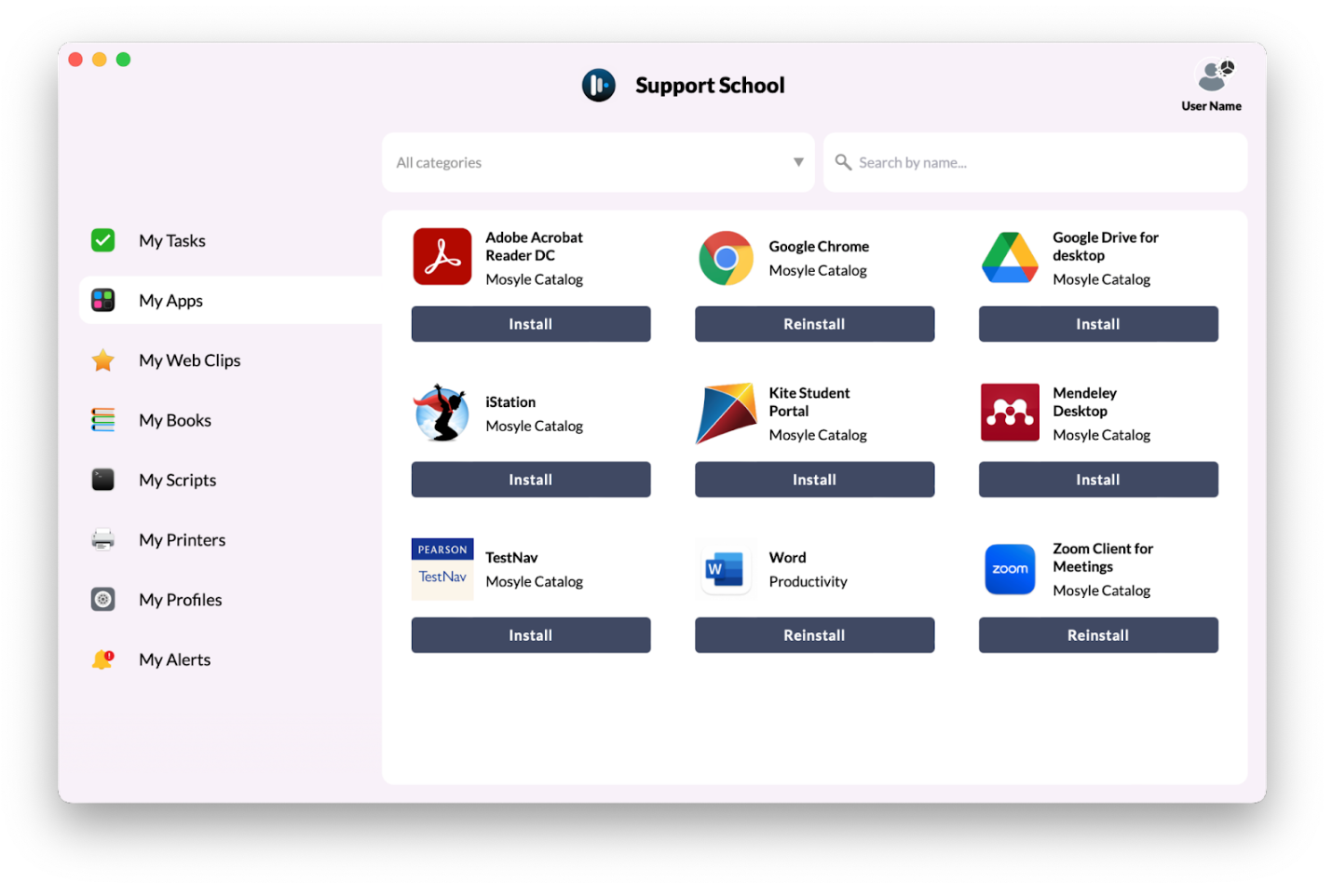
The Mosyle Self-Service is available for devices enrolled via Device Enrollment. Self-Service can be accessed using the Mosyle Manager app on iOS/iPadOS devices and through the Manager.app on macOS devices. Self-Service provides Administrators with the ability to allow end users to request the installation of apps, web clips, profiles, and more.
iOS/iPadOS
The Mosyle Manager application is not automatically installed on iOS/iPadOS devices. By default, devices enrolled will receive a Mosyle web clip so users can access Self-Service. If the Mosyle Manager App Installation profile is configured and the app deployed to devices, the web clip will be removed.
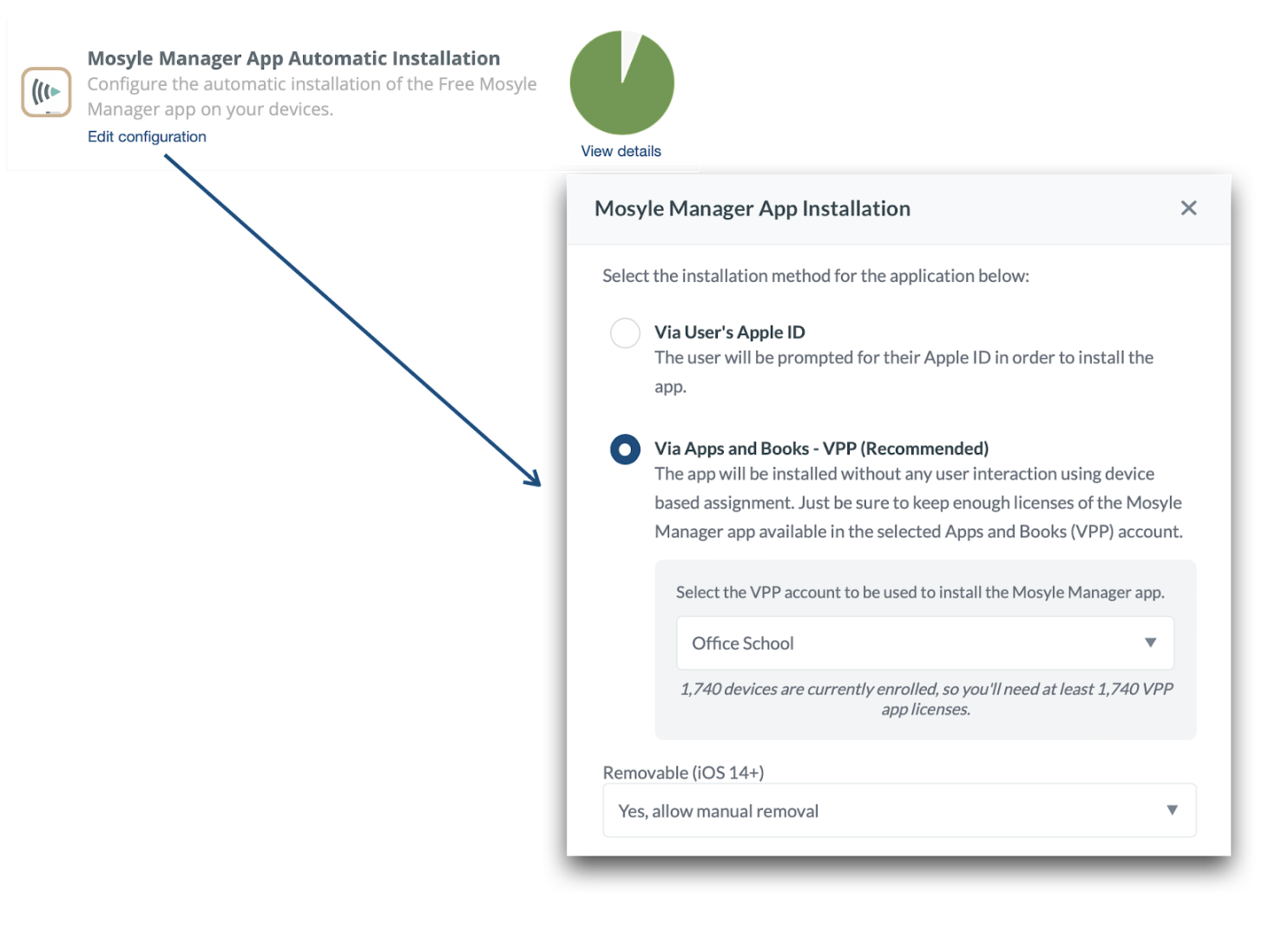
To configure the automatic installation of the Mosyle Manager app, first obtain licenses for the app in Apple School Manager. Once licenses are available and the Apps and Books token is integrated, go to Management > Install App (iOS/iPadOS) > Click Edit Configuration for the Mosyle Manager App Automatic Installation profile. Choose the Apps and Books token to use for licensing and assign the configuration to users/devices. Click Save.
macOS
The Manager.app is automatically installed on macOS devices enrolled using Automated Device Enrollment and Device Enrollment. If needed, it can be reinstalled on devices using the command in Management > Devices > Devices Overview > Resend Manager agent.
Configuring Account Preferences
Account wide preferences can be configured under My School > Preferences. Options available include:
- Single Sign-On: Configure use of Identity Provider credentials (Google, Azure, AD FS, Active Directory, OAuth) to login to the Mosyle web panel, iOS/iPadOS app, or macOS app.
- Action Logs: Review actions taken within the account, including the user who initiated the action along with the date/time and corresponding IP address.
- Your Logos & Icons: Personalize your Mosyle account with school or district logos and icons. In this area you can upload your school/district logo to be displayed in the Mosyle Dashboard upon logging in.
- MSP/Resellers: Connect the account with a Mosyle registered MSP or Reseller.
- Mosyle Beta: Read about available Mosyle Beta features and programs, with the ability to opt-in to participate.
- Other Settings: Configure specific settings for iOS/iPadOS and macOS devices, as well as general account preferences, Admin Authentication Policy, and the Login Screen Wallpaper.
- Subscription: Check and manage subscription status.
- Reports: Access and download requested reports.
Subscription Models
Mosyle Education has three subscription options - Free, Premium, and OneK12. More information about subscription options can be found here: https://school.mosyle.com/pricing