# Outlook
# How to Fix “The Set of Folders Cannot Be Opened” Error in Outlook
**⇒ Important Note**: [Back up your Outlook data](https://support.microsoft.com/en-us/office/back-up-your-email-e5845b0b-1aeb-424f-924c-aa1c33b18833) before pursuing the solutions below.
## Launch Outlook in Safe Mode
Press the Windows and R keys to launch a new **Run** **window**. Then type **Outlook.exe /safe**, and hit OK.
[](https://book.msls.tech/uploads/images/gallery/2023-08/C3Uimage.png)
If the issue is gone in Safe Mode, most likely, your add-ins are to blame. Go to the next step and disable your add-ins.
## Disable Your Add-Ins
1. Launch Outlook and go to **File**.
2. Select **Options**, and click on **Add-ins**.
3. Click on **Manage** and hit the **Go** button. [](https://book.msls.tech/uploads/images/gallery/2023-08/aPNimage.png)
1. Select the add-ins you want to disable and save the changes.
Don’t forget to update your Outlook version. Click on **File**, select **Office Account**, and go to **Office Update**. Click on **Update Options** and select **Update now** to update your email client.
[](https://book.msls.tech/uploads/images/gallery/2023-08/9kVimage.png)
## Recreate Your Email Profile
Some users were able to fix this error by recreating their email profiles.
1. Type *regedit* in the Windows Search bar and launch the Registry Editor.
2. Then, navigate to **Computer\\HKEY\_CURRENT\_USER\\SOFTWARE\\Microsoft\\Office\\16.0\\Outlook\\Profiles**
3. Go ahead and delete all the folders listed under **Profiles**.
- **Note**: Depending on your Office version, you may need to navigate to Computer\\HKEY\_CURRENT\_USER\\SOFTWARE\\Microsoft\\Office\\15.
4. Relaunch Outlook and recreate your email profile.
5. Go to **File**, select **Account Settings,** and click on **Manage Profiles.**[](https://book.msls.tech/uploads/images/gallery/2023-08/NDnimage.png)
6. Then go to **Show Profiles** and hit the **Add** button.
7. Enter all the necessary details in the Profile Name box and save the changes. [](https://book.msls.tech/uploads/images/gallery/2023-08/opWimage.png)
Alternatively, if you’re not comfortable using the Registry Editor, you can only follow the steps from 5 to 8 to create a new profile.
If you can’t create a new profile using Outlook, go to Control Panel → Mail → Show Profiles → Add.
## Repair Office
1. Go to Control Panel and select **Programs**.
2. Click on **Programs and Features** and select your Office package.
3. Hit the **Change** button and launch the **Quick Repair** tool.
4. If the error persists and you still can’t use Outlook properly, run the **Online Repair** tool as well.
1. [](https://book.msls.tech/uploads/images/gallery/2023-08/Qt9image.png)
## Repair Outlook
1. Go to **Settings** and select **Apps**.
2. Then click on **Apps and Features** and select **Outlook** (or Outlook Desktop Integration).
3. Go to **Advanced options** and hit the **Repair** option.
4. [](https://book.msls.tech/uploads/images/gallery/2023-08/jZ1image.png)
Alternatively, you can repair the Outlook data file (.pst) file directly.
1. Close Outlook and navigate to **Outlook 2016/2019: C:\\Program Files (x86)\\Microsoft Office\\root\\Office16** or **Outlook 2013: C:\\Program Files (x86)\\Microsoft Office\\Office15** (depending on your Office version).
2. Locate and run **SCANPST.EXE**.
1. [](https://book.msls.tech/uploads/images/gallery/2023-08/ZOwimage.png)
1. Click on **Browse** to select the Outlook Data File (.pst).
2. Hit the **Start** button and then select the **Repair** option.
#### Run Microsoft’s Support and Recovery Assistant
There’s another handy tool that you can use to repair Outlook. The Microsoft Support and Recovery Assistant can quickly find and repair various Office and Outlook issues. [Download the tool from Microsoft](https://support.microsoft.com/en-us/office/about-the-microsoft-support-and-recovery-assistant-e90bb691-c2a7-4697-a94f-88836856c72f), install it on your computer, and follow the on-screen instructions to repair Outlook.
## Reduce Outlook Data Size
Large mailboxes can take an awful lot of time to open. Apart from that, they may also trigger various errors while loading. Reduce the size of your mailbox and Outlook data files and check if the error persists.
1. Launch Outlook, click on **File**, select **Tools**, and click on **Mailbox Cleanup**. [](https://book.msls.tech/uploads/images/gallery/2023-08/f5Nimage.png)
2. Select the items you want to remove and confirm your choice.
3. To reduce the size of the data file, empty the **Deleted Items** folder.
4. Then click on **File**, and select **Account Settings**.
5. Go to the **Data Files** tab, and select the file that you want to compact.
6. Go to **Settings** and hit the **Compact Now** option. [](https://book.msls.tech/uploads/images/gallery/2023-08/fl5image.png)
Exchange and Outlook.com users need to click on **Settings** → **Advanced** → **Outlook Data File Settings**.
### Reinstall Outlook
If you’re using the standalone desktop app, uninstall it and restart your computer. Then download Outlook again (the 64-bit version). If the error persists, go to **Control Panel** and select **Uninstall a program**. Then uninstall your Office package, restart your machine again and reinstall Office. Check the results.
### Conclusion
Microsoft Outlook may sometimes fail to launch with the “*The set of folders cannot be opened*” error. To fix it, launch Outlook in Safe Mode and disable your add-ins. Then repair Office and Outlook, create a new user profile and reinstall the email client. Which of these solutions worked for you?
# How to Filter Email in Outlook
[](https://wiki.towne.org/uploads/images/gallery/2024-01/image.png)
Is your Outlook inbox so unorganized that you can't find what you're looking for? Fortunately, it's easy to filter messages into different folders based on email address (sender or receiver), words, and phrases in any version of Outlook, including Microsoft Outlook 365. We'll show you how to create rules in Outlook to automatically filter incoming email messages, plus how to sort your existing emails.
## Method 1
#### Filtering by Email Address
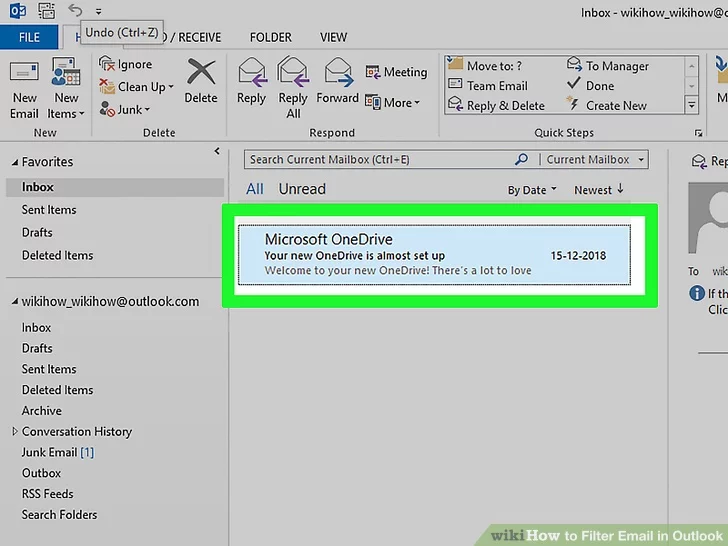
1 **Click a message sent to or from an address you want to filter.** This opens the message in the right panel.
- For example, if you want to filter all mail sent from one email address, click an email from that sender.
- If you want to filter messages sent to one of your email addresses, click a message addressed to that address.
[](https://wiki.towne.org/uploads/images/gallery/2024-01/uuwimage.png)
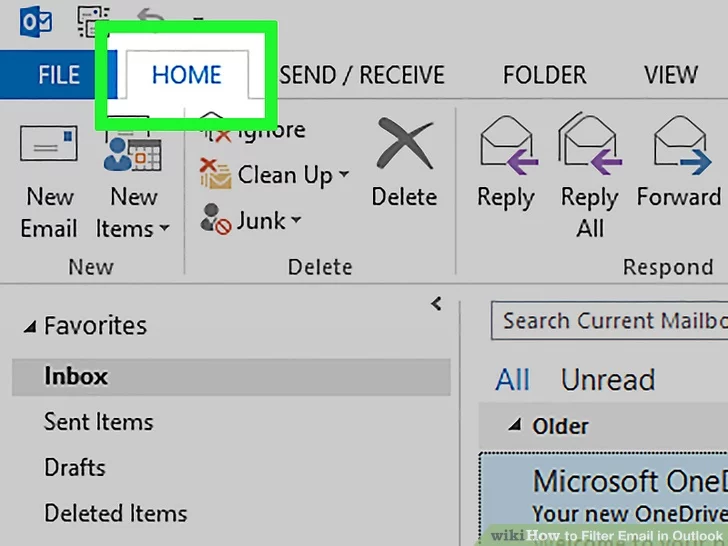
2 **Click the **Home** tab.** It’s near the top-left corner of the window.
[](https://wiki.towne.org/uploads/images/gallery/2024-01/I8Bimage.png)
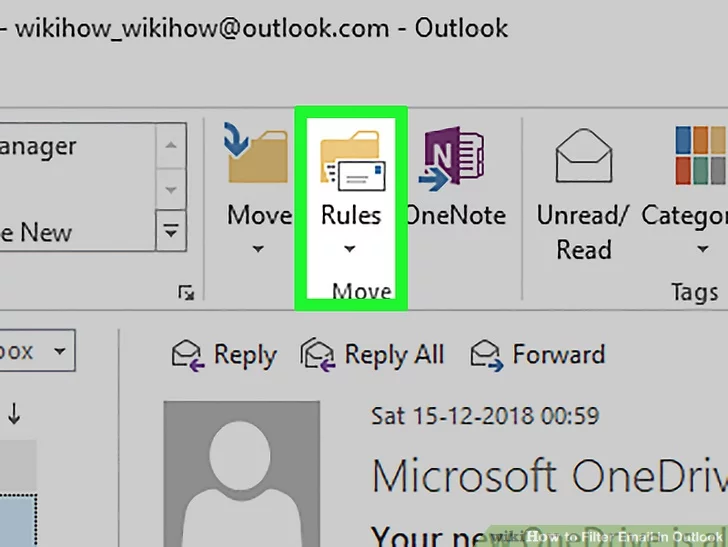
3 Click **Rules**.** It’s in the row of icons near the top of the screen, toward the center.
- If you don't see this option, click the three dots at the far-right corner of the toolbar.
- You can also right-click a message or folder and select **Rules**
[](https://wiki.towne.org/uploads/images/gallery/2024-01/JJoimage.png)
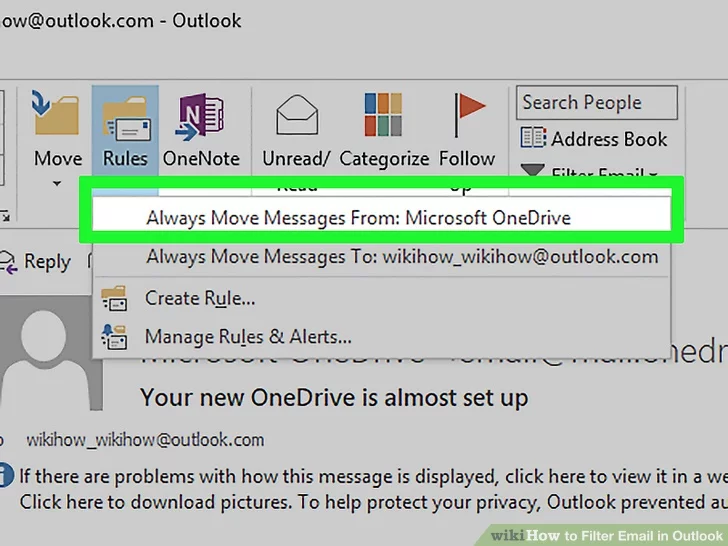
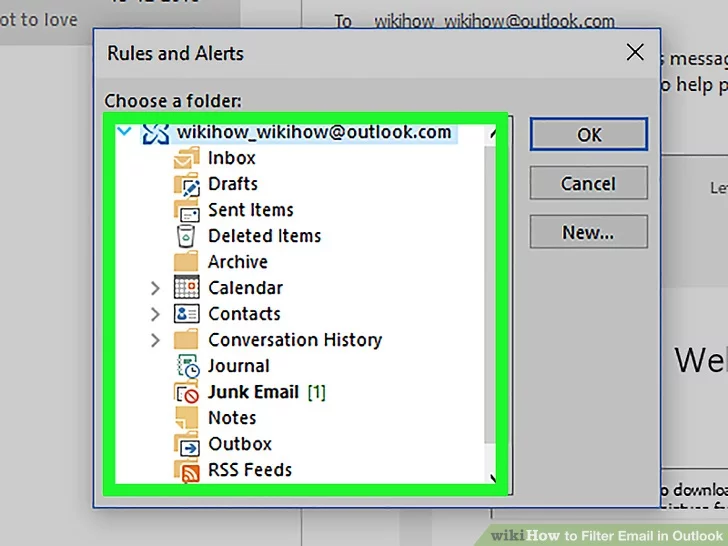
4 **Click **Always Move Messages From <sender>** or **Always Move Messages To <address>**.** A list of folders on your account will appear.
[](https://wiki.towne.org/uploads/images/gallery/2024-01/UG2image.png)
5 **Select the folder to which you want these messages filtered.** If you don’t see a folder you want to use, click **New** to create one, then select it.
[](https://wiki.towne.org/uploads/images/gallery/2024-01/XHYimage.png)
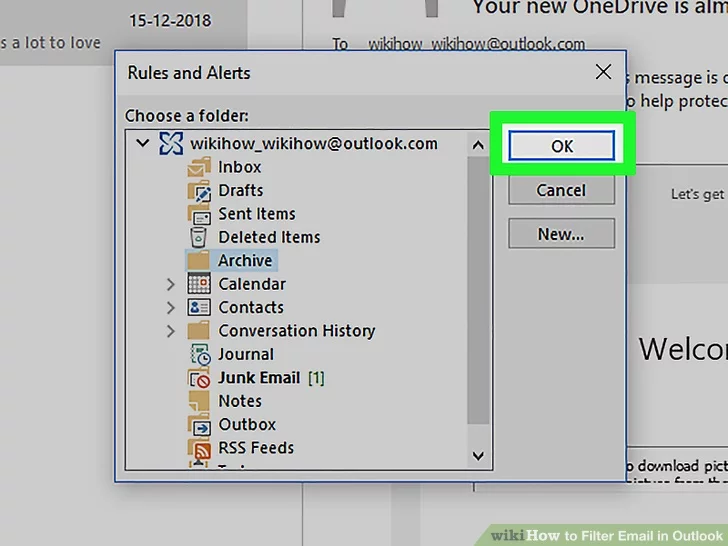
6 **Click **OK**.** Future email sent to or from the email address you selected will be moved to the selected folder upon receipt.
[](https://wiki.towne.org/uploads/images/gallery/2024-01/gPhimage.png)
## Method 2
#### Filtering by Words
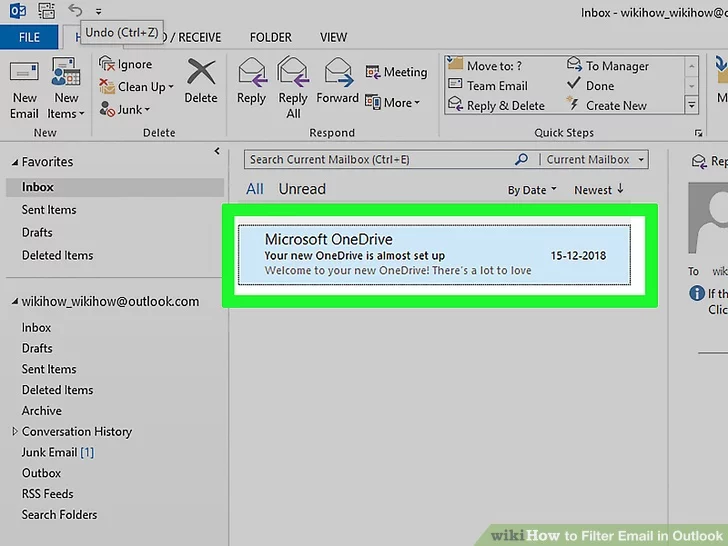
1 **Click a message containing a word or phrase you want to filter.** The word or phrase can be anywhere in the message, such as the subject, body, or header.
[](https://wiki.towne.org/uploads/images/gallery/2024-01/uwbimage.png)
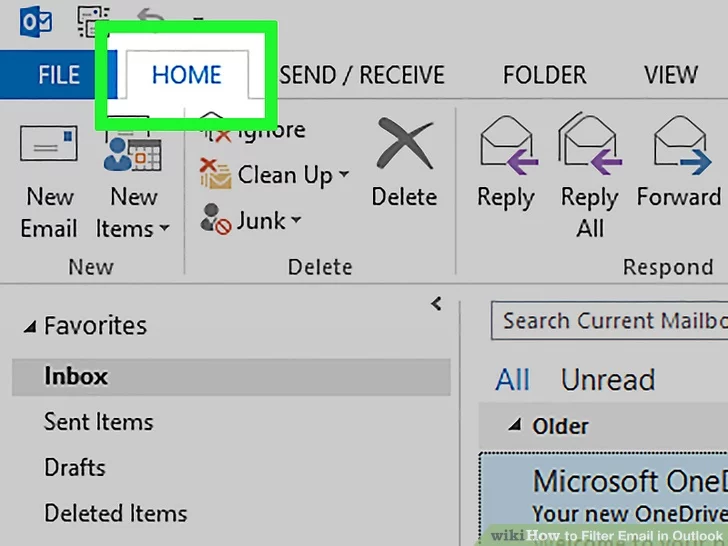
2 **Click the **Home** tab.** It’s near the top-left corner of the screen.
[](https://wiki.towne.org/uploads/images/gallery/2024-01/pZcimage.png)
3 **Click **Rules**.** It’s in the row of icons near the top of the screen, toward the center.
- If you don't see this option, click the three dots at the far-right corner of the toolbar.
- You can also right-click a message or folder and select **Rules**.
[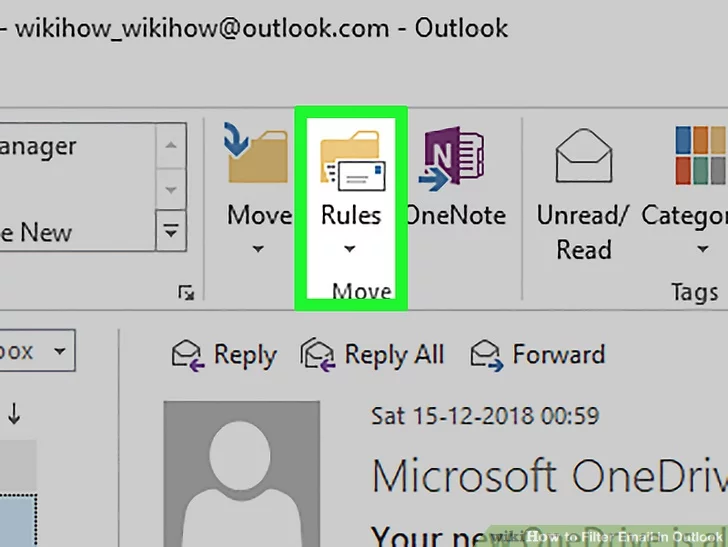](https://wiki.towne.org/uploads/images/gallery/2024-01/nOvimage.png)
4 **Click **Manage Rules & Alerts**.**
[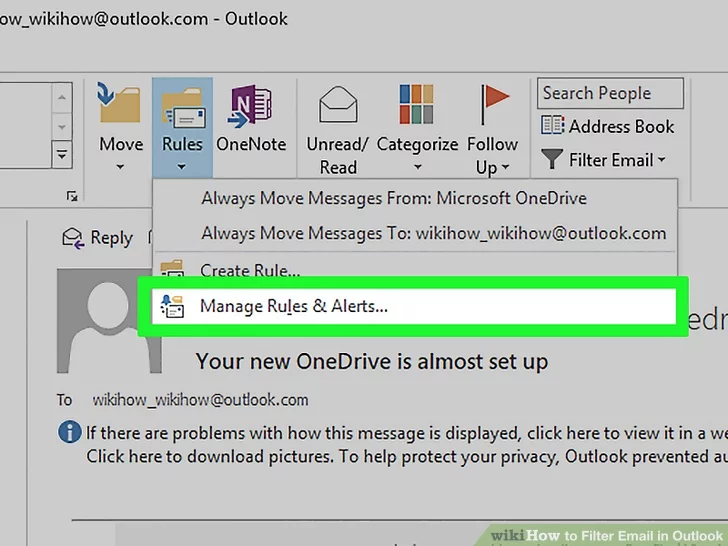](https://wiki.towne.org/uploads/images/gallery/2024-01/H0Yimage.png)
5 **Click **New Rule**.** It’s at the top-left corner of the window.
[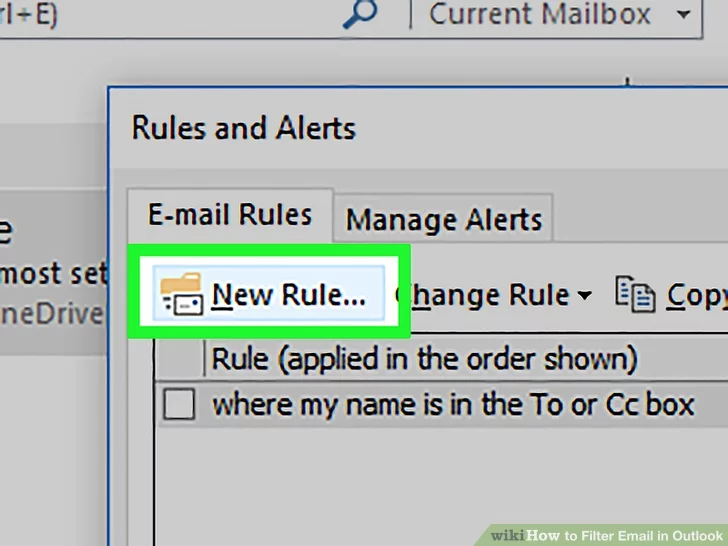](https://wiki.towne.org/uploads/images/gallery/2024-01/VQdimage.png)
6 **Select **Move messages with specific words in the subject to a folder**.** Even if you don’t want to filter only words in the subject, select this option for now.
[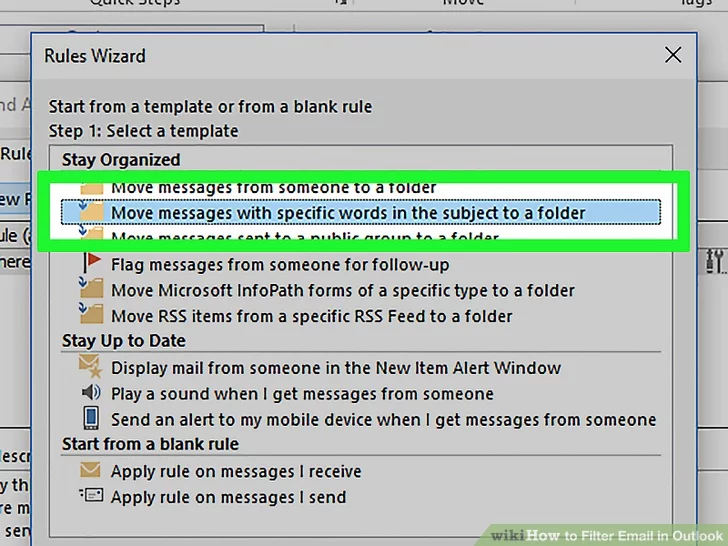](https://wiki.towne.org/uploads/images/gallery/2024-01/15Pimage.png)
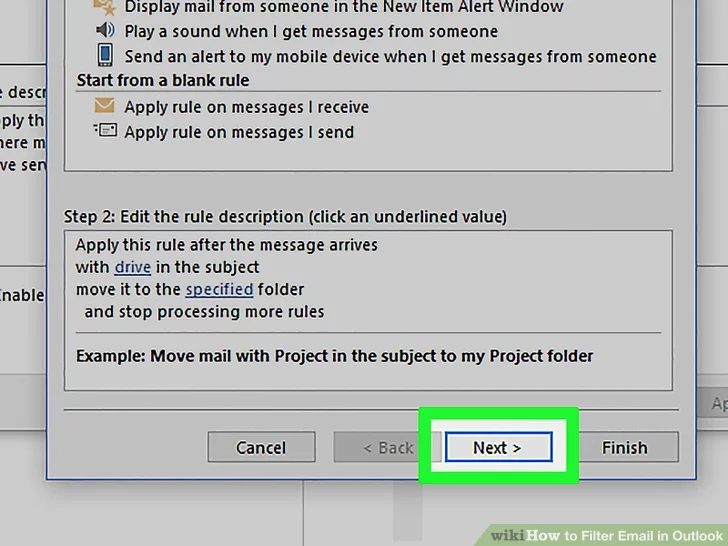
7 **Click **Next**.** A list of options and check boxes will appear.
[](https://wiki.towne.org/uploads/images/gallery/2024-01/vvZimage.png)
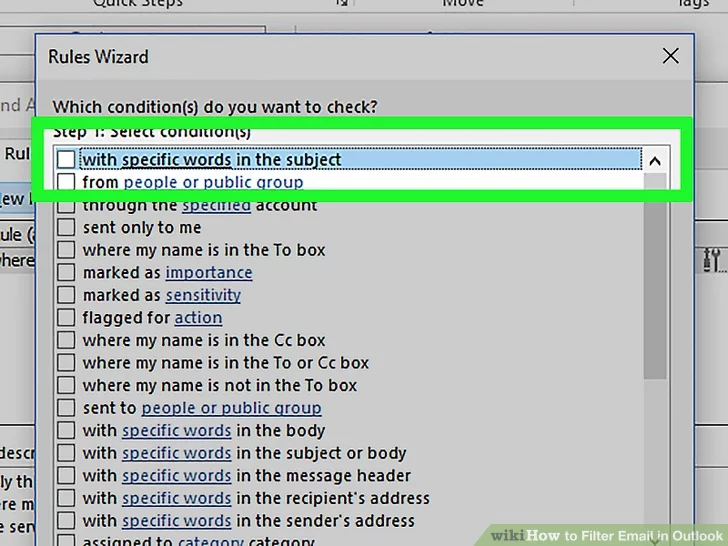
8 **Remove the check mark from “with specific words in the subject.”** You can skip this step if you only want the filter to look at words in the subject line.
[](https://wiki.towne.org/uploads/images/gallery/2024-01/hwIimage.png)
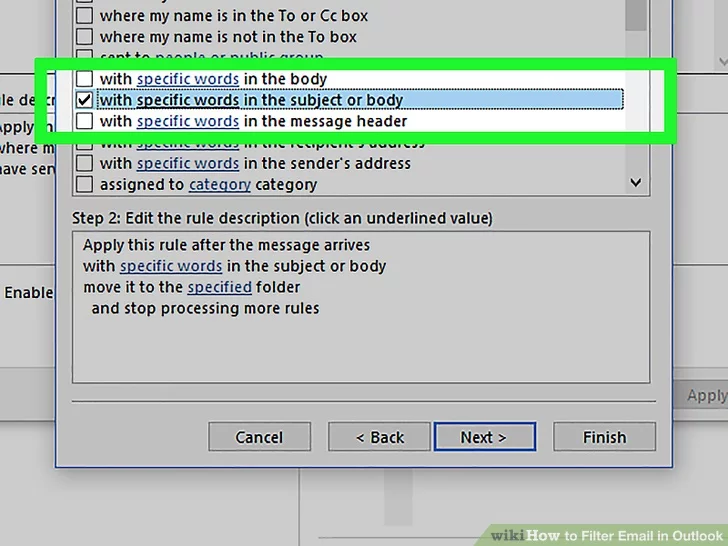
9 **Select the parts of the message where the filter will look for the words.** Choose at least one of these options:
- **with specific words in the subject or body**
- Example: You want to filter messages with the word “coupon” in either the subject or the body to a folder called Coupons.
- **with specific words in the message header**
- Example: You want messages sent through a certain mail server to go straight to the trash.
- **with specific words in the recipient’s address**
- Example: You want mail sent to support@yourdomain.com to go to a folder called Support.
- **with specific words in the sender’s address**
- Example: You want messages sent from anyone with the word “wiki” in their email address to a folder called Wiki.
[](https://wiki.towne.org/uploads/images/gallery/2024-01/Tjfimage.png)
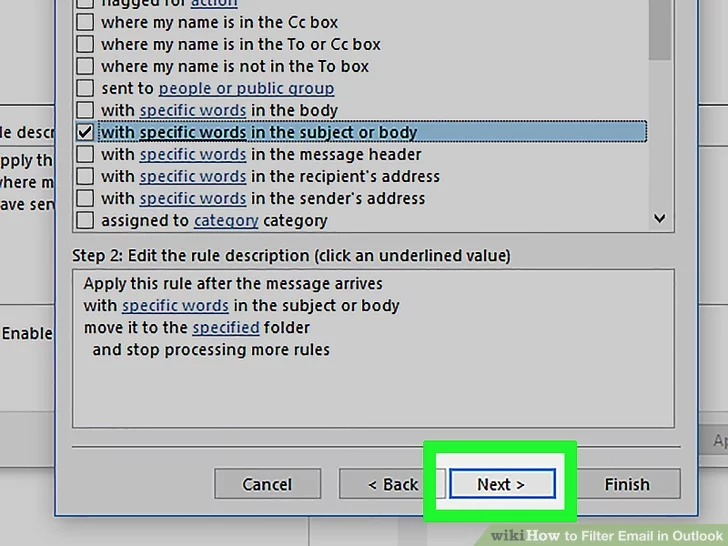
10 **Click **Next**.**
[](https://wiki.towne.org/uploads/images/gallery/2024-01/mL2image.png)
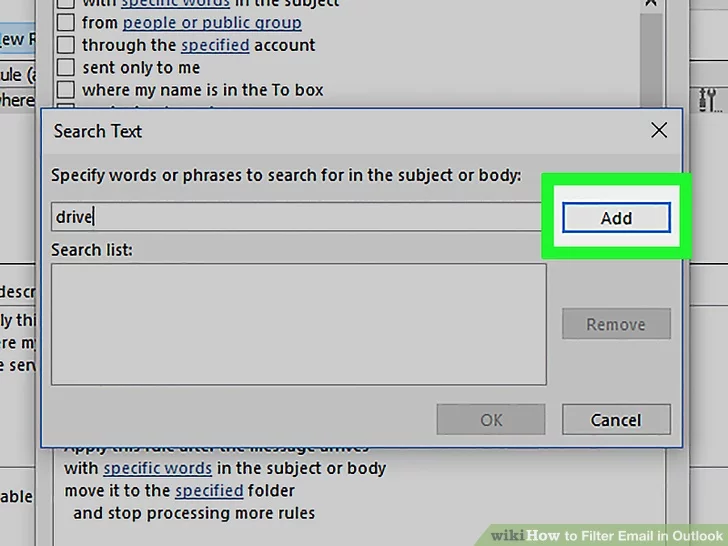
11 **Type the word or phrase and click **Add**.** You can add multiple words and phrases if you wish.
[](https://wiki.towne.org/uploads/images/gallery/2024-01/Lvjimage.png)
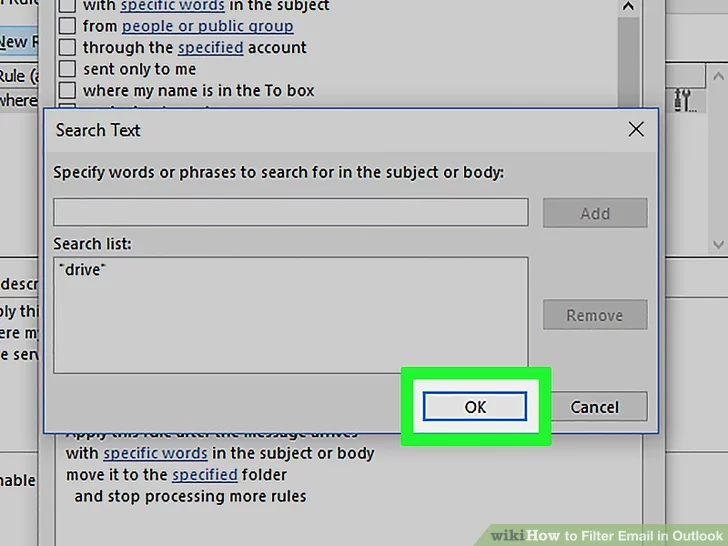
12 **Click **OK**.** This brings you back to the list of filter conditions.
[](https://wiki.towne.org/uploads/images/gallery/2024-01/iNximage.png)
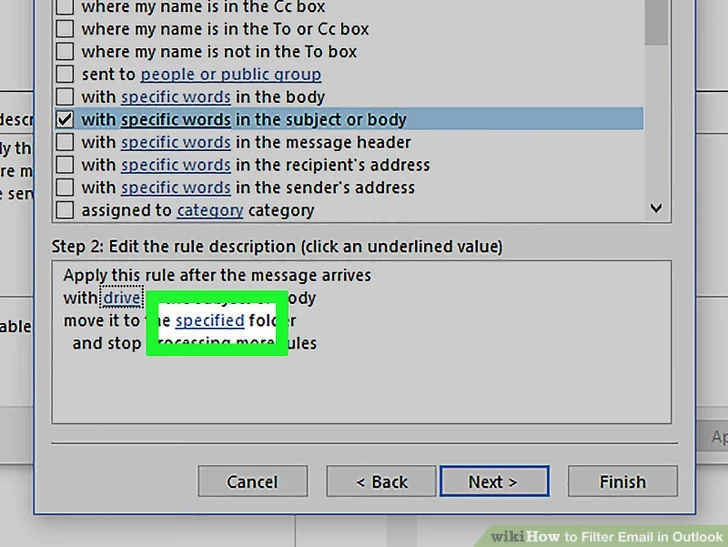
13 **Click the **specified** link.** It’s in the box at the bottom of the window as a part of the phrase “specified folder.” A list of folders on your email account will appear.
[](https://wiki.towne.org/uploads/images/gallery/2024-01/nYbimage.png)
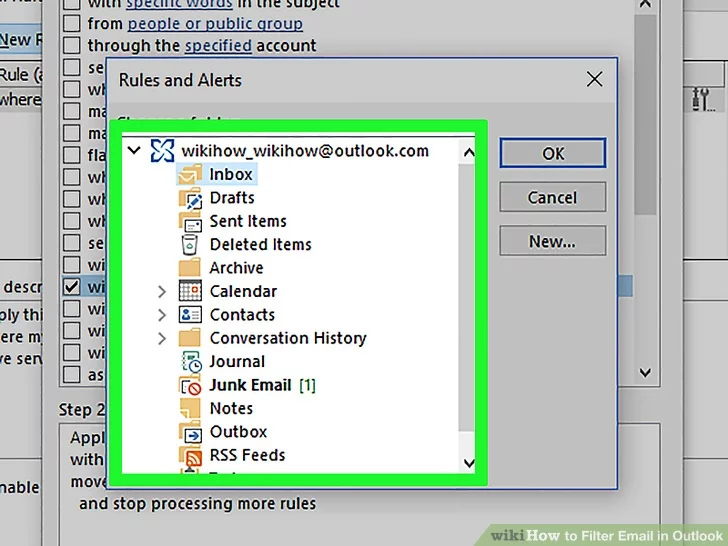
14 **Select the folder you to which you want these messages filtered.** If you don’t see a folder you want to use, click **New** to create one, then select it.
[](https://wiki.towne.org/uploads/images/gallery/2024-01/izSimage.png)
15 **Click **OK**.**
[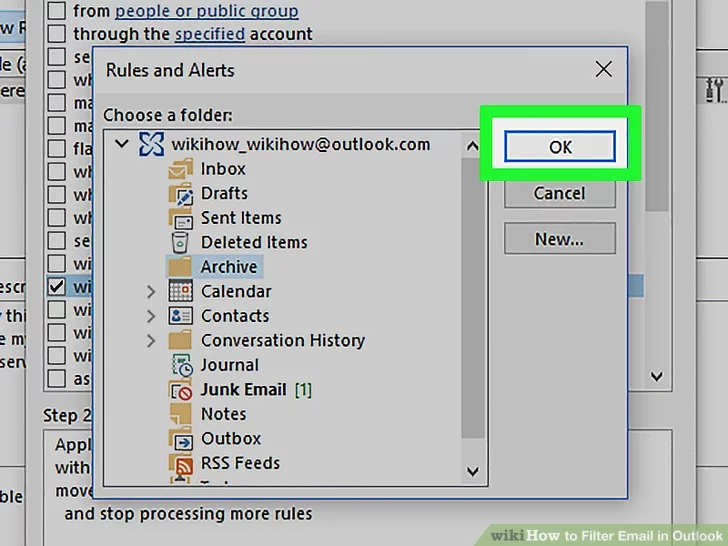](https://wiki.towne.org/uploads/images/gallery/2024-01/LFXimage.png)
16 **Click **Next**.** Now you’ll see a list of actions Outlook can take based on the filter you created.
[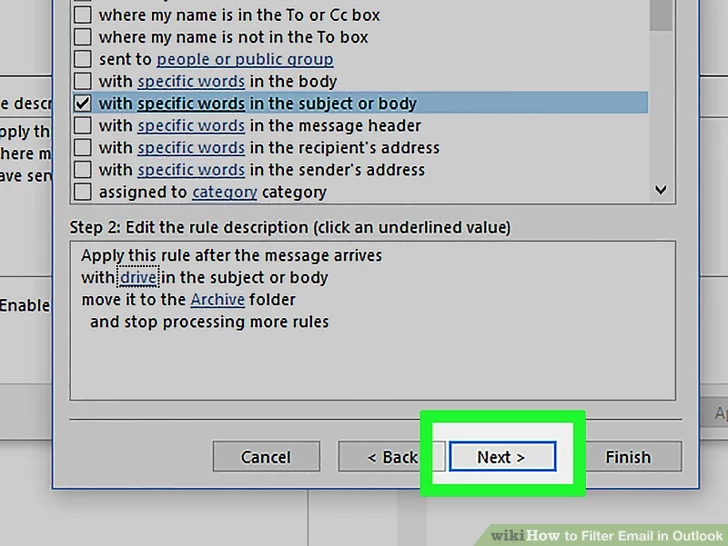](https://wiki.towne.org/uploads/images/gallery/2024-01/m9bimage.png)
17 **Check the boxes next to what you’d like to happen.** Make sure “move it to the specified folder” (the second option) is checked so the message lands in its folder. The others are optional, but can be helpful based on your needs.
[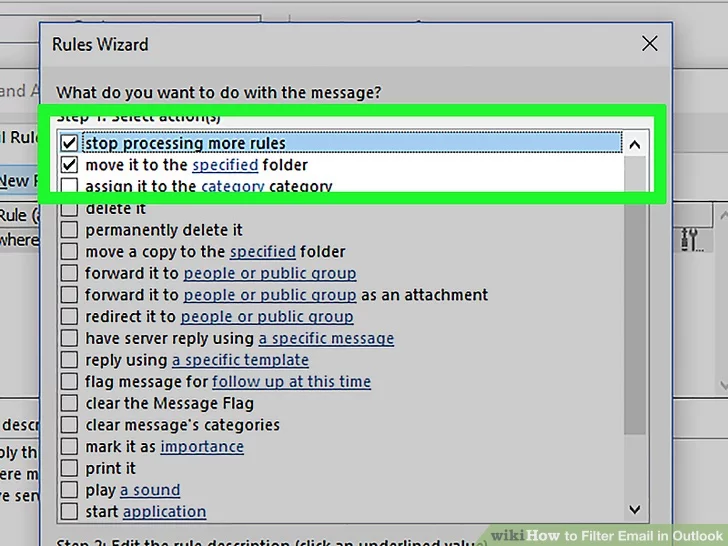](https://wiki.towne.org/uploads/images/gallery/2024-01/Rbaimage.png)
18 **Click **Next**.**
[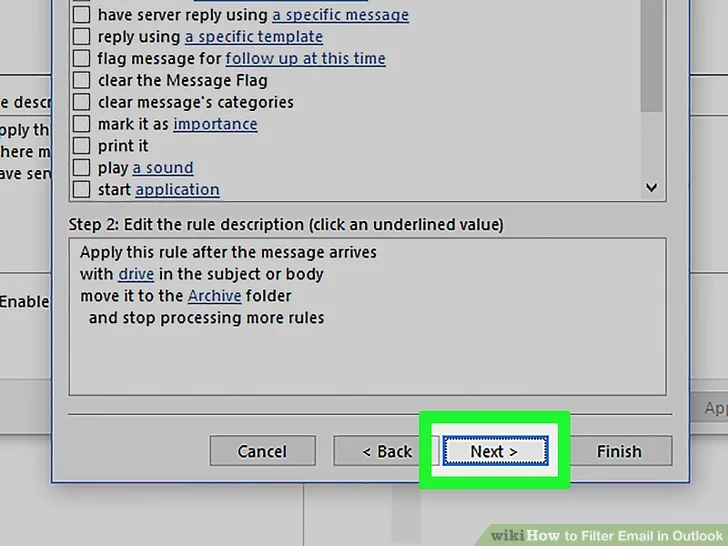](https://wiki.towne.org/uploads/images/gallery/2024-01/5qfimage.png)
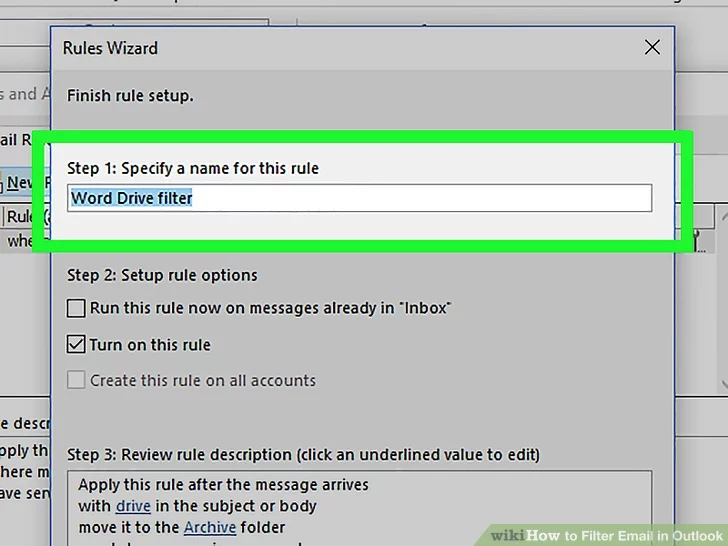
19 **Enter a name for the filter.** This is how it will appear in your list.
[](https://wiki.towne.org/uploads/images/gallery/2024-01/V0Ximage.png)
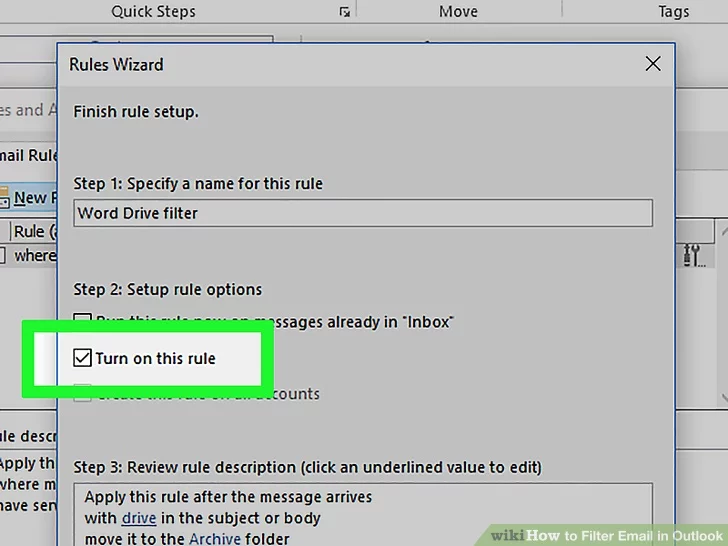
20 **Check the box next to “Turn on this rule.”** If you’d like, you can also check “Run this now” so the filter will scan the mail you’ve already received.
[](https://wiki.towne.org/uploads/images/gallery/2024-01/aASimage.png)
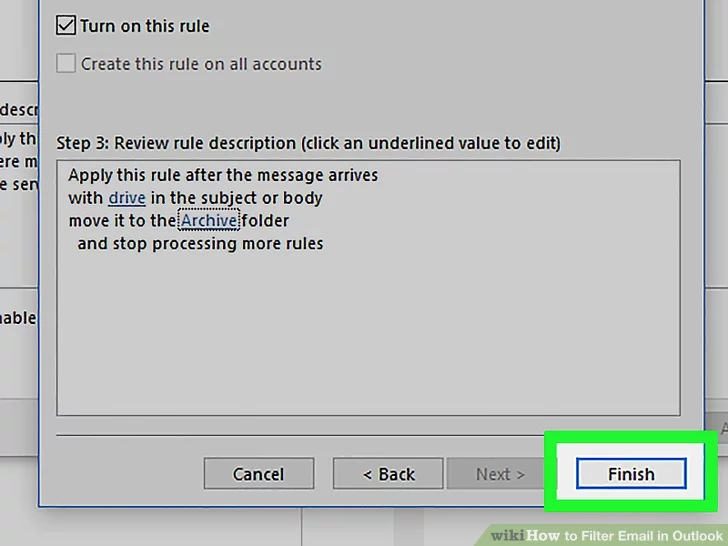
21 **Click **Finish**.** Future incoming messages will now be sorted based on the word or phrase you entered.
[](https://wiki.towne.org/uploads/images/gallery/2024-01/cThimage.png)
## Method 3
#### Sorting Your Outlook Inbox
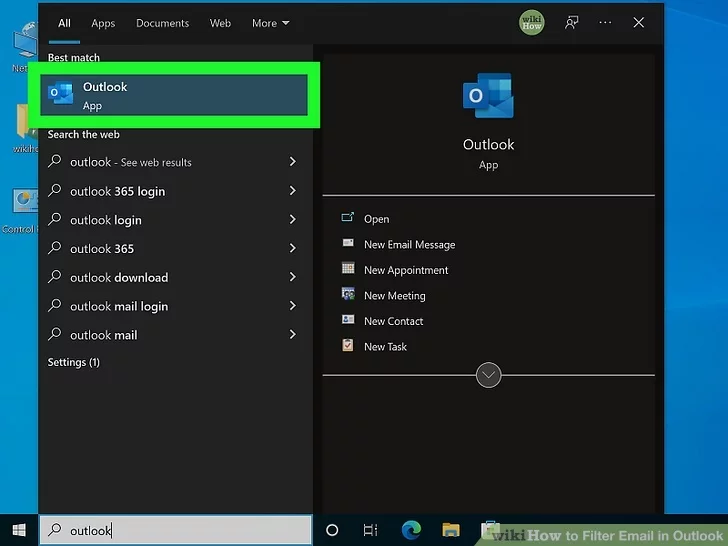
**1 Open Microsoft Outlook.** It’s usually in the **Microsoft Office** folder, which you’ll find in the **All Apps** area of the Start menu.
- You'll want to use this method to search or filter all your current email.
[](https://wiki.towne.org/uploads/images/gallery/2024-01/8mQimage.png)
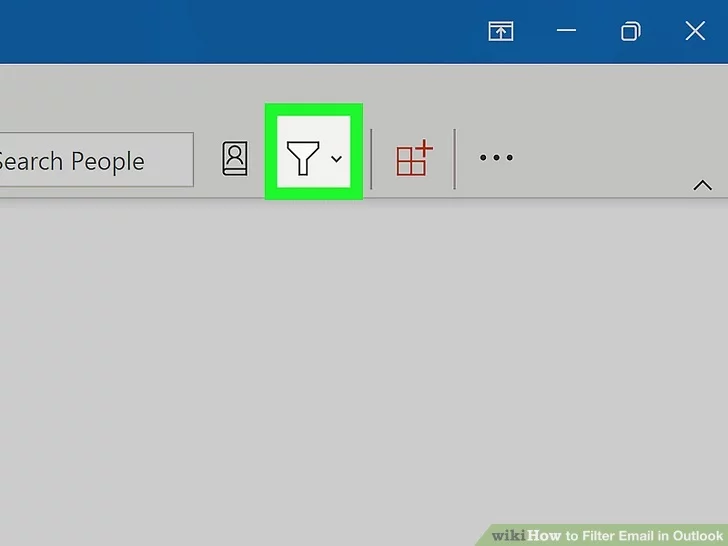
2 **Click **Filter Email**.** This is next to a funnel icon in the "Find" grouping of the *Home* tab.
[](https://wiki.towne.org/uploads/images/gallery/2024-01/ZdWimage.png)
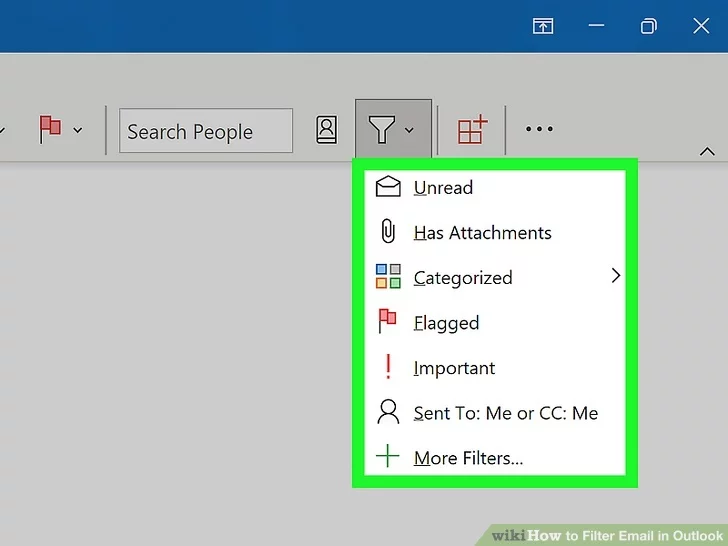
3 **Select your filter.** You can see all the emails marked as unread, has attachments, when they were received, if they are categorized, flagged or marked important, or based on the "Sent to" field.
- For example, if you select "Has attachments," you will see a list of emails that have attachments (even if they are categorized into email folders that aren't the Inbox).
- To clear the filter search, click the **x** in the search box.[\[2\]](https://www.wikihow.com/Filter-Email-in-Outlook#_note-2)
[](https://wiki.towne.org/uploads/images/gallery/2024-01/mtPimage.png)